


















Action is unpredictable, and that’s what makes it exciting. Loop recording keeps you ready, quietly rolling your camera in the background and automatically capturing the moments that matter most.
No need to stop and start or worry about storage filling up. Whether you’re driving, riding or flying, it continuously records and overwrites old footage, so the best moments are always within reach when they happen.
In this guide, you’ll learn how loop recording works and where it’s most useful.
What Is Loop Recording?
Loop recording is a continuous capture mode that records video in short, consecutive clips. Once your storage fills up, the camera automatically deletes the oldest footage and replaces it with new recordings.
Loop recording is what you need when you want to capture continuously without overburdening your storage.
Instead of one long file, your footage is broken into segments—typically 1, 3 or 5 minutes each. These clips cycle in a loop, creating a self-managing system that keeps recording as long as your camera is powered on.
The beauty of it is that there’s no need to predict when something will happen. Your camera is always filming and quietly discarding the footage you don’t need.
How Loop Recording Works on Insta360 Cameras
Hit record and be on your way. It’s really that simple.
All you need to worry about is direction, and your Insta360 cameras handle the rest while maintaining full image quality and stabilization. As your storage fills, the system automatically overwrites the oldest unlocked files, keeping your most recent moments within reach.
What sets loop recording apart is how seamlessly it works across different shooting styles:
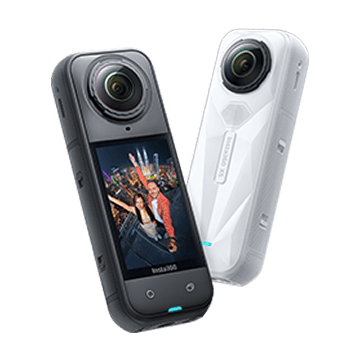
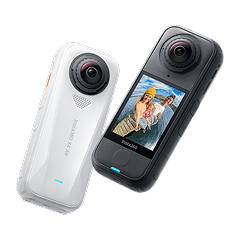
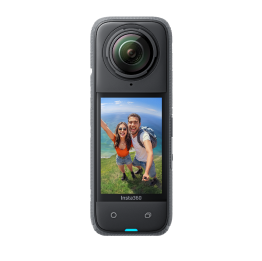
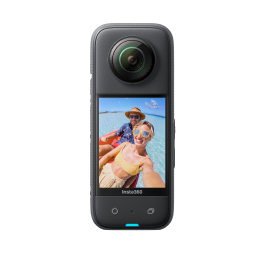
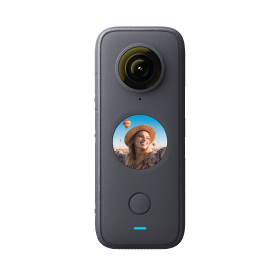
- Capture immersive 360 footage on Insta360 X5 or Insta360 X4
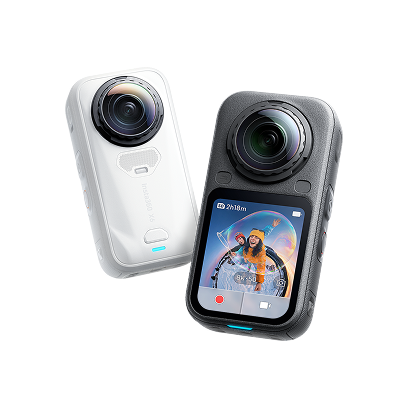
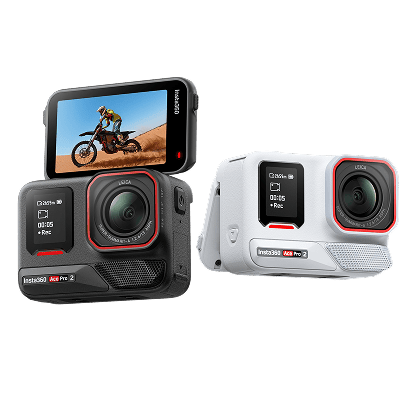
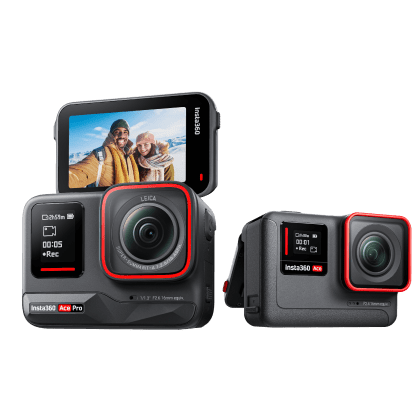
- Shoot sharp, action-ready video with Insta360 Ace Pro 2
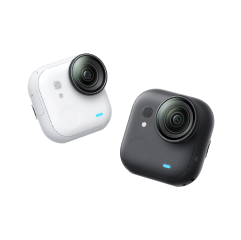
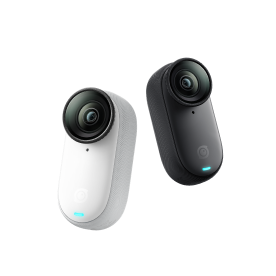
- Use compact setups like Insta360 GO 3S or Insta360 GO Ultra for lightweight, hands-free shooting
Loop recording doesn’t interrupt performance. FlowState Stabilization, Horizon Lock and AI-powered processing all continue working as normal.
Choosing the right clip length depends on how you shoot:
- Shorter clips cycle faster and overwrite sooner, ideal for dashcam footage
- Longer clips reduce file breaks and work better for extended action sequences
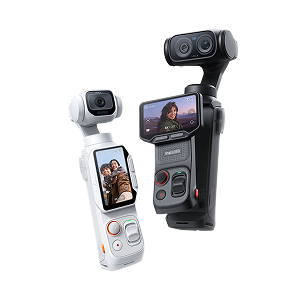
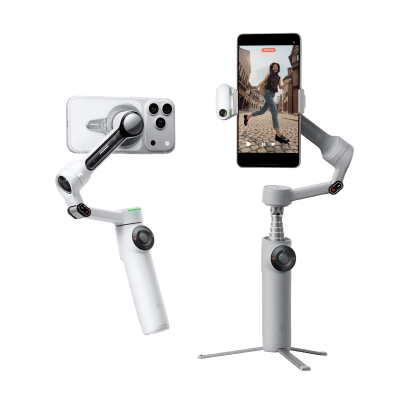
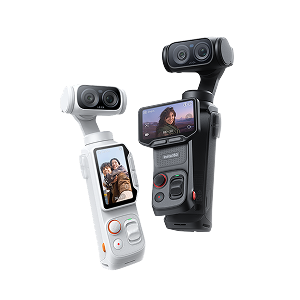
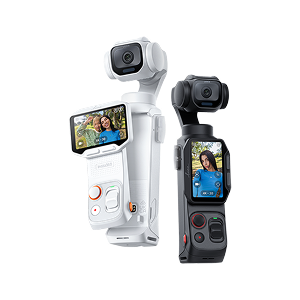
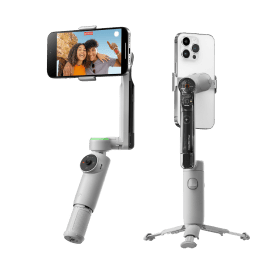
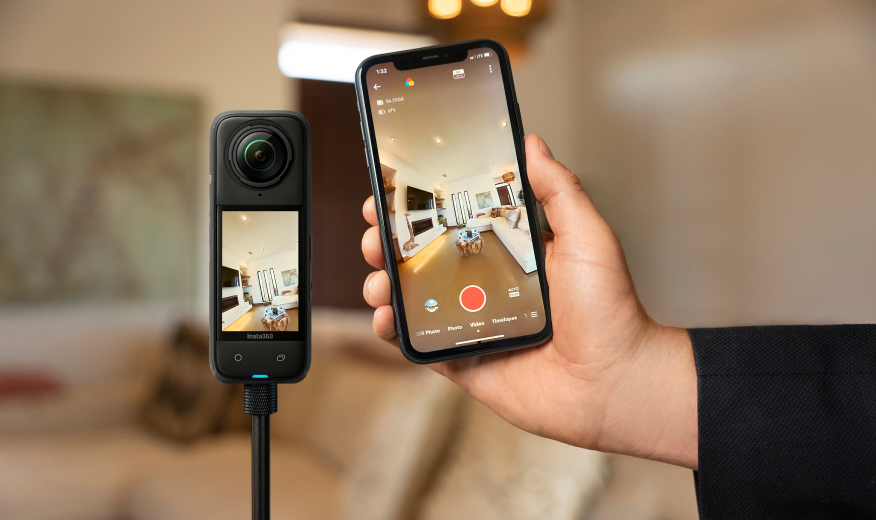
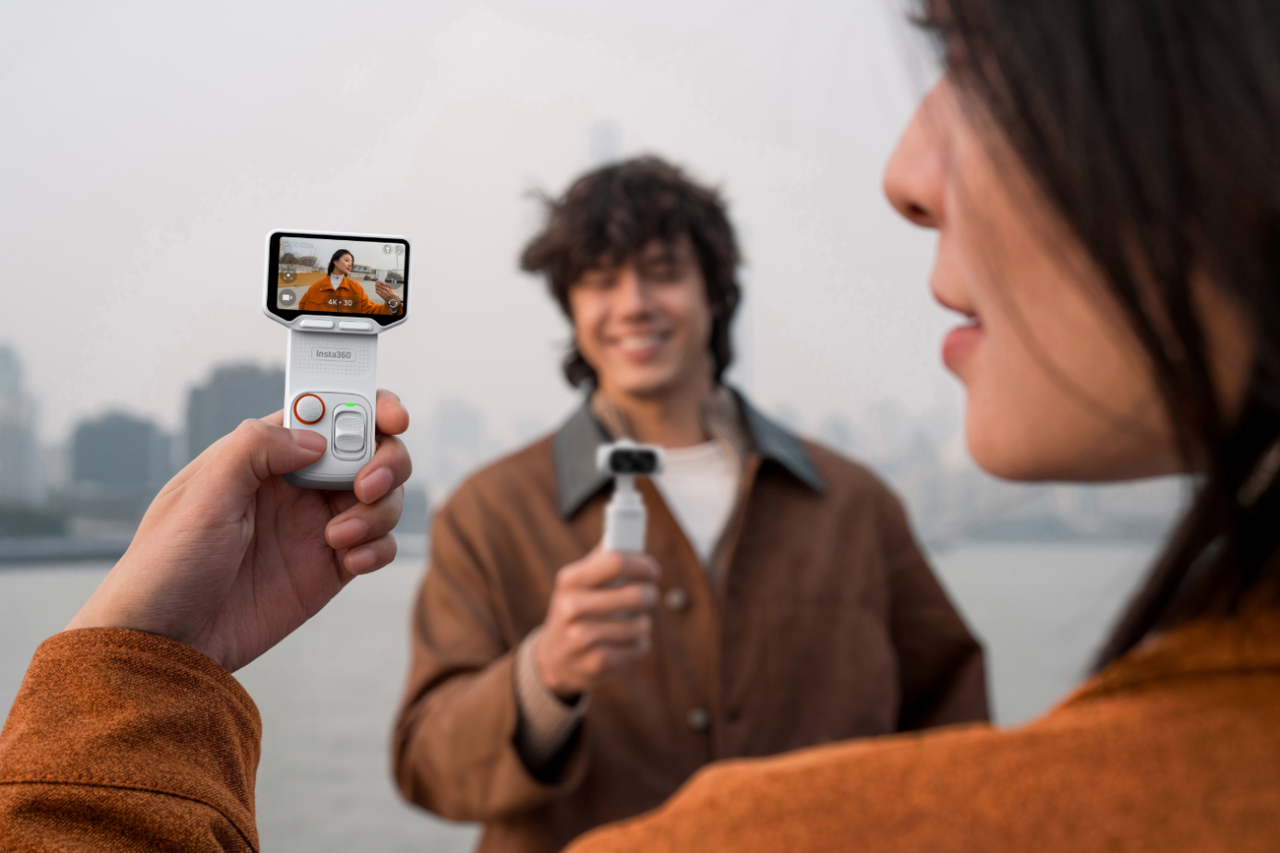
If you're using mobile or gimbal-style setups (like Insta360 Flow 2 Pro), you can preview footage and adjust settings directly from your phone without stopping the action.
How to Enable Loop Recording on Your Insta360 Camera
Insta360 camera features are nice and straightforward:
- Simply power on your camera.
- Access loop recording in the shooting menu.
- Choose the loop duration of 1, 3, 5, 10, 15, 20, 25 or 30 minutes.
- Hit record, and your camera will do the rest.
- Once something incredible happens, stop the loop recording and the event will be saved in your final segment.
- You can then save and begin the process again should you wish.
When Loop Recording Is Most Useful
Dashcam-Style Driving
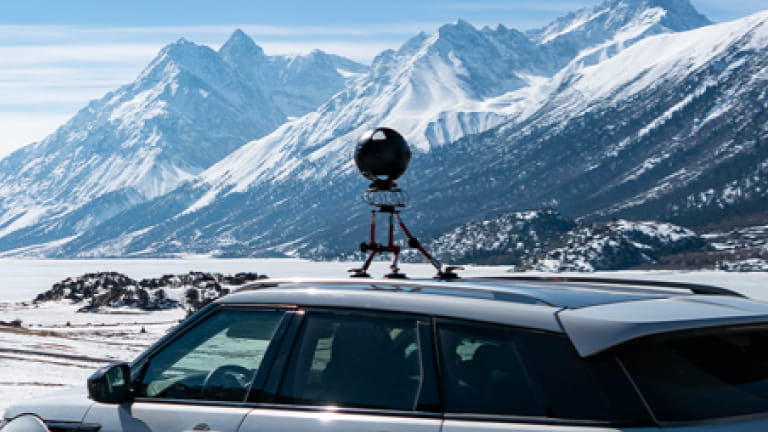
Driving vlogs are becoming increasingly popular, and loop recording makes a lot of sense for a simple reason: not much happens—until something does. Having a camera ticking over means you’re ready to capture those key moments.
Motorcycle & Action Riding
If you like nothing more than channeling your inner Easy Rider, then having a camera capturing the glory is a must.
Like driving, time on a motorcycle often includes long stints of riding, with flashes of beauty or the unexpected thrown in at random intervals. Without loop recording, you’d have little chance of capturing, but with it, you don’t even need to think about it.
Cycling POV
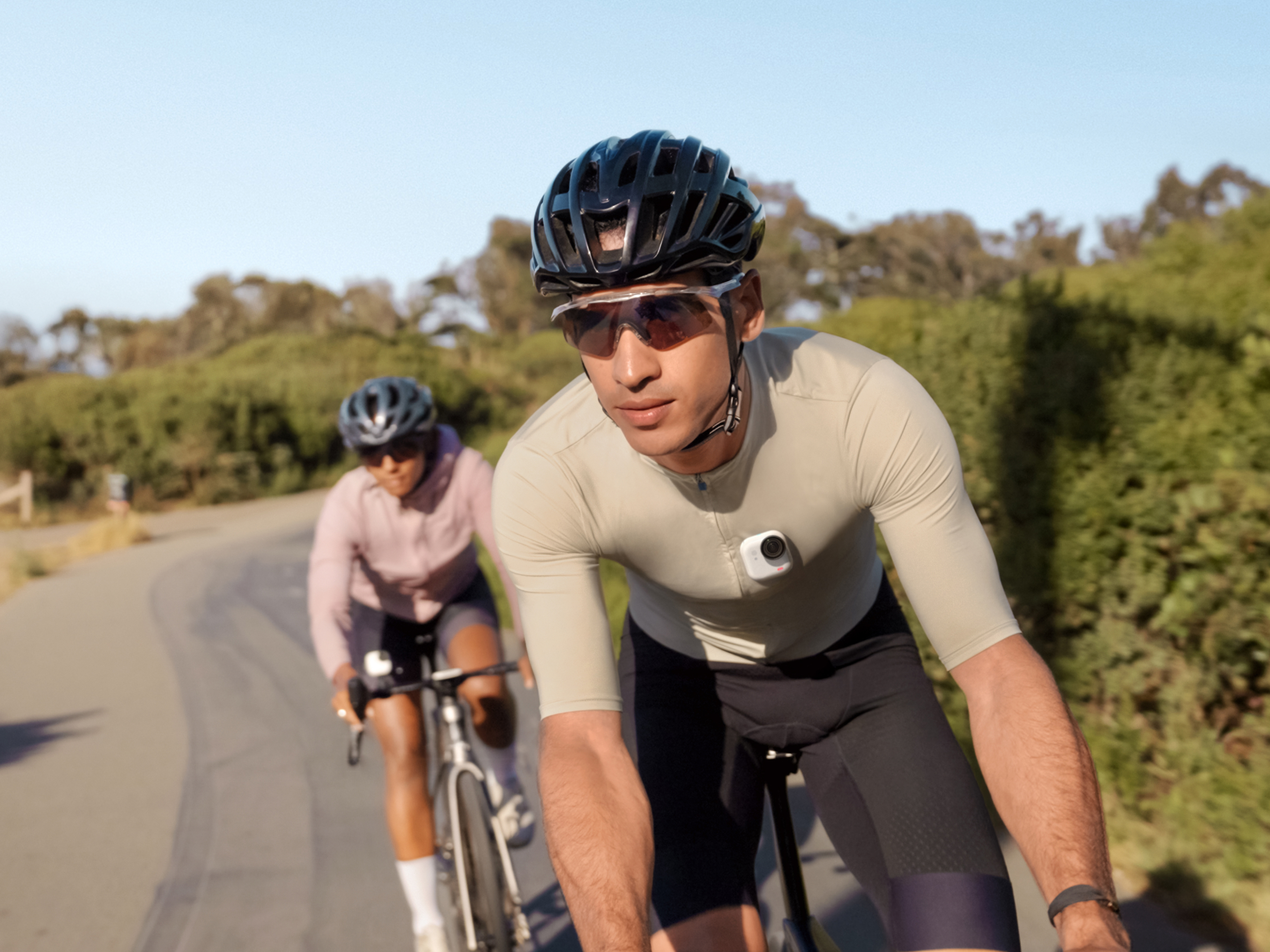
Whether it’s a sudden sprint, a close pass or a perfect stretch of road, loop recording ensures you don’t miss the highlights buried inside longer sessions.
If you're shooting road cycling POV footage, loop recording works especially well with compact cameras like Insta360 GO 3S or Insta360 GO Ultra that stay out of the way while filming nonstop.
Security & Continuous Monitoring
Loop recording isn’t just about time out having fun. It’s also great for monitoring situations where you can’t predict when something might happen. Parked vehicles, security services, helmet cams left running or static setups all benefit from continuous capture without storage limits.
Loop Recording vs. Normal Video Recording: Compared
| Feature | Loop Recording | Normal Recording |
| Storage Management | Automatically overwrites old footage | Stops when storage is full |
| Filming Duration | Continuous, as long as powered | Limited by available storage |
| File Structure | Short, segmented clips | One continuous file |
| Clip Accessibility | Easy to review specific moments | Need to cycle through long clips |
| Editing Workflow | Fast access to short segments | Long files need significant trimming |
5 Tips for Using Loop Recording Effectively
- Choose the right clip length — Shorter clips (1–3 minutes) overwrite faster and are good for dashcam-style use. Longer clips reduce file fragmentation and work better for extended action.
- Use a high-capacity microSD card — More storage means a longer filming window before older footage gets replaced, giving you more time to review and save important clips.
- Lock important footage immediately — If something worth keeping happens, save or lock the file right away. This prevents it from being overwritten during the next record cycle.
- Keep an eye on battery life — Loop recording can run for long periods, but your battery still sets the limit. For extended sessions, consider external power or backup batteries.
- Mount your camera strategically — Placement matters. Whether it’s a helmet, dashboard or chest mount, a stable angle ensures your footage is usable when it counts.
Frequently Asked Questions
Does Loop Recording Override All Footage?
No. Loop recording will only override footage within the selected loop duration. If you set it to 5 minutes, it will record 5-minute segments before deleting the one before it and then starting a new one. All other footage on the camera remains as is.
Does Loop Recording Reduce Video Quality?
Not at all. Loop recording doesn’t affect resolution, frame rate or stabilization. Your footage is captured with the same clarity and performance as standard recording modes.
Is Loop Recording Good for Dashcam Use?
Yes, and this is one of the best uses. Loop recording is great for dashcam scenarios, as it continuously records and automatically overwrites older footage when storage fills up. This ensures your most recent moments on the road are always captured.
Final Thoughts
The best moments often come when you least expect them. After hours on a motorcycle, it might be a black bear with her three young cubs appearing beside the road. On a cycling trip, it could be the world suddenly opening up into a breathtaking vista.
That’s what makes these moments worth capturing. Instead of trying to frantically reach your camera at the last second, loop recording keeps you ready without interrupting the experience.
With loop recording on Insta360 cameras, you can hit record, enjoy the ride and know those unexpected moments are always captured.
Keen to keep up to date on Insta360 stories? Keep an eye on our blog and sign up for our mailing list. You can also contact our Enterprise team directly to see how 360 cameras can benefit your business.






%20(1).svg)


%20(1).svg)

.svg)