













-tuya.jpg)


Green screens are the unseen magic, the sorcery that turns a cluttered bedroom into a slick, professional-looking studio. At least, when it's all done right. When it's rushed and not set up correctly, it's the stuff of meme dreams. So the next time you're about to go live, your mic's ready, your content's all set up—take a moment to check that your green screen is also good to go.
Why Use a Green Screen for Live Streaming?
We've all watched those live streams with so much chaos going on in the background that it completely detracts from the host and their content. It's not pretty. A green screen isn't just about hiding your space—although that might also be part of it—it's about how you want to present yourself and your stream to the world.
Instead of messy shelves, harsh lighting or unpredictable movement behind you, your audience sees a consistent scene that matches your content. And that might be a game environment that you're streaming on Twitch, a brand or logo, a beach background, or just a polished interior that keeps the attention on you.
A green screen also provides you with plenty of flexibility, allowing for a “change” in location without actually having to move. This can be particularly useful if you are game streaming and you want to have a different background for each game.
What You Need to Set Up a Green Screen
People often assume that a green screen setup requires a fancy studio and a complicated equipment list, but that's just not the case. All you need is a few key things, assembled correctly, and you're ready to go.
1. Enough Space to Work With
You don’t need much room, but distance matters, and it's important to feel comfortable in the green screen environment. A little space between you and the screen helps reduce shadows and color spill, which leads to a cleaner final image.
2. A Green Screen Backdrop
This can be a fabric screen, a collapsible pop-up or even a painted wall, but consistency is an absolute must. Shadows, folds, wrinkles and color variation may cause you problems when you key out later.
3. Proper Lighting
Good lighting is non-negotiable. You don't need anything fancy; just a solid-quality light that delivers even illumination over a surface.
4. A Capable Camera or Smart Webcam
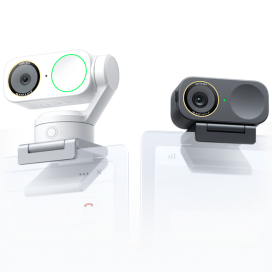
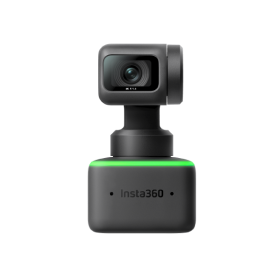
The green screen and the lighting are one thing, but with the wrong kind of camera or webcam, you're probably not going to get things how you imagine them. You'll want to go for the best streaming camera possible with high image quality, accurate color, and reliable autofocus—something like Insta360 Link 2 Pro will let you do just that and so much more.
5. Streaming Software
Programs like OBS Studio or Streamlabs handle the chroma key effect, which removes the green background, and these tools allow you to fine-tune settings so that your subject looks natural, not cut out.
Step-by-Step: How to Set Up a Green Screen for Live Streaming
Setting up a green screen isn't a complicated task, but it is a process that requires several steps done in the correct order.
Step 1: Position Your Green Screen
Your green screen should be fully visible in the camera frame, pulled tight and free of wrinkles or creases. Mount it securely so it doesn’t shift when you move, and make sure it fills the entire background behind you.
Step 2: Light the Green Screen Evenly
Aim for soft, even light across the entire surface, avoiding hotspots or dark corners. Ideally, light the screen separately from yourself, which prevents shadows and makes it easier for your software to remove the background cleanly.
Step 3: Set Your Camera and Framing
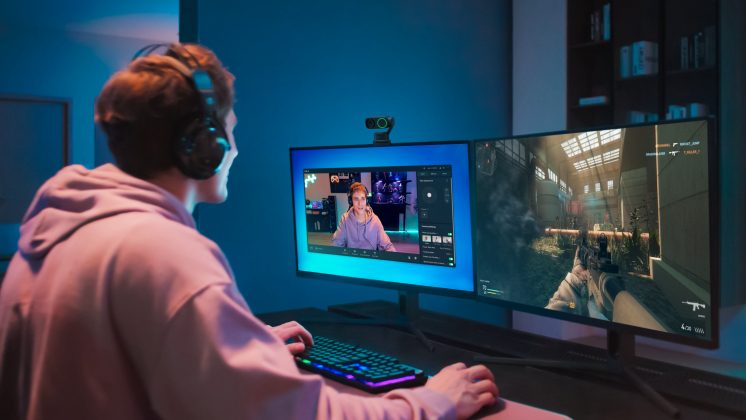
Place your camera at eye level and frame yourself naturally, leaving a bit of space around your head and shoulders. Stand a few feet in front of the green screen to reduce color spill. If you're using a smart webcam like Insta360 Link 2 Pro, it will maintain focus and balanced exposure throughout the stream, as well as automatically track your movement.
Step 4: Configure Green Screen Settings in Your Streaming Software
Open your streaming software and enable the chroma key or green screen filter. Adjust settings like similarity and spill suppression gradually, as you want to remove the background before it starts erasing fine details, such as hair or clothing edges. Small tweaks go a long way.
Step 5: Test, Adjust and Lock It In
Before going live, record a short test clip. Move around, gesture, and watch for flickering edges or green outlines. Make final adjustments, then save your settings. Once everything looks clean and natural, you’re ready to stream with confidence.
Common Green Screen Mistakes to Avoid
Even with the right gear, a few minor missteps can undo an otherwise solid setup. Avoid these common green screen mistakes to keep your stream looking clean and professional.
- Standing too close to the green screen: Shadows and color spill occur when you're too close, so try to be 3 to 6 feet (1–2 meters) in front.
- Uneven or mixed lighting: Bright spots, dark patches or mixing different light temperatures can confuse chroma key settings, so keep lighting as consistent as possible.
- Wearing green or reflective clothing: Anything that matches or reflects the screen’s color risks disappearing on camera.
- Using low-quality camera settings: Poor resolution, heavy compression or incorrect exposure can create jagged edges and flickering outlines.
- Skipping test recordings: Going live without testing is a gamble. A quick test clip takes two minutes and could spare you some embarrassment.
How a Smart Webcam Improves Green Screen Streaming
You can have the best green screen setup in the world, but if your camera doesn't match your ambition, you'll always be off the pace. Here's why a smart webcam can make all the difference.
- Cleaner subject separation: Better image processing and color accuracy help your streaming software detect edges more precisely, resulting in smoother cutouts and fewer visual artifacts.
- Reliable autofocus during movement: Whether you lean forward, gesture or shift in your chair, a smart webcam keeps you sharp without hunting for focus mid-stream.
- Balanced exposure and color: Consistent brightness and natural skin tones make chroma keying easier and reduce the need for constant adjustments.
- More forgiving lighting conditions: Smart webcams handle uneven or changing light better, which is especially helpful in home setups that aren’t fully controlled.
- Less time tweaking settings: With a strong image straight from the camera, you’ll spend less time adjusting chroma key sliders and more time creating content.
Frequently Asked Questions
Do You Need a Green Screen to Stream on Twitch?
Not at all. Many great Twitch users don't use a green screen, but having one gives you significantly more control over how your content looks. It helps remove background distractions, supports custom layouts and maintains consistent visuals across different streams.
What Program Do I Need for a Green Screen?
Popular streaming software options include OBS Studio and Streamlabs, both of which let you remove green backgrounds and fine-tune edge detection. These programs also support scene switching, overlays, and audio controls, making them a solid foundation for most live streaming setups.
How Far Behind You Should a Green Screen Be?
Your green screen should be 3 to 6 feet (1–2 meters) behind you. Any closer and you risk casting shadows onto the screen or having green light spill onto you, which can cause visual issues on camera.
A Proper Green Screen Setup Elevates Live Streams
Do you need a green screen for live streams? Not really, but if you want to add an extra layer of quality, it’s a strong option. Green screens reduce background clutter and create a more polished, professional look. With the right lighting, a simple screen, reliable software, and a high-quality smart webcam like Insta360 Link 2 Pro, you can turn an average stream into something that looks truly elite.
The Insta360 Vision Awards supported by Leica are now open. Join creators worldwide for a chance to win from an US$80,000+ prize pool, including Leica cameras and Insta360 gear.
Got a story to share? Email yours to communitystories@insta360.com and win up to US$50.




%20(1).svg)


%20(1).svg)

.svg)