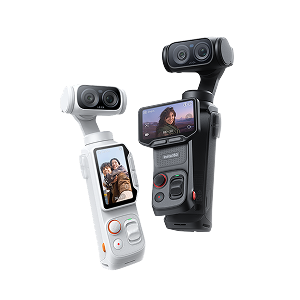
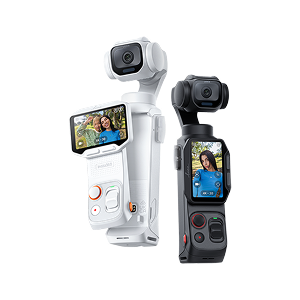


















When audio and video fall out of sync, it can quickly ruin an otherwise great clip. The good news is that Insta360 Studio makes it easy to fix (and prevent) sync issues.
Why Audio Sync Matters in Video Editing
You’ve likely watched a video where something feels off.
Research in audiovisual perception has shown that humans can detect timing mismatches as small as 20 milliseconds.
That’s only 0.02 seconds, faster than a human blink. Even minor delays can make content feel unpolished.
When your sound and visuals align, your video instantly feels more professional, more intentional and far more engaging.
Can Insta360 Studio Sync Audio Automatically?
In a perfect world, you can simply import your clip, hit play and the audio just works. Iin many cases, Insta360 Studio gets you close.
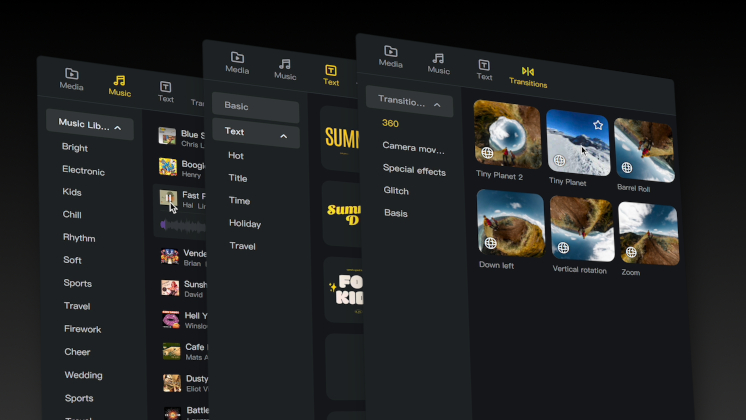
With its latest major update, you can combine multiple 360 files in a single timeline, work on edits at the same time, add background music, text and transitions.
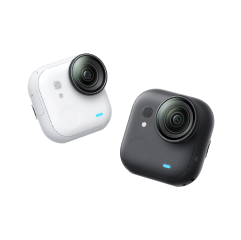
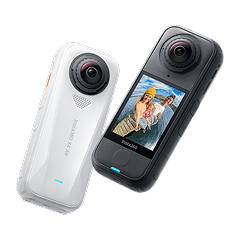
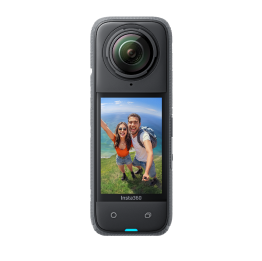
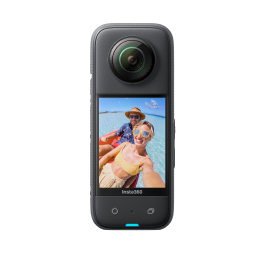
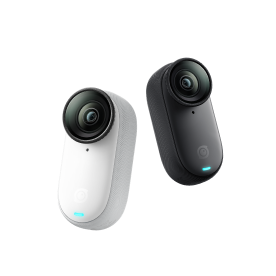
When audio is recorded directly in-camera, syncing is handled automatically. Footage from devices like Insta360 X5 or Insta360 GO Ultra come ready to edit, with sound already locked to the timeline.
But once you step into more advanced setups (external mics, separate recorders, multi-angle shoots) that’s where manual control comes in. Insta360 Studio gives you the tools to line everything up visually, adjust timing precisely within the timeline and refine your audio until it feels seamless.
When You Need to Sync Audio Manually
Things aren’t always that easy, and there’ll probably be times when you need to sync manually. Manual syncing comes into play whenever your audio and video are captured separately, which is often a common setup, especially when you’re pushing for better sound quality or more creative flexibility.
You’ll likely need to sync manually when:
- Using an external microphone or recorder.
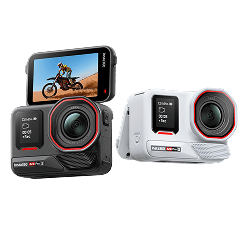
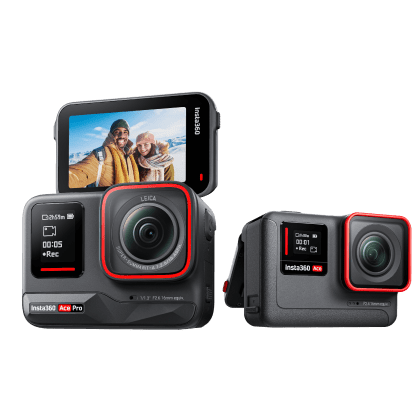
- Shooting with multiple cameras at once, say Insta360 GO 3S for immersion, and Insta360 Ace Pro 2 for those cinematic shots.
- Recording long clips where audio slowly drifts.
- Capturing action footage where onboard audio isn’t usable.
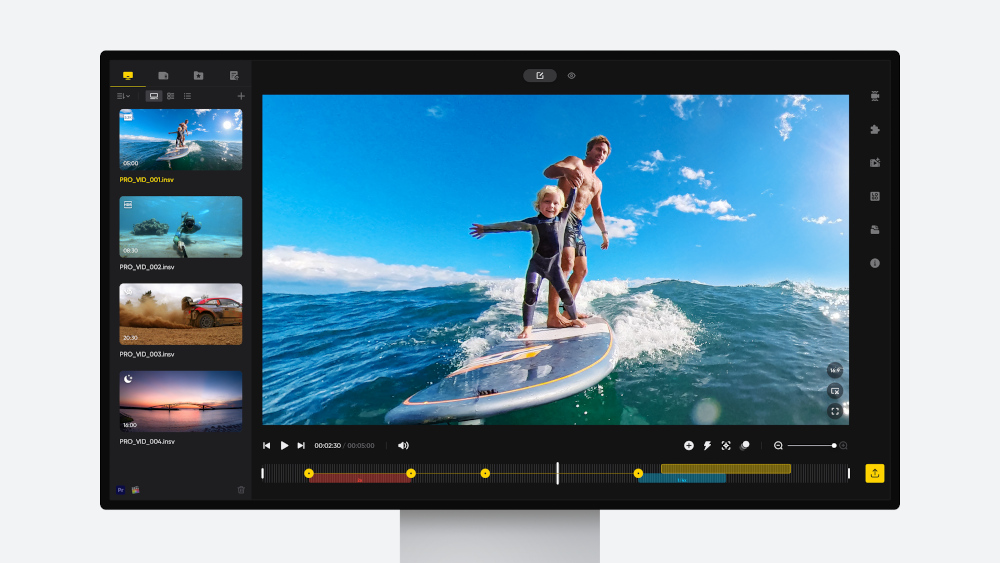
How to Sync Audio to Video in Insta360 Studio
With Insta360 Studio, syncing everything up is quick and easy. Just follow these steps.
- Import your footage: Open Insta360 Studio and load your video clip into the timeline.
- Add your external audio file: Import the audio you recorded separately and place it alongside your video track.
- Drag both tracks into alignment: Position the audio roughly where it should start.
- Find a clear sync point: Look for a visual cue paired with a sharp sound, like a clap, a footstep or a spoken word. This will appear as a spike in the waveform.
- Zoom into the timeline: Increase timeline zoom to see frame-level detail.
- Align the waveforms: Match the spike in your external audio to the corresponding moment in your video’s original audio.
- Mute or detach the original audio: Once synced, disable the camera’s built-in audio to avoid overlap or echo.
- Fine-tune playback: Scrub through the timeline and listen closely, adjusting by a frame or two if needed until everything feels natural.
- Preview before exporting: Watch your clip in full. Pay attention to speech, movement and timing consistency.
- Export your final video: Once everything is locked in, export with confidence—your audio and visuals now move as one.
Common Audio Sync Problems (and Fixes)
Audio Drifting Over Time
Drift is when your audio starts in sync, then slowly slips out of place.
Why it happens:
Different devices record at slightly different speeds, especially over long clips.
Fix:
Split your clip into smaller sections and realign periodically. This keeps everything tight from start to finish.
No Clear Sync Point
You scrub the timeline, but nothing stands out.
Why it happens:
No spikes, just flat audio that seems impossible to pair to video.
Fix:
Match visual cues instead. Look for lip movement, impacts or any moment where sound and action clearly connect.
Audio Slightly Ahead or Behind
Everything is close, but not quite right.
Why it happens:
Frame differences, latency or small timing offsets during recording.
Fix:
Zoom all the way in and nudge the audio track frame by frame. Tiny adjustments make a big difference.
Background Noise Interfering
Wind, crowd noise or ambient sound muddies the waveform.
Why it happens:
Noisy environments flatten or distort clear audio peaks.
Fix:
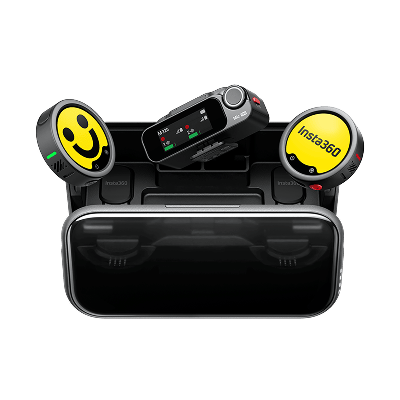
Focus on visual syncing instead of waveform spikes. If needed, clean the audio before importing or rely on higher-quality sources like recordings from Insta360 Wave.
6 Tips for Getting Perfect Audio Sync in Insta360 Studio
This sort of thing can take some time to get just right, but here are a few tips that’ll hopefully give you a shortcut to perfect audio sync.
- Clap at the start of every recording: It creates a sharp, easy-to-spot sync point.
- Always record scratch audio in-camera: Even low-quality onboard audio helps guide alignment.
- Keep clips shorter when possible: Long recordings are more prone to drift.
- Zoom into the waveform for precision: Don’t guess. Line it up visually at the frame level.
- Match your frame rates across devices: Consistency reduces timing issues during editing.
- Test sync before final export: Watch the full clip. If something feels off, it probably is.
Well-Synced Audio Instantly Improves Video Quality
Audio syncing is something we never think about until it goes wrong. But when it does go wrong, it becomes immediately noticeable. For those looking to produce high-quality content, mastering audio and video syncing is one of those rites of passage that must be traveled.
Fortunately, with Insta360 Studio, you’re already most of the way there.
Frequently Asked Questions
Why Is My Audio Out of Sync?
Audio falls out of sync for a few common reasons: different recording devices, mismatched frame rates or long clips drifting over time. The fix usually comes down to realigning the audio manually and checking your settings before recording.
Do You Need External Software for Audio Syncing?
No. Insta360 Studio gives you everything you need for most workflows, including precise timeline control and waveform alignment. For the majority of creators, syncing can be handled entirely within the software, no extra tools required.
Keen to keep up to date on Insta360 stories? Keep an eye on our blog and sign up for our mailing list. You can also contact our Enterprise team directly to see how 360 cameras can benefit your business.






%20(1).svg)


%20(1).svg)

.svg)