

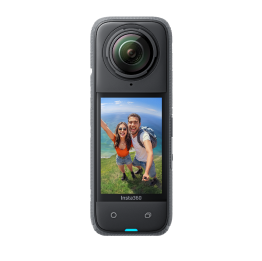









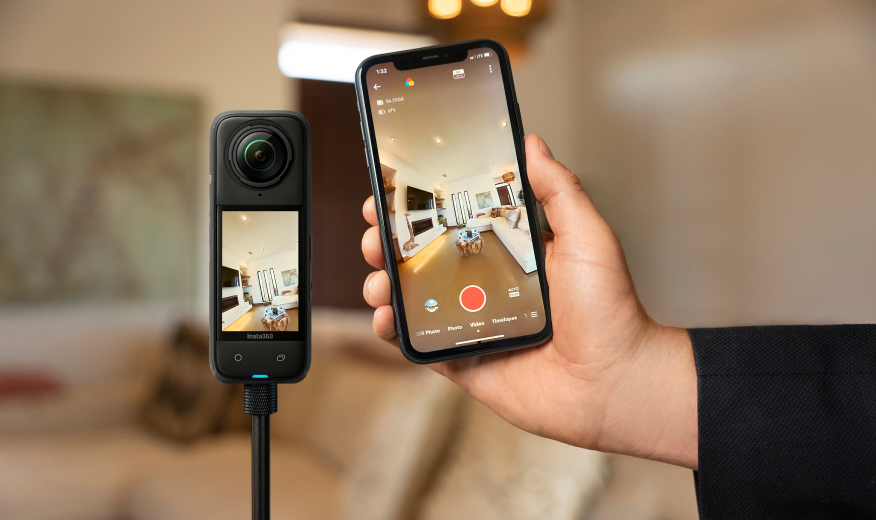









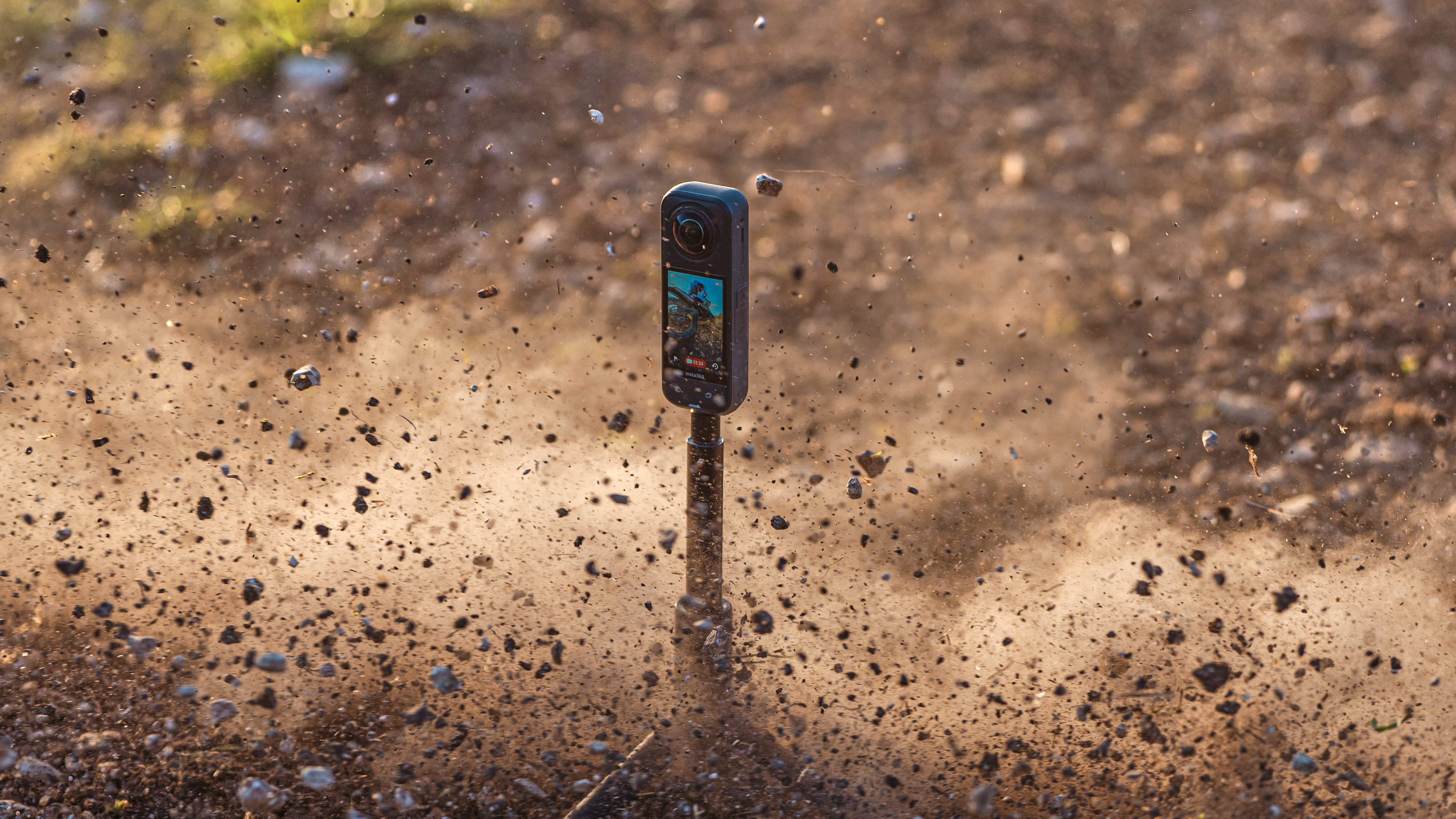


Action cameras are built for the extreme, but dust, water, sand, and grit can still cause damage—especially if you have a gaping hole where your USB cover once was.
Reinstalling the USB cover on your Insta360 X5 is quick, but doing it correctly ensures your camera stays sealed, protected, and ready to shoot.
Why the USB Cover Matters for Insta360 X5
It’s probably fair to say the USB cover on your Insta360 X5 is not something you’ve spent too long thinking about. In fact, it’s one of those accessories you barely give a second thought to, until one day, you look down, and it’s gone.
Dust, moisture, sand—these are the silent threats that build up over time. A properly installed cover helps keep the port sealed, maintaining the camera’s durability, whether you’re shooting in the city, on a motorcycle, or underwater—especially when using Insta360 X5 bundles for different shooting scenarios.

It's also about long-term performance. Exposed ports are more vulnerable to wear, corrosion, and connection issues, which can negate the camera’s IP rating. Keeping them covered ensures stable charging, reliable data transfer, and fewer interruptions.
How to Reinstall the USB Cover on Insta360 X5: Step-by-Step
A missing USB cover isn’t a disaster, but it’s certainly something to address as quickly as possible.
1. Inspect the USB Cover and Hinge
Start by checking the cover itself. Look for dirt, dust, or damage around the hinge and edges. Even small debris can prevent a proper fit, so wipe it clean with a dry cloth before reinstalling. Make sure it’s completely dry before reinstalling.
2. Align the Hinge Correctly
Position the USB cover so the hinge lines up with the slot on the camera body. It’s all about orientation, so if it doesn’t sit naturally, don’t force it.
3. Insert the Hinge Pin
Gently press the hinge pin into the slot. Apply light, steady pressure until it starts to sit into place. It should click into place smoothly without resistance.
4. Snap the Cover Into Position
Once aligned, press the cover firmly until you feel a subtle click, confirming it’s securely attached.
5. Close the USB Cover Fully
Swing the cover shut and press it flush against the camera body, then slide it back into place. It should sit evenly with no gaps or uneven edges. It is properly closed when the orange marks are not visible.
6. Test the Movement
Open and close the cover a few times. It should move smoothly and stay securely attached without loosening.
How to Check If the USB Cover Is Installed Correctly
Firstly and most obviously, does it look right? Does it sit flush against the USB port with no visible gaps or uneven edges, or does it stick up unnaturally?
Next, test the hinge. Open and close the cover a few times. The motion should feel smooth and controlled, not loose or stiff. It should stay firmly attached without shifting or slipping out of position.
Finally, check the seal. When closed, the cover should press securely into place, forming a tight barrier against dust and moisture.
If it clicks shut cleanly and holds, you’re good to go.
If you’re unsure about sealing or protection, it’s worth reviewing common scenarios covered in the Insta360 X5 FAQ.
What to Do If the USB Cover Won’t Stay in Place
If something just isn’t working and your USB won’t stay in place, don’t worry. Review each step carefully. A loose fit usually comes down to alignment, debris, or wear—and each one has a simple fix.
Start by removing the Insta360 X5 USB cover and checking the hinge area again. Even a small amount of dust or grit can stop it from sitting correctly. Clean both the hinge and the slot carefully, then try reinstalling it with steady, controlled pressure.
Next, double-check the alignment. The hinge pin needs to sit perfectly in place before you apply pressure. If it feels off or resistant, reposition it rather than pushing harder.
If the cover still won’t stay secure, inspect it for damage. Worn hinges or slight warping can prevent a proper fit over time, especially if the camera has been used in demanding conditions or pushed with advanced Insta360 X5 shooting settings.
A Properly Installed USB Cover Keeps Your Insta360 X5 Protected
A USB cover seems small and seemingly insignificant, but it is absolutely vital for protecting your Insta360 X5. Action cameras are, quite rightly, often in the thick of the action, which means water, dirt, sand, and moisture. When your USB port is correctly sealed, your camera can sail through any environment, but without it, you’re risking internal damage.
Reinstalling your USB cover takes just a few minutes, which is time well spent for a healthy, fully functioning camera.
Explore Insta360 X5 to learn more about its features and durability.
Frequently Asked Questions
Can You Use Insta360 X5 Underwater Without the USB Cover?
No. Using Insta360 X5 underwater without a USB cover properly attached means you are compromising its protection against water and moisture. The cover helps seal the port—without it, water can enter and damage internal components.
Can You Replace the USB Cover on Insta360 X5?
Yes, the USB cover can be replaced if it’s damaged or no longer fits properly. Over time, wear and tear can affect how securely it attaches, especially with frequent use in demanding environments.
Keen to keep up to date on Insta360 stories? Keep an eye on our blog and sign up for our mailing list. You can also contact our Enterprise team directly to see how 360 cameras can benefit your business.







%20(1).svg)


%20(1).svg)

.svg)