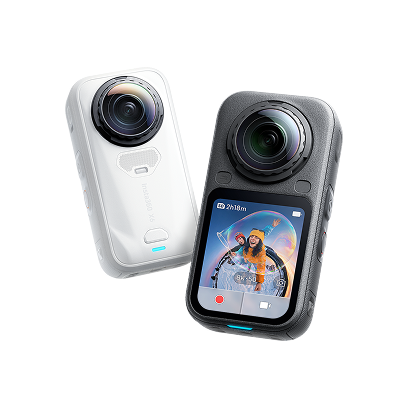
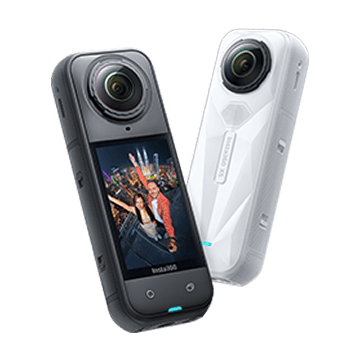
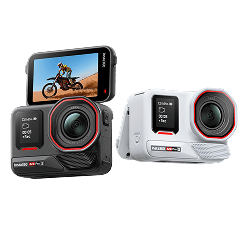
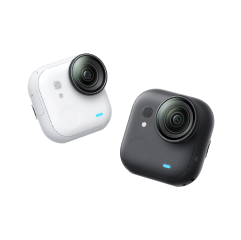
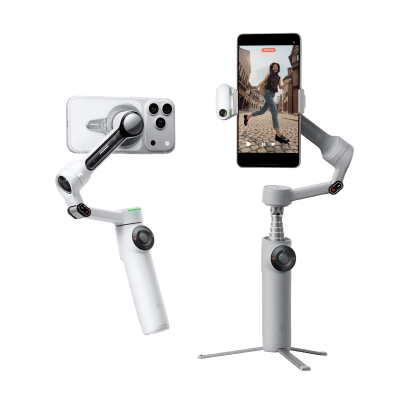
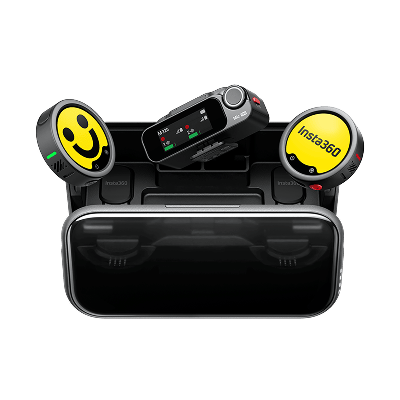

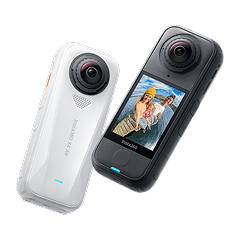
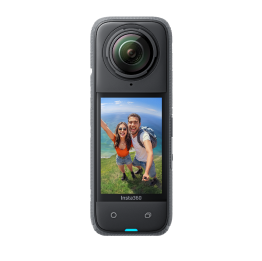
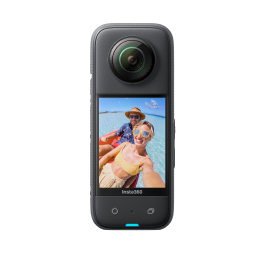
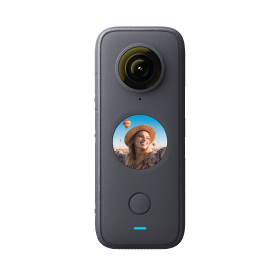
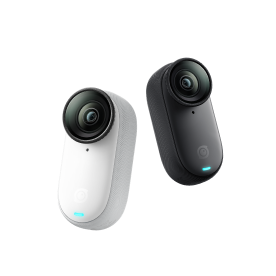
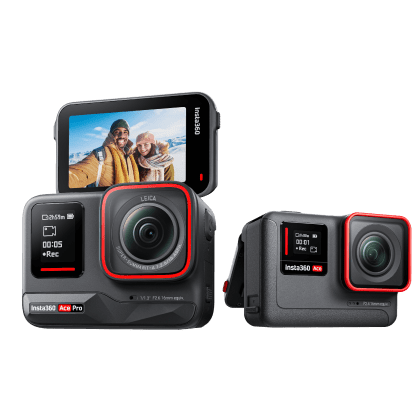




















Insta360 X5 brings major upgrades over earlier models, but with new features come new questions. Whether you’re wondering about microSD compatibility, lens replacements, modes like PureVideo, or its waterproof rating, this FAQ breaks down everything you need to know.
Getting Started & Setup
What Comes in the Insta360 X5 Box, and How Do I Set It up With the App?
Insta360 X5 starts with a camera-only bundle for $549, which is slightly more than X4, but it offers better performance. You can also opt for the Insta360 X5 bundles, which come with additional accessories.
To set it up with the app:
- Download the official Insta360 app on your Android or iOS smartphone.
- Turn on your X5 and enable Wi-Fi and Bluetooth.
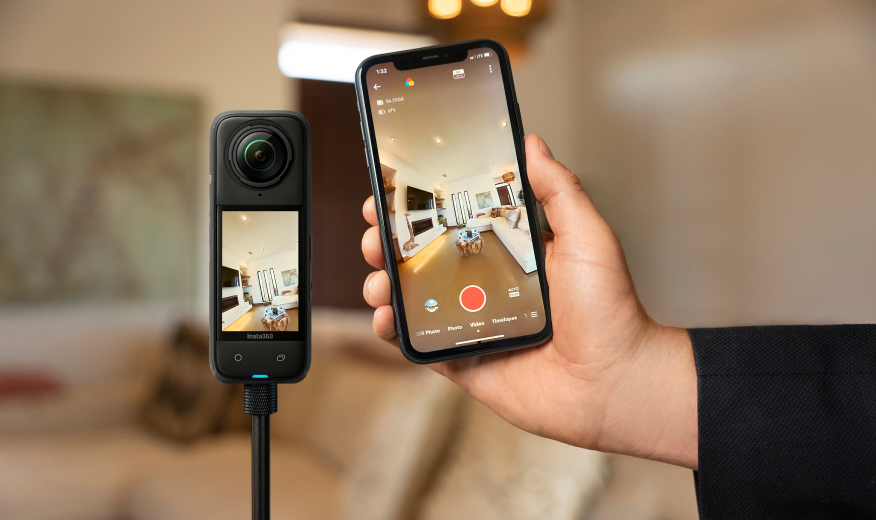
- Open the app and tap the camera icon to connect to your camera.
- Follow the instructions to complete activation and update the firmware.
Note: X5 comes with new accessories, and older accessories that attach to the body or hug the body may not work, although selfie sticks, tripods, and carry cases should still work.
Which MicroSD Cards and Batteries Work Best With Insta360 X5?
- Always choose microSD cards Video Speed Class 30 (V30) or higher, Ultra High Speed, Class I (UHS-I), so you don’t get recording errors mid-ride, especially when shooting in 5.7K and above.
- Use exFAT formatting on the camera to ensure smooth recording.
- A minimum of 128GB capacity is recommended, but avoid going over 1TB, as they are incompatible.
- The Lexar Silver Plus microSDXC UHS-I is compatible, and the Insta360 Official MicroSD Card will work with X5.
- Insta360 X5 utilizes a proprietary high-capacity battery with improved battery life, 2400mAh capacity, and fast-charging capabilities.
How Do I Charge Insta360 X5, and How Long Does It Take?
Insta360 X5 will last most of the day when the device is turned off between shoots. It can be charged up to 80% in 20 minutes using the supplied USB-C Power Delivery (PD) fast charging cable, so you can get back out there in no time.
Key Features & Hardware
What’s New in Insta360 X5 Compared to Earlier Models?
The most exciting upgrade is X5’s larger sensor size. While it increases the cost of the lens and the camera, the easy, affordable replacements make that slight price increase easy to justify, as you get better sensors and Insta360 X5's replaceable lenses on the go. Simply twist and pop out the lens and replace it in about 20 seconds—quick and easy!
Another essential upgrade is the improvement to the built-in mic, which offers much better outdoor audio in windy conditions.
Is Insta360 X5 Waterproof, and How Do I Protect the Lenses and Ports?
Insta360 X5 is waterproof to 49ft (15m), compared to the 33ft (10 m) of X4, which is great news for diving, water sports, and mountain biking in wet conditions.
-tuya.jpg)
To protect the lenses and ports:
- Use lens guards to protect against scratches and impacts in extreme sports.
- Remove the guards near water since they’re not waterproof.
- You’ll notice better results if you keep ports clean and ensure rubber seals are free of debris and fully closed in wet, dusty, or sandy environments.
- Line up the notches with the wind guard, twist until it clicks, and you’re good to go.
- Use the all-weather USB charging cover when charging in humid conditions.
- Rinse and air-dry the camera before opening ports or removing batteries, especially after use in saltwater. Never use heat to force dry.
- Use the included protective pouch for travel and storage to prevent scratches.
Shooting & Modes
What Resolutions, Frame Rates, and Photo Quality Does Insta360 X5 Support?
Insta360 X5 supports 5.7K HDR, 5.7K @30fps and 60fps, and 8K shooting with dynamic range and contrast so good that you’ll only notice a difference when you zoom in.
When Should I Use HDR, Active HDR, Pure Video, or Instaframe Modes?
- Enable Active HDR when running in 5.7K mode to retain details in shadows and highlights, resulting in better pictures—especially in direct sunlight.
- Use PureVideo Mode with AI to automatically brighten low-light footage so it appears brighter and better exposed.
- InstaFrame Mode allows you to pre-select reframed angles before shooting, eliminating manual post-production. You can point it toward a selfie stick, and it will track it, although fast movements may struggle. If the InstaFrame doesn’t nail a shot, X5 saves the file so you can go back and manually reframe it.
How Do I Record in 360 Mode vs. Single Lens Mode?
The camera achieves 360 modes by shooting through two lenses, each with its own sensor. You get two separate 180 fields of view that the built-in AI stitches together to create a full 360 picture.
You can also shoot in single-lens modes up to 4K60fps with fantastic-looking clips with great color, clarity, and dynamic range.
Controls & Settings
How Do I Navigate the Touchscreen and Adjust Settings Quickly?
- Navigate the shortcut menu by swiping down from the top to access screen brightness, indicator lights, Prompt Sound, and QuickCapture.
- Swipe up from the bottom to adjust settings like resolution and frame rate.
- Swiping left from the right edge allows you to access advanced settings like exposure, white balance, and color profiles.
- Swipe right from the left edge to view or delete photos and videos.
- Tap the mode icon in the bottom-left corner and swipe through to find your desired modes.
- Physical buttons, like the Q button below the power button, can speed up workflow and cycle through preset modes.
What Control Options Are Available?
Gesture controls allow you to start and stop recording without touching the camera—great news when wearing gloves or when the camera mount is out of reach. Simply raise your open palm toward the camera to start or stop recording, and make a peace sign to take a photo.
Voice controls allow you to operate hands-free using commands like “start recording” or “stop recording”.
The Twist to Shoot is an X5 feature that allows you to start or stop recording by twisting the selfie stick back and forth twice after enabling it in settings.
QuickCapture allows you to start recording instantly from a powered-off state, so you’ll never miss a shot. When the camera is off, a single press of the Shutter Button will immediately turn the camera on.
How Can I Improve Audio Quality and Record at the Highest Video Quality?
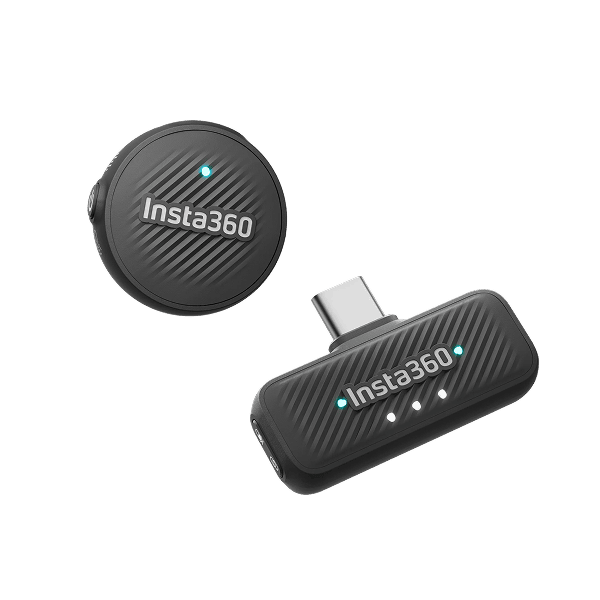
To improve audio quality, use external microphones like Insta360 Mic Air for wind noise reduction, or use voice enhancement when talking directly to the camera.
For the highest video quality, try the following:
- Record in 8K30 fps in good light.
- Use H.265 encoding with a high bitrate.
- Ensure your SD card is large (512GB-1TB) to accommodate high-quality files.
- Use 5.7K60FPS if you plan to slow down footage in post-processing.
Mounting & Shooting Tips
How Does the Invisible Selfie Stick Work, and What Mounts Are Best for Creative Shots?
The Insta360 Invisible Selfie Stick creates the illusion of a floating camera using X5's 360-degree field of view and built-in AI that automatically removes the stick. The best mounts for creative shots include the Integrated Tripod/Selfie Stick for stable, self-supported shots and the Magnetic Holster for hands-free mounting when hiking or diving.
.webp)
How Do I Film Underwater or Avoid Stitch Lines for Smoother 360 Footage?
For best results using seamless 360-degree stitching, use the Invisible Dive Case because water refracts light differently than air, which can cause stitching and focusing issues. The case also increases the waterproof depth to 197ft (60m).
Editing & App
How Do I Transfer, Preview, and Reframe Insta360 X5 Footage in the App?
To transfer Insta360 X5 footage, connect your camera, go to the app's album page, and select files to download to your phone.
To preview and reframe, open a clip in the app's editing dashboard, where you can manually adjust the perspective by dragging the screen, use the phone's gyroscope, or apply preset movements, such as Deep Track, AI framing, and more.
What Editing Tools and Export Options Are Best for Beginners?
The Insta360 app has several beginner-friendly editing tools. Since color is built-in and exposure, contrast, and colors all look excellent from the start, this is a huge time saver for newbies and advanced users.
Some great tools include FlashCut, an AI-powered tool that automatically identifies the best moments and cuts them together with music and transitions, creating themed video montages from a library of clips and templates. The AI Edit or Auto Frame creates compilation views with multiple perspectives, selfies, and views that follow you. Insta360 X5 also comes with AI stitching to remove artifacts at close distances.
Finally, Quick Edits are also available for easy reframing without complex keyframes, and the Insta360 app also lets you remove the Insta360 watermark from your exported videos instantly.
Keen to keep up to date on Insta360 stories? Keep an eye on our blog and sign up for our mailing list. Got a story to share? Email yours to communitystories@insta360.com and win up to US$50.






%20(1).svg)


%20(1).svg)

.svg)