













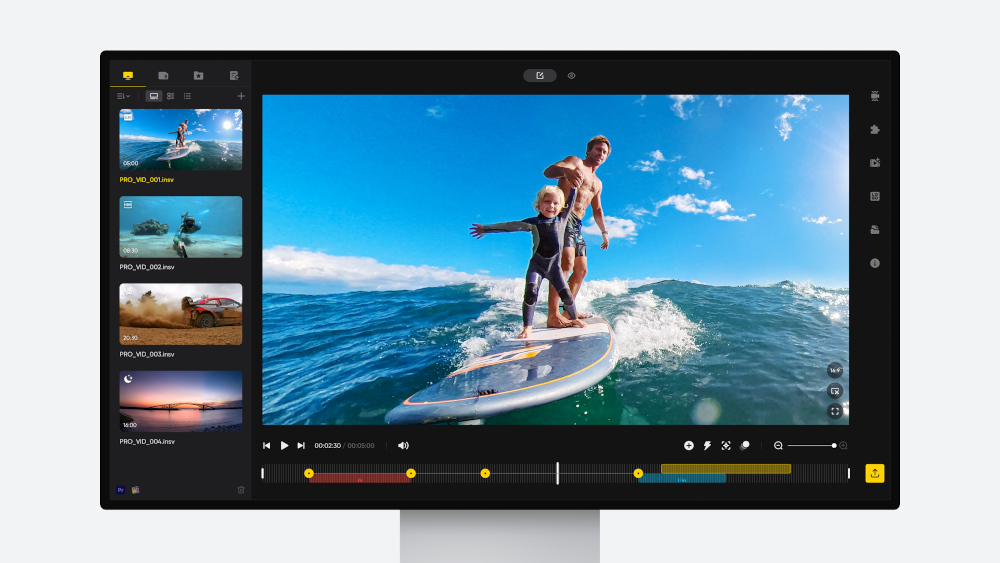


The hardest part of learning how to edit a vlog often starts after the trip is over. You get home, open your camera roll, and find hundreds of clips with no clear order: long walking videos, repeated angles, missed moments, 360 footage you still need to reframe, and a few clips you remember being great but now cannot find.
The fix is not just choosing a vlog video editor or learning more editing tricks. The best way to edit vlogs faster is to shoot in a way that makes editing easier before you ever open the timeline. That means recording shorter clips, giving each camera a clear job, and using AI editing tools at the right point in the workflow.
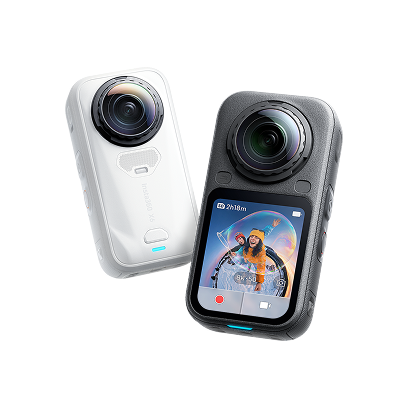
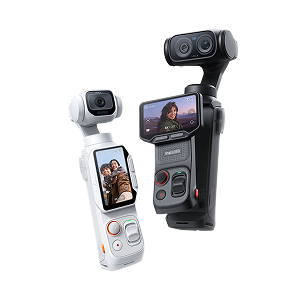
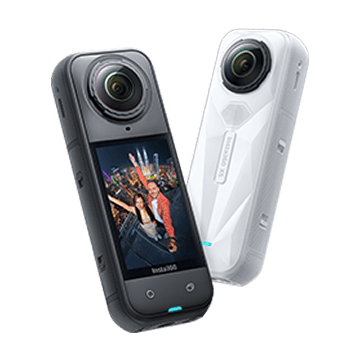
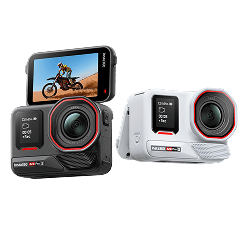
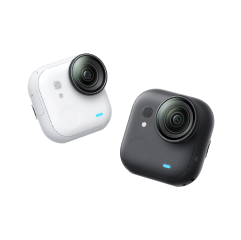
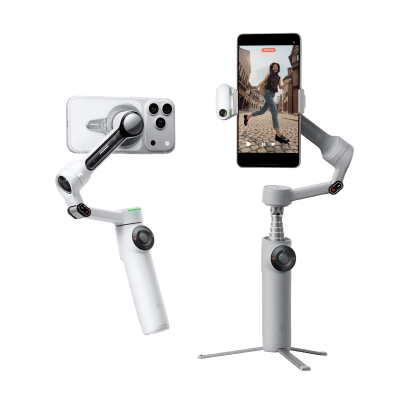
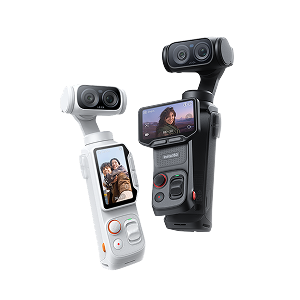
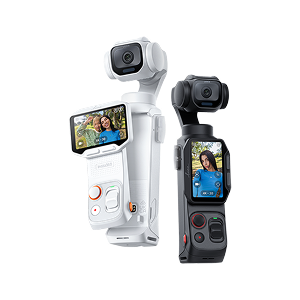
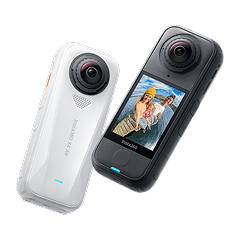
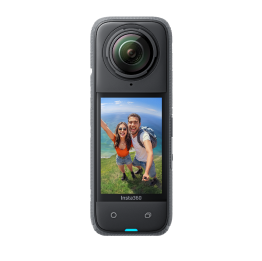
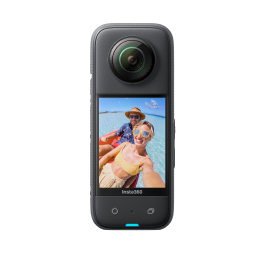
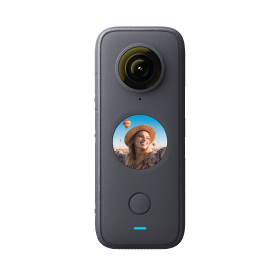
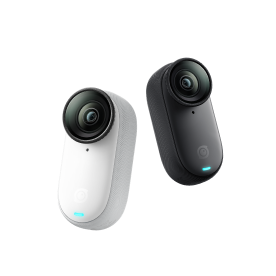
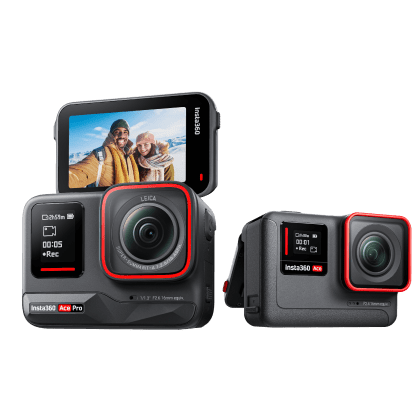
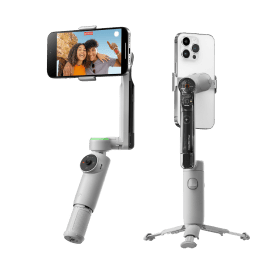
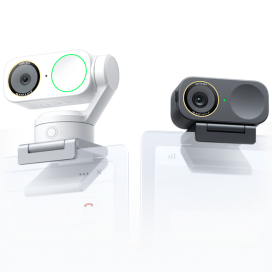
In this guide, we will build a simple travel vlog workflow around Insta360 Luna as the main story camera, Insta360 GO Ultra for short POV details, and Insta360 X6 for the moments you want to capture first and frame later.
Key Takeaways
Short on time? Start here.
- Shoot less, but shoot with clearer intent. Most travel clips only need to be 5 to 15 seconds long.
- Use Luna Pro or Luna Ultra as your main story camera for people, places, walk-and-talk clips, meals, city scenes, and travel narration.
- Use GO Ultra for short hands-free POV moments, such as entering a market, opening a hotel room door, walking to the beach, or filming a family moment from your point of view.
- Use X6 when you do not know where the best moment will happen. Record everything, then reframe later or use AI Director to help generate a first edit.
- Let the Insta360 Studio help with the first pass. Auto Edit, FlashCut, and Shot Lab make it one of the most useful vlog editing apps for Insta360 footage, while GO Ultra's AI Highlights Assistant and X6's AI Director can reduce sorting pressure for specific shooting workflows.
Why Vlog Footage Becomes Hard to Finish
Vlog footage becomes hard to edit because most people record for the trip, not for the edit. In the moment, recording more feels safer. You do not want to miss the market, the walk, the view, the family reaction, or the funny moment on the way to dinner. So you keep rolling.
That creates a few familiar problems:
- Too many clips: You record the same street, beach, hotel, or meal several times because it all feels important in the moment.
- Clips are too long: A three-minute walking clip may contain five useful seconds, but you still have to scrub through the whole thing later.
- No clear story: There are pretty shots, but not enough context, reactions, or transitions to explain what happened.
- Unclear camera roles: A phone, action camera, 360 camera, and POV camera may all capture overlapping material, making the edit harder rather than easier.
- 360 footage needs decisions: Reframing is powerful, but it adds choices. If every 360 clip needs manual framing, editing can feel like a second trip.
- App menu pressure: Beginners may know AI tools exist but not know when to use Auto Edit, FlashCut, Shot Lab, or AI Director.
That is why the best answer to "how can I edit a video faster?" often starts before editing. The goal is not to film less because memories matter less. The goal is to film in a way that gives future-you a usable story.
Start with a Simple Three-Shot Formula
You do not need a complicated shot list for every travel day. Start with a simple three-shot formula that works for vlogs, Reels, Shorts, family recaps, and longer travel videos.
| Shot type | Use this camera | What it captures | Example |
|---|---|---|---|
| POV shot | GO Ultra | What the moment feels like from your perspective | Walking into a market, opening the hotel door, riding in a tuk-tuk, grabbing street food |
| Selfie or talking shot | Luna Pro or Luna Ultra | The story, reaction, person, or explanation | "We just arrived," family reactions, city walk-and-talk, dinner recap |
| Wide or follow shot | X6 | The full scene, group interaction, and moments you might miss | Beach day, city square, family playing, scenic walk, third-person travel shot |
This formula gives you enough variety without recording everything.
Use Luna as the Main Story Camera
Every travel video needs a main camera that carries the story. That is the camera you use when someone talks, reacts, explains where you are, shows a street, films dinner, captures family, or records a moment you know you want to keep.
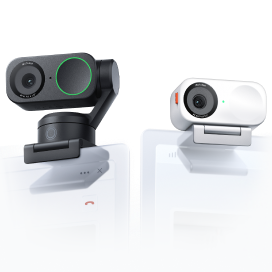
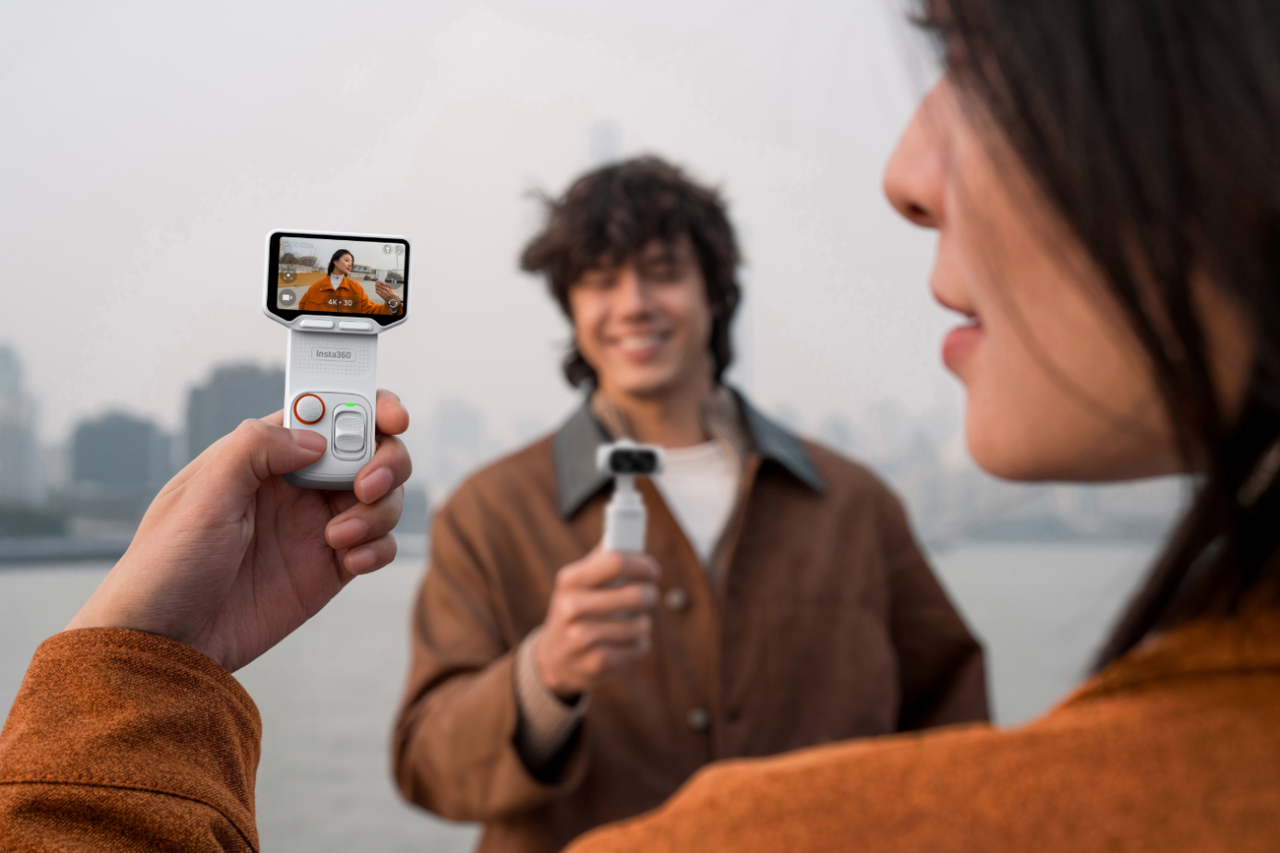
For most travelers, that role belongs to the Insta360 Luna Series. Luna gives you a compact gimbal camera for stable, natural travel vlogging, with a setup that feels more intentional than holding out a phone all day. If you are learning how to edit a vlog, this matters because stable, clearly framed story clips need less rescue work later.
Choose Insta360 Luna Pro if you want the lighter and simpler option. It is a strong fit for walk-and-talk clips, family memories, hotel check-ins, restaurants, everyday city exploring, and short-form travel content.
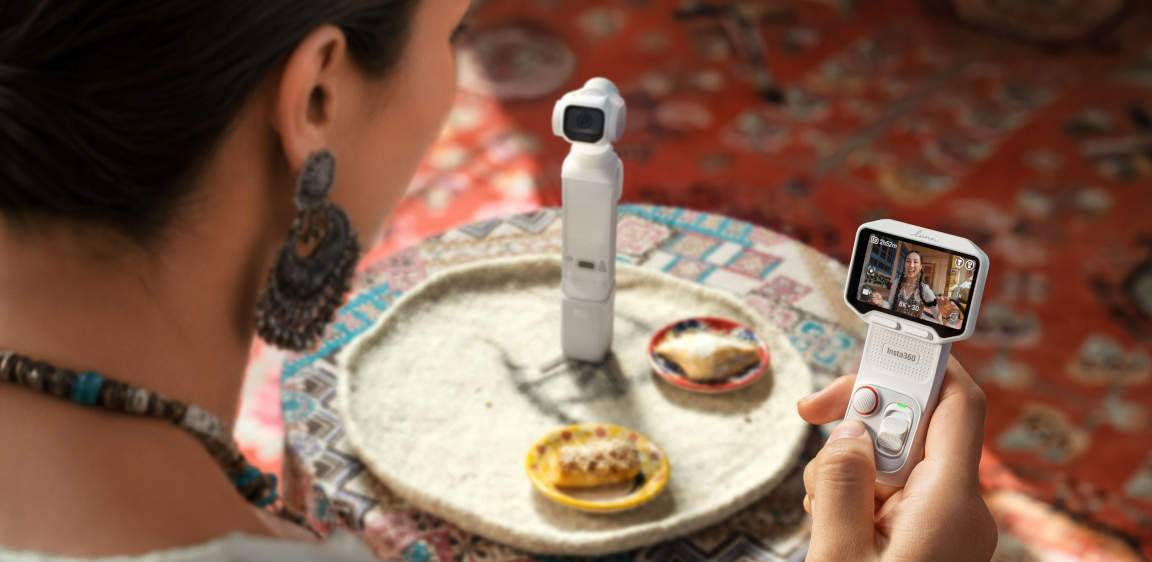
Choose Insta360 Luna Ultra if you want more visual range. Its dual-lens system is useful when your trip includes city details, distant subjects, stage moments, scenic views, or a more polished documentary-style edit.
For easier editing, use Luna to capture the clips that explain the trip:
- A 5-second establishing clip of where you are.
- A 10-second walking or talking clip that explains what is happening.
- A reaction clip from you, your family, or your travel partner.
- A detail clip of food, a sign, a room, a street, or a view.
- A closing clip at the end of the day.
The point is not to make every clip perfect. The point is to make the main story obvious when you open the footage later.
For setup help, see our Luna Pro first use guide, Luna Pro settings guide, and Luna Pro accessories guide.
Use GO Ultra for Short POV Clips, Not Endless Recording
Insta360 GO Ultra is strongest when it captures the small first-person moments that make a trip feel real. It should not become a camera that records everything all day. That is how footage overload starts.
Use GO Ultra for short POV moments such as:
- Walking into a restaurant or market.
- Opening the hotel room door.
- Getting on a boat, train, bus, or airport shuttle.
- Picking up food, tickets, souvenirs, or luggage.
- A child's quick reaction from your point of view.
- A 10-second biking, walking, hiking, or beach approach clip.
- A behind-the-scenes travel moment where holding a camera would feel awkward.
The best POV travel clips are usually short. Think 10 to 20 seconds. Long enough to show the feeling, short enough that you can find the useful moment later.
GO Ultra also helps with the editing problem in two ways. First, like many Insta360 cameras, it works with AI-powered editing tools in the Insta360 app, including Auto Edit, FlashCut, and Shot Lab. These tools can help create quick edits from selected clips, templates, and AI-assisted effects.
Second, GO Ultra has its own AI Highlights Assistant, which can identify and flag standout moments while you shoot. That makes it easier to turn POV clips into highlights later in the Insta360 app instead of manually scrubbing every wearable-camera file.
.jpg)
A simple GO Ultra rule:
- Record the start of an action.
- Record the most interesting 10 to 20 seconds.
- Stop before the clip becomes a long file you will avoid editing.
That is how GO Ultra becomes a useful POV companion instead of another source of footage stress.
Use X6 When You Do Not Want to Miss the Moment
Some travel scenes are hard to film because the story is happening everywhere. A family beach day, a city square, a street performance, a train platform, a group dinner, or a scenic walk may not have one obvious direction to point the camera.
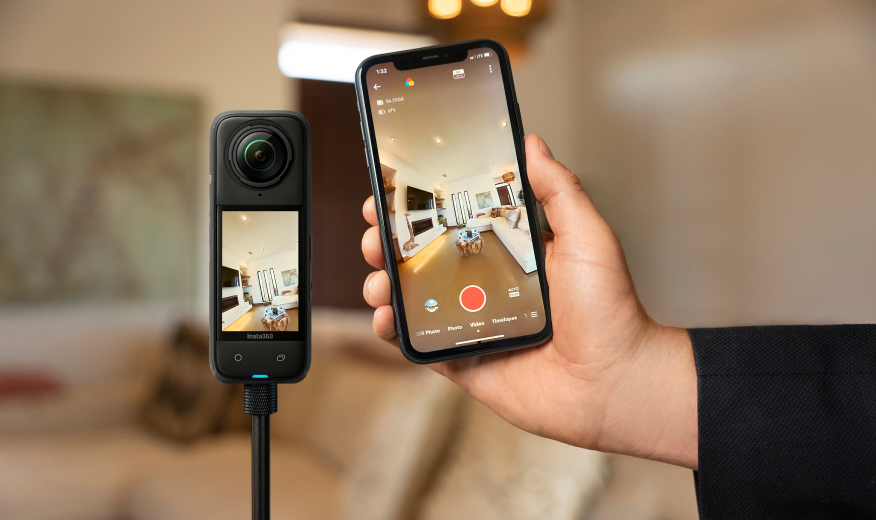
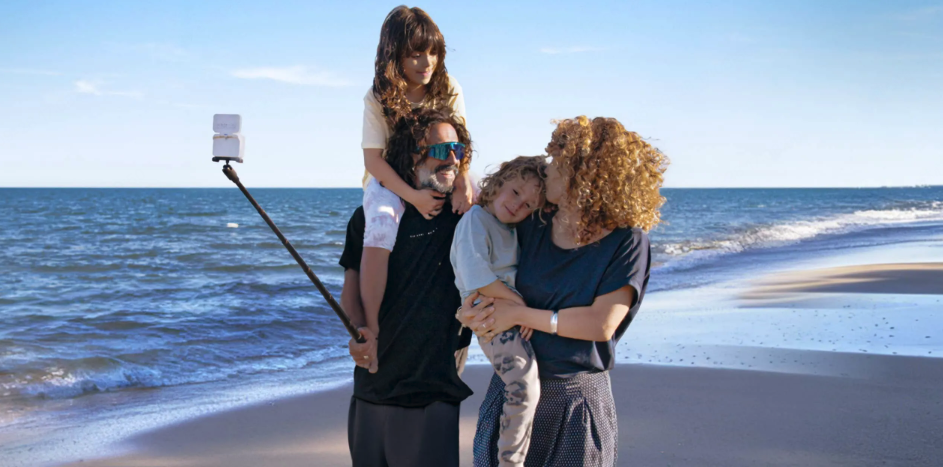
That is where Insta360 X6 helps. Instead of choosing one angle in the moment, X6 captures the full 360 scene. Later, you can reframe the clip as a selfie, wide shot, follow shot, vertical Reel, horizontal YouTube clip, or third-person travel view.
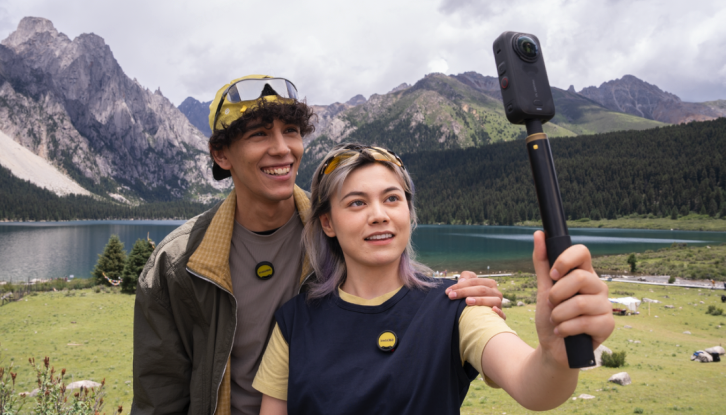
Use X6 for:
- Group travel where reactions happen in different directions.
- Family moments where you want both people and environment.
- Beach, city, mountain, or scenic locations where the full setting matters.
- Transportation scenes, such as boats, buses, trains, and open vehicles.
- Solo travel when you want a third-person view without asking someone to film.
- Motion scenes where it is hard to keep a normal camera pointed correctly.
The editing concern with 360 footage is real: if every 360 clip requires manual reframing, the workload can grow. X6 helps reduce that pressure with AI Director. With AI Director enabled, X6 can use AI to identify highlight moments and complete editing while the camera is turned off and charging. Then you can open the Insta360 app to view the custom video.
Use X6 when you need coverage. Use Luna when you need a clear story. Use GO Ultra when you need the personal POV. That division keeps the editing process much cleaner.
Keep Clips Short and Intentional
The easiest way to edit a vlog faster is to avoid recording clips that are longer than the moment needs. A good clip length depends on the scene, but these rules work for most travel content.
| Clip type | Suggested length | Why it helps |
|---|---|---|
| Quick detail | 3 to 5 seconds | Food, signs, tickets, hotel details, hands, bags, doors |
| Everyday travel moment | 5 to 15 seconds | Walking, city views, family reactions, market scenes |
| Important scene | 30 to 60 seconds | A boat ride, a scenic viewpoint, an activity, a meaningful family moment |
| Long experience | As needed | Performances, full rides, timelapse, transit, special events |
Short clips make editing faster because each file has a clear purpose. They also make AI editing tools more useful, because the good moments are easier to identify.
Before pressing record, ask one question: What is this clip supposed to do in the edit?
- If it sets the place, film the location.
- If it explains the day, film a short talking clip.
- If it shows how the trip felt, film POV.
- If you might miss the direction of the action, use X6.
- If you already recorded the same thing three times, move on.
You are not trying to document every second. You are collecting the pieces of a story.
Recommended Insta360 Setup for an Easier Edit
You can keep the kit simple.
| Need | Recommended product | Role in the workflow |
|---|---|---|
| Main travel story | Insta360 Luna Pro | Lightweight main camera for everyday vlogs, family clips, and city travel |
| More visual range | Insta360 Luna Ultra | Main camera for richer travel storytelling, city details, scenic shots, and distant subjects |
| Hands-free POV | Insta360 GO Ultra | Short first-person details that make the video feel personal |
| Capture-everything moments | Insta360 X6 | 360 capture for unpredictable scenes, reframing, and AI Director |
| Faster app edits | Insta360 app tutorial | Auto Edit, FlashCut, and Shot Lab for fast AI-assisted editing |
FAQ
How do I edit a vlog faster after a trip?
Edit a vlog faster by shooting with a structure before you travel home. Use one main story camera for the clips that explain the day, one POV camera for short first-person details, and one 360 camera only when the scene is hard to frame. Then start with an AI-assisted first pass in the Insta360 app before adjusting the few moments that matter most.
How long should each travel clip be?
Most travel clips should be 5 to 15 seconds long. Use 3 to 5 seconds for quick details, 30 to 60 seconds for important scenes, and longer clips only for performances, scenic rides, full activities, timelapse, or moments where the full duration matters.
How do I avoid recording too much footage on vacation?
Give each clip a job before you record. Use Luna for the main story, GO Ultra for short POV moments, and X6 for scenes where you might miss the angle. If a clip does not explain the story, show a useful detail, capture a reaction, or cover an unpredictable moment, you probably do not need to record it.
Is 360 footage harder to edit?
360 footage can take more time if you manually reframe every clip. It becomes easier when you use 360 intentionally for scenes that need it, such as group travel, solo third-person shots, and unpredictable action. X6 AI Director can also help by identifying highlight moments and generating a starting edit in the Insta360 app.
Can X6 AI Director make a travel video automatically?
X6 AI Director can use AI to identify highlight moments and complete an edit while the camera is turned off and charging, then show the custom video in the Insta360 app. Treat it as a strong first version rather than a final creative decision. You can still refine the clips, timing, music, and framing afterward.
Does GO Ultra have AI editing features?
Yes. GO Ultra works with Insta360 app editing tools such as Auto Edit, FlashCut, and Shot Lab. It also has AI Highlights Assistant, which can identify and flag standout moments while you shoot, helping you turn POV footage into highlights faster.
What vlog editing app should I use for Insta360 footage?
Use the Insta360 app for the first pass because it supports camera-aware tools such as Auto Edit, FlashCut, Shot Lab, 360 reframing, and product-specific features like GO Ultra's AI Highlights Assistant and X6 AI Director. You can still export and refine clips in another editor if you want more advanced timeline control.
Should I shoot everything in vertical for Reels and TikTok?
No. Shoot vertical when you know the clip is only for Reels, TikTok, or Shorts. Shoot horizontal when you want a YouTube video, TV-friendly travel film, or a wider memory. If you are unsure, X6 gives you more flexibility because you can reframe the same 360 footage for different aspect ratios later.
What is the best way to organize travel footage?
Organize footage by day and scene, not just by camera. At the end of each day, favorite the best clips and mark anything important while you still remember it. If you back up files to a computer or drive, keep folders simple: Day 1, Day 2, Day 3, or Location 1, Location 2, Location 3.
Keen to keep up to date on Insta360 stories? Keep an eye on our blog and sign up for our mailing list. Got a story to share? Email yours to communitystories@insta360.com and win up to US$50.




%20(1).svg)


%20(1).svg)

.svg)