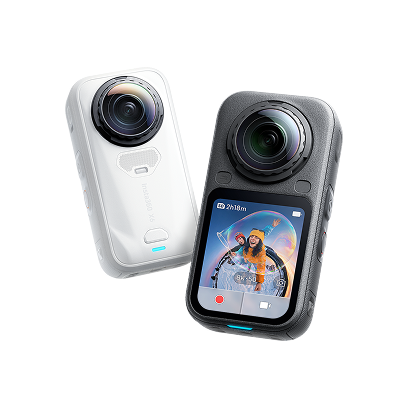
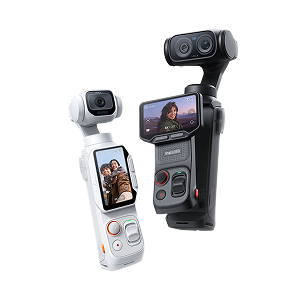
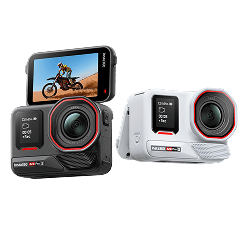
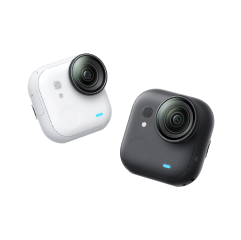
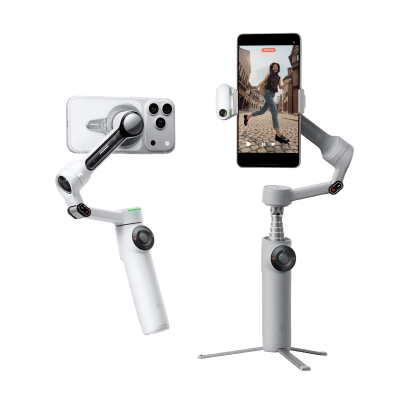
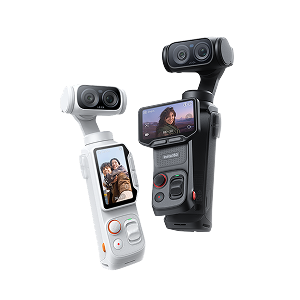
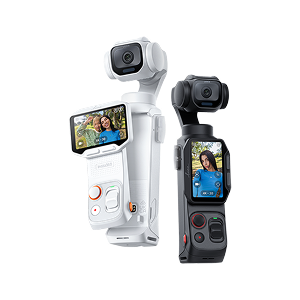


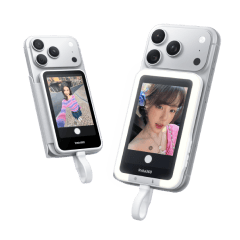
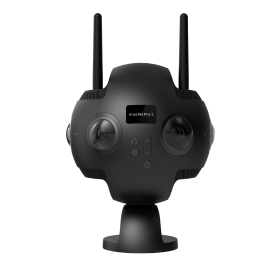













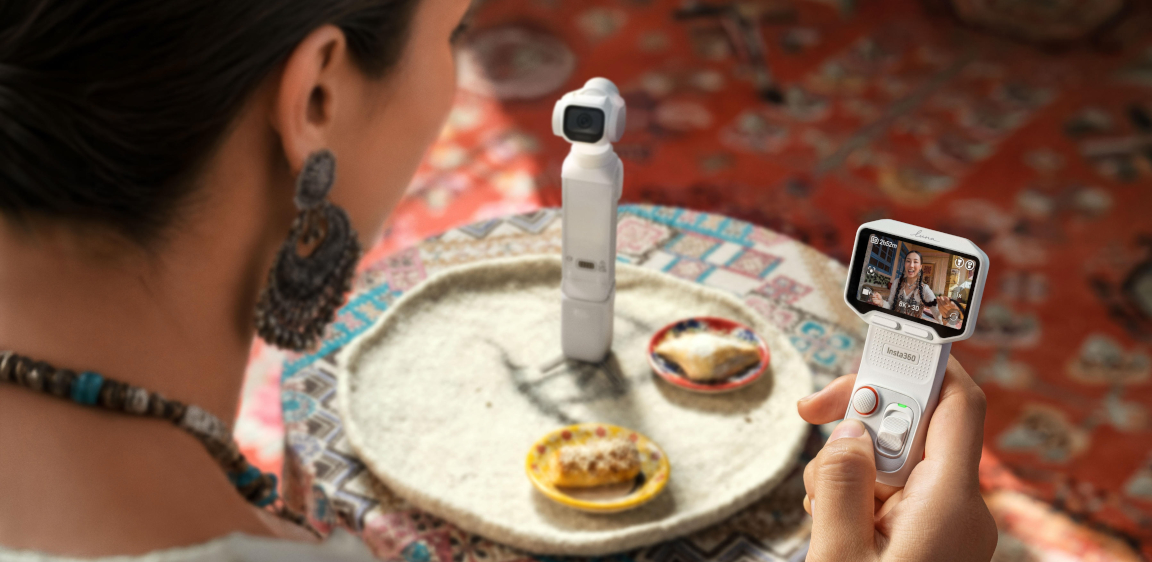


Getting the most from Insta360 Luna Pro is less about using the highest settings all the time and more about choosing the right setup for the scene. From everyday vlogging and travel to low-light shooting and short-form content, this guide gives you ready-to-use Insta360 Luna Pro settings for different scenarios, plus simple tips for adjusting them to your needs.
Key Takeaways
- For everyday shooting, 4K30fps is the best place to start, while 8K30fps is ideal when you want maximum detail or more room to crop.
- Use 4K60fps for smoother motion, 4K120fps for slow motion, and PureVideo 4K30fps when shooting in low light.
- For TikTok, Reels, and Shorts, switch to 4K30fps vertical video. And for vlogs, don’t overlook audio: the right audio mode or an external mic can make a big difference.
Best Insta360 Luna Pro Settings at a Glance
For most everyday shooting, start with 4K30fps in Video mode, 1× zoom, and automatic exposure. This gives you a strong balance of detail, smooth motion, manageable file sizes, and flexibility for everyday content.
This setup works well for general travel footage, family videos, talking-head content, and everyday recording. Luna Pro also has a Basic Mode designed for quick shooting, while Pro Mode gives you more control over exposure, white balance, focus, color, and other parameters.
Switch to a scenario-specific setup when you need something different. For example, use 4K60fps for faster movement, 4K30fps PureVideo for low light, 8K30fps when you want maximum resolution, or 4K30fps vertical video for short-form content. Luna Pro supports 8K30fps, 4K up to 120fps, and 4K30fps vertical video.
Best Luna Pro Settings for Different Shooting Scenarios
The best Luna Pro settings depend on what you're filming, so the easiest approach is to start with a proven setup for your specific scenario and adjust only when you have a reason to.
Vlogging and Everyday Video
For vlogs, talking-head videos, and everyday footage, use 4K30fps, 1× zoom, and Standard color. If you're recording yourself speaking, select Voice Enhancement to help reduce background noise and emphasise your voice.
Recommended settings:
- Mode: Video
- Resolution: 4K
- Frame rate: 30fps
- Zoom: 1×
- Color: Standard
- Audio: Voice Enhancement
For outdoor walk-and-talk footage, switch the audio mode to Wind Reduction when wind noise is a concern.
If you want a more cinematic look straight from the camera, Luna Pro supports Leica color profiles and other in-camera filters in compatible modes. These can be useful when you want finished-looking footage without extensive color grading.
Travel and Outdoor Shooting
For travel, 4K30fps is the best general-purpose setting, while 4K60fps is better when you're capturing movement such as walking, cycling, or other activities. Use 8K30fps when you're shooting detailed landscapes or architecture and want maximum resolution for cropping later.
Recommended settings:
- Everyday travel: 4K30fps, 1×
- Moving subjects: 4K60fps, 1×
- Landscapes and architecture: 8K30fps, 1–2×
- Outdoor audio: Wind Reduction
Keep in mind that 8K produces larger files and places greater demands on storage and processing. For most casual travel clips, 4K30fps is the more practical choice.
Low-Light and Night Shooting
For low-light scenes, use PureVideo at 4K30fps. PureVideo is designed to improve low-light image quality, while 4K30fps provides a useful balance between brightness, motion, and noise. Luna Pro supports PureVideo up to 4K60fps, but 30fps is the better starting point when image quality is the priority.
Recommended settings:
- Mode: PureVideo
- Resolution: 4K
- Frame rate: 30fps
- Zoom: 1×
- Additional lighting: Recommended for very dark scenes
Avoid using high frame rates such as 4K120fps in dark environments. Higher frame rates require faster shutter speeds and can make it harder to capture enough light.
TikTok, Instagram Reels, and YouTube Shorts
For short-form content, use 4K30fps vertical video. Luna Pro supports native 4K vertical recording, so you can rotate the screen and compose directly for a 9:16 frame rather than cropping a horizontal video later.
Recommended settings:
- Orientation: Vertical
- Resolution: 4K
- Frame rate: 30fps
- Zoom: 1–2×
- Color: Standard
Use 1× when you want more of your surroundings in the frame, or 2× when you want a tighter composition for talking-head videos and portraits.
Slow-Motion Action
For sports, pets, fast movement, or clips where you want to slow down the action, use 4K120fps Slow-Mo. Luna Pro supports 4K at 120fps in Slow-Mo mode, giving you significantly more frames to work with when slowing footage down.
Recommended settings:
- Mode: Slow-Mo
- Resolution: 4K
- Frame rate: 120fps
- Lighting: Bright or well-lit environments
High frame rates work best with plenty of light. Avoid using 4K120fps in dark scenes unless additional lighting is available.
How to Choose Luna Pro Video Settings
The most important decisions are resolution, frame rate, framing, stabilization, and audio. Once you understand what each setting changes, you can adapt the recommended presets to almost any shooting situation.
Resolution and Frame Rate
Choose 4K30fps when you want a practical, everyday setting, 8K30fps when maximum detail is the priority, and 4K60fps or 4K120fps when you need smoother motion or slow motion. Luna Pro supports 8K up to 30fps, 4K up to 120fps, and 4K vertical video up to 30fps.
The basic trade-offs are:
- 4K30fps: Best all-round choice for everyday recording.
- 8K30fps: More detail and cropping flexibility, but larger files and higher processing demands.
- 4K60fps: Smoother motion for moving subjects.
- 4K120fps: Designed for slow-motion footage and requires good lighting.
- 4K30fps PureVideo: Better choice for low-light scenes.
You don't need to shoot everything in 8K. For most everyday content, 4K gives you plenty of detail while keeping file sizes and editing requirements more manageable.
Field of View and Stabilization
Start with 1× for general shooting, then move to 2× or 4× when you need a tighter composition. Luna Pro supports up to 4× zoom in 4K video, including 2× Clarity Zoom, although zoom availability varies by resolution and frame rate. For example, 4K120fps does not support zoom.
Luna Pro uses a 3-axis mechanical gimbal for stabilization, so you generally do not need to adjust a separate stabilization setting for standard video. The camera's EIS behaviour varies by mode, and Luna Pro does not offer a manual stabilization setting.
For handheld travel footage, keep the camera moving naturally and let the gimbal handle smaller shakes. For static shots, use the built-in tripod on a compatible handle where possible.
Audio Settings and External Microphones
For everyday recording, use Original Audio when you want to preserve the surrounding sound, Wind Reduction outdoors, and Voice Enhancement when speech is the main focus. Luna Pro's four-microphone array supports all three audio modes.
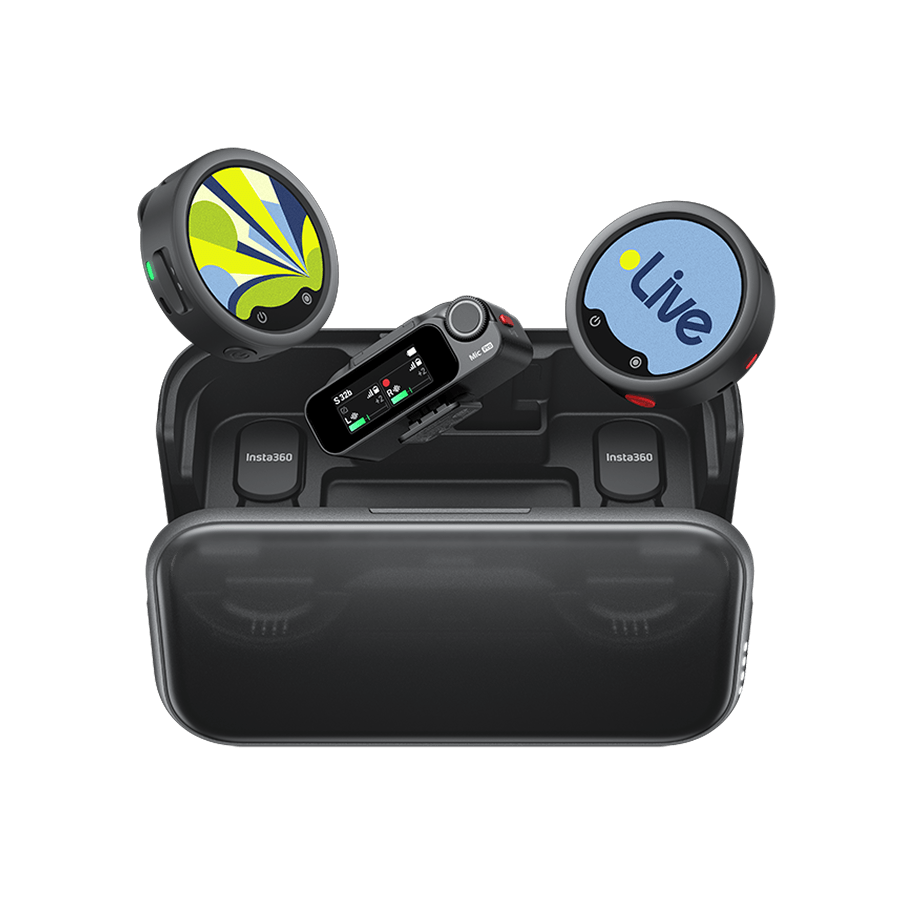
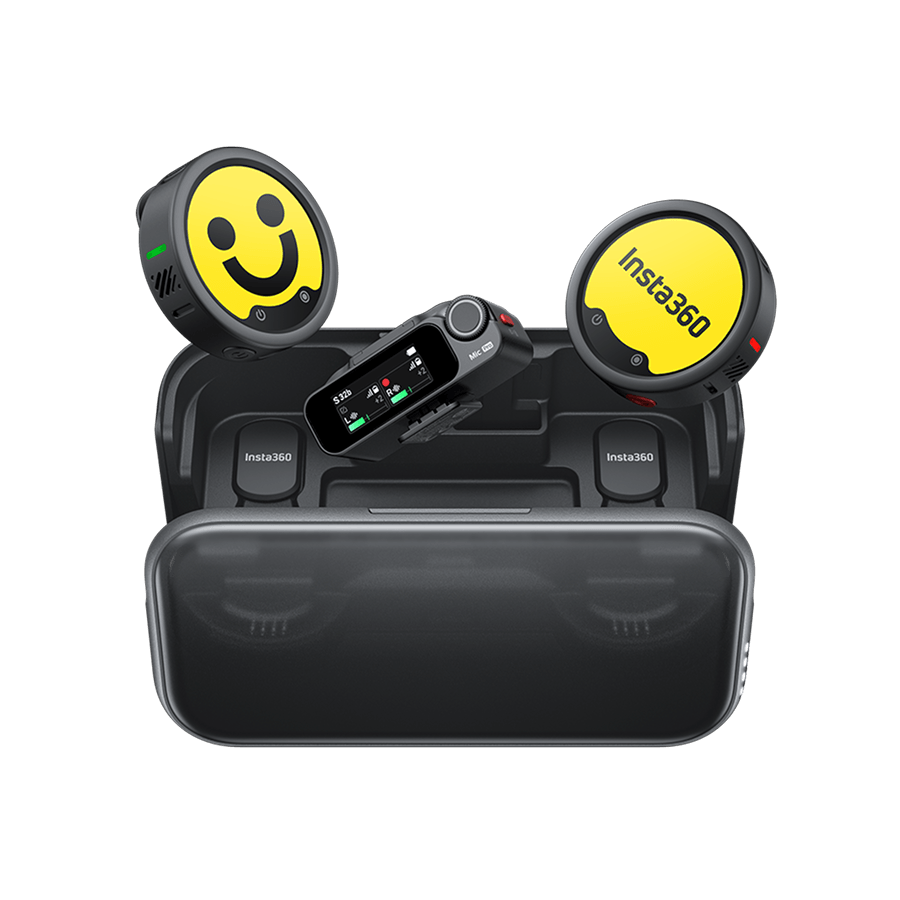
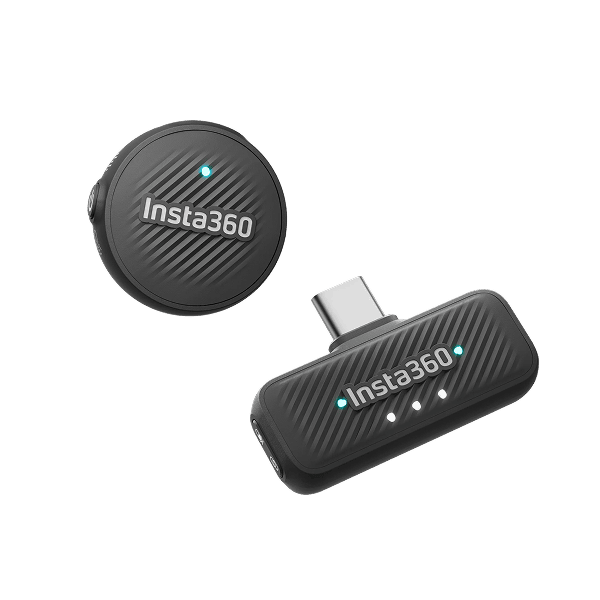
An external microphone is worth using when clear speech is important, especially for vlogs, interviews, walk-and-talk videos, and content recorded in noisy environments. Luna Pro supports Insta360 Mic Air and Mic Pro through Bluetooth and supports up to two wireless microphones.
Settings for Better-Looking Luna Pro Footage
The biggest improvements usually come from getting exposure, white balance, color, and audio right for the scene rather than changing every available setting. For most users, Auto settings are a good starting point, with manual adjustments reserved for situations that need extra control.
Exposure
Use Auto exposure for general shooting, then adjust EV when the scene looks noticeably too bright or dark. If you move into Pro Mode, Luna Pro lets you manually adjust shutter speed, ISO, and EV.
For low-light scenes, avoid simply increasing brightness without considering motion. A brighter image can come at the cost of more noise or motion blur, so PureVideo at 4K30fps is usually the better starting point.
White Balance
Auto White Balance is suitable for most everyday shooting. Use a fixed white balance when you want consistent color across multiple clips, particularly when shooting under stable lighting.
Luna Pro supports a white balance range of 2000K to 10,000K in its supported shooting modes.
Color
Use Standard when you want footage that is easy to share with minimal editing. For more stylized footage, Luna Pro offers Leica Natural, Leica Vivid, Leica Chrome, and six cinematic filters. The cinematic filters have three intensity levels.
For advanced color grading, use 10-bit I-Log. It provides 14 stops of dynamic range and more flexibility in post-production, but it is intended for users who plan to color grade their footage. I-Log cannot be used with Dolby Vision, Beauty, or PureVideo.
Audio
Match the audio mode to the environment rather than leaving it unchanged for every shoot:
- Original Audio: Music, ambient sound, and scenes where natural audio matters.
- Wind Reduction: Outdoor travel and windy conditions.
- Voice Enhancement: Vlogs, talking-head videos, and other speech-focused content.
Common Luna Pro Settings Mistakes to Avoid
Most Luna Pro video problems can be fixed by choosing a setting that matches the shooting conditions. The most common mistakes are using high frame rates in low light, choosing unnecessarily high resolutions, ignoring audio settings, and exporting footage in a format that does not match the intended platform.
Shooting high frame rates in low light
Problem: Footage looks dark or noisy.
Solution: Switch to PureVideo at 4K30fps and add lighting when necessary. Save 4K60fps and 4K120fps for better-lit scenes.
Using 8K for everything
Problem: Files are large and take longer to transfer and edit.
Solution: Use 4K30fps as your everyday setting and reserve 8K30fps for scenes where maximum detail or cropping flexibility is important.
Using the wrong audio mode
Problem: Voices are difficult to hear or wind dominates the recording.
Solution: Use Voice Enhancement for speech and Wind Reduction outdoors. For interviews and creator content where audio quality is critical, use a compatible wireless microphone.
Getting motion blur in action footage
Problem: Fast movement looks less sharp than expected.
Solution: Switch from 4K30fps to 4K60fps for smoother movement, or use 4K120fps Slow-Mo when you specifically want to slow down the action.
Making footage harder to edit than necessary
Problem: Your footage takes up too much storage or your editing device struggles with it.
Solution: Use 4K instead of 8K when you don't need the extra resolution. Luna Pro records video in MP4 using H.265, with up to 10-bit color depth depending on the shooting mode.
Choosing the wrong settings for social content
Problem: You have to crop or reframe horizontal footage for TikTok, Instagram Reels, or YouTube Shorts.
Solution: Shoot directly in 4K30fps vertical video when you know the final content will be 9:16. Luna Pro supports native 4K vertical recording.
[Product Card: Insta360 Luna Pro]
Best Settings FAQ
What are the best default settings for Insta360 Luna Pro?
For most everyday shooting, use 4K30fps in Video mode, 1× zoom, Auto Exposure, Auto White Balance, and Standard color. Use Voice Enhancement when recording speech and Wind Reduction when shooting outdoors. Switch to scenario-specific settings when you need better low-light performance, smoother motion, maximum resolution, or vertical content.
What resolution and frame rate should I use on Insta360 Luna Pro?
Use 4K30fps for everyday video, 8K30fps when maximum detail is the priority, 4K60fps for smoother moving footage, and 4K120fps Slow-Mo for slow-motion action. For low-light shooting, 4K30fps PureVideo is the recommended starting point. Luna Pro supports 8K30fps and 4K up to 120fps.
What are the best Luna Pro settings for low-light video?
Use PureVideo at 4K30fps, keep the zoom at 1× where possible, and add a light source for very dark scenes. While PureVideo supports up to 4K60fps, 30fps is generally the better starting point for low-light footage because it balances brightness, motion, and noise more effectively.
Keen to keep up to date on Insta360 stories? Keep an eye on our blog and sign up for our mailing list. Got a story to share? Email yours to communitystories@insta360.com and win up to US$50.
Your shot. Your world. The Insta360 Global Awards 2026 supported by Leica are officially open. Join creators worldwide and compete across six categories (Street, Travel, Life, Portrait, Sports, and Night) for your share of a US$150,000+ prize pool, including cash prizes and Insta360 gear. Submit your best video or photo at insta360.com/awards.




%20(1).svg)


%20(1).svg)

.svg)