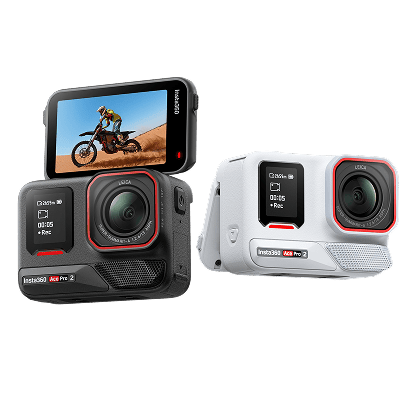
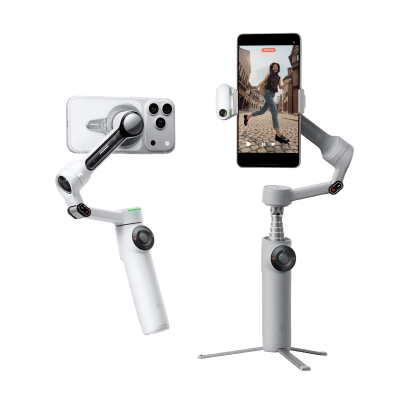
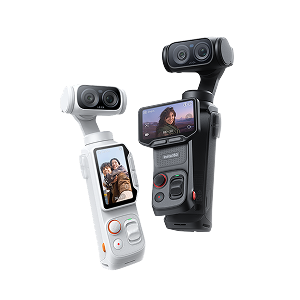
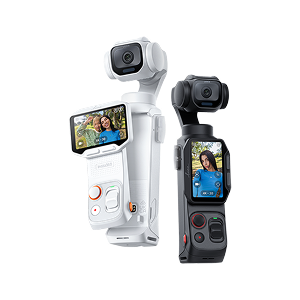
















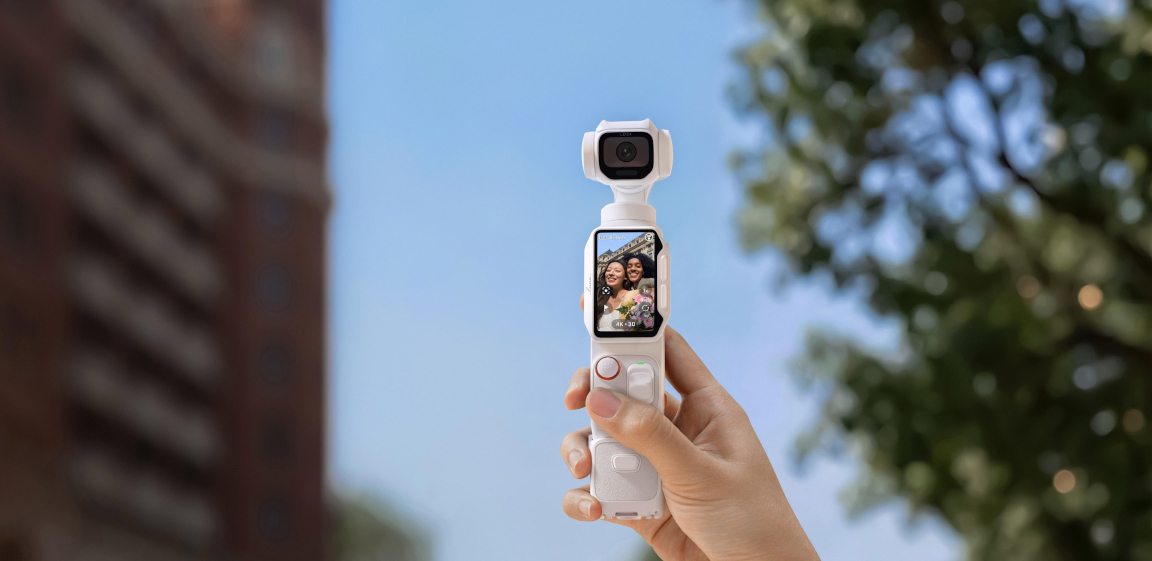


Just got your Insta360 Luna Pro? This first-use guide walks you through the essentials, from activating the camera and choosing your first settings to recording, reviewing, and sharing your footage. You don't need to master every feature straight away. Start with a few simple settings, then explore more advanced options as you get comfortable with the camera.
Set Up Your Insta360 Luna Pro for the First Time
Before your first shoot, charge the camera, activate it in the Insta360 app, and check that the camera firmware and app are up to date.
- Charge the camera
Connect Luna Pro to a power adapter using the included USB-C cable. The camera supports fast charging, reaching around 80% in 23 minutes and 100% in around 38 minutes under the specified charging conditions.
If the camera doesn't power on when you first use it, Insta360 recommends charging it continuously for at least 10 minutes before trying again.
- Download the Insta360 app
Download the Insta360 app on your smartphone. For the first connection, turn on both Wi-Fi and Bluetooth on your phone, then open the app and follow the on-screen instructions to connect the camera.
- Activate your Insta360 Luna Pro
Luna Pro must be activated through the Insta360 app before you can use it for the first time. After connecting the camera, follow the prompts in the app to complete activation. If a firmware update is available, the app will prompt you to update before completing the activation process.
It's worth completing the update before your first shoot so you can start with the latest available camera features and performance improvements.
- Get familiar with the controls
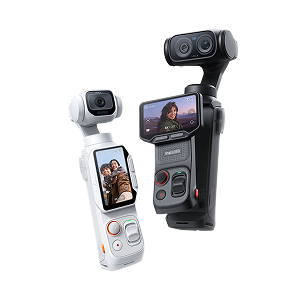
You don't need to learn every control before shooting. For your first video, focus on the Shutter Button, Joystick, and Zoom Slider.
- Shutter Button: Press once to start or stop video recording. In Photo mode, press once to take a photo.
- Joystick: Move it to adjust the gimbal direction. Press once to enable or disable tracking, and double-press to return the gimbal to center.
- Zoom Slider: Adjust the focal length while framing your shot.
The detachable touchscreen can also be used to monitor and control the camera remotely, with HD image transmission from up to 20m away.
Best Insta360 Luna Pro Settings for Your First Shoot
For your first shoot, keep things simple with Standard Video at 4K30fps. This gives you a good balance of image quality, smooth motion, and manageable file sizes while you learn the camera.
Start with 4K30fps
For everyday scenes, 4K30fps is a good starting point. It works well for travel, family videos, talking-head content, and general outdoor shooting.
If you're shooting in bright conditions and want to make the most of Luna Pro's high-resolution capabilities, you can switch to 8K30fps. However, 4K30fps is the easier setting to use for everyday shooting.
Use PureVideo in low light
For darker scenes, switch to PureVideo rather than relying on a high-resolution mode designed for well-lit conditions. PureVideo is Luna Pro's low-light shooting mode and supports up to 4K60fps. For your first low-light shoot, 4K30fps PureVideo is a good place to start.
For very dark scenes, keep the zoom at 1× where possible and consider adding a light source if you need more detail.
Try 4K60fps when you're moving
If you're filming walking shots, activities, or other scenes with more movement, 4K60fps can produce smoother footage. For your first shoot, this is an easy upgrade from 4K30fps when you want more fluid motion.
Turn the camera vertical for social content
Luna Pro supports vertical video up to 4K30fps. Simply rotate the screen to a vertical position to frame content for platforms such as Instagram Reels, TikTok, and YouTube Shorts.
For a straightforward first vertical video, try 4K30fps in a well-lit environment.
Keep zoom simple
Luna Pro offers 1×, 2×, and 4× focal lengths, with up to 2× lossless zoom and 4× HighRes Zoom. For your first shoot, 1× is the safest starting point for general scenes, while 2× can help bring your subject closer without physically moving the camera.
You can change the zoom using the camera's zoom controls or directly on the touchscreen.
Stay in Basic Mode while you're learning
Luna Pro offers Basic Mode for straightforward shooting and Pro Mode for more manual control. Basic Mode is a good starting point if you're new to the camera, while Pro Mode lets you adjust additional parameters as you become more comfortable.
You can switch between Basic Mode and Pro Mode by swiping left from the right edge of the camera screen to open the parameter settings.
Record, Review, and Share Your First Luna Pro Video
Once your camera is set up, choose Video mode, select your resolution and frame rate, frame your subject, and press the Shutter Button to start recording. Before you begin, make sure the lens is clean and that you have enough battery and storage. If you're recording speech, check your audio environment, too.
For your first test, try a short clip in good daylight and move around with the camera to see how the 3-axis gimbal handles movement. Press the Shutter Button again when you're finished.
Review your footage
Open Album on the camera to check your clip. Look over the framing, exposure, focus, and audio before moving on.
Transfer and edit
Connect Luna Pro to the Insta360 app with Wi-Fi and Bluetooth enabled on your phone to transfer your footage. You can also use NFC Quick Connection by enabling NFC on your phone and placing its NFC sensing area near the top of the Luna Pro lens.
Once your footage is in the app, open Album, select your video, and tap Editor. Use Quick Editing to trim your clip and export it, or use Advanced Editing if you want more control.
Share your video
Once your edit is ready, export it from the Insta360 app and share it to your preferred platform. For your first video, keep things simple: trim out unwanted sections, check the beginning and end, and you're ready to share.
What's Next?
Once you've completed your first shoot, start experimenting with the features that match how you use Luna Pro. Try vertical video for short-form content, PureVideo for low-light scenes, different zoom levels for framing, or the detachable touchscreen for remote shooting.
You don't need to learn every setting at once. Start with the basics, then adjust your setup as you discover what works best for your content.
For more detailed recommendations, check out our guide to the best Insta360 Luna Pro settings for different shooting scenarios.
First Use Guide FAQ
How do I connect Insta360 Luna Pro to the Insta360 app?
First, make sure you have the latest version of the Insta360 app and have granted the required permissions. Turn on Luna Pro's Wi-Fi in Settings > Wi-Fi Settings, then enable both Wi-Fi and Bluetooth on your phone. Open the Insta360 app, tap the camera icon at the bottom of the home screen, select Luna Pro, and follow the on-screen instructions. On the first connection, confirm the connection on the camera when prompted.
If Luna Pro does not appear, make sure Wi-Fi and Bluetooth are enabled, the camera is powered on, and the app is up to date. You can also check the camera's Wi-Fi name and password under Settings > Wi-Fi Settings and connect manually if needed.
How do I update Insta360 Luna Pro firmware?
The easiest way to update Luna Pro firmware is through the Insta360 app. Connect the camera to the app, and you'll receive a notification when a new firmware version is available. Follow the on-screen instructions to complete the update. Firmware updates can improve camera performance and refine existing features, so it's recommended to keep your camera up to date.
Before updating, keep the camera and phone within 2m of each other, keep the Insta360 app open in the foreground, make sure your phone has a stable internet connection, and ensure the camera battery is above 20%. Do not attach or detach the Detachable Touchscreen Remote during the update.
What storage card do I need for Insta360 Luna Pro?
Luna Pro supports a microSD card for additional storage. For the best recording performance, use a compatible UHS-I, V30 or higher microSD card in exFAT format.
Before using a new card, back up any existing files and format the card in Luna Pro through Shortcut Menu > Storage Management. Formatting erases all data on the selected storage, so make sure anything important has been backed up first.
What settings should I use first on Insta360 Luna Pro?
For your first shoot, start with Standard Video at 4K30fps. It offers a good balance of image quality, smooth motion, and manageable file sizes for everyday shooting. For low-light scenes, try PureVideo at 4K30fps, while 4K60fps is a good option when you're capturing more movement.
Once you're comfortable with the basics, explore the different shooting modes and settings based on your subject and shooting conditions. For more detailed recommendations, see our Best Insta360 Luna Pro Settings guide.
Keen to keep up to date on Insta360 stories? Keep an eye on our blog and sign up for our mailing list. Got a story to share? Email yours to communitystories@insta360.com and win up to US$50.
Your shot. Your world. The Insta360 Global Awards 2026 supported by Leica are officially open. Join creators worldwide and compete across six categories (Street, Travel, Life, Portrait, Sports, and Night) for your share of a US$150,000+ prize pool, including cash prizes and Insta360 gear. Submit your best video or photo at insta360.com/awards.




%20(1).svg)


%20(1).svg)

.svg)