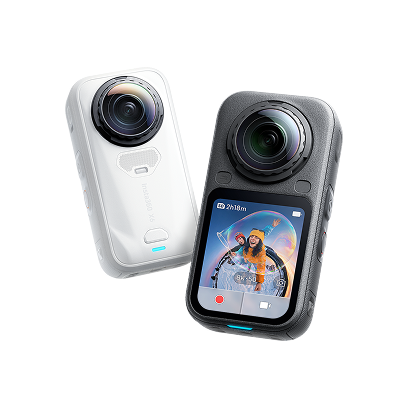
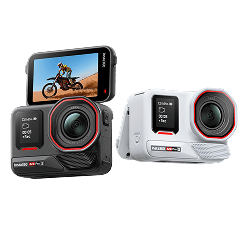
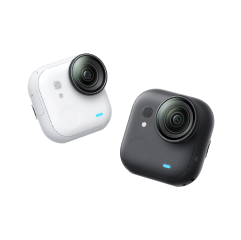
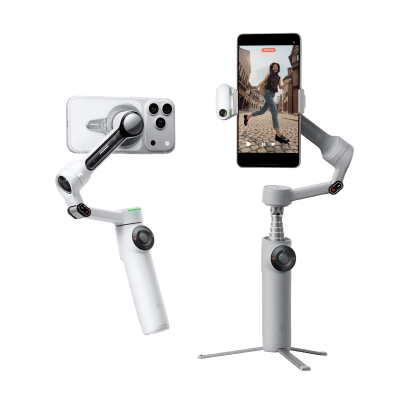
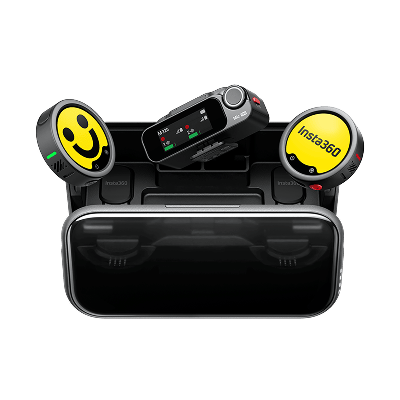
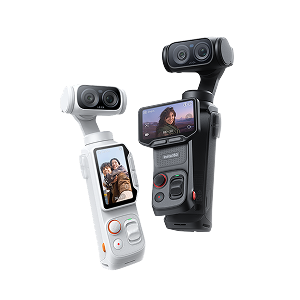
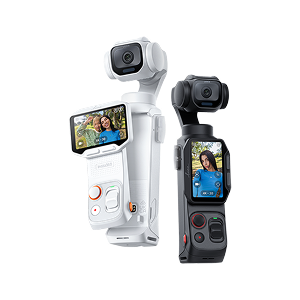

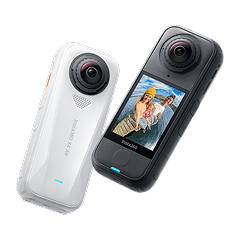
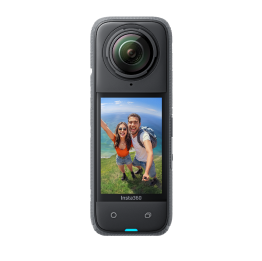
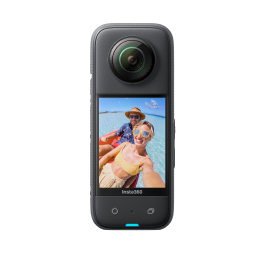
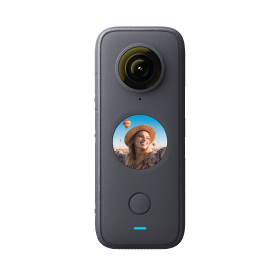
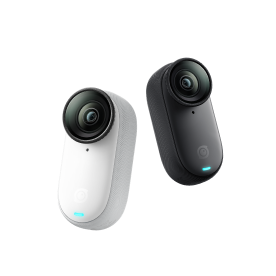
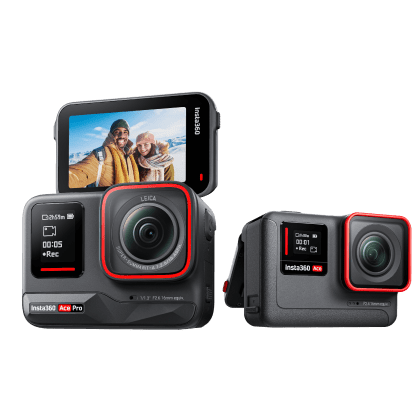













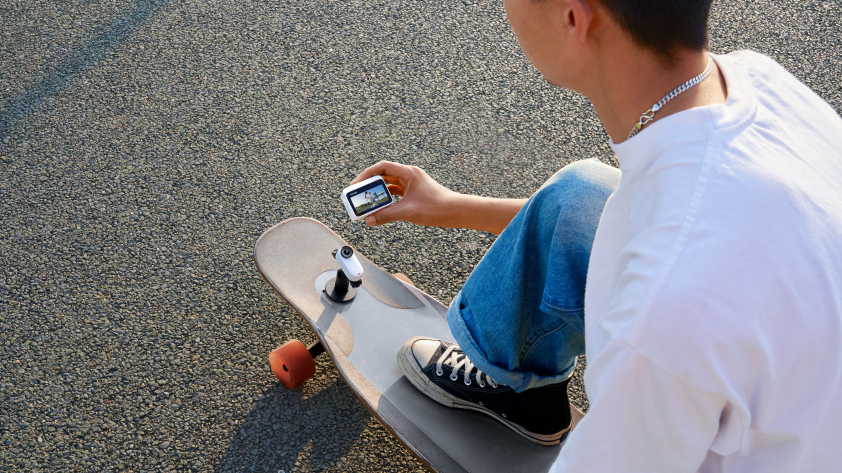


Tiny but mighty with a 4K bang to go with it. Insta360’s GO 3S packs monster creative power into a thumb-sized camera built for adventure, portability, and discretion. Whether it's fresh out of the box and you want a full rundown of features or you're just looking to finetune, this selection of FAQs has you covered.
Getting Started & Setup
What’s Included in the Insta360 GO 3S Kit?
Simplicity is the name of the game, and you won't need to spend hours assembling or poring over manuals. The Insta360 GO 3S kit includes the camera itself, the Action Pod (your touchscreen controller and charging dock), a Magnet Pendant, an Easy Clip, a Pivot Stand, and a USB-C cable.
Depending on the bundle, you might also get extra mounts or accessories—each designed to make shooting in different situations or environments simple and easy.
How Do I Activate Insta360 GO 3S and Connect to the App?
We've set everything up so you can begin shooting within minutes of opening the box. Simply turn on the camera, download the Insta360 app on your phone and follow the on-screen prompts to connect via Bluetooth. You can also link over Wi-Fi when it's available for smoother previews and faster file transfers.
Once paired, the app automatically checks for firmware updates and ensures you’re using the latest features and optimizations. And that's it. Point that camera and let creation commence.
How Do I Customize the Insta360 GO 3S Controls?
The Insta360 GO 3S keeps things minimal—who needs 400 different feature options you'll never use?—but customization allows you to set up your camera to your own specifications and shooting style. Open the Insta360 app and head to Camera Settings → Button Customization. You can assign functions like start/stop recording and photo mode.
Want a quick Insta360 GO 3S hack? You can use QuickCapture to set a button for instant recording, even when the camera’s turned off. That means no scrambling to capture those spontaneous moments—just a simple click, and life is on film.
Hardware & Design
What’s New Compared to the Insta360 GO 3?
Insta360 GO 3 was a much-loved trooper of a camera, but the Insta360 GO 3S is smarter, sharper, and stronger, with its 4K video upgrade as the flagship improvement. That’s double the resolution of the Insta360 GO 3, meaning crisper detail, richer colors, and cleaner footage even when you’re moving fast.
Inside, a more powerful processor boosts performance across the board, from image clarity to heat management. HDR Video mode gets a lift too, capturing scenes with more balanced exposure and dynamic range. Plus, the new Interval Video mode lets you film hands-free timelapses without lifting a finger.
Wondering how we could possibly improve? The Insta360 GO Ultra is the pinnacle of the GO series, with crisper footage, PureVideo, and PureShot modes, as well as a better battery life.
How Does the Action Pod Touchscreen Work?
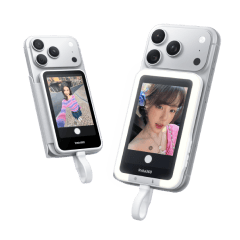
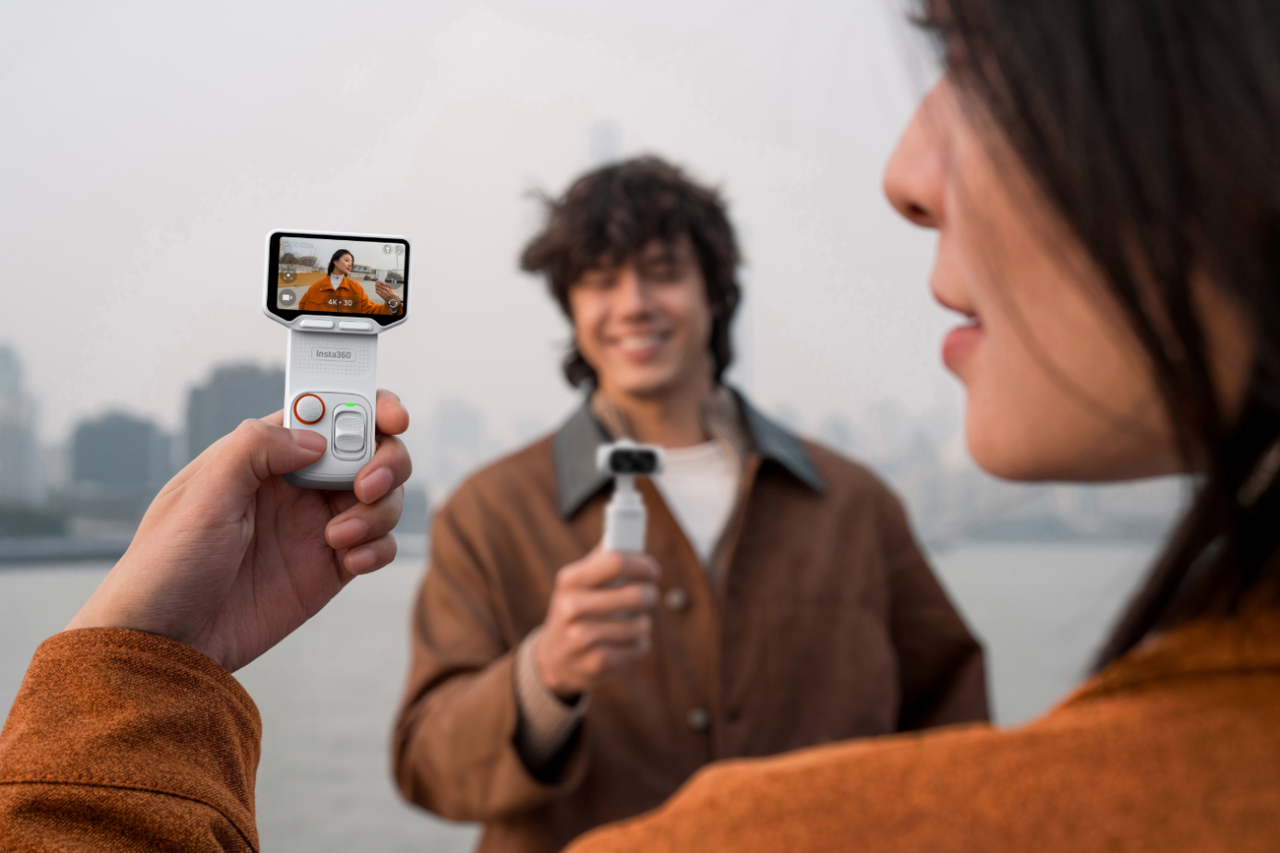
The Action Pod is the Swiss Army Knife of Insta360 GO 3S. It's a charging dock, a touchscreen remote, a live preview monitor, and a controller all in one. Snap in the camera and you’ve got a full mini action cam with real-time framing, playback and settings control.
When you want that classic ultra-light POV, just pop the camera out and mount it anywhere. The wireless connection between the Action Pod and camera means you can still see what you’re filming from a distance—perfect for solo creators, vloggers, or capturing your dog’s-eye view while out on a trail.
Waterproofing & Protection
Is the Insta360 GO 3S Waterproof and What Are the Limits?
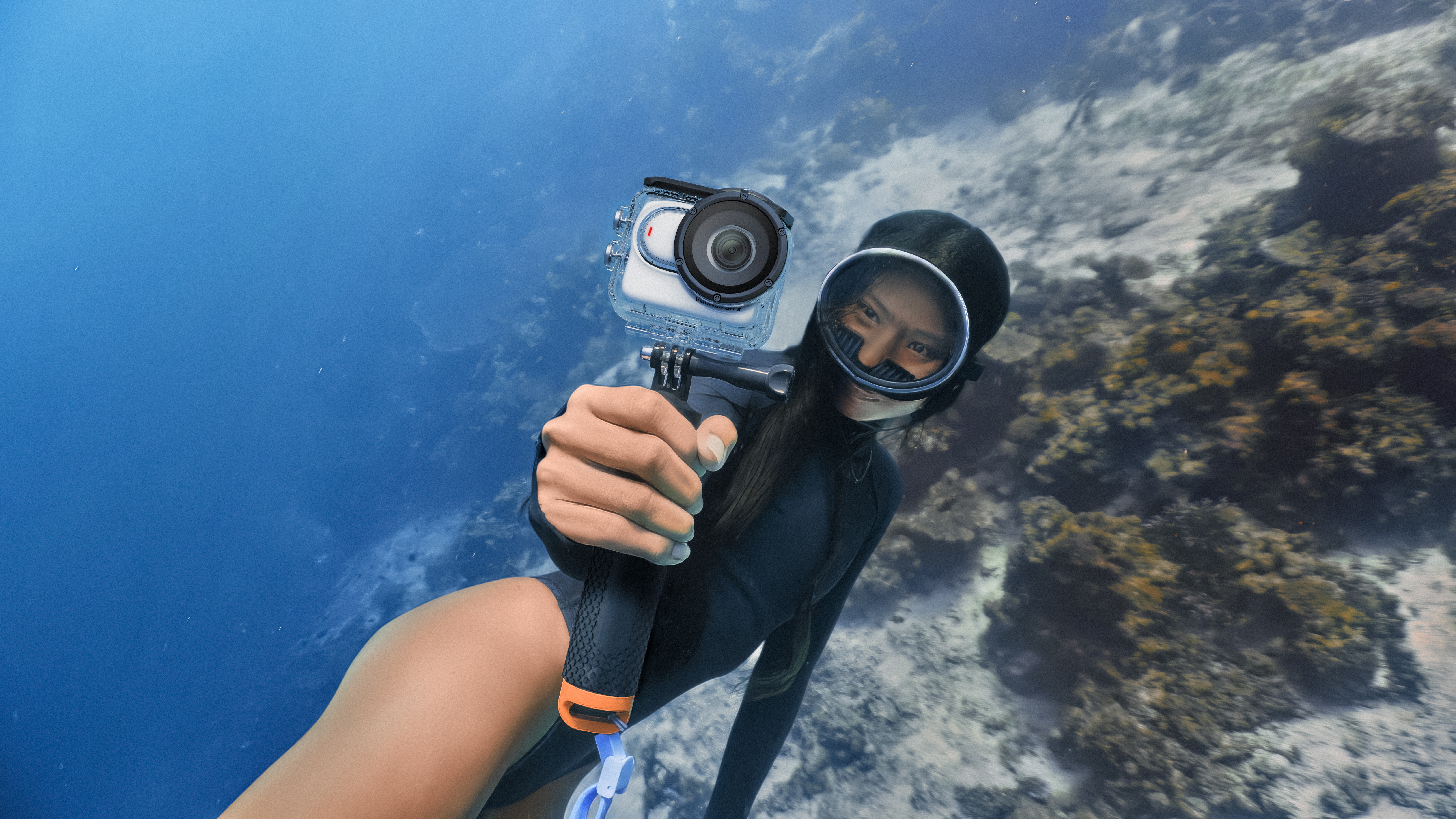
Yep, dive in, but be aware of the camera's limits. The camera itself is waterproof down to 33ft (10m), perfect for pool dives, snorkeling, or capturing surf shots, but the Action Pod, however, isn’t waterproof, so make sure that part stays on dry land.
One other point. Saltwater might seem benign, but it actually corrodes objects over time. With this in mind, if you’re taking the Insta360 GO 3S into the ocean, make sure you rinse it with fresh water each time afterward to maintain maximum longevity.
Do I Need a Lens Guard or Dive Case Underwater?
While the Insta360 GO 3S is built tough, a dive case or lens guard would probably be a good idea if you're diving deep or involved in anything high-impact. They will keep your footage sharp and your gear safe from scratches or pressure damage.
Video & Photo Modes
What Resolutions and Frame Rates Can I Shoot With Insta360 GO 3S?
Insta360 GO 3S packs a serious punch for such a tiny camera. You can shoot in crystal-clear 4K30fps for cinematic footage, or drop to 2.7K50fps and 1080p120fps for silky-smooth slow motion. Photo resolution hits 12MP with improved dynamic range and richer color depth.
Switching modes is quick—just tap the touchscreen or use the Insta360 app to toggle between video, photo, or FreeFrame modes.
What’s FreeFrame Video and When Should I Use It?
Now we're getting to the secret sauce of Insta360 GO 3S. Instead of locking in an aspect ratio while shooting, FreeFrame mode means you can record an adaptive file and re-frame later in the Insta360 app or Studio. In plain English, it means that you could get a 16:9 YouTube clip, a 9:16 reel and a square TikTok from exactly the same shot. No annoying cropping, no reshoots, no “can you just do that again while I fiddle with my camera for 5 minutes?”
When Should I Use TimeShift, Timelapse, Starlapse, Loop, or Slow Motion?
These features sound similar, but have specific purposes. Here's how to get the best out of each of them.
- TimeShift: Compresses long activities into fast-paced highlight reels—ideal for hikes, bike rides, or road trips.
- Timelapse: Captures gradual changes like sunsets or city movement over hours.
- Starlapse: Designed for night-sky magic; pair it with a tripod for the Milky Way.
- Loop Recording: Great for continuous action—think dash-cam or training sessions.
- Slow Motion: Perfect for action shots that need dramatic impact, like tricks or jumps.
Stabilization & FOV
How Do FlowState and Tilt Fix Improve Footage?
Forget gimbals— Insta360 GO 3S does it all in-camera. FlowState Stabilization smooths out bumps, shakes and sudden motion, giving your clips that beautifully buttery, cinematic look even when you’re sprinting, skating or mountain biking. Tilt Fix automatically levels the horizon, no matter how you tilt the camera. You can run downhill, twist the mount,hang upside down, and your shot still looks perfectly balanced.
Which FOV Option Is Best for Different Shots?
Insta360 GO 3S offers multiple field-of-view (FOV) settings so you can control how immersive your footage feels:
- UltraWide: Great for action-packed POVs—cycling, skiing, and skateboarding.
- ActionView: Slightly tighter framing that still keeps the dynamic edge; perfect for handheld vlogs.
- Linear: Clean, distortion-free footage for interviews or talking-head moments.
Experiment with each mode depending on what you’re shooting. UltraWide makes viewers feel like they’re right there with you, while Linear gives a polished, professional look.
Controls & Capture
What Capture Methods Can I Use?
Insta360 GO 3S comes packed with controls to get the camera rolling. Take your pick from: tapping the camera’s button, using Voice Control, or starting recording directly from the Action Pod touchscreen. For hands-free moments, Voice Control’s your best friend—just say the command, and the camera gets rolling.
If you need a little more distance, the Action Pod has a wireless remote to preview your shot and start recording from up to 65ft (20m) away, which is ideal for capturing yourself in-frame without needing a second person behind the camera.
Then there's QuickCapture Mode, which we touched on earlier. This allows you to hit a single button, which turns on your camera and begins recording at the same time. You can also customize settings within QuickCapture, so whether you're hurtling down a ski slope or sitting in a canoe, you'll be ready for whatever action arises.
Storage & Editing
How Much Storage Does the Insta360 GO 3S Have?
Insta360 GO 3S comes in three storage options: 64GB, 128GB and 256GB, meaning you can pick the capacity that fits your shooting style. If you record short clips and transfer often, 64GB might do the trick, but for full-day adventures or longer 4K sessions, the larger options are a smarter move.
Unlike some action cams, Insta360 GO 3S doesn’t use a microSD card—it’s all built-in memory. This design keeps it compact and reliable, with fewer moving parts to worry about. Just remember to back up or transfer footage regularly to free up space before your next shoot.
How Do I Transfer and Edit Footage With the App?
Moving files and editing are simple with the Insta360 app. Once your Insta360 GO 3S connects via Wi-Fi, your footage syncs automatically—no cables, no fuss. From there, you can trim, reframe, or apply filters in seconds.
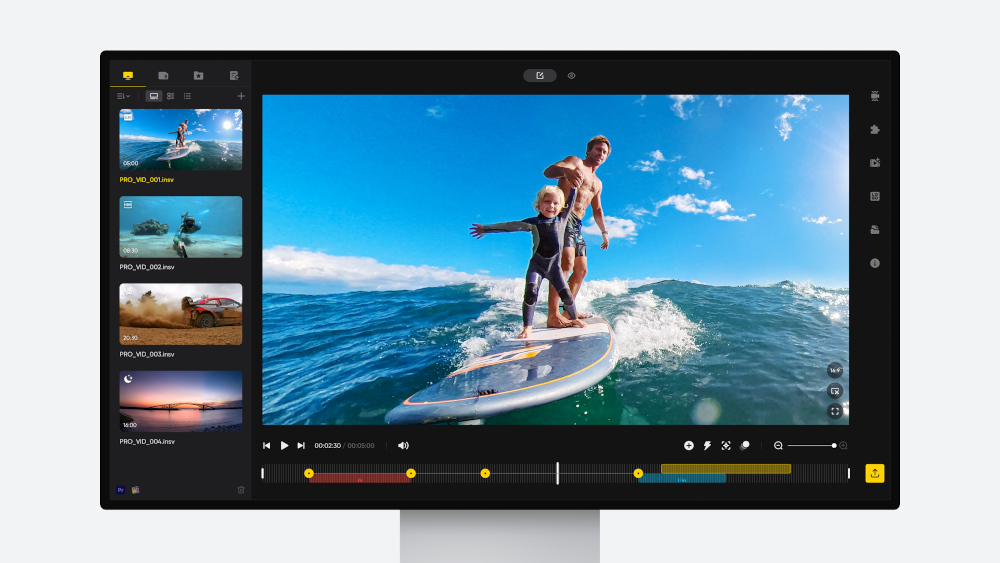
The app’s AI Edit tool even auto-selects highlights and cuts them into a share-ready clip, complete with transitions and music. Could it get any easier? If you prefer more control, open your clips in Insta360 Studio for desktop and fine-tune keyframes, speed ramps, color grading, and everything you need to turn those clips into showstopping footage.
Keen to keep up to date on Insta360 stories? Keep an eye on our blog and sign up for our mailing list. Got a story to share? Email yours to communitystories@insta360.com and win up to US$50.




%20(1).svg)


%20(1).svg)

.svg)