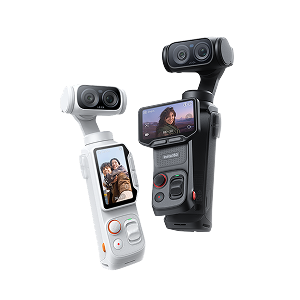
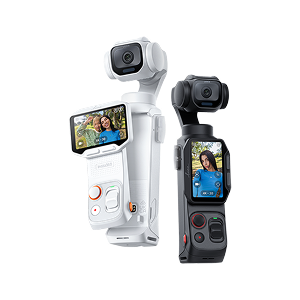

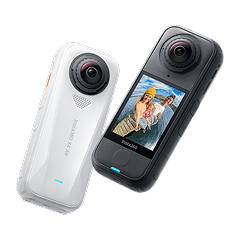
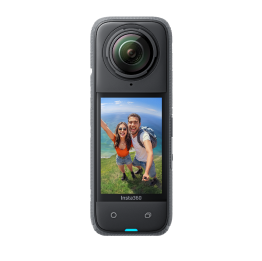

















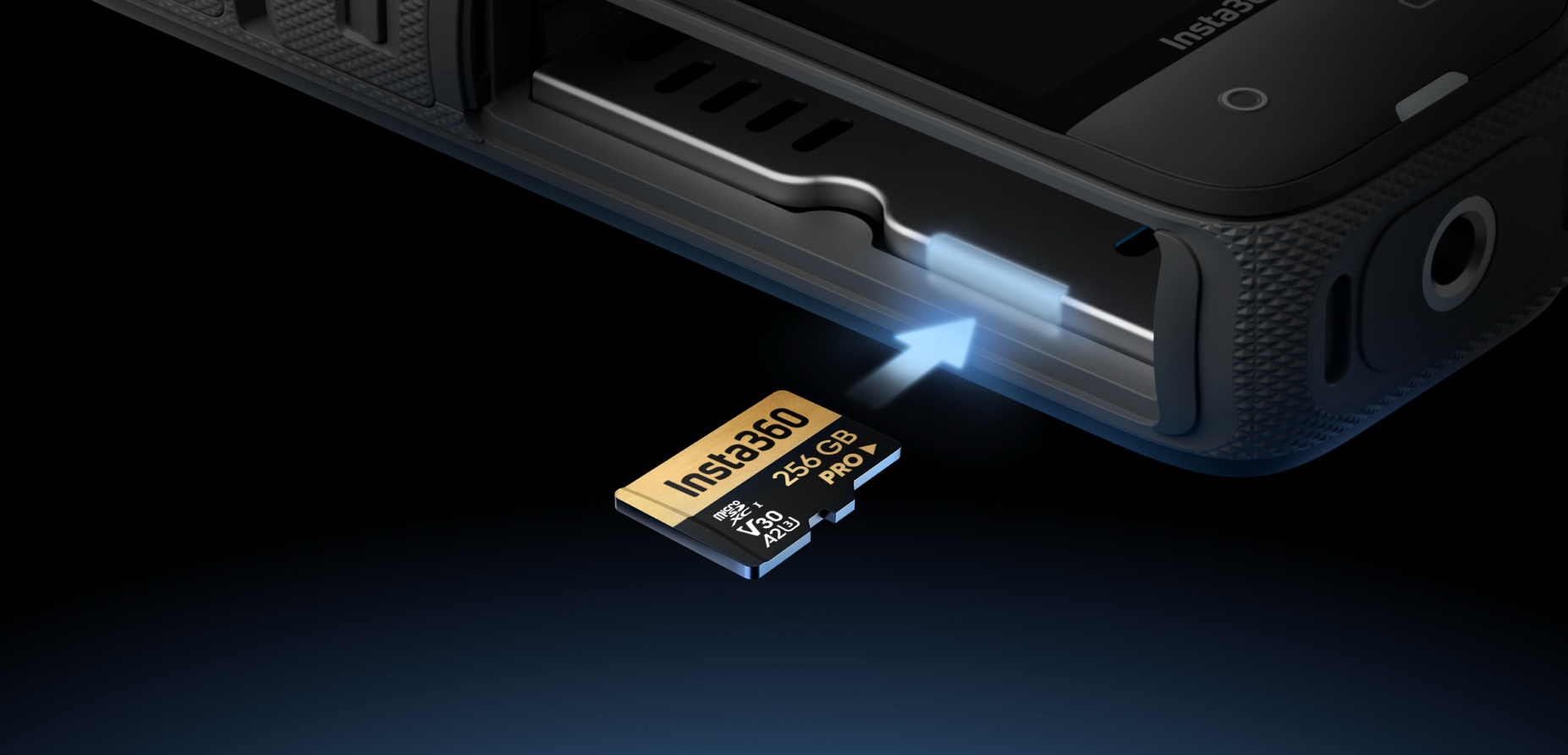


If you have a high-quality camera, ensure your microSD card is formatted correctly to maximize storage capabilities and enable recording of high-resolution video content. A high-quality camera can provide you with fantastic quality. Still, if your microSD card isn't formatted to suit the camera's features, then it's not possible to get the most out of a top-quality device.
What Formatting Does (and Why It Matters)
Formatting a microSD card sounds like the thing only true nerds can accomplish after years of learning coding and the like. However, formatting is actually doable for both camera enthusiasts and non-camera enthusiasts alike. So, what exactly is it all about?
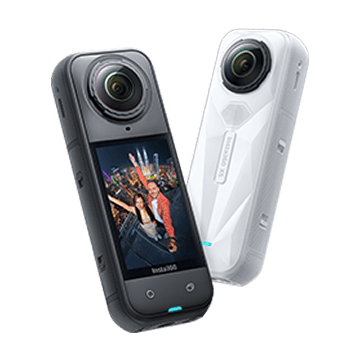
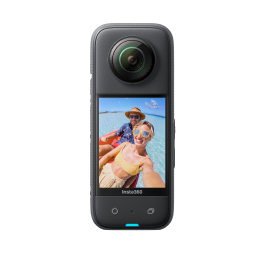
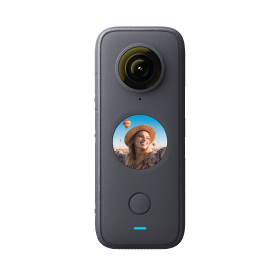
Formatting is another way of saying that you're organizing your microSD card to be compatible with your camera, as you may want to use a microSD card that you’ve used before on a previous camera. For example, imagine you fell in love with Insta360 X4 and, much like choosing to have a second child, you realize that you have more love to give and more photos to take, so you invest in an Insta360 X5 or another great camera.
You may want to use the same microSD card. In that case, make sure your SD card is compatible with your new device. This erases the data on the microSD card and creates a new file system for optimal performance. By doing so, you achieve more reliable high-resolution video recording and prevent corrupted files.
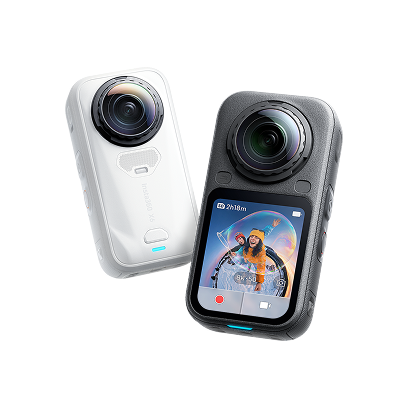
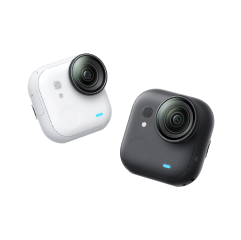
With microSD cards only being 20 years old, it’s essential to learn the formatting process so you can get the most out of your camera. For example, when you invest in an Insta360 GO Ultra camera, you’ll want to ensure your microSD card is formatted correctly.
Supported MicroSD Types
In short, a supported microSD card is one that the manufacturer has explicitly approved for use with your device. This means that the microSD will be compatible with your camera or device, and you shouldn’t encounter problems using it (provided it’s formatted correctly). Typically, these include:
- MicroSD (up to 2GB).
- MicroSDHC (2GB–32GB).
- MicroSDXC (up to 2TB).
- MicroSDUC (up to 128TB).
However, to know which one is the perfect fit for you, you need to check your specifications first.
Using the SD Memory Card Formatter
To format your SD card, one option is to use the official SD Formatter from the SD Association, which helps prevent the risk of formatting your SD card incorrectly. It enables the optimization of the card for improved performance and longevity.
This will prevent you from accidentally ruining a usable microSD through computer formatting and sending it off to e-waste disposal. The laws around e-waste disposal can be confusing, so it’s best to use a reliable formatting tool.
Pros
- Great performance.
- Highly reliable.
- Universally compatible.
- Simple to use.
Cons
- More time-consuming.
Formatting on macOS or Windows
If you choose to format on macOS or Windows instead of the SD Formatter option, then that’s entirely doable. However, formatting on macOS or Windows might still limit the capabilities of your microSD.
Pros
- Convenient.
Cons
- Less compatible.
- Potential for issues.
FAT32 vs exFAT—Which Should You Use?
Both FAT32 and exFAT are good options, but it’s essential to know which one is best when formatting your microSD card.
FAT32 is great if you need better compatibility. For example, if you’re unsure whether your device supports exFAT or FAT32, it’s best to go with FAT32. FAT32 only works with SD/microSD cards with 32GB or less, and it cannot store a single file exceeding 4GB, so take this into account.
However, exFAT is excellent if you want to carry single files over 4GB and if the capacity of your microSD is over 32GB.
Formatting Safely
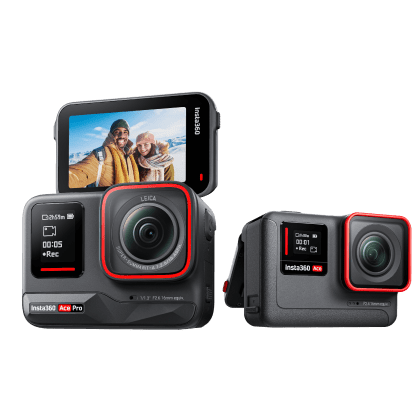
There are a few key things to remember when it comes to formatting. Firstly, the principle of formatting requires all data to be erased. In a rush, don’t forget to save and back up all your awesome Insta360 Ace Pro 2 videos before erasing all the data. To reduce errors that occur during the formatting process, it’s always best to opt for a high-quality card reader. Without being aware of these steps, you might be in for a nasty surprise.
Formatting Directly in Insta360 Cameras
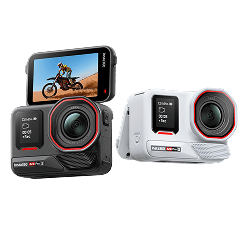
One of the best ways to format your microSD is to use the formatting tools provided by the device on which you intend to use it. With Insta360 X5, Insta360 X4, and Insta360 Ace Pro 2, you can use these devices to format your SD card in-camera, providing quick and reliable formatting.
Common Mistakes to Avoid
- Using a damaged microSD card.
- Forgetting to back up data.
- Removing the card during the formatting process.
- Not correctly ejecting the microSD after the formatting process.
- Choosing the incorrect filing system.
Frequently Asked Questions
Can You Format a MicroSD Card Without a Computer?
Absolutely, you can format a microSD card without a computer by using either the SD Formatter or the built-in formatting steps of your camera or device. Using a computer is one of the least beneficial ways to format, so choosing one of the other two options is the best approach.
What Is the Best Way to Format a MicroSD Card?
It all depends on the device you want to use and the type of file system that is compatible with your device and microSD. If you only want to format an SD card temporarily, then using macOS or Windows is an option. However, if you want reliable formatting, using the SD Formatter or your device is best.
How to Fix a MicroSD Card That Won't Read?
If your device is struggling to read the card, it’s best not to jump to reformatting. Instead, try turning your device off and on again. Then clean the card and the slot carefully. The problem could be debris. If that doesn’t work, test the card on another device to determine if the microSD card is the issue.
Start With a Clean Card for a Smoother Shoot
It makes sense to reuse a microSD card if you have one, rather than letting it go to waste in an electronic waste landfill site. However, it’s also sometimes far easier to shoot with a clean card. But which card is best? Discover our recommended microSD cards today and pick the card best suited to you and your device.
The Insta360 Vision Awards supported by Leica are now open. Join creators worldwide for a chance to win from an US$80,000+ prize pool, including Leica cameras and Insta360 gear.
Got a story to share? Email yours to communitystories@insta360.com and win up to US$50.




%20(1).svg)


%20(1).svg)

.svg)