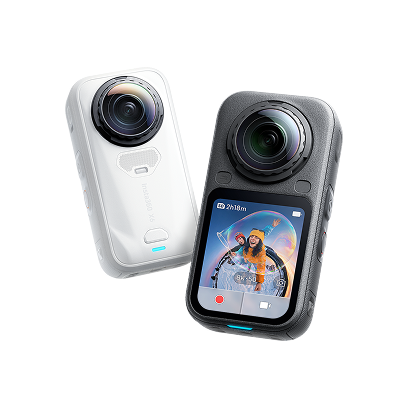
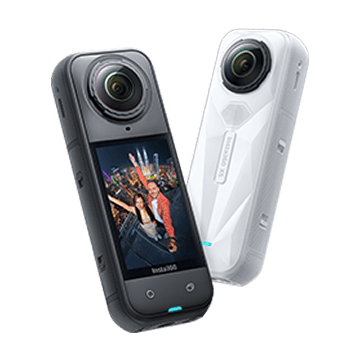
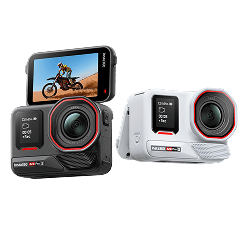
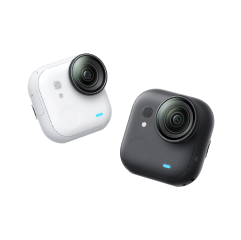
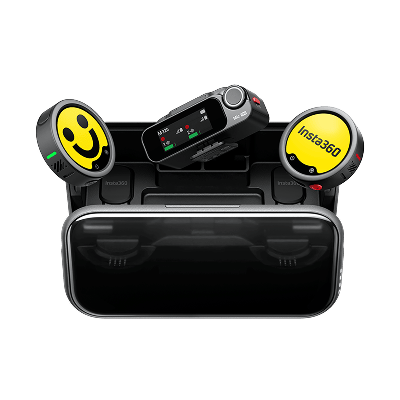



















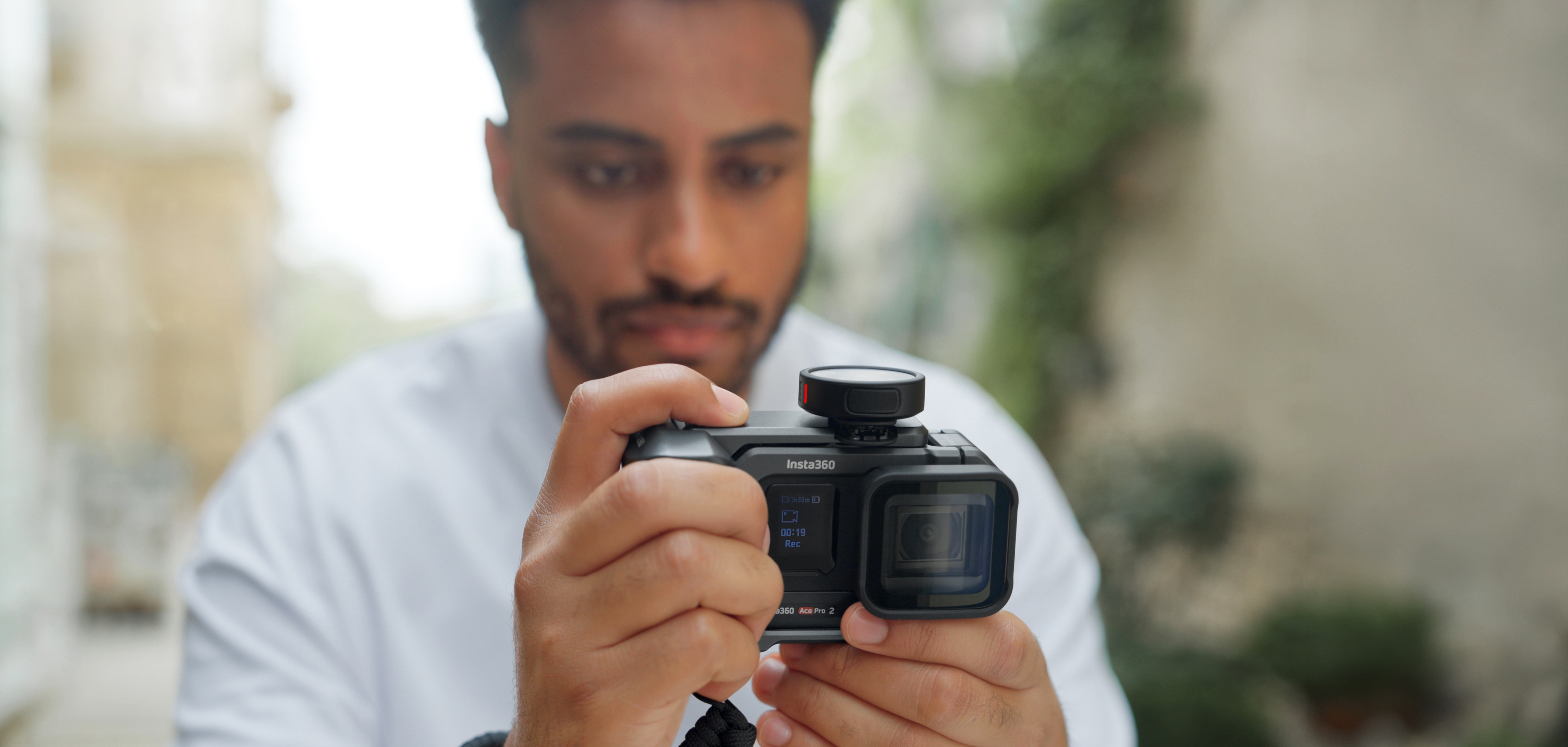


Insta360's new Mic Pro is built to work across a wide range of devices: smartphones, mirrorless cameras, DSLRs, and Insta360's own action cameras. Each connection method is slightly different, and knowing which one to use for your setup saves you a lot of time on shoot day.
This guide covers every connection method available on the Insta360 Mic Pro, what each one is best for, and what to watch out for.
Before You Start: Understanding the Mic Pro's Setup
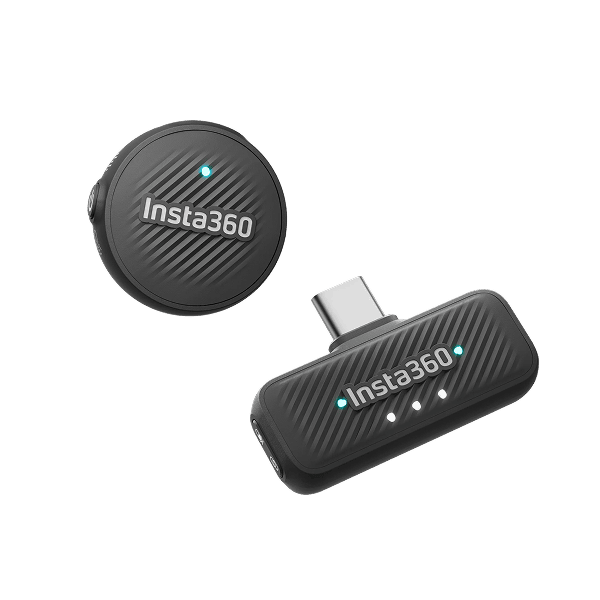
The Mic Pro system consists of a transmitter (TX) and a receiver (RX). In most setups, the TX clips to your subject and the RX connects to your recording device. The exception is Insta360 Direct Connect, which lets the TX pair directly with compatible Insta360 cameras without a receiver at all.
The RX features a 1.1-inch OLED display with dial control for adjusting settings on the fly. The TX uses side buttons with real-time vibration feedback. Both are worth familiarizing yourself with before your first shoot.
How to Connect the Insta360 Mic Pro to an iPhone
There are two ways to connect the Mic Pro to an iPhone: via the receiver's USB-C output (or with our Lightning adapter), or directly over Bluetooth.
Using the Receiver (Recommended for Best Audio Quality)
This is the standard setup for recording video on iPhone with full audio control through the receiver or Insta360 app.
- Power on the TX and RX. They will pair automatically on first use.
- Connect the RX to your iPhone using a USB-C adapter. If your iPhone has a Lightning port, you will need the optional Lightning adapter accessory.
- Open your preferred recording app. The Mic Pro RX will appear as an audio input source.
- Select your pickup pattern and noise cancelation mode on the RX display before recording.
For iPhones running iOS, the RX is also compatible with third-party recording and live streaming apps. This is the recommended method when audio quality is the priority.
Using Bluetooth Direct (For Quick Setup and Live Streaming)
The Mic Pro TX supports Bluetooth HFP connection directly to your smartphone, with no receiver required.
- On the TX, navigate to Bluetooth pairing mode via the side button menu, then hit the side button three times to start pairing.
- On your iPhone, go to Settings > Bluetooth and select the Mic Pro TX from the available devices.
- Once paired, open your recording or streaming app and select the Mic Pro as your audio input.
One thing to keep in mind, though: Bluetooth connection caps audio resolution at 16 kHz, and the native iPhone camera app's audio function is not supported in this mode. Bluetooth Direct is best for casual live streaming and third-party app recording where convenience matters more than maximum fidelity.
How to Connect the Insta360 Mic Pro to Android
Android connection follows the same two paths as iPhone, with one difference: most modern Android phones use USB-C natively, so no adapter is required (but if you're still on a Lightning device, we have an adapter for that).
Using the Receiver
- Power on the TX and RX.
- Connect the RX directly to your Android phone via USB-C.
- Open your recording app. The Mic Pro should appear as an available audio input.
- Adjust settings via the RX OLED display as needed.
The Mic Pro is widely compatible with Android recording and live streaming apps. If your app of choice does not detect the RX automatically, check the app's audio input settings manually.
Using Bluetooth Direct
The Bluetooth pairing process on Android mirrors the iPhone setup. Go to your phone's Bluetooth settings, put the TX into pairing mode, and select it from the device list. The same 16 kHz resolution cap applies, and this method is best suited for streaming rather than high-quality recording.
How to Connect the Insta360 Mic Pro to a DSLR or Mirrorless Camera
For cameras with a standard 3.5mm audio input, connection is simple.
- Power on the TX and RX.
- Connect the RX to your camera's 3.5mm microphone input using the included cable.
- In your camera's audio settings, set the input to external microphone and adjust levels as needed. With Auto Gain Control enabled on the Mic Pro, you may not need to touch the camera's gain settings at all.
- Use the RX display to select your pickup pattern and noise cancelation preference before rolling.
Auto on/off with camera: When connected via 3.5mm to a DSLR or mirrorless camera, the RX can power on and off in sync with the camera body. Enable this manually in the RX settings. This feature also works via the Sony MI hot shoe adapter on compatible Sony cameras.
Four-channel output on Sony cameras: If you are shooting on a compatible Sony mirrorless body with a MI hot shoe, the optional Sony hot shoe adapter enables four-channel audio output directly from the RX, useful for multi-person shoots where you want separate tracks per transmitter in post.
How to Connect to Insta360 Cameras (Direct Connect)
For users already shooting on Insta360 cameras, Direct Connect removes the receiver from the equation entirely.
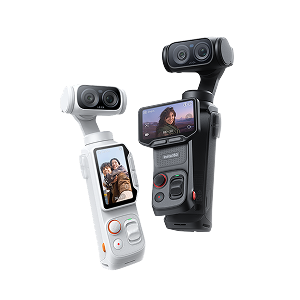
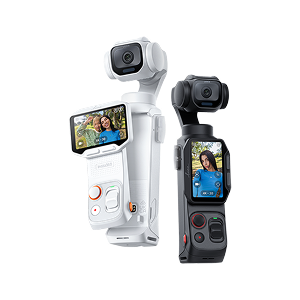
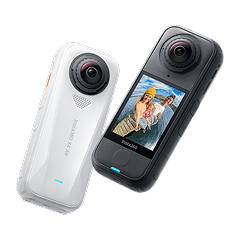
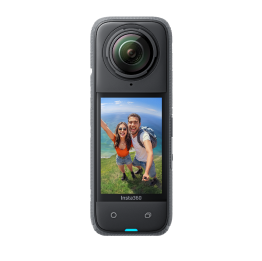
The TX pairs directly with your Insta360 camera over Bluetooth, recording 48kHz audio without any additional hardware. You can also control video recording start and stop directly from the TX button, the same quick-trigger workflow you get with the Mic Air.
Cameras supporting 2TX Direct Connect: Upcoming releases from Insta360
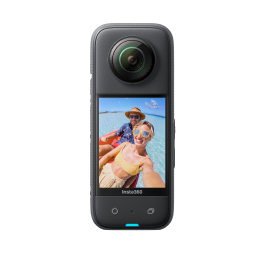
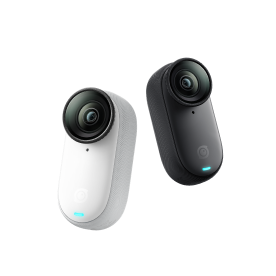
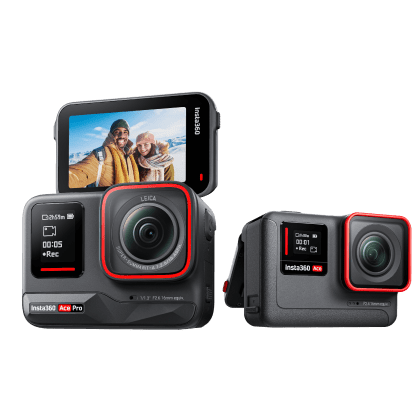
Cameras supporting 1TX Direct Connect: X5, X4 Air, Insta360 Ace Pro 2, GO Ultra and upcoming releases from Insta360
To pair:
- Power on the TX and your Insta360 camera, then press the Power Button three times to enter Pairing Mode.
- In the camera menu, navigate to Bluetooth or microphone settings, then select Direct Connect.
Once paired, the TX will reconnect automatically on subsequent uses. Bluetooth connection stability and range on newer Insta360 camera models is improved over the Mic Air, particularly for range and audio quality.
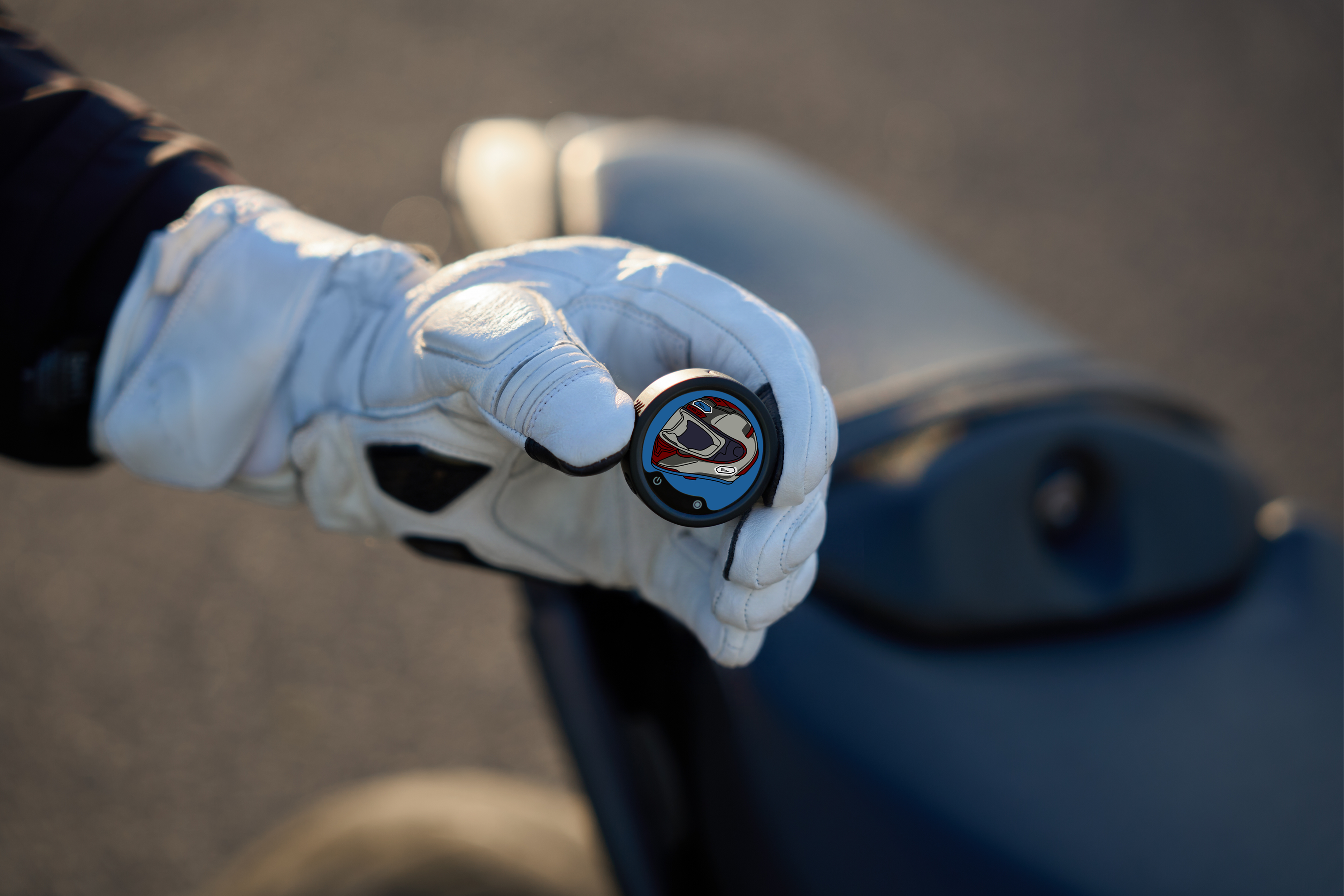
How to Connect Multiple Transmitters (4TX + 1RX)
For interviews, panels, and multi-person shoots, the Mic Pro supports up to four transmitters connected to a single receiver simultaneously.
- Power on all TX units and the RX.
- On the RX, navigate to multi-TX pairing mode via the OLED display menu.
- Pair each TX individually. Once all four are connected, the RX will display each channel independently.
- Each TX records its own independent audio track. Use the monitoring source selection on the RX to focus on a specific TX during recording.
Four-channel output requires compatible Sony camera hardware and our camera adapter accessory. In standard 3.5mm output mode, the RX outputs a stereo mix.
How to Connect for Multi-Camera Shoots (2TX + 4RX)
For live events, two-person interviews across multiple camera angles, and broadcast setups, the Mic Pro supports up to two transmitters broadcasting to four receivers simultaneously.
- Power on both TX units and all RX units.
- On each RX, head to multi-RX pairing mode via the display to sync the TX units. Each RX will receive the audio signal from both transmitters.
- Enable timecode sync via the RX menu if you are using multiple cameras. The RX can function as a timecode generator, distributing sync signals to other receivers and compatible cameras, with a drift of approximately one frame over 24 hours.
This setup is ideal for event videography, live performance recording, and broadcast workflows where multiple camera operators need synced audio without a separate timecode box.
Exporting Internal Recordings
If you have been recording internally on the TX (stereo or 32-bit float), exporting those files is done via USB-C.
- Connect the TX directly to your computer or smartphone using a USB-C cable.
- The TX will appear as a storage device. Navigate to the recorded audio files and copy them to your editing system.
The Mic Pro TX does not support wireless file export. A direct USB-C connection to your computer or smartphone is required, which is the fastest and most reliable way to transfer large audio files.
Quick Reference: Connection Methods at a Glance
| Device | Method | Audio Quality | Notes |
| iPhone (Lightning) | RX via Lightning adapter | Full quality | Adapter sold separately |
| iPhone / Android | RX via USB-C | Full quality | Recommended method |
| iPhone / Android | TX via Bluetooth HFP | 16 kHz | Best for live streaming |
| DSLR / Mirrorless | RX via 3.5mm | Full quality | Standard setup |
| Sony cameras | RX via MI hot shoe adapter | Full quality + 4-channel | Adapter sold separately |
| Insta360 cameras | TX Direct Connect | 48kHz | No receiver needed |
Whether you are clipping up for a solo vlog, running a four-person panel, or syncing audio across a multi-camera event shoot, the Mic Pro has a connection method built for it. Once you have your preferred configuration dialed in, it reconnects automatically every time.
If you're still choosing the right setup, browse Insta360's complete range of wireless lavalier microphones to compare different recording systems and accessories for your workflow.
Keen to keep up to date on Insta360 stories? Keep an eye on our blog and sign up for our mailing list. You can also contact our Enterprise team directly to see how 360 cameras can benefit your business.





%20(1).svg)


%20(1).svg)

.svg)