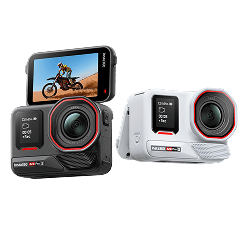
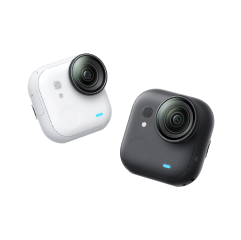

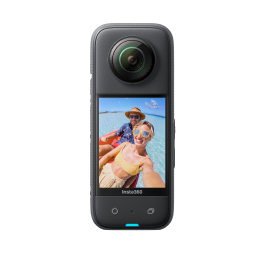
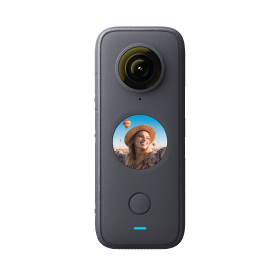
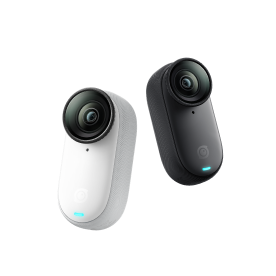
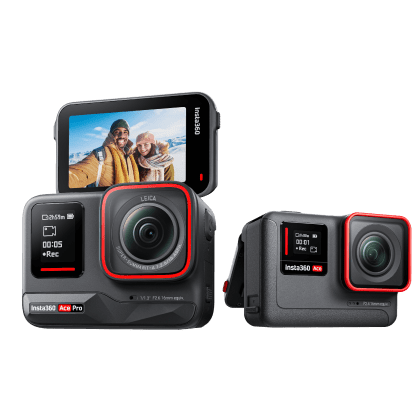




















Capturing the world and all its wonderful oddities is the fun part; editing, transferring, and workflow, not so much. Suddenly, you’re faced with acronyms you’ve never heard of: INSV, LRV. You hesitate, not wanting to lose all of that precious material you’ve been shooting all day. What does it all mean?
The good news is that Insta360 cameras are designed to capture immersive footage quickly, but their file system follows a specific logic that prioritizes quality, speed, and flexibility. It might feel bewildering when you first start, but once you understand how INSV and LRV files work — and how they move between your camera, phone, and computer — your entire workflow tightens up.
INSV vs LRV: What These Insta360 Video Files Actually Do
At first, it’s confusing: two files for the same clip, with similar names but different acronyms and sizes. Overkill? Not really, once you understand why.
INSV: These are your all-important original files. Every board grab, cheeky smile, stumble, and fall is recorded as INSV files, making it the most important version. When you render a finished video, this is the file the software pulls from. If you delete this, it’s gone for good.
LRV: LRV files, on the other hand, are slimmed-down preview versions of the original INSV. They’re low-resolution files created automatically alongside the originals that enable smooth playback, especially on phones and tablets with limited processing power. If you look through clips on the Insta360 app, you’re typically looking at LRV files with their INSV counterparts sitting discreetly behind them.
When to Use INSV vs LRV in Your Editing Workflow
OK, now we’ve got the technical bits out of the way, how do we actually implement INSV and LRV files in our editing workflow?
INSV: With INSV, think of them as the files that you’ll use towards the end of your workflow. When you begin editing, tweaking color, reframing, and exporting, you’ll want to use the best quality video you have, and that will always be the INSV. They have the best resolution and dynamic range, so if you want quality from those stunning shots with your Insta360 X5 - and we’re assuming everybody does - go for INSV every time.
LRV: LRV files shouldn’t really ever be used for the final product unless you actually want something substandard. LRVs are designed to be previewed and scanned through quickly, not to be used for the finished article.
When you’re searching for video and just need to watch quick clips, use LRV. If you’re sending those clips into the editing room, go for INSV.
How Insta360 File Transfers Work Across Devices
File transfers are a part of the process you rarely think about until it all goes wrong, but thankfully, Insta360 handles transfers with flexibility, letting you choose speed or convenience depending on the moment.
There are two ways to transfer files: mobile devices prioritize wireless connections and portability, while computers prioritize stability and raw speed. There’s a time and place for both. If you’re outside or on the go, using wireless lets you do things quickly — previews, social edits, and posts — but you’re limited by speed and connection.
If you can plug in, either to a phone or a computer, you’ll notice speeds dramatically increase, which means large files can transfer without any issues, and original INSV files can be viewed without lag. It’s the best way to do things, but it isn’t always available.
Fastest Ways to Transfer Insta360 Files to Your Phone
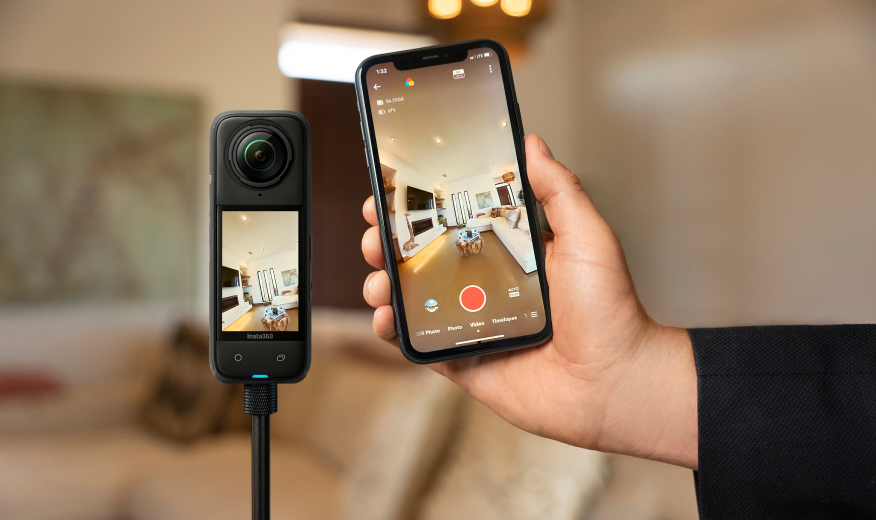
When speed is important, your phone is usually the first port of call. When this is the case, the Insta360 app is designed to prioritize convenience, quickly and easily linking your camera to your phone. However, as mentioned, a Wi-Fi transfer might be the most convenient way to transfer files, but it probably won’t be the fastest. LRV can move across fairly quickly, but with the larger INSV files, you might struggle.
If speed is of the essence, and you have the capabilities, a direct cable transfer is the fastest and most stable option. Connecting your camera directly to your phone reduces interruptions and handles full-resolution footage more reliably, especially when using high-bitrate files.
How to Transfer Insta360 Files to PC or Mac
Mobile and tablets are great, but desktop workflows are where full-resolution footage really opens up. Larger screens, faster drives, and dedicated GPUs make editing smoother and more precise — this is how those high-definition videos were meant to be seen.
The most reliable way to do this is through a direct connection, such as a USB cable, or by removing the SD card from your Insta360 GO Ultra or another camera and using a card reader. Once connected, things are easy, and the camera or card appears just as an external hard drive would. You’ll see the full folder structure, including INSV and LRV files stored together, and you can move over any videos you wish. Simple. As easy as it gets.
Understanding Insta360 Folder Structure and File Locations
Opening an Insta360 memory card and everything inside can feel like you’ve just opened Pandora’s Box. Multiple files, metadata, it can feel overwhelming until you understand the pattern.
Each recording session is organized into dedicated folders that group related files together. Inside, you’ll typically find:
- The main INSV file containing full-resolution video data
- A matching LRV file used for preview and smooth playback
- Supporting metadata files that store orientation, stitching, and sensor information
It’s important to remember that these groups act as a set, so moving one without the rest can sometimes cause problems. If possible, keep everything together. If you’re using the Insta360 app or Insta360 Studio, lucky you, because all of this is handled automatically.
Why a Unified Insta360 Editing and Transfer Workflow Saves Time
Developing a unified workflow that links transferring and editing will save you a lot of time in the long run. It’s easy to get into the habit of ‘transfer now’ and ‘edit later’, but we all know how that works. You’ll end up with stacks of files, some of which you can’t even remember what they were, and your workflow comes to a screeching halt before it’s even had time to pick up speed.
Creating and maintaining a clear workflow means your images and videos land where they’re supposed to, rather than gathering dust in a folder that just keeps growing.
Frequently Asked Questions
What is an INSV file in Insta360?
An INSV file in Insta360 is the original file that you record. It contains the full-resolution footage captured by the camera’s lenses and is required for reframing, exporting, and final edits. This is the file that holds all visual detail and image data.
What is an LRV file used for?
LRV files are low-resolution preview files created alongside the original footage. They’re best for quick previews and for helping you search for particular content, but they're lower resolution, so they shouldn’t be used for the final product.
Can I delete LRV files after transferring footage?
Yes, you can delete LRV files once you’ve finished editing and exporting. In fact, it’s probably a good idea to free up more storage space on your camera. However, always make sure that a file has been transferred properly before hitting that delete button.
Keen to keep up to date on Insta360 stories? Keep an eye on our blog and sign up for our mailing list. Got a story to share? Email yours to communitystories@insta360.com and win up to US$50.





%20(1).svg)


%20(1).svg)

.svg)