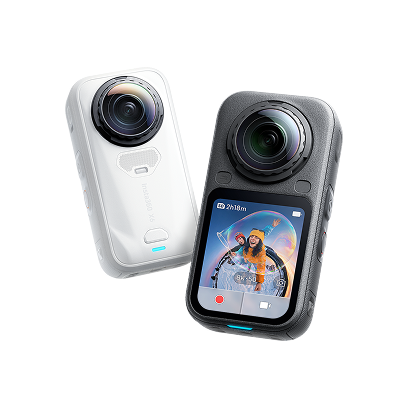
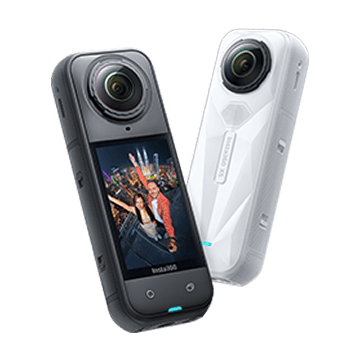

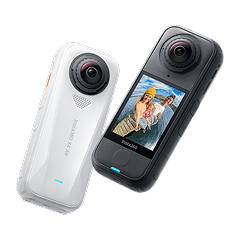
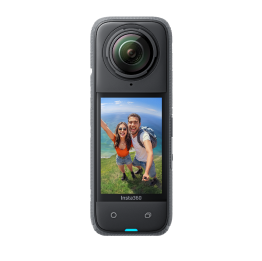
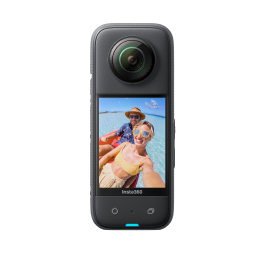
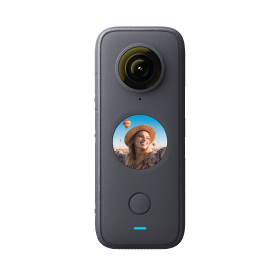




















As soon as you get your Insta360 X5 out of the box, you immediately know there’s something different about this model. Sleek, small, with dual sensors, an invisible selfie effect and of course, the main event, 360-degree capture. It’s exciting—but if you’ve never used a 360 camera before, it can also feel like a lot at first.
The good news is that getting started with Insta360 X5 is considerably easier than you might think.
Once you understand the basics—setup, shooting modes, reframing and a few key settings—Insta360 X5 quickly becomes something you’ll want to carry everywhere and film everything with.
But first, this short guide will get you up to speed as quickly as possible.
What Comes in the Box & What You Need First
The first thing most people notice about Insta360 X5 is its compact design. Despite capturing fully immersive 360 footage, the camera itself stays lightweight and easy to carry—exactly what you want when you’re traveling, exploring or filming on the move.
Inside the box, you’ll find:
- Insta360 X5
- Rechargeable battery
- USB-C charging cable
- Protective pouch
- Lens cloth
- Quick start documentation
Those are the basics, but it does come with various Insta360 X5 bundle options where you can add invisible selfie sticks, additional batteries or clamps to attach the camera to motorcycles, cars, and more.
You’ll want to hit that record button and start filming as quickly as possible, but it’s worth keeping a few things in mind first.
- First, put the camera on charge and make sure it has a full battery. Nothing kills momentum faster than getting halfway through your first shoot and watching the battery indicator flash red just as things get interesting.
- The only other thing you need to think about at this stage is making sure you’re using a compatible high-speed microSD card. 360 footage contains a huge amount of visual data, especially when recording at higher resolutions, so slower cards can lead to recording interruptions or export issues. A V30-rated card or higher is the safest choice for smooth performance.
- And before your first shoot, one final thing: clean the lenses. Fingerprints and dust show up much faster on 360 cameras than traditional action cams. A quick wipe can be the difference between “wow, look at that footage” and being able to ID somebody through a fingerprint on the lens.
How to Set Up Your Insta360 X5
Getting Insta360 X5 ready for its first shoot only takes a few minutes. Once everything is connected and updated, the workflow becomes surprisingly simple. So simple you’ll be able to do it blindfolded!
Charge the Battery Fully
It’s worth reiterating: no battery, no filming. It’s as simple as that. Before doing anything else, plug your camera in and give it a full charge. And don’t worry, it’s rapid and charges up to 80% in just 20 minutes with a compatible fast charger.
It’s tempting to head straight outside and start filming immediately, but starting with a full battery makes firmware updates and first-time setup much smoother.
Insert a Compatible microSD Card
Open the side compartment and insert a high-speed microSD card before powering the camera on. If you’re following along, you should have a UHS-I V30 speed class card or higher, which means you won’t be disappointed when your basic SD runs out of space after 10 minutes of filming.
Power On and Activate the Camera
Hold the power button for a second or two until the touchscreen lights up. The first startup only takes a moment, then just follow the on-screen prompts to activate the camera. If prompted, connect Insta360 X5 to your phone through the Insta360 app.
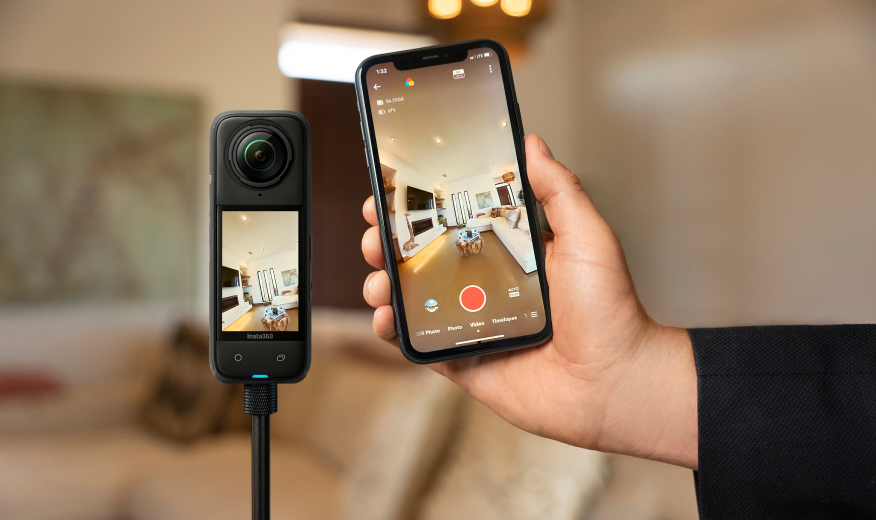
Connect to the Insta360 App
Once paired, the app becomes your creative control center.
You can:
- Preview footage instantly
- Change shooting settings remotely
- Reframe 360 clips
- Export social-ready edits
- Use AI-powered editing tools
For first-time users, this is usually the moment your Insta360 X5 starts to feel very different. You’re no longer thinking about filming a single frame—you’re capturing everything around you, then deciding later what angle works best.
Let the magic commence.
Update the Firmware Before Your First Shoot
Have a quick play around to familiarize yourself, but before filming seriously, check for firmware updates inside the app.
Insta360 regularly improves stabilization, shooting performance, battery optimization and editing features through updates. It only takes a few minutes, but it’s one of the easiest ways to make sure your first experience with Insta360 X5 feels smooth from the start.
Understanding Insta360 X5 Interface & Controls
Insta360 X5 is an advanced camera with plenty of state-of-the-art technology. But there's no need to fear the interface and controls, designed with ease of use in mind. This camera balances touchscreen control with physical buttons, which becomes especially useful during action shots or fast-moving situations where tapping a screen isn’t practical.

The main controls include:
- Power Button: Turns the camera on and off
- Shutter Button: Starts and stops recording instantly
- Quick Menu Button: Lets you jump between shooting presets faster
The touchscreen is the center of everything. Swipe through menus, switch shooting modes, preview footage and adjust settings directly from the display without digging through complicated submenus.
Swipe one direction and you’ll move between capture modes. Swipe another, and you’ll access settings like resolution, frame rate, stabilization and audio controls.
Take some time to play around with the controls. You might not remember it all immediately, but try to get used to accessing different settings quickly.
Best Insta360 X5 Settings for First-Time Users
One of the biggest mistakes is running before you’ve learned to walk. Insta360 X5 gives you a huge amount of control, but you don’t need to master every menu on day one to get impressive footage.
For beginners, the easiest place to start is standard 360 mode. Instead of worrying about framing perfectly while filming, Insta360 X5 captures everything around you simultaneously.
Later, inside the Insta360 app, you can reframe the footage however you want—wide cinematic angles, first-person perspectives, invisible selfie stick shots or social-ready vertical clips.
If you’re unsure where to begin, Auto Mode is easily the best place to start. It adapts quickly to changing environments, making it ideal for travel days, walks through busy streets, or outdoor adventures where lighting shifts constantly.
For low-light scenes or nighttime filming, switch to PureVideo mode, which helps reduce noise and preserve detail automatically.
Standard frame rates work perfectly for everyday filming, while higher frame rates are better for smooth slow-motion clips. Keep stabilization enabled for handheld movement, and try Me Mode when filming solo content.
As for resolution, higher settings give you more flexibility later when reframing and editing footage.
Shooting Your First Video with Insta360 X5
Now for the really fun part. If you’ve never used a 360 camera, welcome to an entirely new world. Instead of carefully pointing the lens at one thing and hoping you framed it correctly, Insta360 X5 captures the entire environment around you all at once. You stop thinking about the shot while filming and start thinking creatively afterward.

For your first video, keep things simple. Go somewhere with movement and depth, but that also isn’t too overwhelming:
- A city street
- A park or hiking trail
- A beach boardwalk
- A bike ride
- A walk through a busy crowd
Attach the included invisible selfie stick if you’ve chosen one of the bundles, start recording and move naturally through the scene. Walk slower than you think you need to, as smooth movement means better stabilization.
And don’t stop recording too quickly. Some of the best moments happen in-between:
- Turning corners
- Looking around unexpectedly
- Laughing after a failed shot
- Entering a new environment
- Moving from bright light into shadow
How to Edit and Export Your Footage
Now that you’ve got some footage, let’s talk editing and exporting.
Start by importing your clips into the Insta360 app. From there, you can scroll through footage, preview different angles and begin reframing shots directly from your phone.
Instead of being locked into a single perspective, you can guide the viewer through the scene afterward, almost like directing the camera in post-production.
The app keeps the process surprisingly approachable, even for beginners. Some of the most useful editing tools include:
- AI-powered reframing
- Auto tracking for subjects
- One-tap editing templates
- Invisible selfie stick processing
- Speed ramps and slow motion
- Vertical exports for social media
If this is your first time editing 360 footage, start simple. Pick one clip and experiment with camera movement inside the frame. Follow yourself walking through a scene, rotate around environmental details, or pull from a wide immersive view into something tighter and more cinematic.
When exporting, think about where the footage is going. Vertical framing works best for short-form social content, while wider cinematic ratios are stronger for YouTube or landscape edits.
Export times will vary depending on clip length and resolution, especially with high-quality 360 footage. Larger files simply take longer to process, particularly on older phones or devices. If exports feel slow at first, that’s normal.
Beginner Tips to Get Better Results Fast
- Slow down. With 360 video, the whole point is to be able to feel immersed in an environment, so take it down a gear or two. Fast, jerky movements can feel disorienting in 360 video, especially once you start reframing clips later.
- Think about environments instead of single shots. Traditional cameras force you to frame one direction at a time, but Insta360 X5 captures everything around you, so scenes with depth, movement and layered backgrounds naturally feel more immersive.
- Pay attention to lighting. Golden hour (the period shortly after sunrise or before sunset) often creates the best-looking footage straight out of the camera. Softer light adds texture, reduces harsh shadows and makes colors feel richer without heavy editing later.
Common First-Time Issues and How to Fix Them
Insta360 X5 can have a steep learning curve if you aren’t aware of what you’re getting into. Here are some of the most common issues and how to fix them quickly.
| Problem | Quick Fix |
| Footage looks blurry | Clean both lenses carefully before shooting |
| Video feels shaky | Slow down movement and keep stabilization enabled |
| The battery drains faster than expected | Lower screen brightness and close unused app connections |
| Export times feel slow | Reduce export resolution or close background apps |
| Stitch line becomes visible | Keep subjects away from the camera’s stitching area |
| Footage looks noisy (grainy) at night | Use PureVideo mode in low light situations |
Start Creating Faster with Insta360 X5 Today
How we film the world around us is changing. It used to be a case of pointing a camera at a subject, focusing intently, all while worrying whether it’s nicely framed. Not anymore.
With 360 cameras, filming has become more immersive than ever before, allowing you to relax and live the moment rather than stress about ifs and buts.
Insta360 X5 is at the pinnacle of this change. If you’re new to this world, get ready to see things in an entirely different way.
Frequently Asked Questions
Is Insta360 X5 a Professional Camera?
Insta360 X5 is designed to be accessible for beginners while still offering features powerful enough for professional creators. Its high-resolution 360 capture, advanced stabilization, AI editing tools and compact form factor make it suitable for everything from travel content and social media to commercial projects and action filmmaking.
How Long Does Insta360 X5 Battery Last?
Battery life depends heavily on recording settings, resolution, brightness and environmental conditions. Short clips and casual filming sessions will naturally last longer than extended high-resolution recording. For longer shoots, carrying an extra battery or portable power bank is highly recommended.
What SD Cards Are Compatible With Insta360 X5?
Insta360 X5 works best with high-speed microSD cards rated UHS-I V30 or higher. Since 360 footage contains significantly more visual information than standard video, slower cards may cause recording interruptions or performance issues. Using a reliable, high-quality card helps ensure smoother shooting and faster exports later on.
Is Insta360 X5 Waterproof Out of the Box?
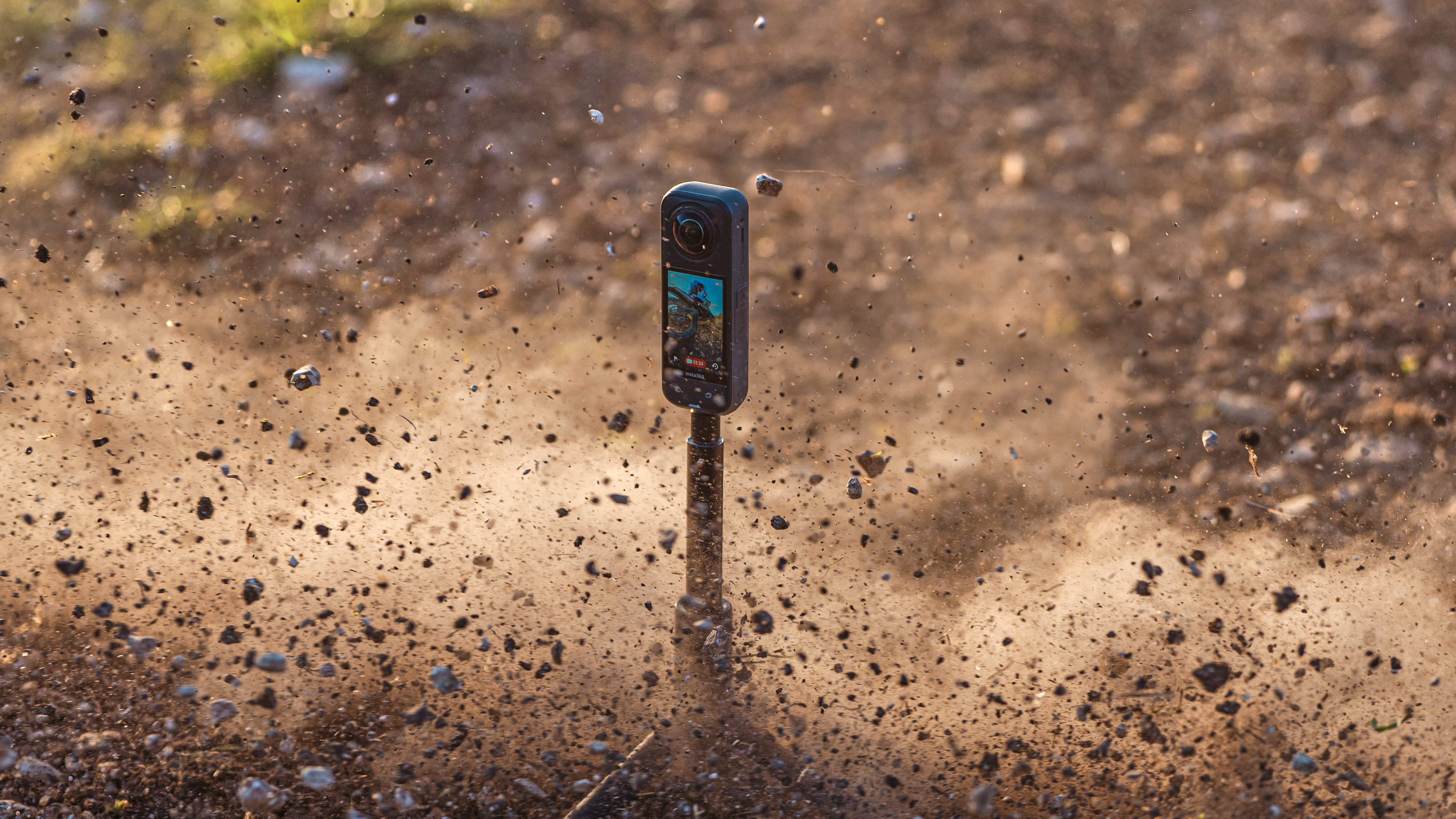
Yes, Insta360 X5 is designed for use in wet environments without requiring additional housing for basic waterproof protection. That makes it ideal for travel, rain, snow and action-heavy environments where conditions can change quickly.







%20(1).svg)


%20(1).svg)

.svg)