

















-tuya.jpg)


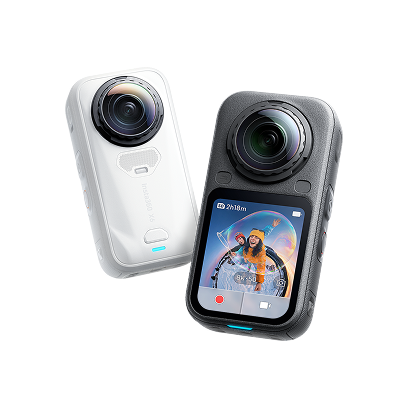
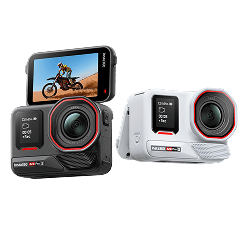
Insta360 Ace Pro 2 can do a lot, and we’re here to make sure you know how to get the most out of it, without any guesswork or headaches. This FAQ covers everything from battery and SD card compatibility to shooting modes, stabilization, waterproofing, and must-have accessories for smooth, professional footage every time.
Getting Started & Setup
What’s Included in the Base vs. Dual-Battery Kit, and Which Should I Buy?
The standard kit for Insta360 Ace Pro 2 contains:
- Insta360 Ace Pro 2 Camera
- 1800mAh Battery
- Standard Mount
- Flexible Adhesive Mount
- USB-C to C Cable
- Quick Start Guide
Which kit you should choose depends on how you film. If you shoot shorter clips and can easily access chargers, a base kit should be sufficient. However, if you shoot for long periods, you want the dual-battery kit.

How Do I Insert the Battery and MicroSD Card, and Which Cards/Chargers Work Best?
Insta360 Ace Pro 2 features an 1800mAh battery, providing up to 180 minutes of recording at 1080p. To insert the battery:
- Press and hold the left latch on the camera to slide the cover downwards.
- Insert the battery in the direction shown and close the cover.
- Ensure the yellow indicator mark is covered for complete waterproofing.
- The camera charges via a USB-C port using the included USB-C Power Delivery (PD) power adapter for ultra-fast charging.
To use Insta360 Ace Pro 2, you’ll need a microSD card with the following specs:
- An Ultra High Speed, Class I (UHS-I) card with a Video Speed Class 30 (V30) or higher and a capacity of up to 1TB.
- Skip UHS-II, UHS-III, or anything over 1TB capacity because they’ll cause corrupted clips.
- Format the card as exFAT in the camera rather than on a computer to ensure smooth recording without errors.
- To insert the card, open the right-side door on the camera and pull the tab, then insert it, chip facing the screen, until it clicks.
How Do I Activate the Camera, Update Firmware, and Pair With the Insta360 App?
To activate the camera and update the firmware:
- Turn on the camera and download the Insta360 app.
- Pair it with your Android or iOS phone via Bluetooth or Wi-Fi.
- The app will prompt you to complete activation and install firmware updates.
- Follow the on-screen prompts. If the camera restarts, you may need to reconnect before you’re good to go.
Hardware & Protection
What’s New on Insta360 Ace Pro 2?
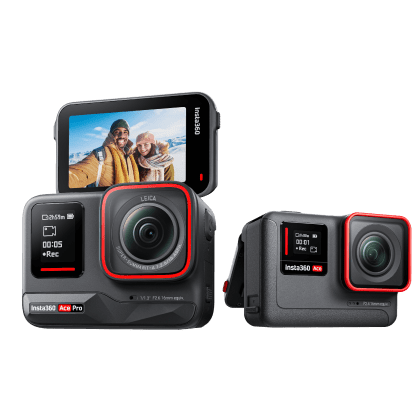
Insta360 Ace Pro 2 is packed with new features like capturing 8K video at up to 30fps using industry-leading FlowState Stabilization technology. It’s paired with a new 1/1.3” sensor co-engineered with Leica color to ensure top-notch image quality and a wider field of view, even in low light conditions.
Some additional Insta360 Ace Pro 2's features include:
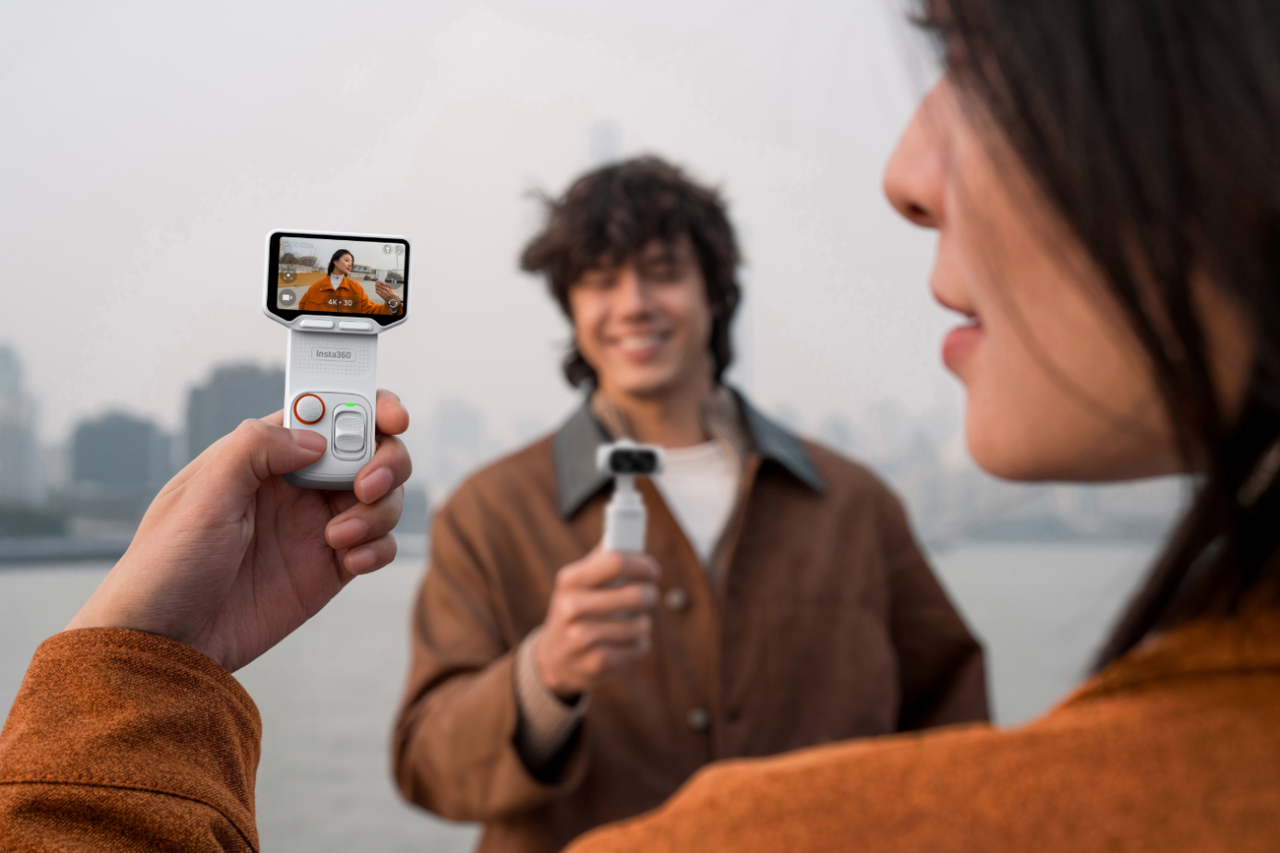
- A 2.5" flip touchscreen to easily frame shots from any angle.
- Waterproofing to 12m (39ft).
- Upgraded, windproof microphone with a foam windscreen for clarity and reduced noise.
- New Artificial Intelligence (AI) powered features like AI Highlights Assistant, AI Selfie Stick Eraser that removes selfie sticks from footage, dual AI processing chips for faster processing and smoother editing on camera and AI Warp for unique edits based on preset and custom settings.
How Do I Use/Replace the Lens Guard and Mic Cap?
To use the lens guard, remove the preinstalled silicone guard ring and wind guard first. Next, attach the lens guard, ensuring the rubber seal and lens are clean and dust-free for waterproofing and image quality.
To use the mic cap, slide the wind guard to the right and pull it off. Then, align the new mic cap with the diagonal mark on the camera's front and slide it left to click into place.
Waterproofing and Durability
Is Insta360 Ace Pro 2 Waterproof Out of the Box, and What Should I Check Before Submerging?
Yes, Insta360 Ace Pro 2 is waterproof without the need for a protective case up to 12m (39ft). However, to maintain the camera's waterproof rating, always double-check those doors and seals before submerging to ensure they’re free of debris. A few seconds of prep can save your camera from an unplanned swim.
Video Quality and Modes
Which Resolutions and Frame Rates Should I Choose and Why?
For general use and high-quality footage, choose 4K30fps or HDR for low-light conditions. Alternatively, use 60fps for skiing, biking, or nature shots to keep every jump looking smooth.
For displaying on high-resolution screens, opt for 8K, which provides 300% more pixels than 4K. However, 8K doesn’t support slow motion, drains batteries faster, and requires good lighting and a fast, high-capacity SD card. Also, it can overheat on hot days, so long shoots aren’t always possible.
When Should I Use Active HDR, PureVideo, and FreeFrame?
PureVideo reduces noise and enhances detail in dark scenes, making it ideal for low-light conditions, producing brighter footage with less noise.
Choose Active HDR, however, for scenes with very bright and dark areas to preserve detail in both highlights and shadows.
Opt for FreeFrame whenever you want to capture a broad, uncropped view, allowing you to choose your aspect ratio (such as 16:9 or 9:16) during editing.
Stabilization, FOV, and Horizon Lock
How Do Field of View Options Change the Look?
Insta360 Ace Pro 2's field of view (FOV) alters the look by changing the angle of view, affecting how much of the scene is captured while introducing different levels of image distortion.
A wider FOV, like UltraWide or Dewarp, captures more of the scene with a sense of depth and immersion. However, Dewarp is less distorted than UltraWide and is ideal for vlogging or skiing. A narrower FOV, like Linear, provides a natural, undistorted view, making it suitable for standard vlogging or a more "normal" wide-angle perspective.
What Are 45° and 360° Horizon Lock, and When Should I Use Them?
The 45° Horizon Lock option maintains the horizon level if the camera's tilt doesn't exceed 45°. This is ideal for capturing action shots with some tilt, like mountain biking or skiing.
On the other hand, 360° Horizon Lock maintains a level horizon throughout a 360-degree rotation for dynamic scenarios, like aggressive rolling or flips, where the camera might spin completely in a circle, capturing the action the entire way.
Controls and Capture
How Do I Navigate the Touchscreen, Enable High Bitrate, and Set Aspect Ratios?
To navigate Insta360 Ace Pro 2, swipe up from the bottom to access shooting specs or swipe down from the top to open the settings. A swipe to the left or right in the center will allow you to change shooting modes.
To enable a high bitrate, swipe down to access "Image Settings." Then change the bitrate from "Standard" to "High" to capture a higher quality, larger size file.
You can also set the aspect ratio by swiping up from the bottom and selecting your desired ratio (16:9, 4:3, or 2.35:1, etc.).
What Capture Methods Can I Use on Insta360 Ace Pro 2?
You can take shots easily with the Insta360 Ace Pro 2 touchscreen and shutter button. Once activated, you can use QuickCapture, which starts recording immediately even when the camera is in standby. There are also customizable Power Button functions to switch modes or turn the screen on or off, as well as Gesture and Voice Controls for hands-free operation using spoken commands.
How Do Pause Recording, Cancel Recording, and Add-To-Existing Clip Work?
To pause or resume a recording, tap the screen. You can also use a long-press on the shutter button to cancel the current shot.
To add to an existing clip, open the camera's album and tap the red button to append new footage.
Mounting and Accessories
How Does the Magnetic Quick-Release Mount Work?
Insta360 Ace Pro 2 uses a magnetic quick-release mount system with a snap-on design. This allows for secure, quick attachment and the removal of various accessories.
Transfer, Editing, and AI
How Do I Transfer Files, Reframe/Trim, and Use the AI Highlight Assistant?
Files can be transferred to your Android or iOS phone via the Insta360 app, or to a computer using a USB-C cable or SD card reader.
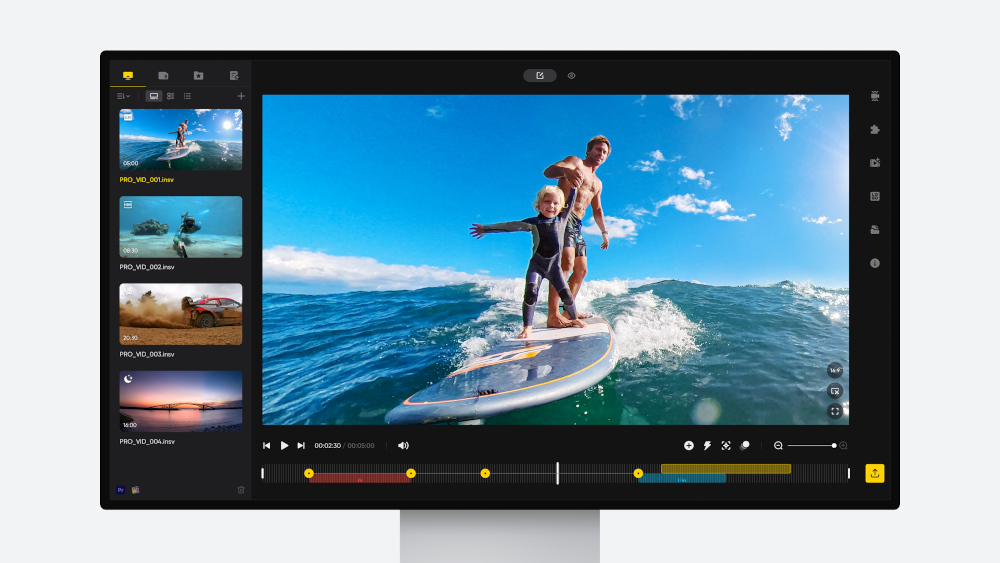
Video can be trimmed and reframed using the Insta360 app's editing tools, including keyframes, Record Mode, and Editor. You can also turn on AI Highlights Assistant and let the camera do the hard work and find your best moments for you.
Now that you’ve got the answers, charge up, pop in a card, and start shooting—Insta360 Ace Pro 2 is ready to keep up with whatever adventure you throw at it.
Keen to keep up to date on Insta360 stories? Keep an eye on our blog and sign up for our mailing list. Got a story to share? Email yours to communitystories@insta360.com and win up to US$50.





%20(1).svg)


%20(1).svg)

.svg)