




















Instagram Live has become one of the most engaging ways to connect with your audience in real time. Whether you’re answering questions, running a tutorial, or just chatting casually, livestreaming creates instant interaction and a stronger sense of community.
But if you’re wondering how to go live on Instagram — especially in 2026 — the good news is that it’s easier than ever. You can stream directly from your phone, or take it up a notch by setting up your computer with a professional webcam.
This guide walks you through everything you need: requirements, step-by-step instructions for mobile and PC, gear recommendations, pro tips, and FAQs.
What you’ll need to go live on Instagram
Before you start your first Instagram Live stream, here are a few essentials:
- A public account with 1,000 followers or more: Previously, any user could access Instagram Live regardless of their follower count. However, under the new policy, only users with a minimum of 1,000 followers and a public account can go live. Users who don’t meet the new requirements will not be eligible to go live.
- A phone or computer: The Instagram app is designed for mobile, but with the right setup, you can stream from PC too.
- Strong internet connection: At least 10 Mbps upload speed is recommended for smooth video and audio.
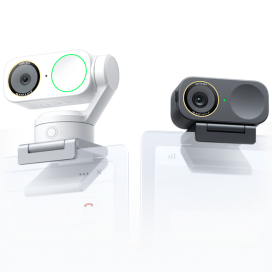
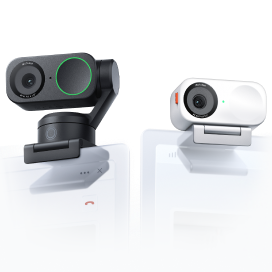
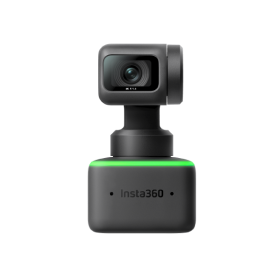
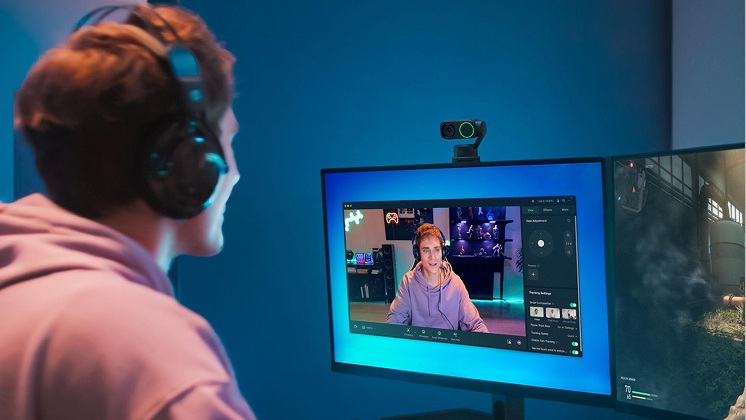
- Webcam or phone camera: Your built-in phone camera works fine, but if you’re streaming often, a high-quality webcam like Link 2 or Link 2C will level up your production.
How to go live on Instagram from your phone
For most people, streaming on mobile is the simplest option. Here’s how to get live on Instagram using iPhone or Android:
- Open the Instagram app. Tap the “+” icon at the bottom or top of your screen and select Live.
- Set your details. Add a short title so viewers know what your stream is about. Choose your audience (Public or Close Friends).
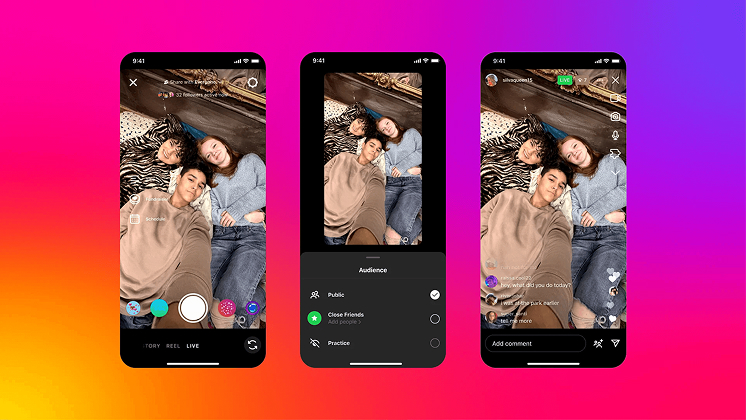
- Check your settings. Enable features like Badges (monetization), Collabs, or Q&A to increase interaction.
- Tap the Live button. You’ll be connected instantly, and followers will receive a notification.
- Engage in real time. Respond to comments, pin questions, and use filters if you’d like.
- End and save. When you’re finished, tap End. You can save the recording to your profile or download it for reuse.
That’s it — if you’ve been wondering “how do you go live on Instagram?” the phone method is quick and straightforward.
How to go live on Instagram on PC
Instagram doesn’t officially offer desktop live streaming feature, but there’s a reliable workaround using OBS Studio (Open Broadcaster Software) and a stream key. This setup is especially useful if you want to use a professional webcam, microphone, or add custom overlays.
Step 1. Install OBS Studio
Download OBS for Windows or macOS at obsproject.com.
Step 2. Connect your webcam
Plug in your webcam — we recommend Insta360 Link 2 or Link 2C. Both models deliver 4K quality, AI tracking, and automatic framing, making your Instagram live streaming look polished without extra effort.
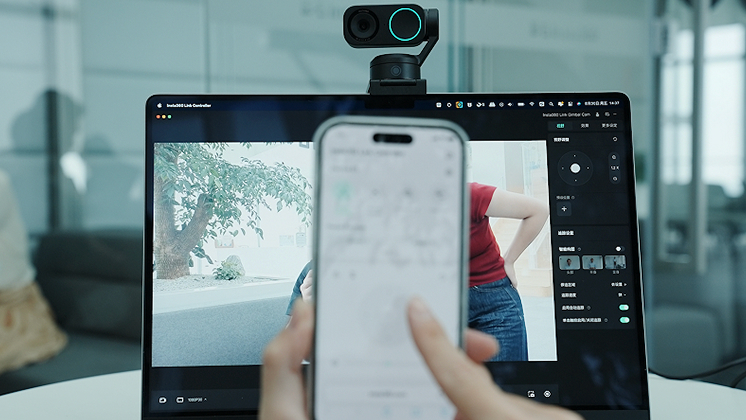
Step 3. Add your webcam in OBS
In OBS, go to Sources → Video Capture Device → select your webcam. Adjust resolution and frame rate for smooth output.
Step 4. Enter your stream key
Instagram occasionally provides stream keys for special accounts, but the most common method is using third-party tools or RTMP services to generate one. Copy the key into OBS under Settings → Stream.
Step 5. Start streaming
Once set, hit Start Streaming in OBS. Your PC webcam feed will now broadcast to Instagram via the RTMP connection.
Essential gear for better Instagram Live streaming
If you’re serious about live streaming, gear matters. Shaky footage or muffled sound can drive viewers away, no matter how interesting your content is.
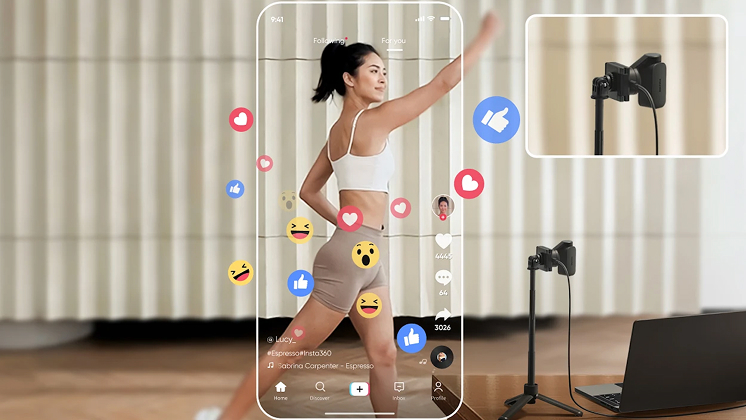
Instagram Live demands vertical framing, stable composition, and flattering image quality. Insta360 Link 2 Pro is built to meet those demands, helping creators look polished without complicated camera rigs.
With AI Tracking optimized for vertical layouts, Link 2 Pro keeps you centered as you move, while its large sensor delivers crisp detail and smoother low-light performance for indoor streams. For creators who want a simpler setup, Link 2C Pro offers auto framing in a compact form, making both options strong upgrades for consistent Instagram Live broadcasts.
- 4K resolution with HDR for professional-grade video
- AI auto-framing and Deep Track follow you naturally
- Gesture control for hands-free operation
- Portrait mode optimized for vertical video
- Compact design with built-in gimbal stabilization
Pro tips for a successful Instagram Live stream
Once you know how to live stream on Instagram, these tricks will help boost results:
- Promote in advance. Use Stories with countdown stickers or posts to alert your audience before you go live.
- Use eye-level camera placement. Whether on phone or PC, positioning at eye level feels natural and flattering.
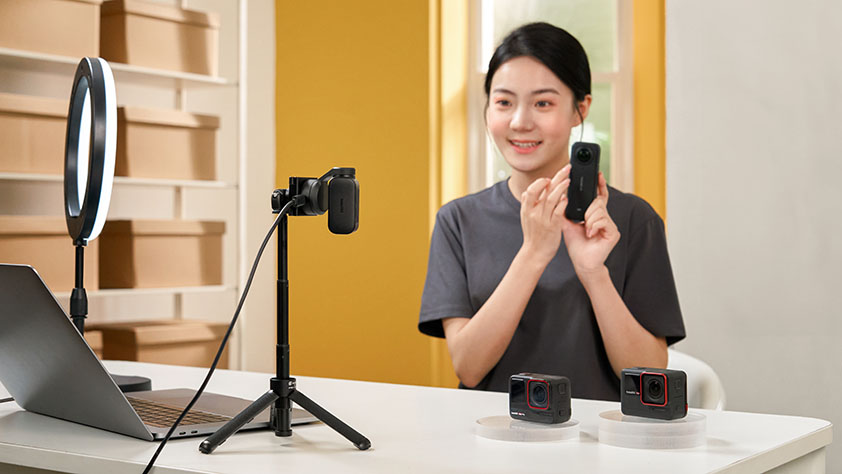
- Light it up. Natural light works well, but a ring light ensures consistent brightness.
- Stay in a quiet space. Good audio matters as much as video — minimize background noise.
- Engage actively. Ask questions, run polls, and acknowledge comments to keep people watching.
- Repurpose content. Save your livestream, then turn clips into Reels, Stories, or posts.
Instagram Live FAQs
Q1. Why can’t I go live on Instagram?
This usually happens if your account doesn’t meet the requirements (public account with at least 1,000 followers), if you’re using an outdated app version, or if your internet connection is unstable. Try updating the app and checking your connection first.
Q2. How do you get eligible for Instagram Live?
Your account must be public with at least 1,000 followers, and you must use the latest Instagram app. If the Live option is still missing, check for community guideline violations.
Q3. How to go live on Instagram without 1000 followers?
You cannot go live on Instagram without at least 1,000 followers, as this has been a mandatory requirement since August 2025.
Q4. Can you live stream on Instagram from a computer?
Yes — while not officially supported, you can use OBS and a stream key, paired with a webcam like Insta360 Link 2 or Link 2C, to stream from your PC.
Conclusion
Going live on Instagram is one of the most effective ways to connect with your community in real time. Whether you’re streaming casually from your phone or creating professional setups with Insta360 Link 2 and Insta360 Link 2C, the process is straightforward once you know the steps.
If you’ve been searching for how to go live on Instagram, this 2026 guide gives you everything: mobile basics, PC streaming workarounds, gear recommendations, and pro tips to stand out.
Ready to upgrade your livestreams? Explore the Insta360 Link 2 and Insta360 Link 2C to make your Instagram Live streams sharper, smoother, and more engaging.
Keen to keep up to date on Insta360 stories? Keep an eye on our blog and sign up for our mailing list. Got a story to share? Email yours to communitystories@insta360.com and win up to US$50.




%20(1).svg)


%20(1).svg)

.svg)