


















Whether you want to learn how to make a time lapse video for a creative portfolio or purely for the fun of it, the same two decisions shape every shot: how often your camera grabs a frame, and how still you keep it while it does.
Here are three ways to get there, on a 360 camera, on your phone or from footage already sitting in your camera roll.
Key Takeaways
- Create a time lapse with a 360 camera, smartphone or existing video footage.
- Keep your camera stable, use enough battery and storage and choose a subject that visibly changes.
- Adjust the interval to control how quickly time appears to pass; 24 or 30FPS works for most playback.
- Use longer intervals for slow changes like sunsets and shorter intervals for traffic, crowds and clouds.
- A time lapse keeps the camera fixed, while a hyperlapse moves the camera between frames.
What Is a Time Lapse Video?
A time lapse captures frames far less often than normal video. Play them back at a standard rate and hours collapse into seconds.
Two kinds of subject work best:
- The first changes too slowly to watch in real time: a sunset, cloud building over a hill, shadows crossing a courtyard, scaffolding going up over months. Speed it up and you can finally see it happening.
- The second is something that repeats. Traffic at a junction, waves hitting a beach, a crowd moving through a station. No single moment stands out, so compressing an hour into 10 seconds turns it into a pattern you can actually watch.
.gif)
You've seen the results without necessarily clocking them. "Inception" leans on the technique for its city-bending sequences and to mark time passing inside the dream layers.
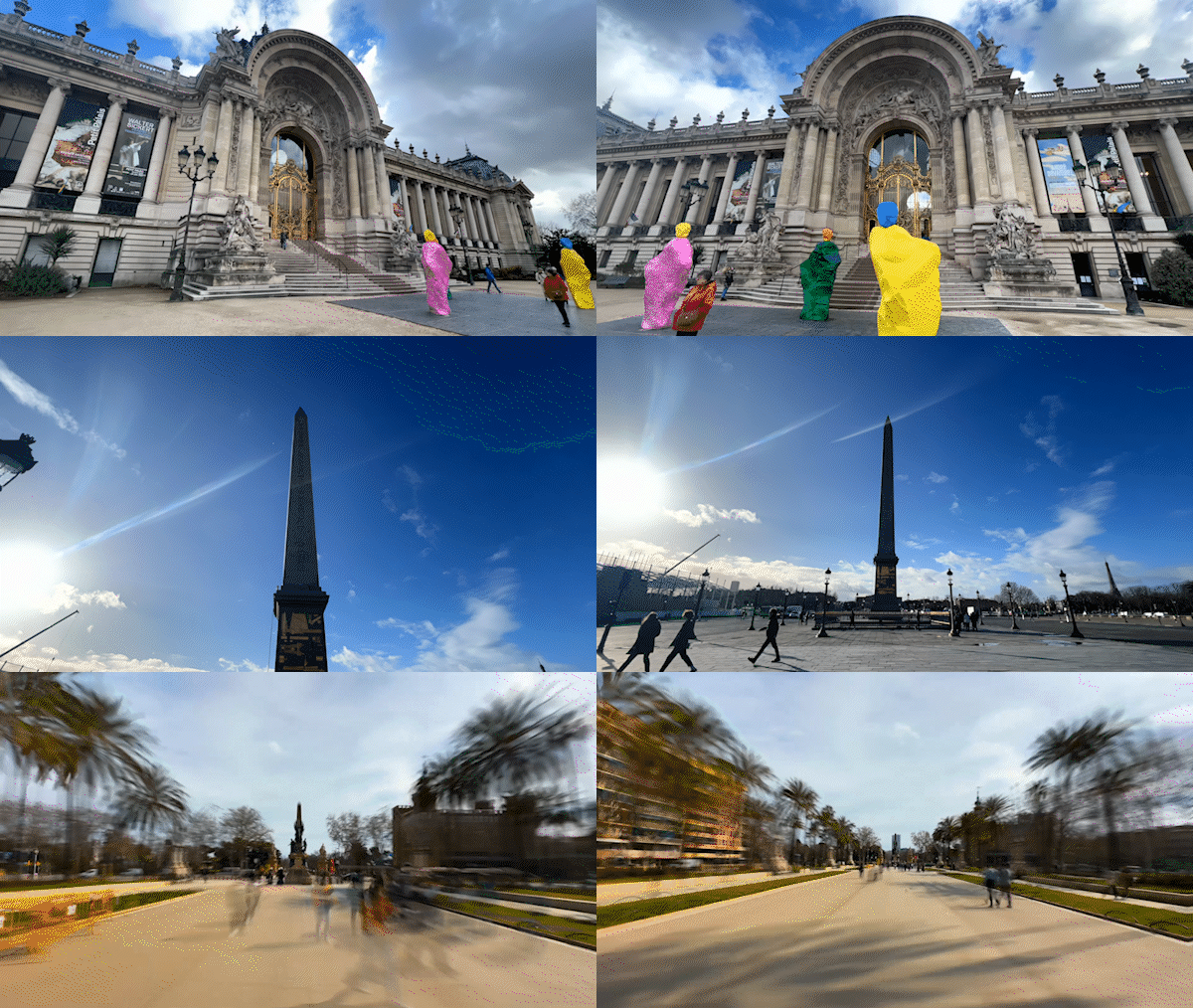
A hyperlapse is the same idea with the camera moving between frames, so the whole scene travels along with the things inside it.
What You Need Before You Start Filming
Here are four things you need to create a time lapse, whichever method you pick:
- A way to hold the camera still. A tripod, a wall or a 1/4" mounting point all work, as long as it survives wind and soft ground for the next hour.
- Enough battery and card space for the full run.
- A subject that visibly changes. A locked-off shot of a static scene is just a slow photograph, and no interval setting fixes that.
- A rough idea of how long to shoot. Work backwards from the clip length you want.
Method 1: Shoot a Time Lapse With Insta360 X6
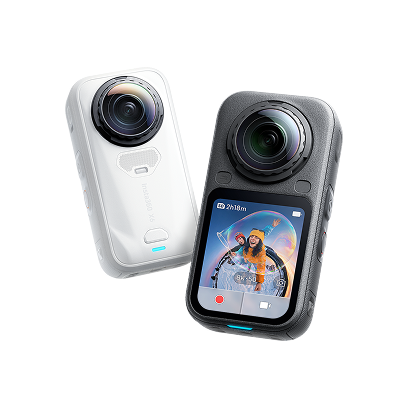
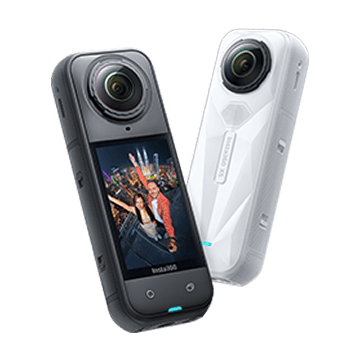
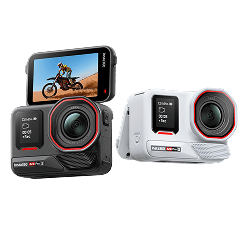
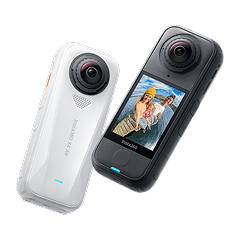
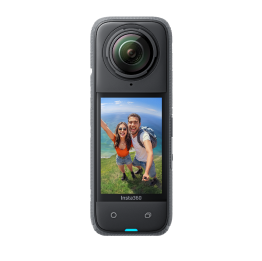
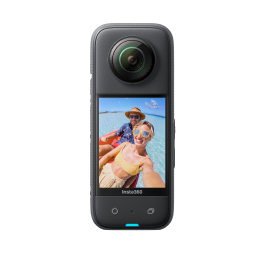
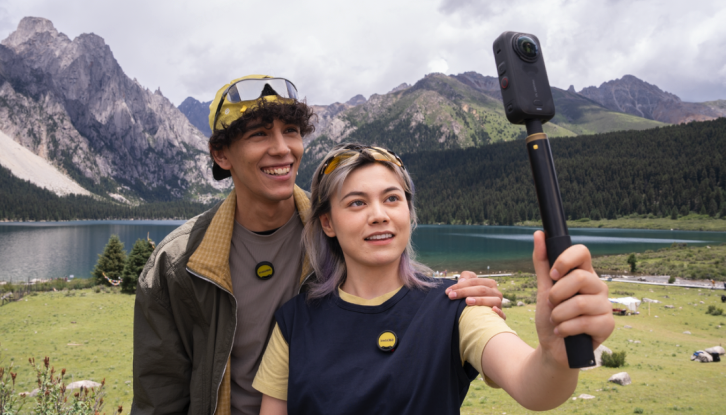
A 360 camera is one of the best tools for this, and Insta360 X6 is the latest. It runs around 140 minutes at 8K30FPS, and its cooling holds that without cutting out partway through. Both matter when your subject is a two-hour sunset.
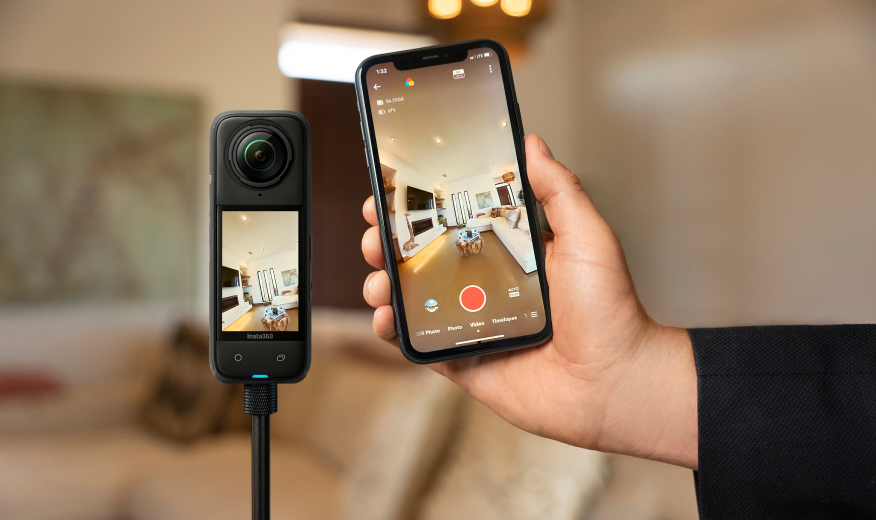
The 360 part changes how you work—the camera records everything around it, you aren't committing to a framing when you set it down. Pick the angle later in the Insta360 app or Insta360 Studio, which helps when the interesting thing happens behind you.
Here's the shoot:
- Mount it somewhere solid. A tripod, a ledge or the 1/4" mounting point with whatever you've got. Check it won't shift once wind picks up.
- Switch to Timelapse mode. Swipe through the shooting modes on the screen.
- Set your resolution, frame rate and interval. The table below covers what's available and how to choose.
- Hit the shutter and leave it alone. Confirm your battery and card space cover the planned run time first.
Time lapse is one of several Insta360 X6 ideas to try once the camera's in your hands.
TimeShift and Starlapse: Moving Time Lapses and Star Trails
TimeShift is the moving version. Walk a trail, ride a route, wander a market—the footage comes back sped up and stabilized. Pair it with the Invisible Selfie Stick and the stick vanishes from the shot, so the result looks like someone was walking beside you filming it.
Starlapse handles night skies. Point it up, leave it running and star movement draws itself across the frame as trails.
One thing to know before you're standing in a field in the dark: you'll find Starlapse under Insta360 X6's photo modes. Timelapse lives with the video modes.
Shutter speeds stretch to 120 seconds for the dimmest scenes, and you can capture in DNG for more room when you grade. PureVideo and the ambient light sensors handle the awkward middle ground, where there's some light but not much of it.
A few hours of star movement, compressed into a few seconds on Insta360 X6.
Let AI Director Edit It For You
Most footage dies on a memory card because nobody gets round to cutting it. AI Director takes that on.
Shoot your clips, keeping each one over a minute. Power the camera off, plug it in to charge and leave it. While it sits there, Insta360 X6 analyzes what you shot, picks the strongest moments and cuts them together. Open the Insta360 app afterwards and the finished video is waiting in your album.
Timelapse is one of the supported modes, which is why it's worth setting up before a shoot. Three things to get right:
- Shoot in Standard Color or Dolby Vision. I-Log footage isn't supported for analysis.
- Keep your footage on the camera. If cloud backup's Auto Delete is switched on, files disappear from local storage and AI Director has nothing left to work with.
- Use footage from the last 30 days, which is as far back as the analysis reaches.
Two modes control when the work happens. Efficiency Mode analyzes while you're recording as well as while charging, which is faster and uses more power. Battery Life Optimized waits until the camera is off and charging.
Best Time Lapse Camera Settings
Interval options shift depending on the resolution you pick, so check what your camera offers on screen. And 16K files need Insta360 Studio for preview, editing and export.
| Camera | Time Lapse Resolutions | Max Frame Rate | Intervals Available |
| Insta360 X6 | 16K, 8K | 30FPS | Off, 0.5, 1, 2, 5, 10, 15, 30, 60, 120 seconds |
| Insta360 X5 and Insta360 X4 | 11K, 8K, 5.7K | 30FPS | 0.5, 1, 2, 5, 10, 30, 60, 120 seconds |
Choosing an interval decides how the clip feels. Short intervals of 0.5–2 seconds keep motion continuous, which suits traffic, crowds and fast-moving cloud. Longer intervals of 10 seconds and up make time itself the subject, which is what you want for sunsets, tides and shadows tracking across a building.
Frame rate is simpler. Shoot for 24 or 30FPS playback and you're in standard territory. Your interval controls how compressed time feels, while the frame rate just sets how smooth the playback looks. When a clip feels wrong, change the interval and leave the frame rate alone.
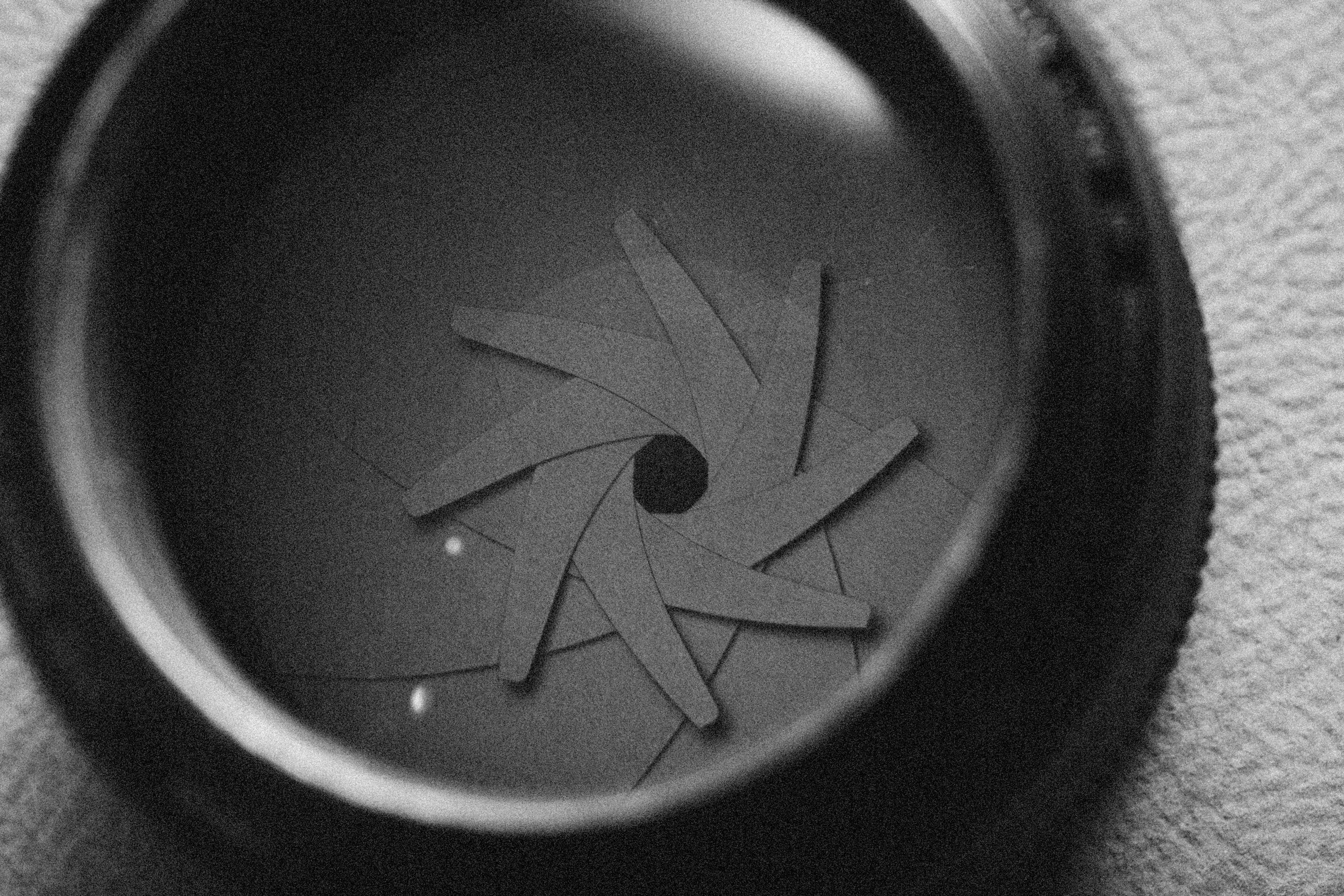
To go further into how motion renders on each frame, shutter angle is the next thing worth understanding.
Method 2: Shoot a Time Lapse on Your Phone With Insta360 Flow 2 Pro
Your phone already does this, and it has the enormous advantage of being in your pocket when something interesting starts happening.
What it lacks is anything to hold it steady for an hour. Balanced on a wall, it slides. In your hand, every wobble multiplies once the footage speeds up. A gimbal is usually the first thing people add to a vlogging kit for their phone, and a long time lapse is where you notice the difference most.
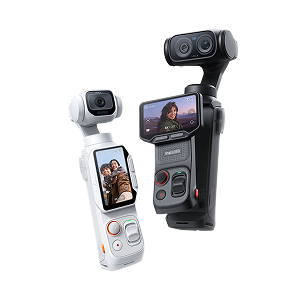
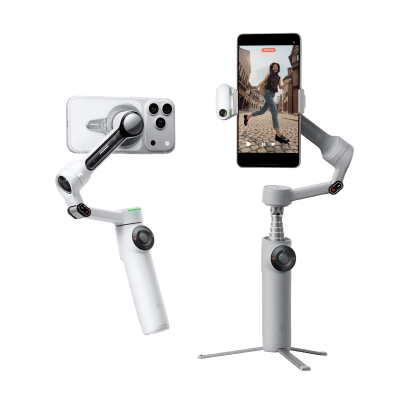
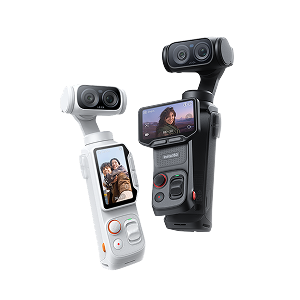
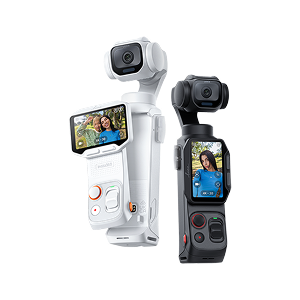
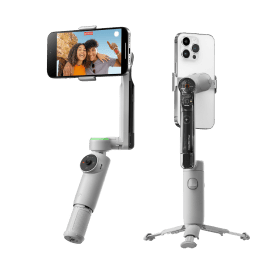
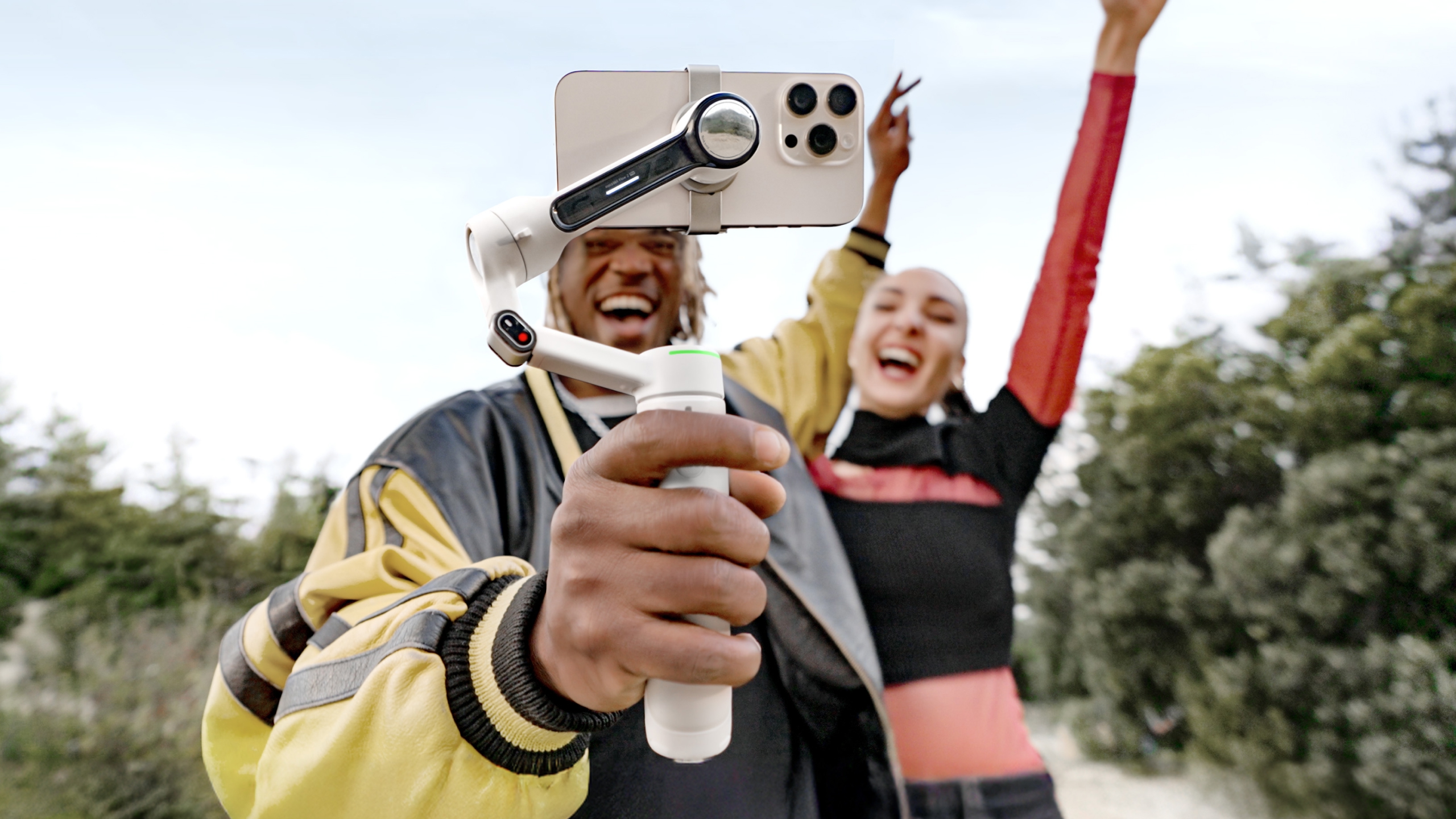
Insta360 Flow 2 Pro runs for around 10 hours and doubles as a power bank, so the phone you're shooting with can charge off the thing it's mounted to.

Here's the shoot:
- Mount your phone and unfold the gimbal. Snap the phone onto the magnetic clamp, then unfold. Insta360 Flow 2 Pro powers on and balances itself.
- Open your camera app and find time lapse mode. On iPhone, swipe across to Time-lapse. On Android, look for the mode in your native camera app.
- Decide whether the shot moves. Extend the built-in tripod and set it down for a static or Motion Time Lapse. For a walking hyperlapse, press and hold the Trigger Button for Lock Mode.
- Frame it, tap record and step away. Switch to airplane mode first so a call can't interrupt a 90-minute capture.
.gif)
Lock Mode and Motion Time Lapse
Lock Mode holds all three axes still. Press and hold the Trigger Button and the phone stops responding to your movements entirely, which is exactly what a hyperlapse needs: a frame that stays pointed at the same thing while you walk.
Motion Time Lapse goes the other way. Extend the built-in tripod, set the gimbal down on something flat and let it move the shot for you. A slow pan across a skyline as the light changes does more work than a locked-off frame of the same view. Both modes are worth practising before a shoot that matters, and they're two of many ways to use Insta360 Flow 2 Pro.
A cinematic traffic time lapse shot on Insta360 Flow 2 Pro.
iPhone vs. Android: What's Different
iPhone handles the interval for you in Time-lapse mode, so there's nothing to set. If you plan to grade the footage afterwards, the Insta360 app adds Dolby Vision and Apple ProRes, including a Log profile that holds onto detail for the edit. ProRes needs iOS 15.1 or later and an iPhone 13 or newer.
Most Android phones have the mode built into the native camera app. Where one's missing, apps like Framelapse and Lapse It often hand you more control over frame rate and interval than a stock app does.
NFC one-tap pairing now works on Android as well as iPhone, so connecting the gimbal means tapping the phone against it.
One of the great advantages of using an iPhone is the availability of various apps that can enhance your timelapse video. Apps like Hyperlapse offer additional features such as advanced stabilization and custom speed settings, giving you more creative control. iPhones also have excellent low-light capabilities, allowing you to capture stunning timelapses even in challenging lighting conditions. Experiment with different apps and settings to find the best combination for your needs and elevate your timelapse videos to the next level.
Method 3: Turn Video You've Already Shot Into a Time Lapse
Sometimes the good footage is already on your phone and you weren't thinking about time lapse when you shot it. You can speed it up in four steps:
- Pick a clip with continuous movement in it. Waves, traffic and cloud all work. A handheld pan across a room won't.
- Open it in an editor with a speed control. Your phone's built-in video editor may have one, and most third-party editing apps do.
- Push the speed up until the motion reads the way you want. Play it back full screen before you commit, because what looks right on a timeline often runs too fast in practice.
- Trim and export. Cut the dead time at either end before you save.
Just bear in mind that it won't look quite like interval capture. A clip recorded at 30FPS carries motion blur and rolling shutter baked in from the moment you filmed it. Speeding it up keeps all of that and shows more of it. Interval capture gives every frame its own clean exposure, so the final video looks sharper before you even account for resolution.
The same physics runs in reverse when you slow footage down.
Tips for a Smoother, More Cinematic Time Lapse
- Overbuild your setup. Wind, soft ground and passing footsteps all move a tripod over an hour, so weigh it down or wedge it.
- Lock your exposure where the light is steady. Auto exposure adjusting frame to frame produces a flicker that's hard to fix later.
- Scout the light before you commit. Knowing where the sun lands in 40 minutes separates a strong clip from a blown-out one.
- Shoot for longer than you think you need. Cutting is easy. Going back for another hour isn't.
- For handheld hyperlapses, bend your knees and slow right down. Walking like you're sneaking out of a house works better than walking normally. Your footage will thank you (even if your quads won't).
Frequently Asked Questions
How Do You Create a Time Lapse Video on iPhone?
Open the Camera app, swipe across to Time-lapse, prop the phone somewhere it won't move and tap record. iPhone sets the interval automatically. For anything longer than a few minutes, mount it properly and plug it into power.
How Long Is a 30-Minute Time Lapse Video?
At a 2-second interval, 30 minutes of shooting gives you 900 frames. Play those at 30FPS and the finished clip runs 30 seconds. The math is: shooting time in seconds, divided by your interval, divided by your playback frame rate. A 10-second interval over the same half hour gives 180 frames, or a 6-second clip.
What Frame Rate Should You Use for a Time Lapse?
24 or 30FPS covers almost everything. 24FPS reads slightly more cinematic, 30FPS slightly smoother. When a clip feels too fast or too slow, adjust your interval and leave the frame rate where it is.
Can You Shoot a Time Lapse on Insta360 X5 or Insta360 X4?
Yes. Both shoot up to 11K, with intervals from 0.5–120 seconds. Insta360 X6 adds 16K, a 15-second interval option and longer run time, though the process is the same across all three.
What's the Difference Between a Time Lapse and a Hyperlapse?
A time lapse is shot from a fixed position, so the camera stays put while the scene changes. A hyperlapse moves the camera between frames, so the viewer travels through the scene too. TimeShift on Insta360 X6 and Lock Mode on Insta360 Flow 2 Pro are two routes to the second one.
Built-In Time Lapse Modes Let You Capture Hours in Seconds
Two decisions still shape every shot: how often you grab a frame and how still you keep things while you do. Insta360 X6 handles the long, high-resolution shoots and hands the editing back through AI Director. Insta360 Flow 2 Pro turns the phone you already carry into something that holds a frame for an hour.
Pick a subject that changes, set your interval and go lose an afternoon to it.
Keen to keep up to date on Insta360 stories? Keep an eye on our blog and sign up for our mailing list. Got a story to share? Email yours to communitystories@insta360.com and win up to US$50.
Your shot. Your world. The Insta360 Global Awards 2026 supported by Leica are officially open. Join creators worldwide and compete across six categories (Street, Travel, Life, Portrait, Sports, and Night) for your share of a US$150,000+ prize pool, including cash prizes and Insta360 gear. Submit your best video or photo at insta360.com/awards.





%20(1).svg)


%20(1).svg)

.svg)