
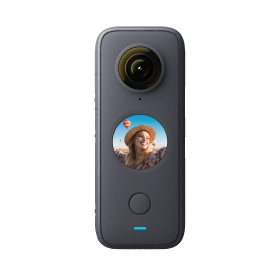














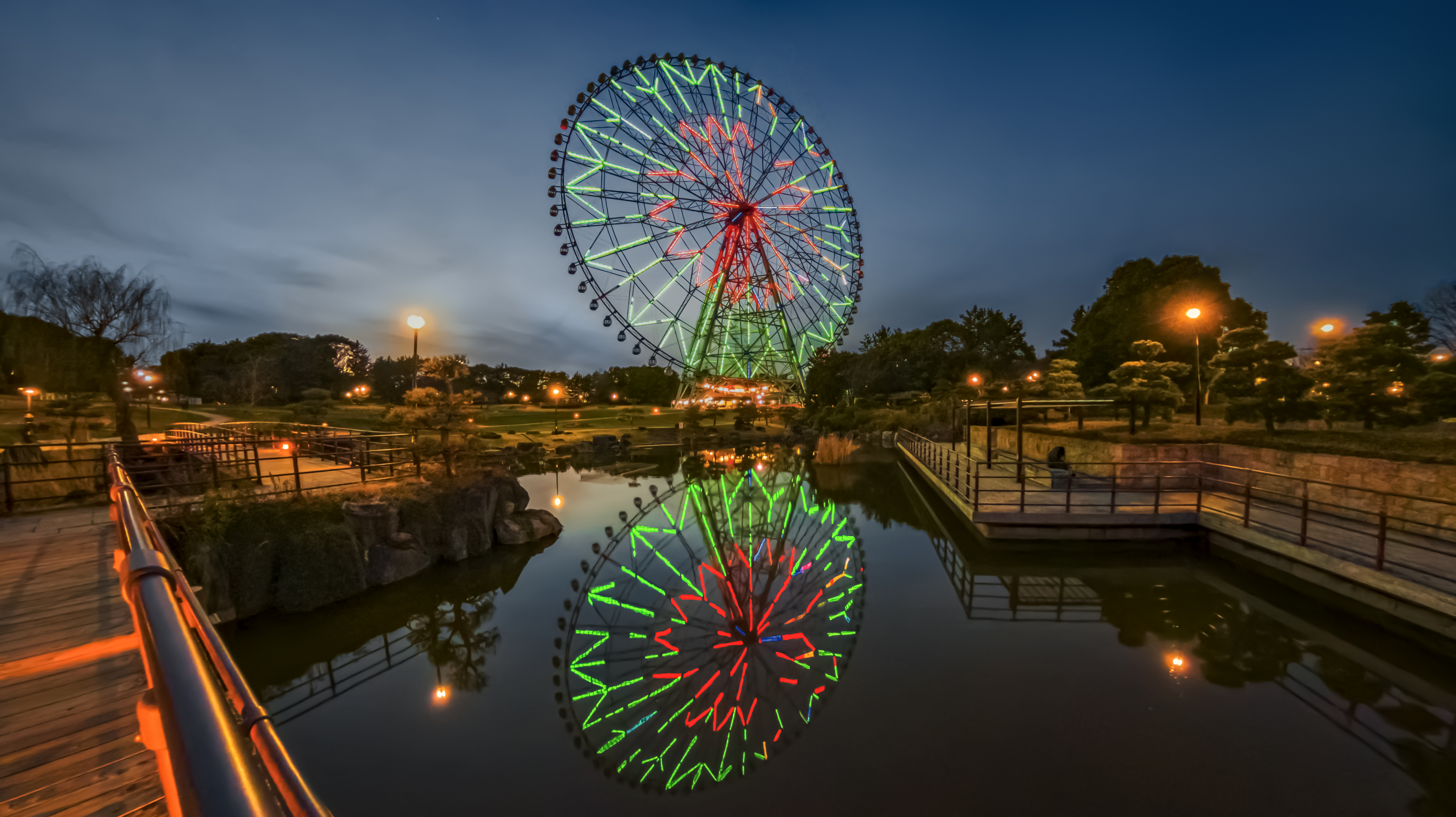


Christmas lights only stay up for a few weeks, and you want something to show for them. Maybe it’s the house your family decorates every year or a drive-through display the kids talk about until spring. Then, you check your phone—the bulbs have turned into light blobs, the sky is pitch black and the video flickers.
Learning how to photograph Christmas lights properly solves all that. The right timing and your camera’s low-light mode do most of the work.
.png)
Key Takeaways
- Shoot during blue hour, just after sunset, while the sky is still deep blue.
- Turn the flash off and rest your camera on something solid.
- Drag the brightness down a little so the bulbs keep their color.
- On Insta360 cameras, PureVideo handles low light. Anti-Flicker stops LED flicker in video.
How to Photograph Christmas Lights in 6 Steps
The best Christmas light photos start before you press the shutter. The steps below work on any phone or action camera in auto mode:
- Go out at blue hour. The sky still has some color, so the lights don't float in black.
- Steady the camera. Rest it on a wall, a fence post or a small tripod to avoid blur.
- Turn the flash off. It drowns out the glow behind whatever is closest.
- Tap to focus, then nudge the brightness down so the bulbs keep their color.
- Pick your camera's low-light mode. Look for Night mode on a phone or PureVideo on an Insta360 camera.
- Take a few shots and check them before you move on.
The Best Time to Photograph Christmas Lights
Blue hour is the short window after sunset when the sky turns a deep blue. According to timeanddate, the blue “is most likely to emerge when the Sun is between 4 and 8 degrees below the horizon.” Arrive early, because it passes quickly.
In full dark, your camera brightens the scene to make up for the black sky, so the bulbs blow out into white blobs. At blue hour, the sky still shows the outline of the display.
If you miss it, move closer and lower the brightness. The same rule applies to most nighttime photography.
Best Camera Settings for Christmas Lights
If your camera lets you change settings, these low-light photography tips will give you more control:
- Flash off—it flattens the glow.
- Low ISO—ISO controls how sensitive the camera is to light. Higher ISO adds grain, so keep it low when on a tripod.
- Exposure compensation down slightly—exposure compensation (EV) makes the whole picture brighter or darker. If the bulbs look white, lower it one step at a time.
- White balance—tells the camera what white looks like. A tungsten preset cancels an orange cast, or raise the Kelvin value if you want the bulbs to glow warmer.
- Steady support—a tripod lets you use a slower shutter without blur.
How to Take Pictures of Christmas Lights on Your Phone
On iPhone 11 and later, Night mode does most of the work. Apple says it turns on automatically “when the camera detects a low-light environment”—the Night mode icon should turn yellow.
Tap the lights to focus, then drag the brightness slider down a touch. For darker scenes, choose Max in the Night mode settings to extend the capture time. Keep the flash off, since turning it on switches Night mode off. Also skip digital zoom and walk closer if you can.
On Android, look for Night or Night Sight mode. On a Pixel, Google suggests holding the phone steady for a few seconds while Night Sight captures.
Insta360 Camera Settings for Christmas Lights
You don’t need manual settings on Insta360 cameras. Each one has a low-light mode that does most of the work:
| Camera | Low-Light Video Mode | Low-Light Photo Options | Easiest Setup |
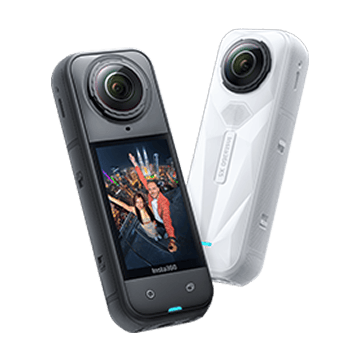
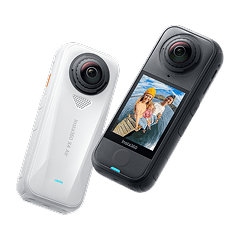
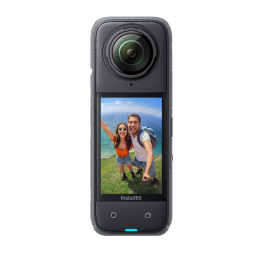
| Insta360 X6 | PureVideo (up to 8K30FPS in 360 and 4K60FPS in Flat Mode) with Auto PureVideo | Photo with Active HDR. Pro mode (manual shutter and ISO). Starlapse. | Turn on Auto PureVideo in the Shortcut menu. Keep 360 video at 30FPS or lower. |
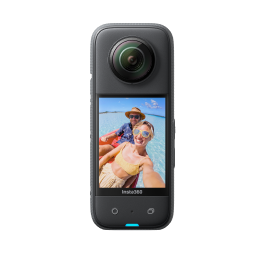
| Insta360 X5 | PureVideo (up to 8K30FPS) | Photo (optional HDR). Manual shutter and ISO. Starlapse. | Switch to PureVideo at 8K30FPS. |
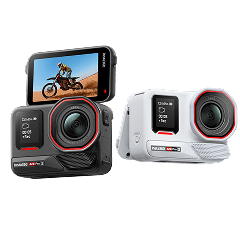
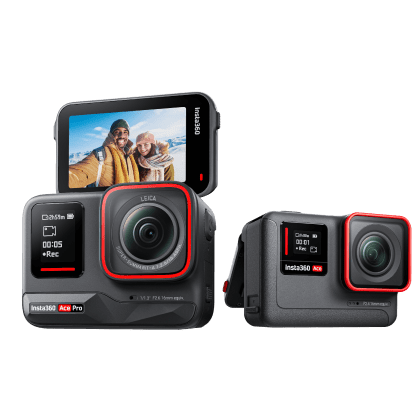
| Insta360 Ace Pro 2 | PureVideo (up to 4K60FPS; PureVideo Plus at 4K30FPS 16:9 or lower) | Photo in M mode (shutter, ISO, white balance). Starlapse. | Pick PureVideo at 4K30FPS. Turn on Low Light Enhancement and the Anti-Flicker exposure preset. |
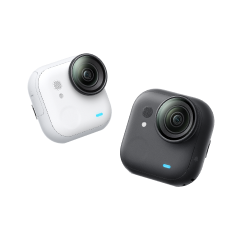
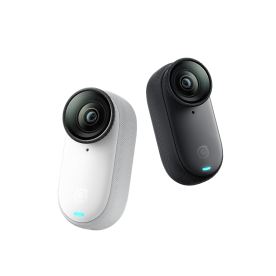
| Insta360 GO Ultra | PureVideo | PureShot. HDR Photo. Starlapse. | Turn on Auto PureVideo, or pick PureVideo yourself. Add Jitter Blur Reduction for walking clips. |
Insta360 X6 and X5
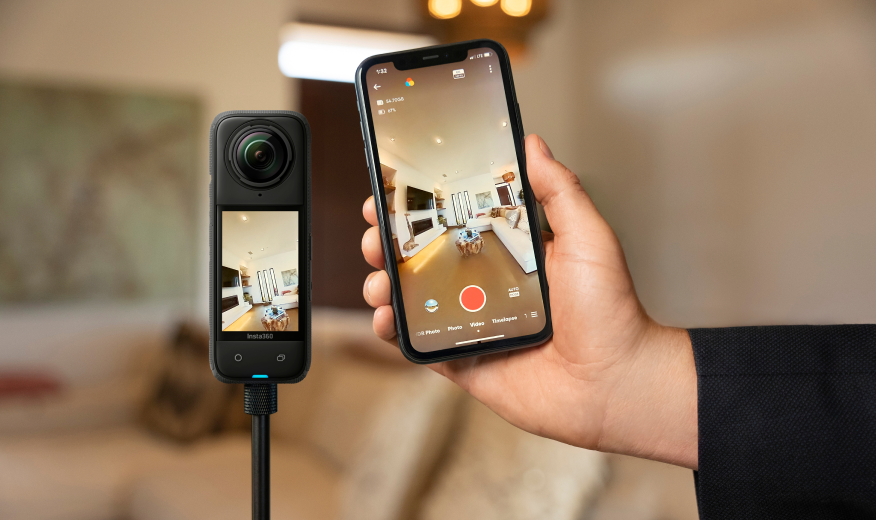
On Insta360 X6, Auto PureVideo checks the light only when you press record, so start a fresh clip once it's dark. Its two ambient light sensors also help reduce LED flicker.
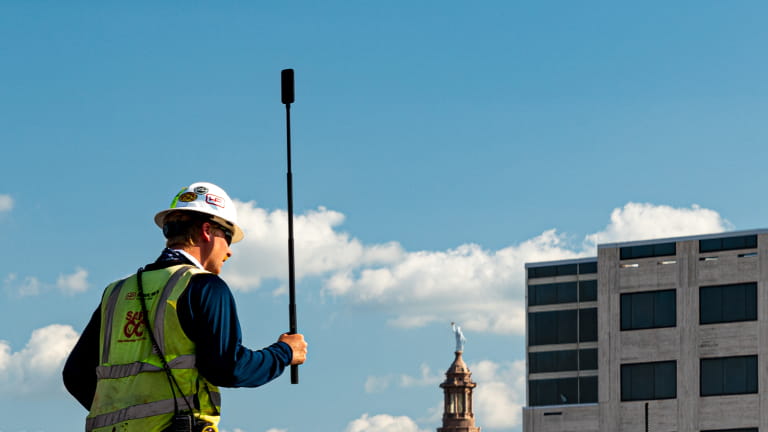
For sharp 360 photos on Insta360 X6 or X5, mount the camera on a tripod (or the Invisible Selfie Stick) and keep it still. Then use Pro or manual mode with a slightly slower shutter.
Insta360 Ace Pro 2
Use PureVideo on Insta360 Ace Pro 2 for walking clips through a display. It runs on auto exposure, so you can't set the shutter or ISO in that mode.
If LEDs flicker on screen, set Anti-Flicker to 60Hz in Insta360 Ace Pro 2’s settings. For manual photos, switch to M mode.
Insta360 GO Ultra
Insta360 GO Ultra attaches magnetically to your clothes for hands-free clips as you stroll through a display. Jitter Blur Reduction stops footage smearing as you move, though the picture gets slightly darker. Use PureShot for still shots.
How to Photograph Christmas Lights in 6 Festive Scenes
Light displays make a great backdrop for Christmas photoshoot ideas, and each scene below needs a slightly different setup:
House Light Displays
Stand across the street at blue hour. Go wide for the whole house, or move closer for a wreath or roofline. If bulbs blow out, drop the brightness one step.
Christmas Tree Indoors
Switch off overhead lights and dim the lamps so the tree leads. If the photo looks orange, cool the white balance. If it looks blue, warm it up.
Bokeh Backgrounds
Bokeh is the soft circles of blurred light behind your subject. Action and 360 cameras keep most of the scene sharp, so put your subject close to the lens and the lights far behind.
Light Trails From a Car
At drive-through displays, the passenger films and the driver drives. Mount the camera on the passenger side and use Timelapse. A slow shutter stretches moving lights into streaks, the same idea behind most motion blur photography.
360 Tiny Planet Shots of Light Displays
Set Insta360 X6 or X5 on a tripod in the middle of the display, at roughly the same distance from the lights on every side. Shoot a 360 photo or PureVideo clip, then pick Tiny Planet in the Insta360 app.
Short Video Clips for Social
Frame vertically, or reframe 360 footage to 9:16 in the Insta360 app. Walk slowly, keep the camera level and use PureVideo once it's dark.
How to Fix Flickering LEDs and Blown-Out Bulbs
Find your problem below, then use the fix for your camera:
| Problem | Why It Happens | Fix | Insta360 Camera Fix |
| Lines or flicker in video | LED lights pulse with the power supply. | Set any anti-flicker setting to 60Hz, the US power frequency. | Turn on Anti-Flicker in Settings. On Insta360 Ace Pro 2, also pick the Anti-Flicker exposure preset. |
| Flicker returns when you start walking | Motion blur settings can switch anti-flicker off. | Turn the motion blur setting off for still shots. | On Insta360 GO Ultra and Insta360 Ace Pro 2, use Anti-Flicker for still shots and Jitter Blur Reduction for walking shots. |
| Lights look like white blobs | Too much light. | Lower the brightness or EV. | Lower EV, which still works in PureVideo. |
| Orange or blue color cast | White balance doesn't match the bulbs. | For orange, pick a tungsten or incandescent preset. For blue, pick a warmer preset. | Set white balance manually. Lower the Kelvin value if footage looks orange, or raise it if it looks blue. |
| Grainy footage | Not enough light. | Use Night mode or your camera's low-light mode. | Switch to PureVideo. With Auto PureVideo on, restart the clip once it's dark. |
| Blurry shots | The camera moved during a slow capture. | Rest it on something solid. | Turn on Jitter Blur Reduction for walking video. |
Frequently Asked Questions
What ISO Should You Use for Christmas Lights at Night?
Use the lowest ISO your setup allows. On a tripod, start at ISO 100–400 to keep grain down. Handheld, let your camera's low-light mode choose.
How Do You Make Christmas Lights Look Good in Pictures?
Shoot at blue hour with the flash off and the camera steady. A person or object in the foreground adds depth.
Should You Use Flash When Photographing Christmas Lights?
No, flash overpowers the glow and flattens the scene. To light a face, use a soft, warm light from the side.
How Do You Get Bokeh With Christmas Lights?
Put your subject close to the camera and the lights well behind it. On a phone, Portrait mode or a similar background blur setting is the quickest route.
The Best Christmas Light Shots Start With the Right Mode
Get out at blue hour and keep the camera steady. Then switch on your camera’s low-light mode, like Night mode on a phone or PureVideo on an Insta360 camera.
Thinking of treating yourself this Christmas? Insta360 X6 is the ultimate pick for snapping this year’s holiday memories. And you can keep using it through the next year to capture adventures you’ll treasure for life.
Keen to keep up to date on Insta360 stories? Keep an eye on our blog and sign up for our mailing list. Got a story to share? Email yours to communitystories@insta360.com and win up to US$50.
Your shot. Your world. The Insta360 Global Awards 2026 supported by Leica are officially open. Join creators worldwide and compete across six categories (Street, Travel, Life, Portrait, Sports, and Night) for your share of a US$150,000+ prize pool, including cash prizes and Insta360 gear. Submit your best video or photo at insta360.com/awards.