
















.jpg)


Trying to improve your remote video call setup? Whether you're a long-time remote worker or setting up for your first work-from-home role, most of the biggest improvements are surprisingly simple. Better camera placement, lighting and audio can transform how you look and sound without requiring a complete home office overhaul.
This guide covers camera placement, lighting, audio, background and how to build a simple standard for your WFH station.
Key Takeaways
- Position your camera around eye level and frame yourself naturally, with your eyes near the upper third of the image.
- Prioritize clear audio and soft, front-facing light before spending money on an elaborate home office setup.
- Create a few simple video call standards across your team for more consistent, professional remote meetings.
Why Most Video Call Setups Still Look Bad
Sometimes the hardware is the problem. More often, perfectly capable equipment simply isn't being used well.
Set a laptop flat on a desk and the camera immediately starts looking up at you from below. Add a bright window behind your chair, a microphone several feet from your mouth and a cluttered background, and the overall setup can quickly start to look and sound unpolished.
The problem is rarely one major mistake. Usually, it's several smaller issues adding up.
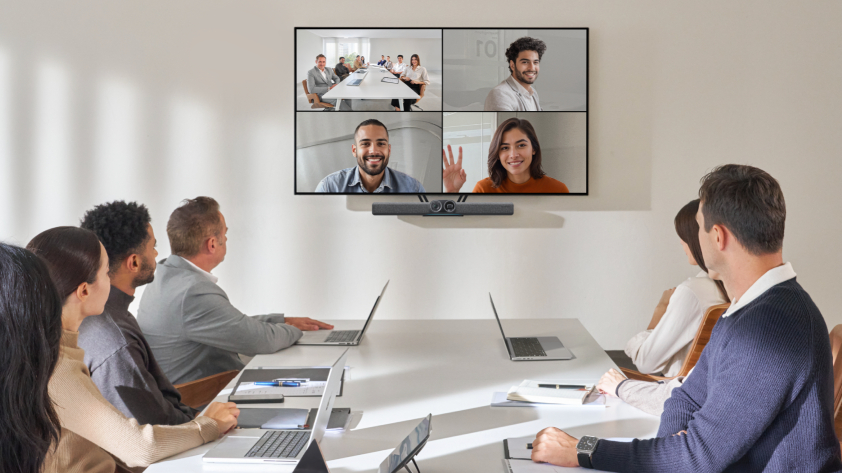
And it's not just image quality that makes a call feel professional—good video conferencing solutions depend on more than just what you see. Clear audio, flattering light, sensible framing and a distraction-free environment all help people focus on the conversation instead of the technology.
Camera Placement and Framing
Let’s begin with video conferencing equipment 101.
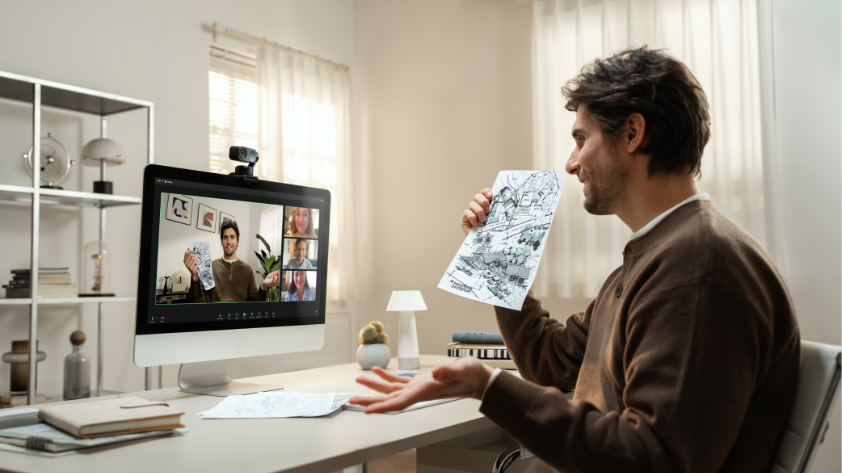
For most calls, position your camera around eye level and directly in front of you. If you’re using a laptop, a stand or even a sturdy stack of books can raise the screen enough to eliminate the familiar low-angle view.
Distance matters too. An arm’s length is a useful starting point, although the ideal position will depend on your camera and workspace. Frame your head and shoulders comfortably, leave a little space above your head and try to keep your eyes near the upper third of the picture.
It also helps to look at the camera occasionally. You don’t need to stare into the lens for an entire meeting, but brief eye contact creates a stronger sense that you're speaking directly to the people on the other side of the screen.
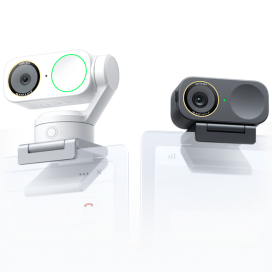
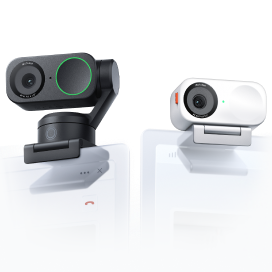
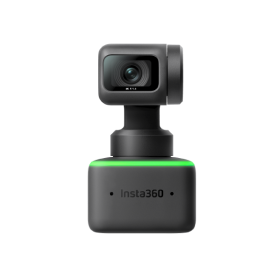
If you regularly present, teach or move around during meetings, a camera that can follow you is more useful. Insta360 Link 2 combines a 2-axis gimbal with AI Tracking, allowing it to follow movement and automatically keep the speaker framed.
Lighting Your Video Call Setup
You don't need elaborate studio lighting to look good on a video call. Getting a few basics right goes a long way.
Natural Light Setup
Whenever possible, position your desk so you’re facing a window or sitting at a slight angle to it. This creates soft, natural illumination across your face without requiring any extra equipment.
Avoid placing a bright window directly behind you, as your camera may compensate for the bright background by making your face appear darker.
Direct sunlight can create the opposite problem. Harsh midday light produces strong highlights and shadows, so try moving farther from the window or using a sheer curtain to soften it.
Affordable Lighting Fixes
No useful window? Working at night? You still don't need to turn your desk into a studio.
A small LED light or diffused lamp near your monitor can make a noticeable difference. Position it slightly above eye level and in front of you rather than directly overhead.
Overhead lighting alone tends to create shadows around the eyes and face. Extremely bright or exposed lights can be just as distracting, so aim for softer, more even illumination.
Audio: The Most Overlooked Part of Video Calls
People are much more forgiving of substandard picture quality than poor audio. A USC study found that when video wash hard to hear, viewers rated the speaker as less intelligent and credible.
If your voice is a garbled mess that requires a "can you repeat that?" every couple of minutes, your video call is well on its way to abject failure.
Your voice needs to arrive clearly, consistently and without forcing everyone else to turn their volume up.
The first fix is often proximity. A microphone close to your mouth generally has a much easier job capturing your voice than one sitting several feet away.
Before buying anything, reduce obvious background noise and check that your conferencing software is actually using the microphone you intended—then consider whether your existing hardware suits the way you work.
Microphone Options for Remote Workers
There isn't one microphone that's right for everyone. The best choice depends on how often you call, where you work and whether you stay seated.
| Mic Type | Best For | Tradeoff |
| Built-in laptop mic | Occasional calls and travel | Farther from your voice and may capture more room sound |
| Webcam or speakerphone mic | Everyday desk meetings | Results depend on placement and room acoustics |
| Wireless clip-on mic | Presentations, movement and polished calls | Another device to charge and manage |
| USB desktop mic | Dedicated home offices | Uses desk space and needs careful positioning |
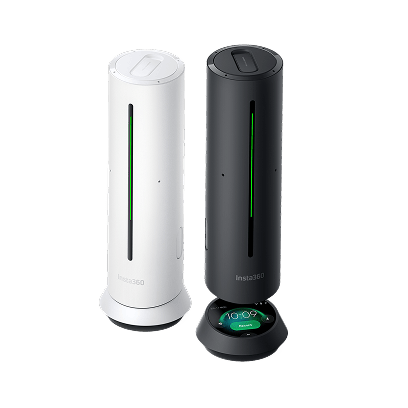
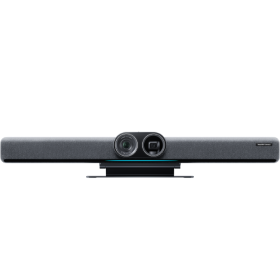
For a permanent meeting space, Insta360 Wave combines conferencing-focused audio with an AI-powered speakerphone design. Its 3D 8-mic array, adjustable pickup patterns and AI noise reduction can isolate voices and reduce distractions around the room.
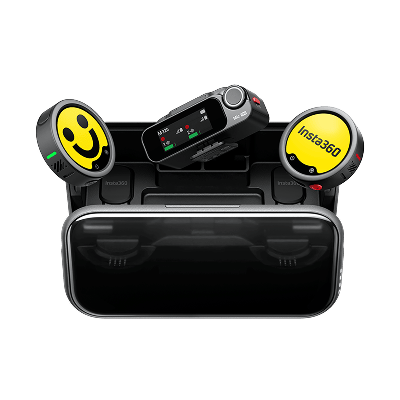
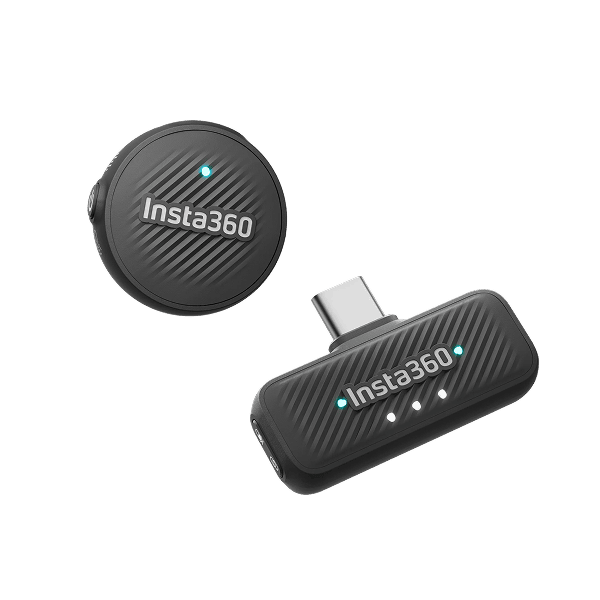
For people who present, train, interview or create content alongside everyday meetings, Insta360 Mic Pro offers a more flexible approach. Its 3-mic array supports multiple pickup patterns, while AI noise-canceling can help manage distracting sounds.
Reducing Echo and Background Noise
Before reaching for another AI setting, look around the room. Bare walls, hard floors and large empty spaces reflect sound. Softer materials absorb it, so rugs, curtains, upholstered furniture and even a well-stocked bookshelf can help reduce echo.
Close the door, move away from humming appliances and get the microphone closer to you. If your speakers are creating feedback, use headphones.
Noise reduction and echo cancellation can provide another layer of cleanup, but software works best when it has clean audio to work with in the first place. Improve the room and microphone placement first, then let the software handle what remains.
Background and Environment
You don’t need a designer home office for every client call. A clean wall, plant, shelf or a couple of intentional objects can create enough visual depth without pulling attention away from you.
A few simple habits can keep your background looking clean and professional:
- Leave some distance between your chair and the wall behind it. This creates separation and prevents the shot from feeling cramped.
- Scan the frame before an external meeting. Documents, whiteboards, personal photos and general clutter can all become unintended distractions.
- Virtual backgrounds can be useful when privacy matters or when you’re working from a temporary location, but they can sometimes look unnatural. A clean real environment often works better when one is available.
Software Settings Most People Forget
Before an important meeting, run through a quick software check. Laptops connected to webcams, headsets, displays and external microphones can leave you with more input choices than expected.
- Confirm the correct camera and microphone are selected in your conferencing settings and other remote working tools.
- Check the available video quality settings and test noise suppression before you need it. Stacking several layers of enhancement across your camera, microphone and conferencing app may produce unnatural results.
- Keep your conferencing software and device firmware updated. Updates can include compatibility improvements and fixes that affect everyday performance.
- Preview the setup. Take 30 seconds before joining. Check your framing, background, lighting and microphone input. It’s much easier to move a lamp before the meeting than while 12 people watch you do it.
Creating a Team-Wide Video Call Standard
Remote teams don't need identical home offices, but they can benefit from a shared baseline.
A simple standard might ask team members to keep cameras near eye level, light their faces from the front, use a clear microphone and choose an environment without unnecessary background distractions. For important external meetings, a short equipment check can also prevent last-minute audio or video problems.
Standards can scale with the meeting. A casual internal catch-up probably doesn't require the same setup as a sales presentation, job interview, webinar or executive briefing.
Define where higher production quality actually matters instead of expecting everyone to maintain a studio-quality setup throughout the entire workday.
Frequently Asked Questions
What Is the Best Camera Position for Video Calls?
Position your camera around eye level and directly in front of you. Roughly an arm’s length away is a useful starting point for many desk setups. Keep your head and shoulders visible, leave a small amount of headroom and avoid positioning the camera significantly below your face.
What Type of Microphone Should I Use for Remote Meetings?
For occasional meetings, your laptop or webcam microphone may be enough. Frequent remote workers can benefit from a dedicated speakerphone or desktop microphone, particularly in a permanent office. A wireless microphone can make more sense if you regularly stand, present or move during calls.
How Do I Reduce Echo on Video Calls?
Start with the room. Soft materials can help reduce reflections from hard surfaces. Move your microphone closer, shut doors and reduce unnecessary background noise. Headphones can help if sound from your speakers is feeding back into the microphone. After making those physical changes, use your conferencing software’s echo cancellation or noise reduction as an additional layer.
A Better Video Call Setup Takes Minutes, Not a Studio Budget
You don’t need a professional studio to look and sound professional on a video call. A few small improvements to camera placement, lighting, audio and your background can make a significant difference.
Start with the free fixes, then upgrade the parts of your setup that are still holding you back.
If the camera is next on that list, Insta360 Link 2 Pro offers an all-in-one way to improve framing, video and audio for meetings that need to make an impression. Combine the right hardware with a few simple setup changes and you have a cleaner, more reliable video call setup for everyday remote work.
Keen to keep up to date on Insta360 stories? Keep an eye on our blog and sign up for our mailing list. Got a story to share? Email yours to communitystories@insta360.com and win up to US$50. Your shot. Your world. The Insta360 Global Awards 2026 supported by Leica are officially open. Join creators worldwide and compete across six categories (Street, Travel, Life, Portrait, Sports, and Night) for your share of a US$150,000+ prize pool, including cash prizes and Insta360 gear. Submit your best video or photo at insta360.com/awards.





%20(1).svg)


%20(1).svg)

.svg)