


















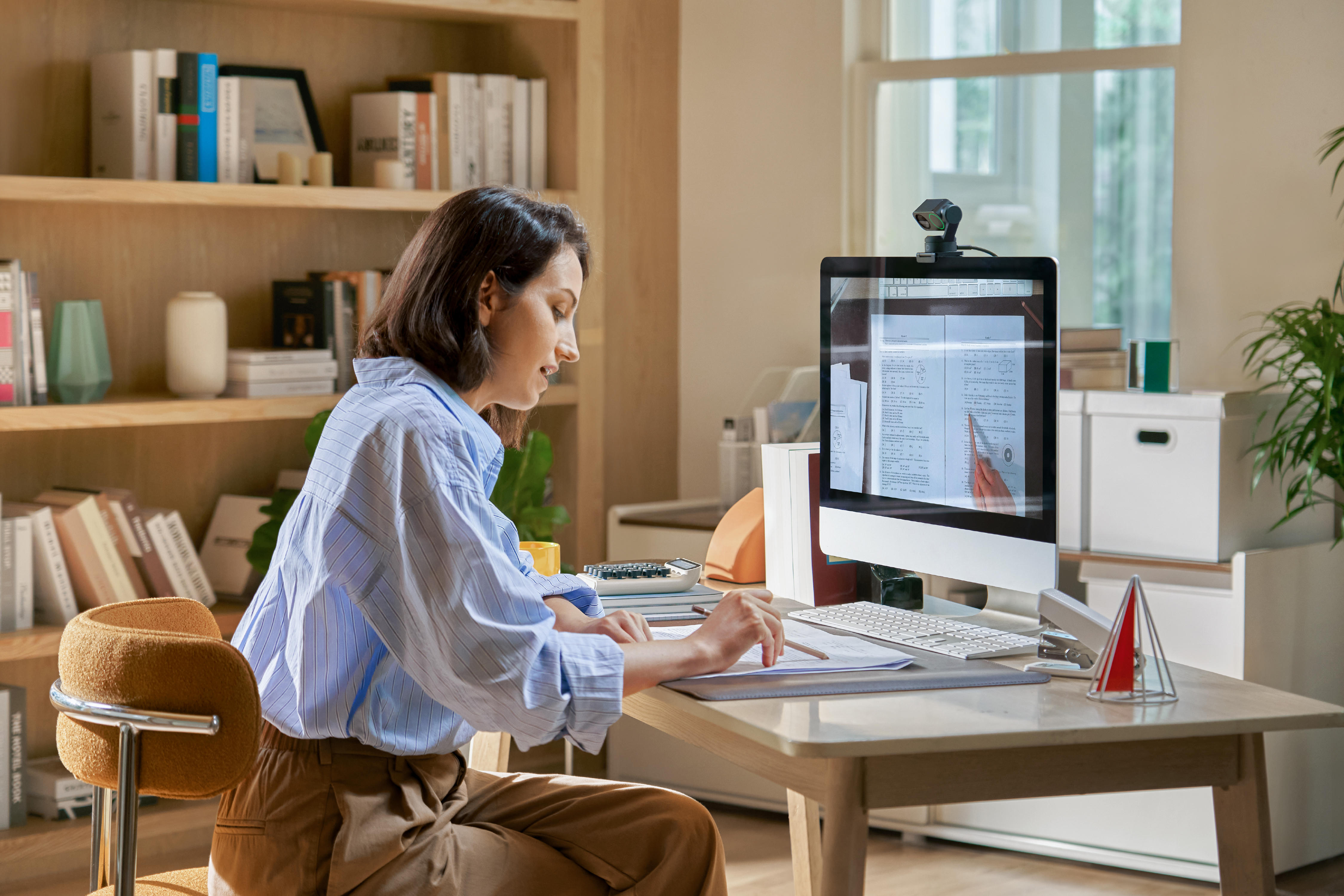


The perfect work from home setup isn't about filling a room with expensive gear, but rather about creating a comfortable, focused space where your technology works, meetings run smoothly, and small distractions don't keep breaking your flow.
The kitchen table might work for the occasional afternoon, but sit there for eight hours a day, five days a week, and your back, shoulders, and neck will soon be screaming at you to find a better solution.
Key Takeaways:
- Start with your workspace and ergonomics before investing heavily in technology.
- Prioritize a supportive chair, correctly positioned screen, and reliable internet for everyday comfort.
- Good lighting, clear video, and clean audio can make remote meetings feel more professional.
- Keep your desk organized and build simple routines that separate working time from home life.
Choosing the Right Space to Work From Home
Before you start desk shopping, you need to think about the right space.
Look for the quietest, most controllable part of your home. A spare room with a door is ideal for a work-from-home office, but it isn't essential. A bedroom corner, alcove, or section of the living room can work just as well when it's set up thoughtfully.
Pay attention to natural light, background noise, power outlets and Wi-Fi coverage.
If you're regularly on video calls, consider what will appear behind you too (if you’ve seen that BBC News interview, you’ll know what can happen). A clean wall or tidy shelf is easier to work with than a busy household walkway.
Try to create some physical separation between work and downtime. Having a place you can leave at the end of the day makes it easier to draw a line between the two.
Desk and Ergonomics
OK, now let’s talk about desks and ergonomics.
Your desk needs enough room for the equipment you actually use without forcing everything into awkward positions. Prioritize sufficient depth for your monitor, comfortable legroom, and easy access to your keyboard and mouse.
The right desk style depends on how you prefer to work:
| Sitting Desk | Standing Desk | Sit-Stand Desk | |
| Best For | Simple, budget-friendly setups | People who prefer working upright | Switching positions throughout the day |
| Price Range | $100–$300 | $150–$400 | $300–$1200 |
| Ergonomic Benefit | Good with correct chair and positioning | Reduces reliance on sitting | Makes changing posture easier |
Chair and Posture
Look for adjustable height, useful lumbar support, and a seat that lets your feet rest comfortably on the floor or a footrest. Your shoulders should stay relaxed, with your elbows positioned naturally rather than reaching upward toward the desk.
Don't treat "good posture" as a pose you have to freeze in all day. Adjust your position and get up regularly—even a carefully configured workspace can't replace movement.
Monitor Height and Distance
If you’re looking down all day, you’ll soon start to feel that mild burn in your shoulders and at the top of your neck. Looking up is no better. The top of the screen should generally sit around or slightly below eye level, and ideally be at least 20 inches (50cm) away.
Laptop users can raise the screen with a stand, then add an external keyboard and mouse. It's a simple change that can make a laptop-based workstation far more comfortable for long sessions.
Essential Work From Home Hardware
You don’t need a complete house revamp, but a few pieces of important hardware can make a huge difference.
Start with a computer capable of handling your normal workload without becoming the bottleneck. From there, prioritize equipment according to what you actually do.
An external monitor gives you more room for documents, spreadsheets, creative software, and side-by-side windows. A comfortable keyboard and mouse improve everyday control, while a USB hub or dock can turn a laptop into a permanent workstation.
Headphones are useful in shared homes, and external storage can provide additional capacity or backup options for large files.
If your calendar is packed with calls, a dedicated camera and audio setup deserves a much higher place on the list than it would for someone who spends most of the day working independently.
Internet and Connectivity
Chances are the internet is going to be part of your work, so start by testing both download and upload performance.
Where practical, an Ethernet connection can provide a stable option for a permanent workstation. If Wi-Fi is your only realistic choice, avoid hiding the router behind furniture or placing your workspace at the edge of its coverage.
Remember that you're probably not the only person using the connection—streaming, gaming, cloud backups, and other calls elsewhere in the house can all compete for bandwidth.
Video and Audio for Meetings
A good remote setup doesn't just help you work; it helps everyone else see and hear that work clearly. For anyone spending hours each week in meetings, video and audio deserve more attention than simply opening the laptop and hoping for the best.
Camera Setup
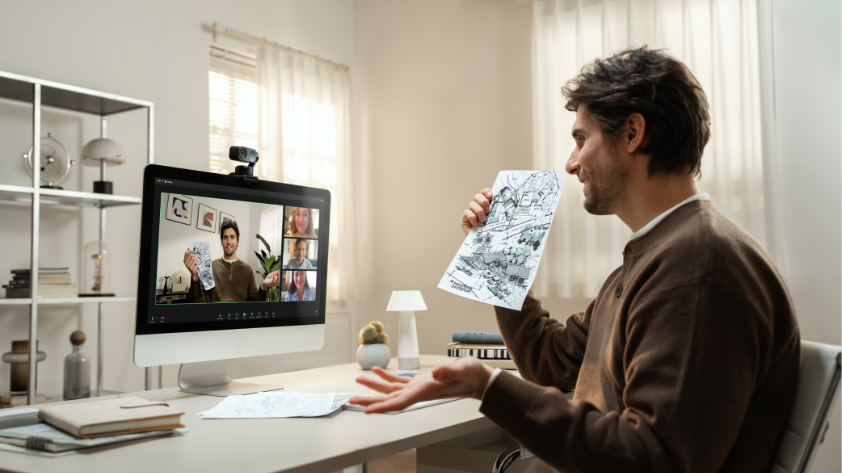
Start with position. Place your camera close to eye level so you're not looking sharply downward during calls. Frame yourself with some space around your head and shoulders, keep the background reasonably clean, and avoid putting a bright window directly behind you.
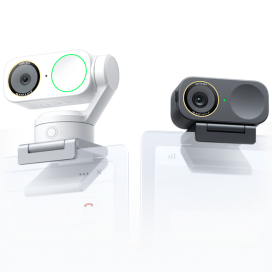
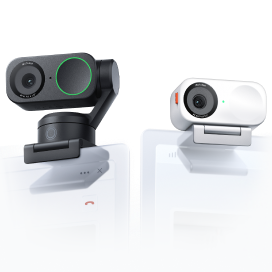
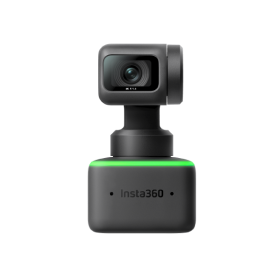
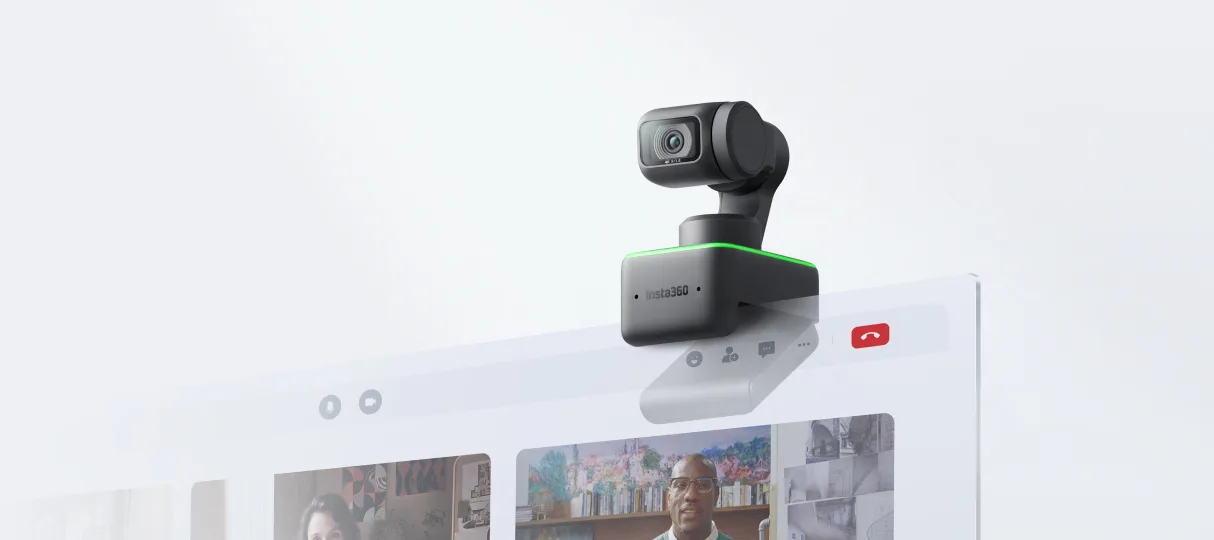
A dedicated webcam becomes particularly useful if you're regularly meeting clients, teaching, presenting, or moving around while speaking. Insta360 Link 2 is a powerful 4K webcam that combines a two-axis gimbal with AI Tracking, allowing the camera to follow movement instead of forcing you to stay fixed in the center of the frame.
Features such as autofocus, HDR, Natural Bokeh, and DeskView also give frequent callers more flexibility over how they present themselves.
Audio Setup
Before buying anything external, improve the room itself. Hard, empty spaces tend to sound more reflective, while curtains, rugs and soft furnishings can help soften the environment. Reduce nearby noise where possible and keep your microphone reasonably close to you.
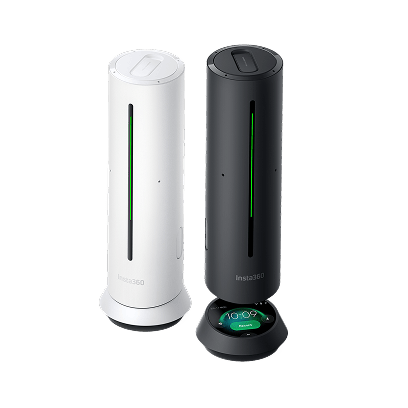
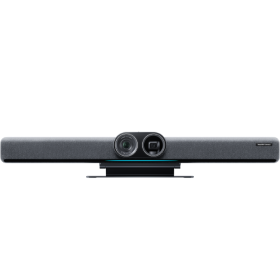
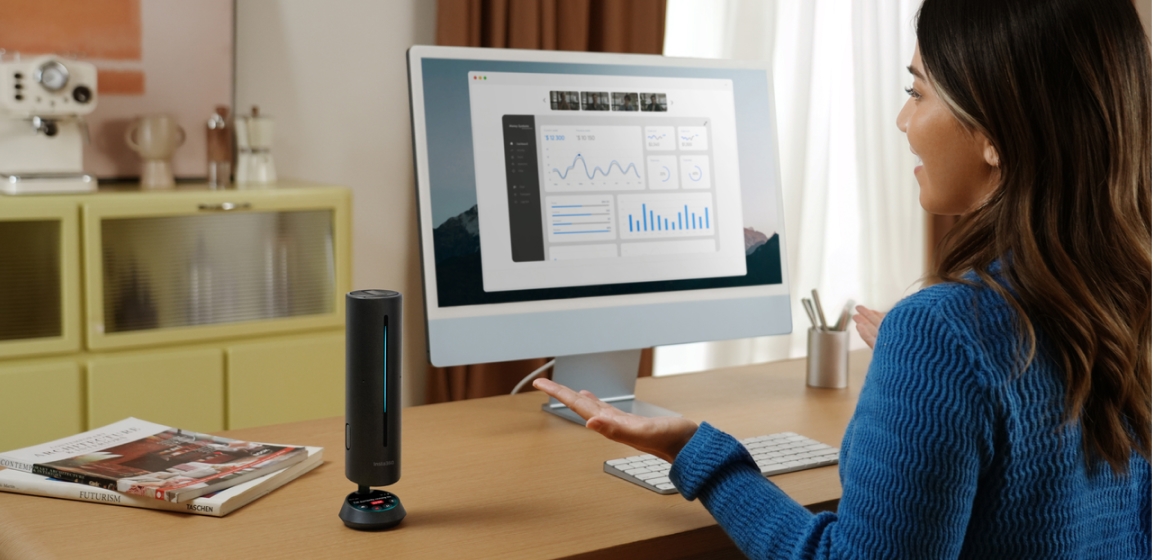
For a meeting-focused desk setup, Insta360 Wave combines an eight-microphone array with directional pickup, AI noise reduction and dereverberation. It also integrates meeting-focused tools including transcription, making it particularly useful for calls where capturing the conversation matters as much as being heard.
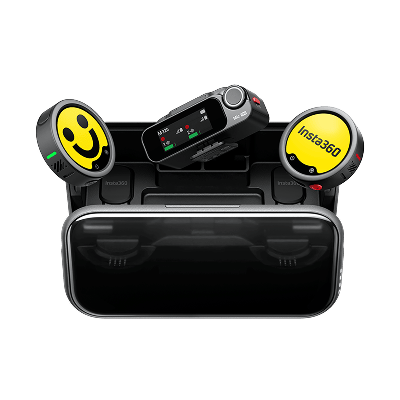
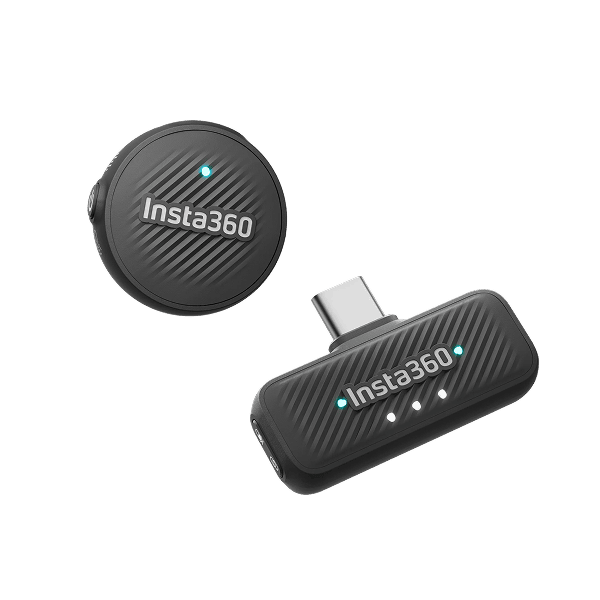
Insta360 Mic Pro offers a different kind of flexibility. Its compact wireless design makes more sense for people who move beyond the desk for presentations, training sessions, interviews, or content creation.
Lighting Your Workspace
Natural light is a strong starting point. If possible, face toward a window or position it slightly to one side. Putting a bright window directly behind you can leave your face underexposed on camera, while harsh sunlight across your screen can create glare.
For darker spaces, a soft light positioned in front of you is generally more flattering and useful for calls than relying entirely on a ceiling light.
Excessive lighting and glare can make displays more difficult to see, so adjust blinds or curtains as daylight changes and reposition lamps if you're seeing distracting reflections on your display or glasses.
Cable Management and Desk Organization
Power strips can be mounted beneath or behind the desk, while monitor, charging, and peripheral cables can be routed together instead of hanging separately. Label similar leads if you regularly disconnect equipment and keep the chargers you use every day within easy reach.
Then clear everything you don't need. Give headphones, notebooks, adapters, and other accessories a permanent home rather than letting them migrate across the desk.
If you’re using a sit-stand desk, leave enough cable slack for the desk to reach its full height without pulling on connections.
Productivity Tools and Habits
Hardware can get you a long way, but if you can’t establish good habits and productivity, your work-from-home setup soon becomes a relaxed-at-home setup—which may lead to calls from your boss.
A simple calendar, task manager, communication platform, and cloud storage system can cover most day-to-day remote work needs. The important part is using those remote work tools deliberately rather than letting every notification compete for your attention.
Block periods for focused work when your role allows it. Silence unnecessary alerts. Schedule short breaks and get away from the screen periodically.
It also helps to create a start and finish routine. That might mean making coffee before opening your laptop, taking a short walk after work, or simply clearing your desk and closing everything down.
5 Common Work From Home Setup Mistakes to Avoid
A home office often goes wrong through small compromises rather than one catastrophic decision. These are five worth fixing.
- Working from a low laptop all day—Raise the display and use an external keyboard and mouse when possible.
- Buying for aesthetics before ergonomics—The desk might look incredible on camera, but comfort matters more when you're sitting there for hours.
- Putting a bright window behind you—Your camera has to fight the backlight, often leaving your face dark during meetings.
- Ignoring upload performance—Fast downloads don't automatically mean smooth calls or quick uploads. Check both directions when testing your connection.
- Accepting poor built-in audio—Echo, room noise, and distant microphones can make long conversations harder than they need to be.
Frequently Asked Questions
What Are the Essentials for a Work From Home Setup?
Start with a reliable computer and internet connection, a suitable desk, a supportive chair, and a properly positioned screen, keyboard, and mouse. You'll also need adequate lighting and access to power.
Do I Need a Dedicated Webcam and Microphone for Remote Work?
Not necessarily. If you only join occasional internal calls, your laptop's built-in camera and microphone may do the job. Dedicated equipment becomes more valuable when video communication is a major part of your working week.
How Do I Improve Video Call Quality From Home?
Make sure your connection is stable, raise your camera toward eye level, and place soft light in front of your face rather than a bright source behind you. Reduce background noise and position your microphone appropriately. Finally, look behind you. A simple, intentional background keeps attention on the conversation instead of the laundry pile staging a surprise cameo.
A Thoughtful Setup Pays for Itself Every Working Day
The perfect home office isn't the one with the most equipment—it's the one that quietly works in the background.
A comfortable chair, correctly positioned screen, dependable connection, and organized desk solve the small problems that otherwise appear dozens of times a week. Add strong lighting, clear audio, and a capable camera, and meetings become easier too.
For anyone who spends a significant part of the working week on camera, upgrading that experience is a logical finishing touch, and Insta360 Link 2 Pro helps you build a smarter, more polished video setup around the way you work.
Keen to keep up to date on Insta360 stories? Keep an eye on our blog and sign up for our mailing list. Got a story to share? Email yours to communitystories@insta360.com and win up to US$50. Your shot. Your world. The Insta360 Global Awards 2026 supported by Leica are officially open. Join creators worldwide and compete across six categories (Street, Travel, Life, Portrait, Sports, and Night) for your share of a US$150,000+ prize pool, including cash prizes and Insta360 gear. Submit your best video or photo at insta360.com/awards.




%20(1).svg)


%20(1).svg)

.svg)