














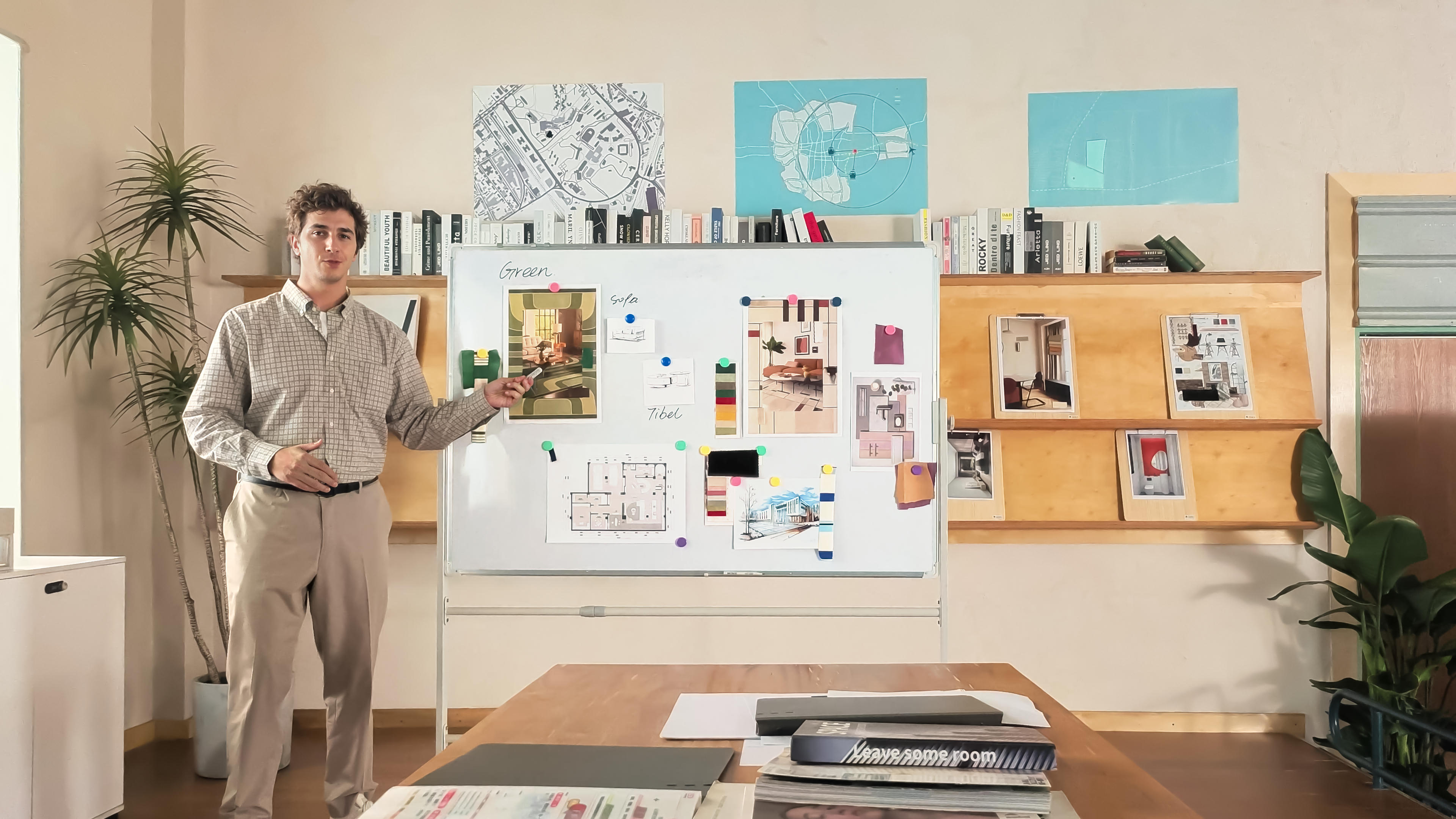


Setting up a remote classroom used to mean pointing a webcam at your face and hoping for the best. These days it comes down to five decisions: camera, audio, lighting, display and connection.
Nail those, and you can teach without trouble. Get them wrong, and every lesson turns into a live tech-support demo instead.
Here's what that setup actually looks like, starting with the basics.
Key Takeaways
- Start with clear video, intelligible audio, and a reliable internet connection before adding extras.
- Teachers who move around, demonstrate objects, or use a whiteboard can benefit from AI Tracking and dedicated teaching modes.
- Good lighting and thoughtful screen placement can make lessons easier to follow without turning your room into a studio.
- Build your setup around how you teach rather than buying equipment you don't need.
What Teachers Actually Need for Remote Teaching
Remote teaching or online tutoring can get complicated fast. At the most basic level, you need a computer, a camera, a microphone, a reliable internet connection, and whatever video or learning platform your school, institution, or students use. That can be enough for a simple, seated lesson.
Beyond that, your setup should match how you actually teach, which is where camera tracking, wireless audio and a second display start to come in handy.
Camera: The Foundation of Your Remote Classroom
Your camera is usually the first thing to think about, though plenty of teachers settle for a laptop webcam which barely meets the minimum. Resolution matters, but a useful teaching camera should keep you clearly visible, focus reliably and handle the lighting in your room.
If your lessons involve movement, demonstrations or a whiteboard, framing and tracking become just as important.
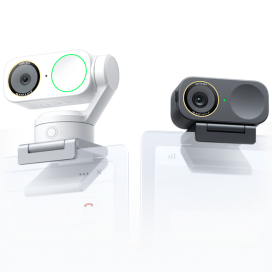
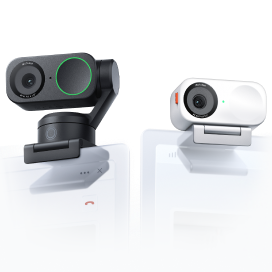
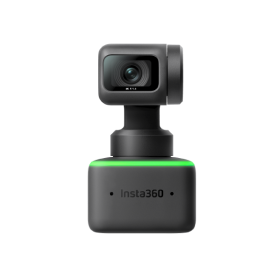
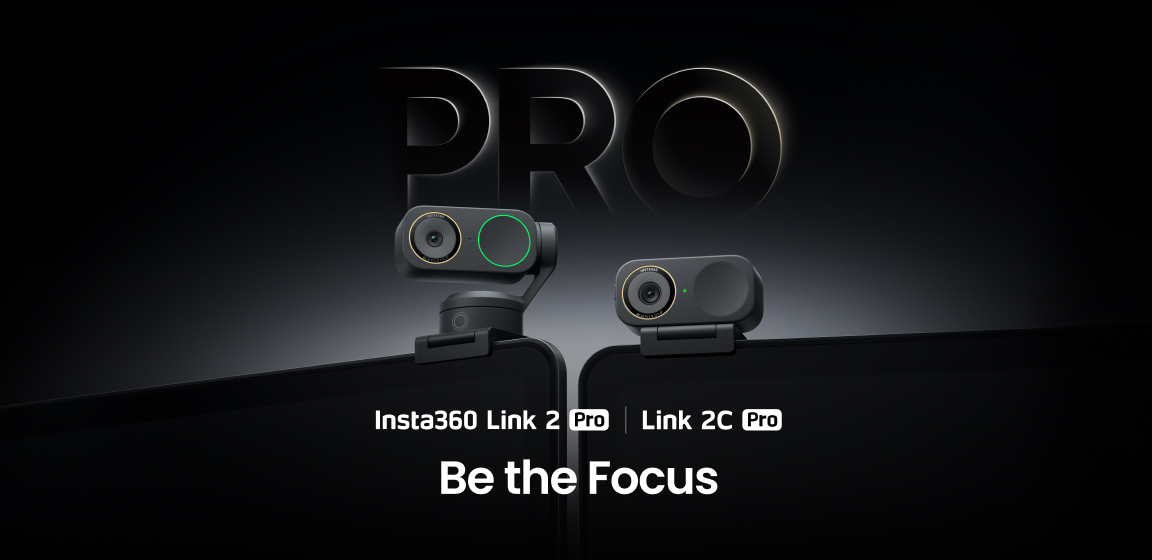
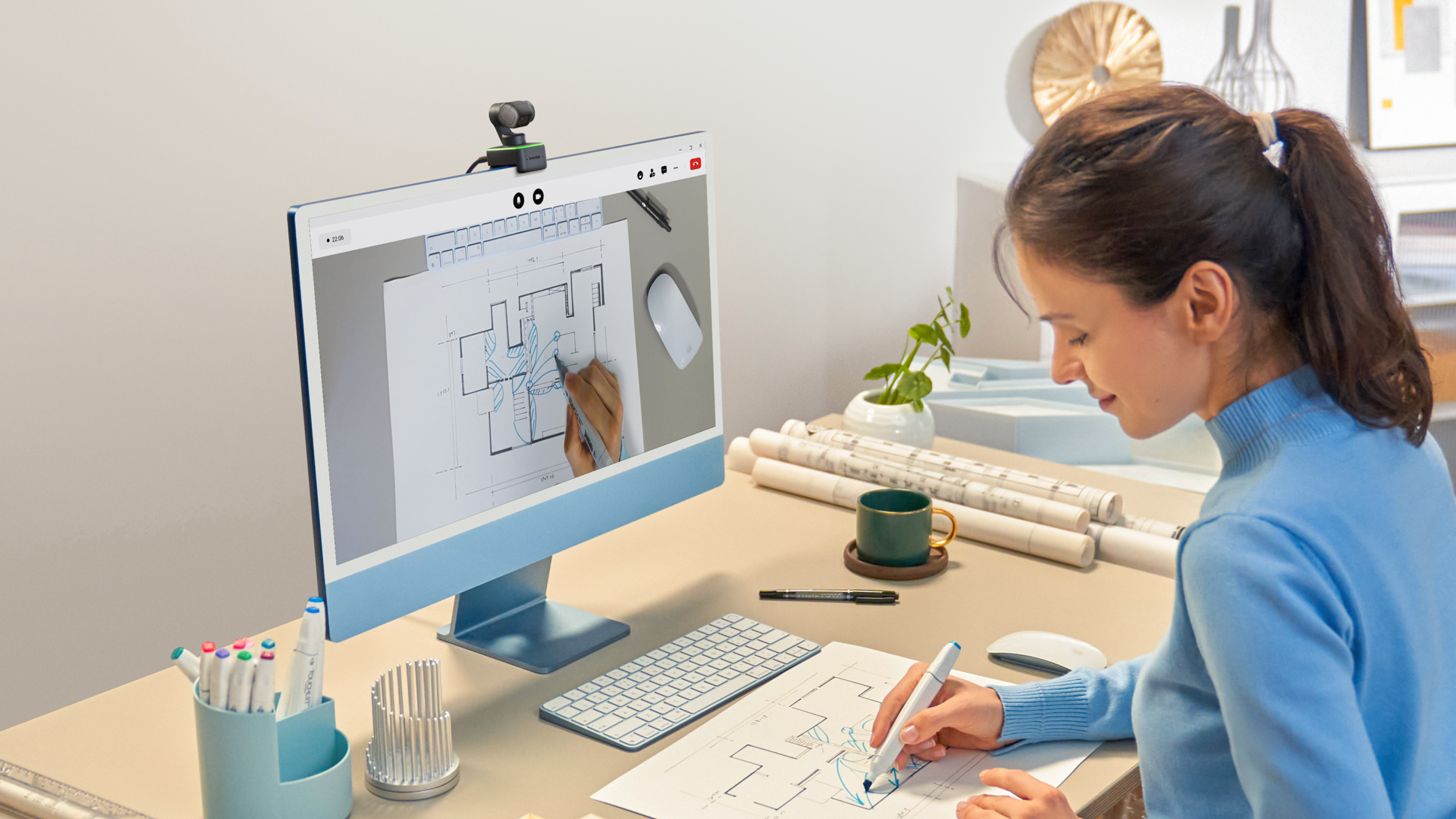
Insta360 Link 2 Pro is built for a more dynamic remote classroom. Its large sensor and Dual Native ISO deliver crisp 4K video with strong low-light performance, helping teachers stay clear and natural on camera even when the room lighting isn't perfect.
An upgraded dual-mic system and four smart pickup modes add another layer of clarity for lessons, presentations and the work-from-home office.
AI Tracking and Auto-Framing
Teachers rarely sit still. You might start a lesson at your desk, stand to demonstrate something, and then walk across to a whiteboard. With a conventional fixed webcam, students can quickly end up watching an empty chair.
AI Tracking keeps a moving subject in view. Insta360 Link 2 Pro belongs to a new class of AI 4K webcams that use a 2-axis gimbal to physically adjust as you move, helping maintain framing without requiring you to manually reposition it. Auto-framing takes a slightly different approach, adjusting the composition to keep subjects properly framed.
Whiteboard Mode
Whiteboards, and even blackboards for those who remember them, have long been an indispensable tool for teachers. A standard webcam may capture the board at an awkward angle, struggle to frame it correctly, or leave your writing occupying a small part of the call. Dedicated whiteboard tools help turn it back into a practical teaching surface.
Insta360's Whiteboard Mode can identify a marked board area and adjust the view to give students a clearer perspective, all with a simple wave of the teacher's hand (or with the Controller). A must for remote learning.
Audio: Clear Sound Matters More Than You Think
Poor audio can be painful, so this is vital to get right. Start by listening to your room. Laptop fans, hard walls, keyboards, traffic, and other people can all compete with your voice.
Distance matters too, and a microphone that sounds fine while you're seated at your computer may become much less effective when you walk to the other side of the room. Match the microphone to how you teach:
- Seated teaching in a quiet space—a good built-in webcam microphone may be enough.
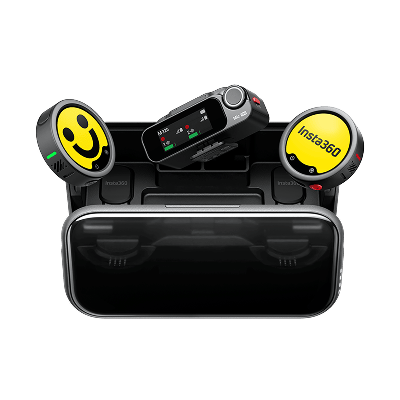
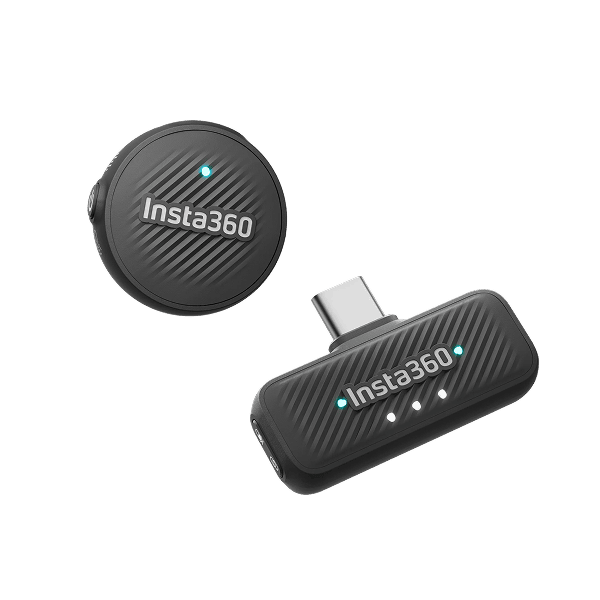
- When moving around, a wireless option such as Insta360 Mic Pro keeps the microphone close to you instead of leaving it behind on the desk. Its directional pickup options, AI noise-canceling, and auto-gain control can also help keep speech intelligible in less controlled environments.
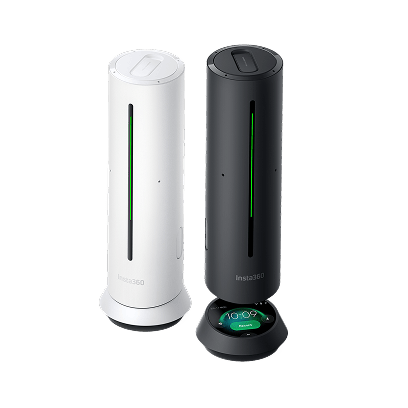
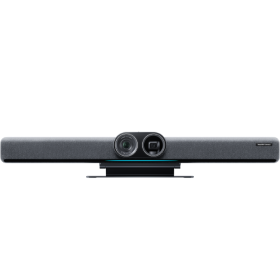
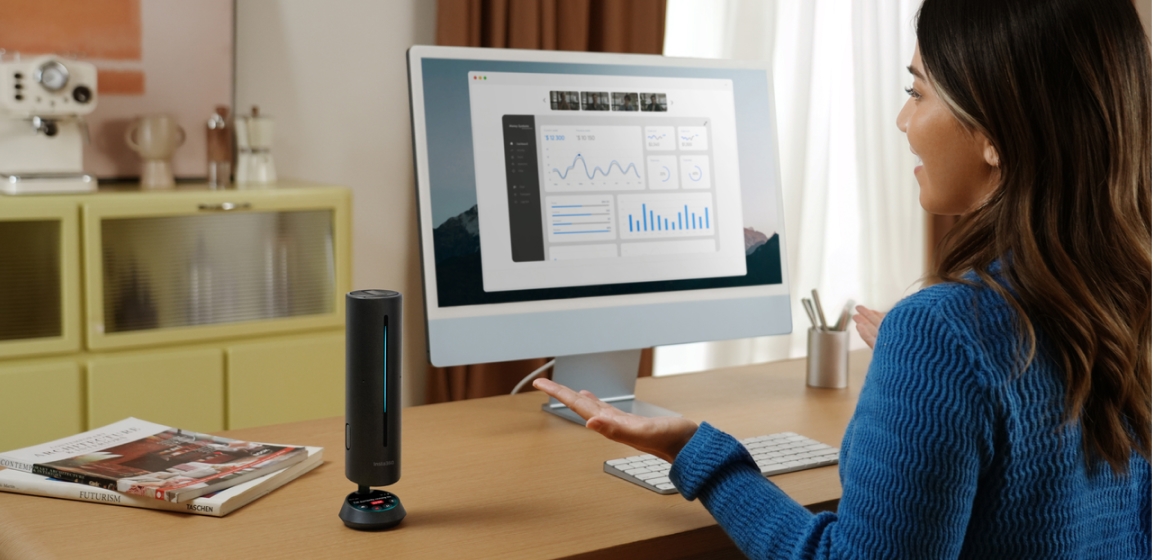
- For lessons involving several voices or a more conference-style setup, Insta360 Wave offers another approach. Rather than wearing a microphone, a speakerphone can suit group discussions and shared teaching spaces where several people need to hear and be heard.
Lighting for Teaching on Camera
You don’t need movie set lighting, but there are standards:
- A window can be one of the best lights in your classroom—as long as you're facing it. Sit with a bright window directly behind you and your camera may expose for the background, leaving your face too dark.
- Add a soft LED light when daylight isn’t consistent. Position it slightly above eye level and a little off-center rather than pointing a harsh light directly at your face.
- Check for reflections if you use a whiteboard. A light that looks great on your face can create a bright hotspot across the exact equation you're trying to explain.
- Check the actual camera feed before class, as your eyes and your webcam don't always see a room the same way.
Display and Screen Sharing Setup
The moment you share your screen, your available workspace suddenly feels half its size. A single laptop can work for straightforward lessons, but window management becomes difficult when you're juggling slides, notes, student video, chat and screen-sharing controls.
A second display is one of the most useful upgrades for teachers who spend hours online. Keep your teaching materials or shared screen on one display while using the other for student video, questions and lesson notes. You spend less time digging through overlapping windows and more time watching the class.
Before sharing your screen, close personal tabs and notifications, increase the small text size, and check exactly which window students will see.
Internet and Connectivity
Connections drop sometimes, and there’s not always a fix—but you can cover the basics. Where practical, a wired Ethernet connection gives you one less wireless variable to worry about.
Upload performance is particularly important since your computer is sending video and audio to everyone else. Microsoft Teams can deliver HD video at under 1.5Mbps in good conditions, though usage varies by resolution and layout.
Finally, have a backup plan. Know how to disable your camera temporarily if bandwidth drops, keep essential adapters nearby, and test your complete setup from the room where you'll actually teach.
Putting It All Together: A Sample Remote Classroom Setup
The best setup isn't the one with the most gear. It's the one you stop noticing once class begins. Here's one way to think about equipment at two different levels:
| Budget Setup | Pro Setup | |
| Camera | Existing webcam or laptop camera | Insta360 Link 2 Pro with AI Tracking |
| Audio | Webcam or headset microphone | Insta360 Mic Pro or Insta360 Wave |
| Lighting | Window-facing desk position | Adjustable soft LED light |
| Display | Laptop or single monitor | Laptop plus second display |
| Extras | Headphones and basic stand | Whiteboard setup, Ethernet, mounts and spare cables |
The budget setup suits teachers who mostly sit still and work with smaller groups. Focus first on positioning your existing equipment well before replacing it.
The pro setup is better suited to a more active teaching style. If you move around the room, demonstrate objects, or switch between your desk and a board, equipment that can follow that workflow becomes much more valuable.
5 Common Remote Teaching Setup Mistakes
Even expensive equipment can produce a frustrating lesson when the basics aren't right. Watch for these common mistakes:
- Putting the camera too low—Position it close to eye level for a more natural perspective and better eye contact.
- Sitting with a bright window behind you—Face your main light source where possible, so your face doesn't disappear into shadow.
- Treating audio as an afterthought—Test your microphone from every position you regularly teach from, not just your desk.
- Sharing text students can't read—Increase font sizes, simplify busy slides and preview shared materials before class begins.
- Testing everything five minutes before the lesson—Run through camera, microphone, whiteboard, screen sharing and connection in advance.
Frequently Asked Questions
What Equipment Do I Need to Teach Online?
At minimum, you need a computer, reliable internet connection, camera, microphone and the software used to deliver your lessons. You may also benefit from headphones, a dedicated light and a second display. Teachers who move around, write on a board or demonstrate physical material may find features such as AI camera tracking, wireless microphones, Whiteboard Mode and DeskView useful.
How Do I Show a Whiteboard on a Video Call?
You can show a whiteboard by positioning a conventional webcam toward it or using a camera with a dedicated whiteboard function. The important part is making sure the board fills enough of the frame and remains readable. Avoid glare, use dark markers, and test small handwriting before the lesson.
Do I Need a Separate Microphone for Online Teaching?
Not necessarily. A built-in webcam or laptop microphone can work well when you're seated close to the computer in a quiet room. A separate microphone is more useful when you move around, teach farther from your desk, or work in a space with distracting background noise.
The Right Setup Lets You Focus on Teaching, Not Troubleshooting
The goal isn't to build a miniature broadcast studio; it's to explain an idea, share a diagram, move to the whiteboard and answer a question without wondering whether your students can still see or hear you. Start with the fundamentals: reliable connectivity, intelligible audio and clear video. Then improve your lighting, displays and workflow around the way you actually teach.
For lessons that move beyond the desk, Insta360 Link 2 Pro adds tracking, Whiteboard Mode and noise cancellation to keep you in the frame and the lesson moving.
Keen to keep up to date on Insta360 stories? Keep an eye on our blog and sign up for our mailing list. Got a story to share? Email yours to communitystories@insta360.com and win up to US$50. Your shot. Your world. The Insta360 Global Awards 2026 supported by Leica are officially open. Join creators worldwide and compete across six categories (Street, Travel, Life, Portrait, Sports, and Night) for your share of a US$150,000+ prize pool, including cash prizes and Insta360 gear. Submit your best video or photo at insta360.com/awards.




%20(1).svg)


%20(1).svg)

.svg)