















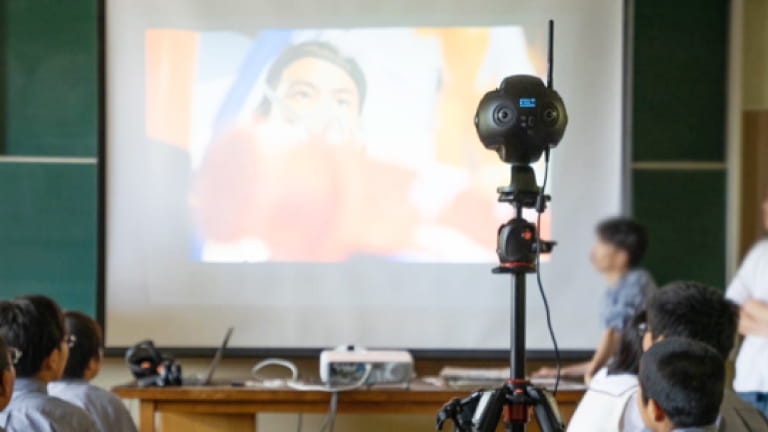





How to make a time-lapse video?
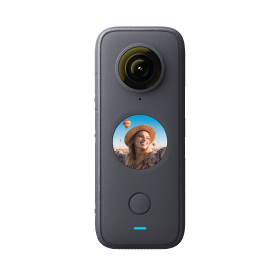
Please prepare an iPhone (models above 6) and an Insta360 Nano, then ensure Nano App and camera firmware are the latest version (Insta360 Nano Firmware Update Tutorial).
- 1.Connect Nano to iPhone, and open Nano App;
- 2.Click 'Setting' and turn on 'Time-lapse';
- 3.Then, click 'Time-lapse settings' to set 'Total recording time' and 'Frame Interval';
- 4.After setting, disconnect Nano and iPhone;
- 5.Click power button on Nano to start the camera (Stand-by mode: green LED indicator on);
- 6.Triple-click power button, and LED indicator flashes blue-green-blue-green;
- 7.Wait until the LED indicator stops flashing which means a time-lapse video has finished, or you can click the power button again to stop recording;
- 8.Connect Nano to iPhone and you can check the time-lapse video on Nano App.
- Notes: Please keep Nano stationary and avoid shaking or moving while you are taking a time-lapse video.
Was this information helpful?
.svg)

구독하기
Insta360 최신 소식을 만나보세요!

저는 개인정보 보호정책에 동의하며, 이메일로 최신 Insta360 소식과 할인 정보를 받고 싶습니다. 언제든지 Insta360에 연락하여 구독을 취소할 수 있다는 점을 이해합니다.


%20(1).svg)


%20(1).svg)

.svg)


구매 안내
주문 및 결제
구매 전 문의
반품 및 환불
 영업 시간: 10:00‑19:00 (GMT+9)
제품 지원
트러블슈팅·도움말
보증·수리 서비스
영업 시간: 10:00‑19:00 (GMT+9)