




















Firmware Update
Q1. How do I update my firmware?
Q2. How do I update my firmware if the standard procedure fails?
Q3. What do I do if a firmware update fails with the Micro SD card?
Q4. If there is a new firmware release, will there be a prompt on the App?
Please click here to contact us for further support.
Please refer to this Camera Firmware Update Tutorial to do update.
Please refer to this Camera Firmware Update Tutorial to update via MicroSD card.
If the firmware update fails using the memory card, please follow the steps below to troubleshoot:
1. Confirm that the camera has at least 20% power.
2. Note that the firmware file is saved to the root directory of the storage card, not to other folders.
3. Please keep the original downloaded firmware file name "InstaOneXFW.bin" unchanged.
4. If you still can't update, please back up the files in the memory card, format the memory card, and then re-download the firmware file to update.
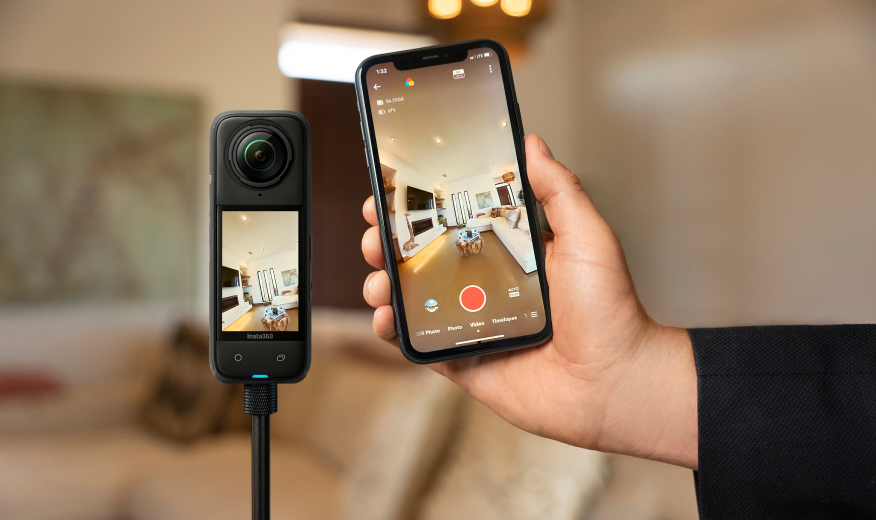
Yes, when connecting the camera to the phone successfully, open the App, and there will be a prompt for a firmware update on the Insta360 page.
Note: The Android App will show a firmware upgrade prompt before connecting to the camera.

Was this information helpful?
.svg)

구독하기
Insta360 최신 소식을 만나보세요!

저는 개인정보 보호정책에 동의하며, 이메일로 최신 Insta360 소식과 할인 정보를 받고 싶습니다. 언제든지 Insta360에 연락하여 구독을 취소할 수 있다는 점을 이해합니다.


%20(1).svg)


%20(1).svg)

.svg)


구매 안내
주문 및 결제
구매 전 문의
반품 및 환불
 영업 시간: 10:00‑19:00 (GMT+9)
제품 지원
트러블슈팅·도움말
보증·수리 서비스
영업 시간: 10:00‑19:00 (GMT+9)