














What’s New with FlashCut
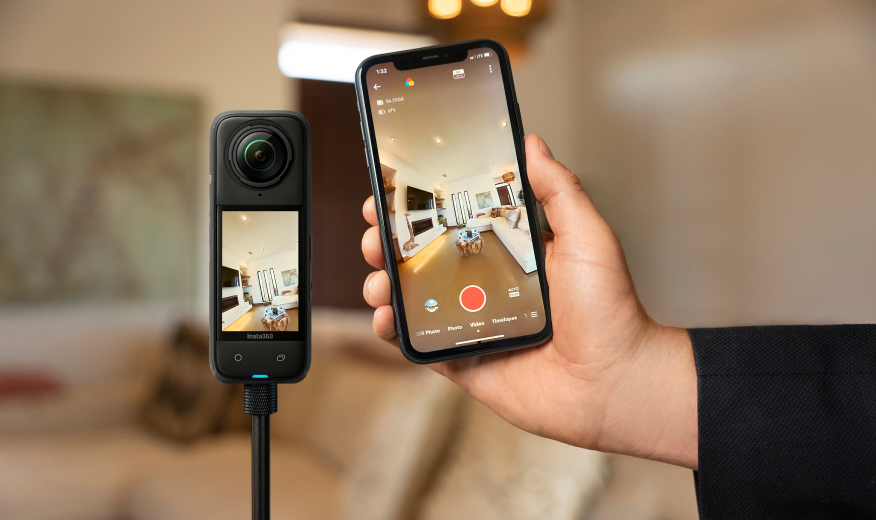
With the latest Insta360 app update (v1.5.1), FlashCut has gotten a slick new editing interface and some new features.
FlashCut is an AI-powered editor that edits the best parts of your clips together for you into a short story, timed on beat to music. So how does it work and what’s new? Let’s take a look.
Fast and easy: Select, preview and share immediately
Combine your footage from the app, Insta360 camera and even footage from your phone album
Unique pre-set themed templates and story editing

FlashCut can now be used in two different ways in the app:
· Themed templates: Under Stories > FlashCut
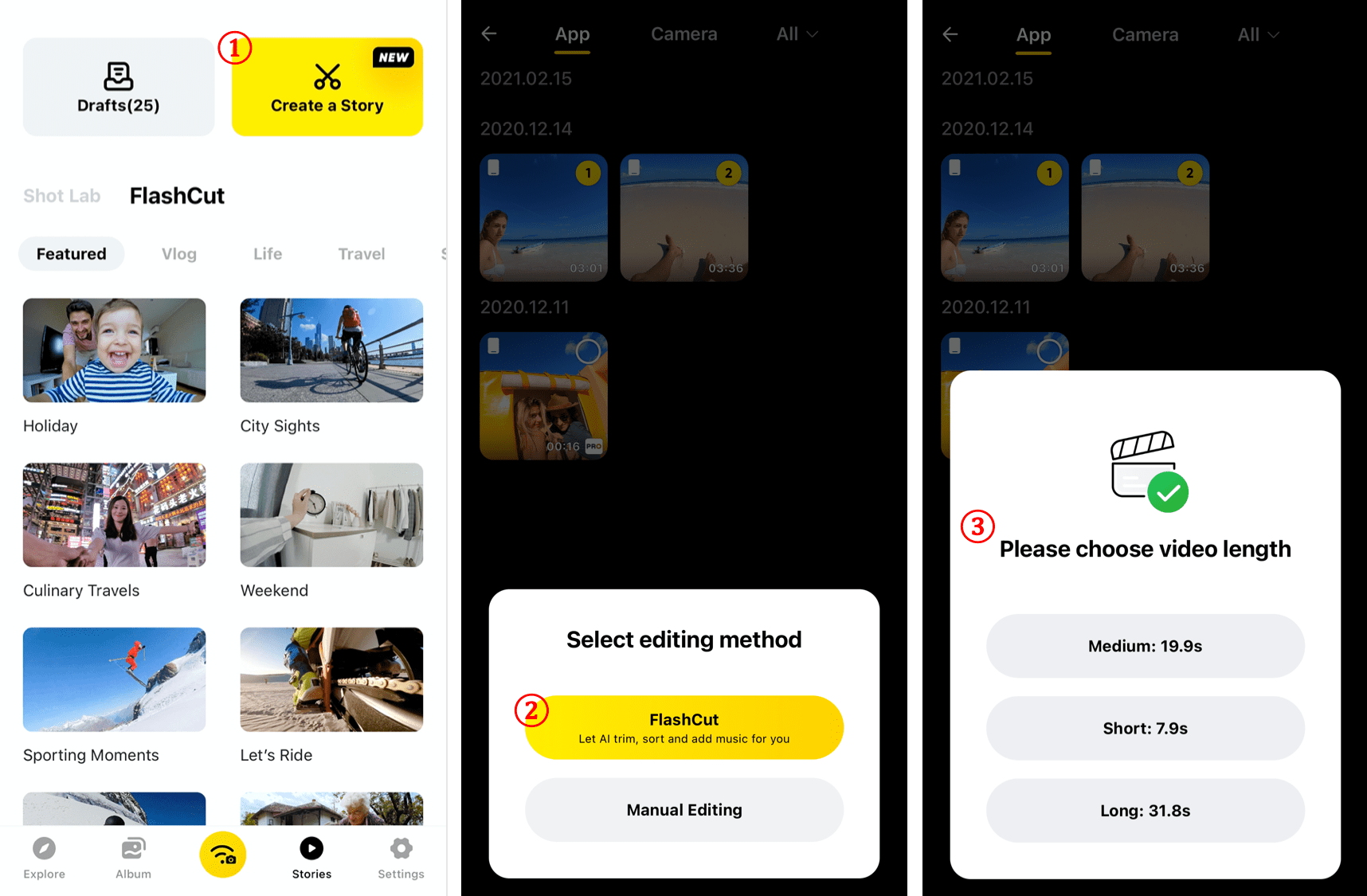
· Within the Story Editor: Under Stories > Create a Story
The themed templates under FlashCut in the Insta360 app are short video templates categorized by subject themes, such as vlog, life, travel and sports. Each theme uses a unique editing style, transitions and music. You can watch the short preview to get an idea of what kind of edit the theme creates.

Theme editing:
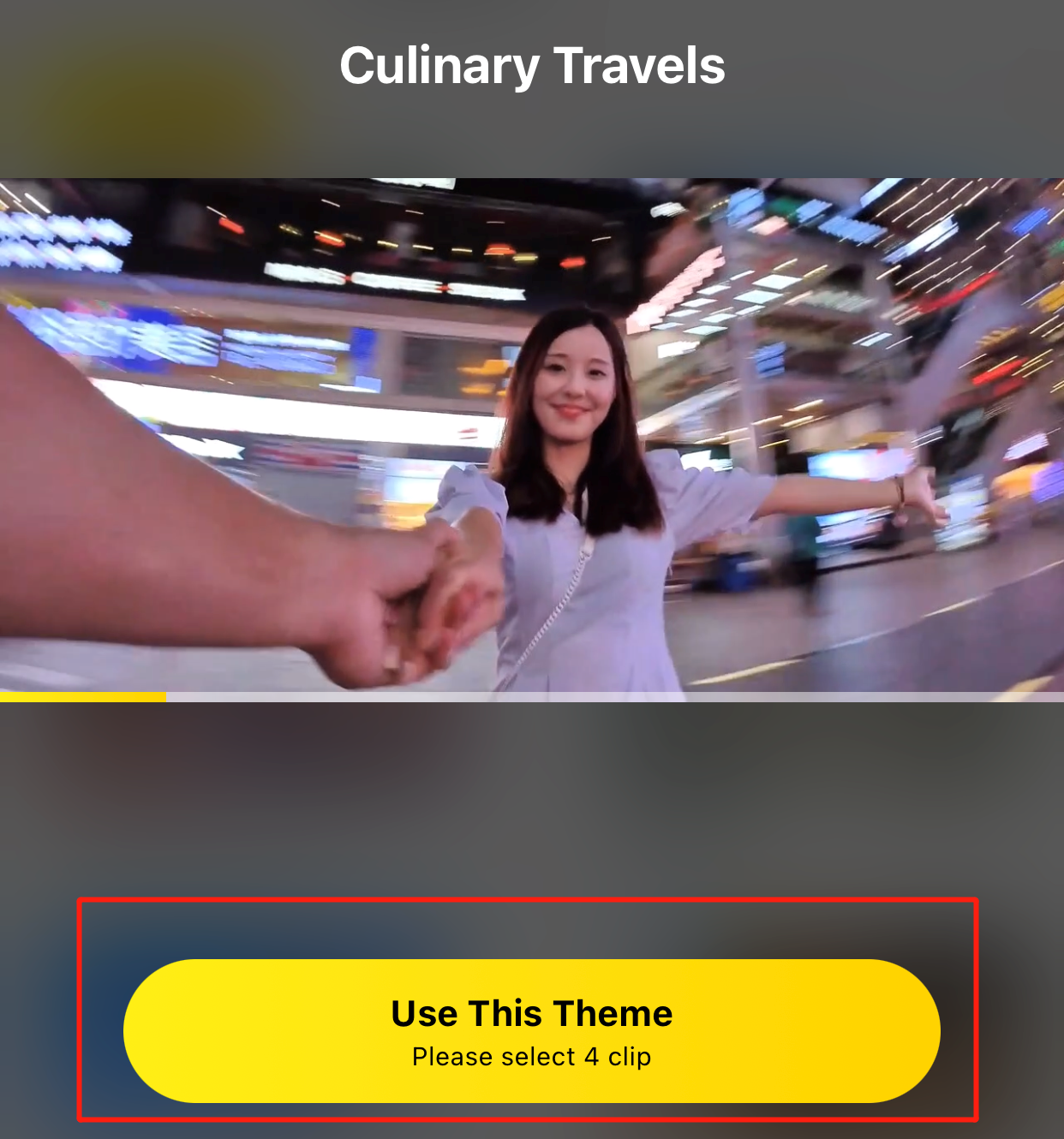

To get started, just choose a theme, tap “Use This Theme”, select your clips, then preview and export immediately.
Since each editing template has requirements for the number of clips, you can check the theme first to see how many clips are needed before shooting and then shoot enough clips to use the theme. Note: FlashCut can only edit flat content, not 360 content.
· Features ·
· How FlashCut Edits for You ·
FlashCut can now be used in two different ways in the app:
· Themed templates: Under Stories > FlashCut
· Within the Story Editor: Under Stories > Create a Story
The themed templates under FlashCut in the Insta360 app are short video templates categorized by subject themes, such as vlog, life, travel and sports. Each theme uses a unique editing style, transitions and music. You can watch the short preview to get an idea of what kind of edit the theme creates.
· How to Use ·
Theme editing:
To get started, just choose a theme, tap “Use This Theme”, select your clips, then preview and export immediately.
Since each editing template has requirements for the number of clips, you can check the theme first to see how many clips are needed before shooting and then shoot enough clips to use the theme. Note: FlashCut can only edit flat content, not 360 content.
Was this information helpful?
.svg)


Insta360 Trade-In
舊機折抵,購新省錢。
了解詳情


%20(1).svg)


%20(1).svg)

.svg)