


















Live Streaming Tutorial
It supports three ways to make live streaming, including Youtube, Other Platforms, Insta360 Live(test).
Youtube Live:
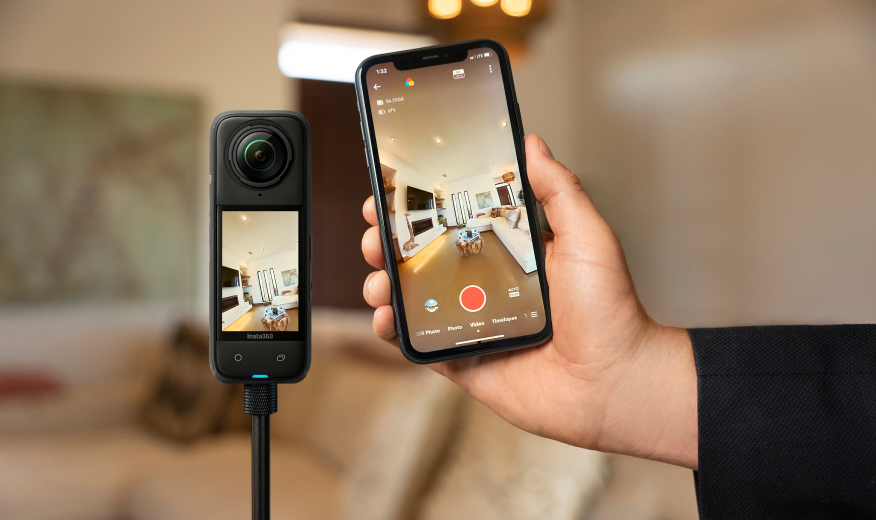
1.Ensure your camera and the App are the latest version. Connect camera to Android phone, and wait until the LED indicator turns green.
2.Open the App and swipe right to Live mode. Then, click Live button.
3.Authorize your Youtube account first and click 'CREATE LIVE EVENT'.
4.Edit live title, live description and set start/end time. After that, click 'Confirm' button.
5.After creating live event, you can click 'Confirm' button to start live streaming.
6.On live page, you can click 'Setting' button to set live rate and live resolution.
7.Also, you can click 'Share' button on the top right corner to copy the live link.
8.After setting, click 'LIVE' button. The page will open live streaming->live preview->publish live.
9.When time shows on live page, it means live streaming starts successful. You can click either 'pause' or 'stop' button.
Other Live Platforms:
Click 'Other' button, enter rtmp address and click 'Confirm' button to start live streaming.
Insta360 Live(test):
1.Connect camera to Android phone and open the App. Click Insta360 Live(test) on setting page.
2.Add Invitation code (How to apply for Invitation code?)
3.Set live rate, live resolution, live framerate and then start live streaming.
Notes: During live streaming, please keep your phone connecting Internet.
Was this information helpful?
.svg)


Insta360 Trade-In
Saca más partido al equipo que no utilizas.
Conoce mas
Suscríbete
Recibe las últimas noticias de Insta360

Estoy de acuerdo con la Política de Privacidad y me gustaría recibir las últimas noticias y ofertas de Insta360 por correo electrónico. Entiendo que puedo contactar con Insta360 y dar de baja mi suscripción en cualquier momento.
.svg)


%20(1).svg)

%20(1).svg)


Soporte de compra
Preguntas antes de la compra
Pedidos & Pago
Devoluciones & Reembolsos
 Horario de oficina: 9:00-18:00 (UTC+1)
Soporte del producto
Solución de problemas & Ayuda
Reparaciones & Garantía
Horario de oficina: 9:00-18:00 (UTC+1)