














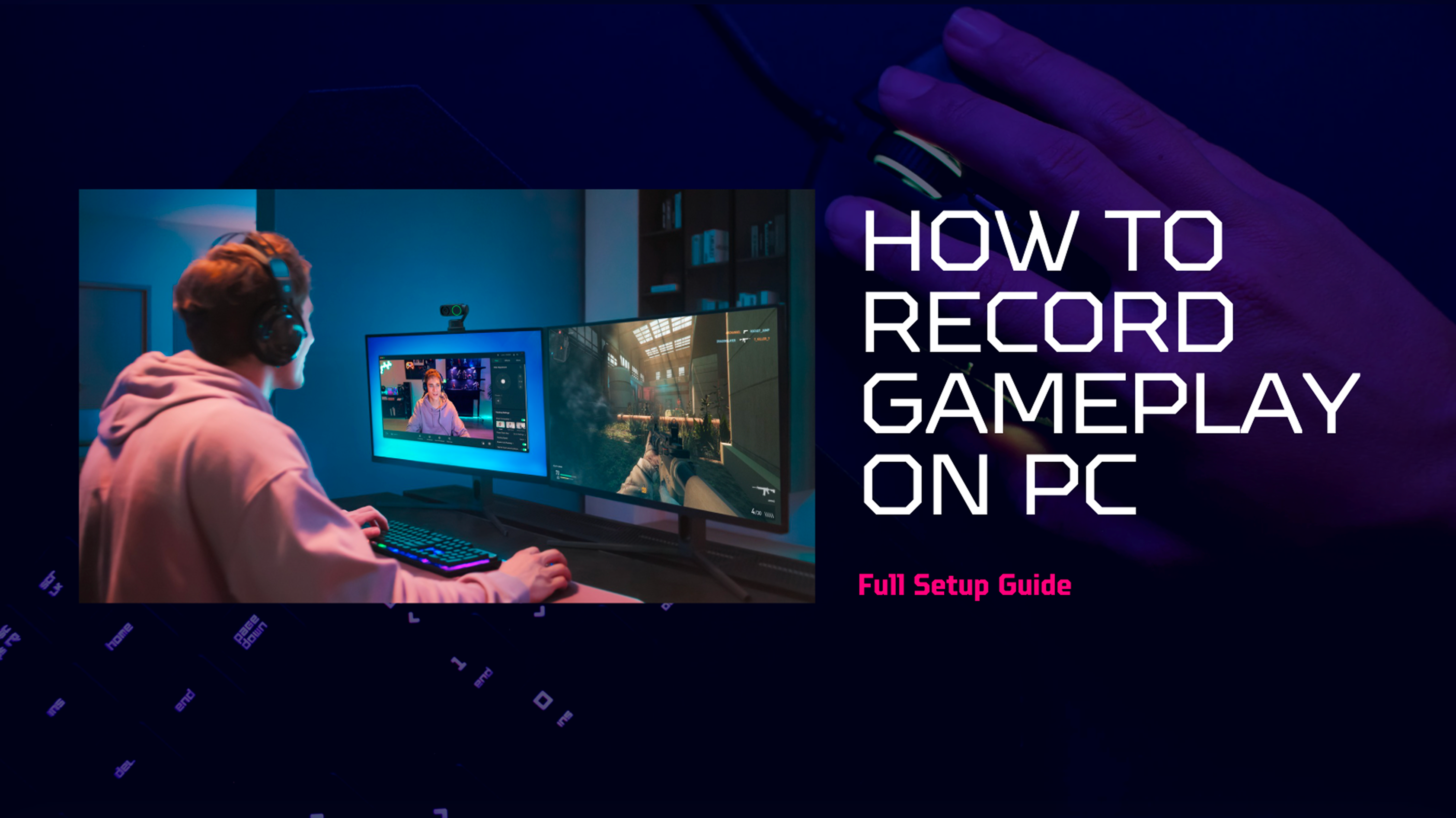


If you’ve ever racked up an insane killstreak, pulled off a perfectly-timed combo, or just want to share your journey through a favorite title, knowing how to record gameplay on PC is a total game-changer. Whether you're grinding in ranked, showing off your creative builds, or going full chaos mode in sandbox games, recording lets you keep those epic moments and share them on Twitch, YouTube, TikTok, and beyond.
This guide will break down everything—from the gear you’ll need to the best recording software, plus expert tips on nailing that perfect setup. Whether you're just figuring out how to capture gameplay on PC or looking for the best way to record gameplay on PC for a professional-looking stream or video, you're in the right place.
What Do You Need to Record Gameplay on PC?
Before jumping into your recording software, let’s talk gear. When learning how to record gameplay on PC, having the right tools is key. A solid setup ensures you don’t lose footage, suffer lag, or end up with potato-quality video. So here’s what you’ll want:
1. A 4K Streaming Camera
Let’s be real—viewers aren’t just watching your gameplay; they’re watching you too. A high-quality webcam brings that personal connection to life and boosts your overall production value. If you're recording walkthroughs or doing facecam commentary, you need a camera that can handle it.
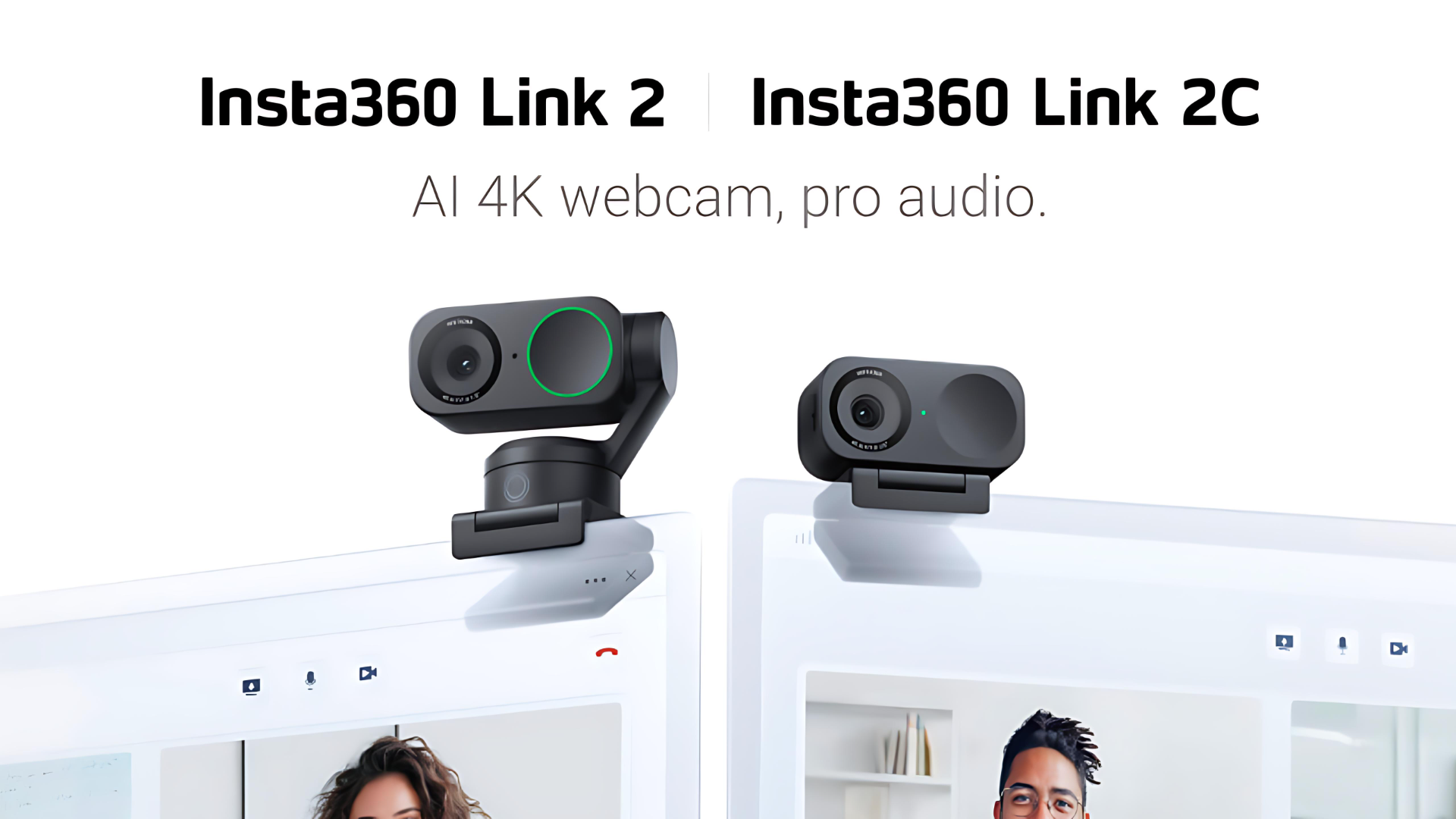
Insta360 Link 2: Best for Advanced Streamers
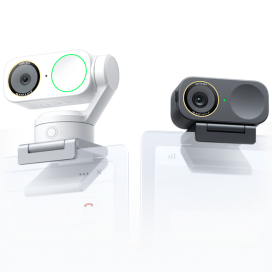
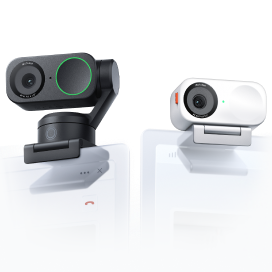
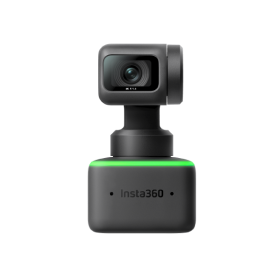
Insta360 Link 2 is a 4K webcam designed with gamers and creators in mind. It’s packed with AI tracking, gesture controls, dual noise-canceling mics, and insane low-light performance. So if you tend to play in your gamer cave with RGB lighting and minimal daylight, you’re covered. Oh, and it mounts easily to your monitor or tripod—no headaches.
Insta360 Link 2C: Best for Beginners
Just getting started? Insta360 Link 2C still packs serious punch. You get crisp 4K30fps or 1080p60fps video, AI-powered framing, and noise-canceling audio without dropping a ton of cash. It's perfect if you’re learning how to record computer gameplay and want pro results without a complicated setup.
2. Reliable Recording Software
Next, you need software that lets you record gameplay and your webcam feed simultaneously.
- OBS Studio: The best software best software to record gameplay. It's free, open-source, and super customizable. It’s the gold standard.
- Bandicam: Great for recording gameplay specifically, with tools to highlight FPS and GPU usage.
- Streamlabs: Another OBS-based tool, with added overlays and widgets for streaming to Twitch or YouTube.
So, whether you're figuring out how to record games on PC for fun or want to become the next streaming star, you need both solid hardware and smart software.
How to Record Gameplay on PC
If you're diving into content creation, learning how to record gameplay on PC is step one. Whether you’re streaming live on Twitch or saving clips for a YouTube walkthrough, having a smooth, reliable recording setup is key. Luckily, it’s not as complicated as it seems—especially with tools like OBS Studio and a solid 4K webcam like Insta360 Link 2 or Insta360 Link 2C.
Let’s break down exactly how to record computer gameplay like a pro using OBS Studio—one of the best and totally free tools for recording gameplay, out there.
Step 1: Download and Install OBS Studio
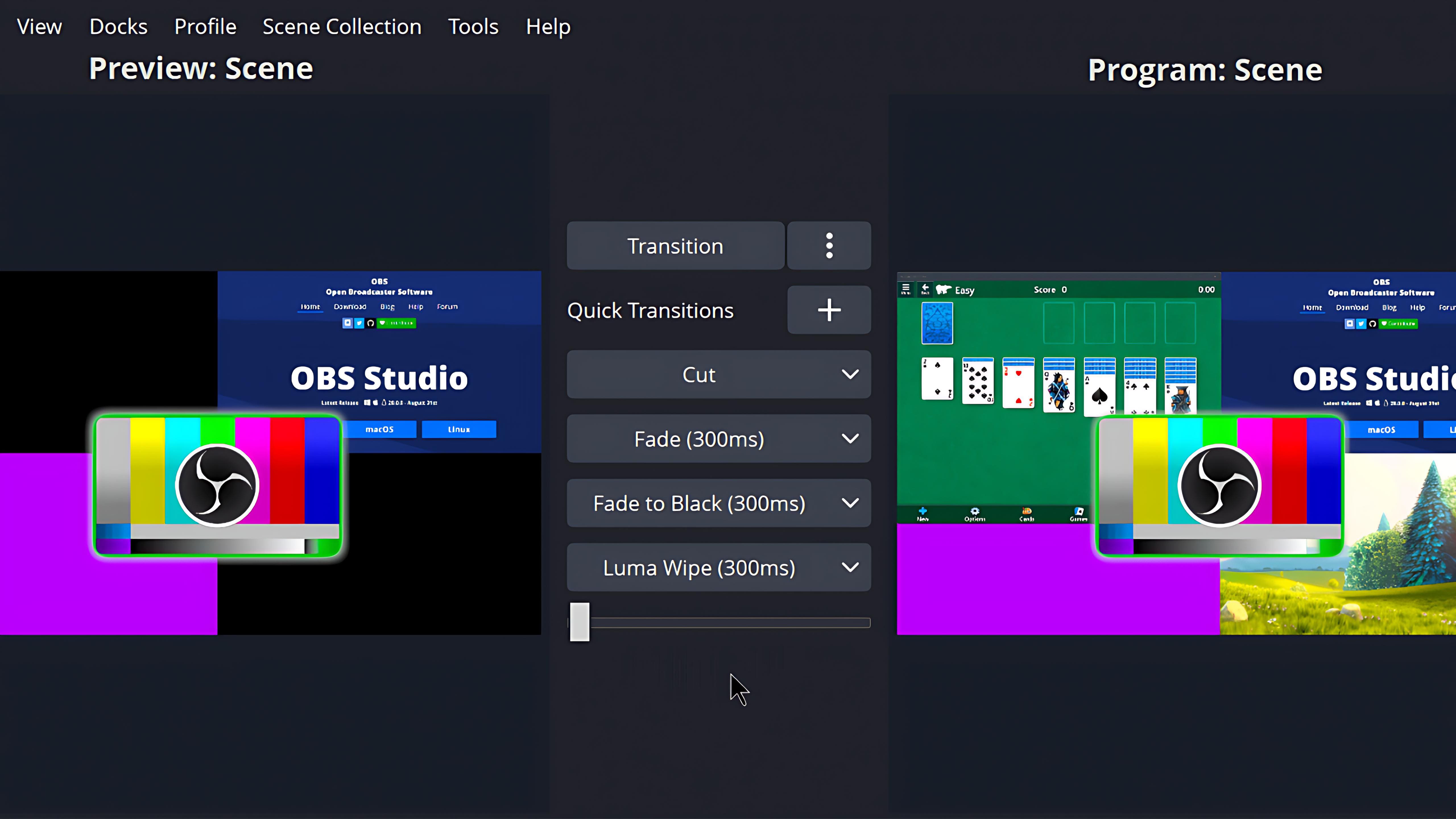
Head to the official OBS website and download the version that fits your system (Windows, macOS, or Linux). The install is quick, and OBS is super lightweight, so it won’t bog down your PC while you’re gaming.
Once installed, launch OBS and get ready to customize your layout.
Step 2: Set Up Your Scenes
In OBS, a "scene" is like a layout or frame that includes all the elements you want to appear in your recording. Click the “+” button under the Scenes window to create a new scene—name it something like “Game + Cam” to keep things organized.
This is your control center for recording gameplay. You can add, move, or customize elements however you want.
Step 3: Add Your Sources
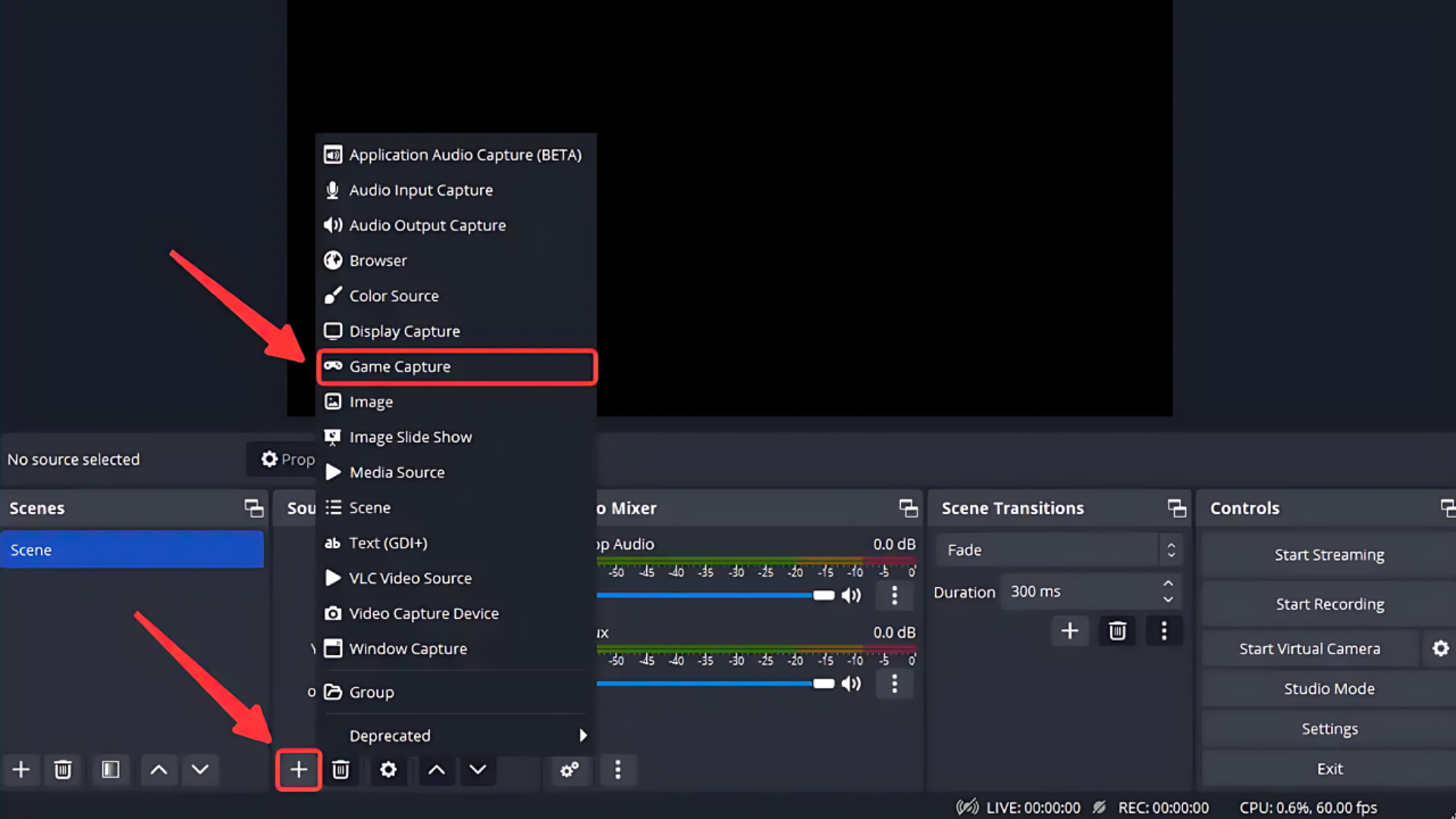
Now we tell OBS what you want to record. In the Sources panel, click the “+” button and choose your input:
- Game Capture if you’re recording a fullscreen game
- Display Capture if you want to record your whole screen
- Video Capture Device to add your webcam
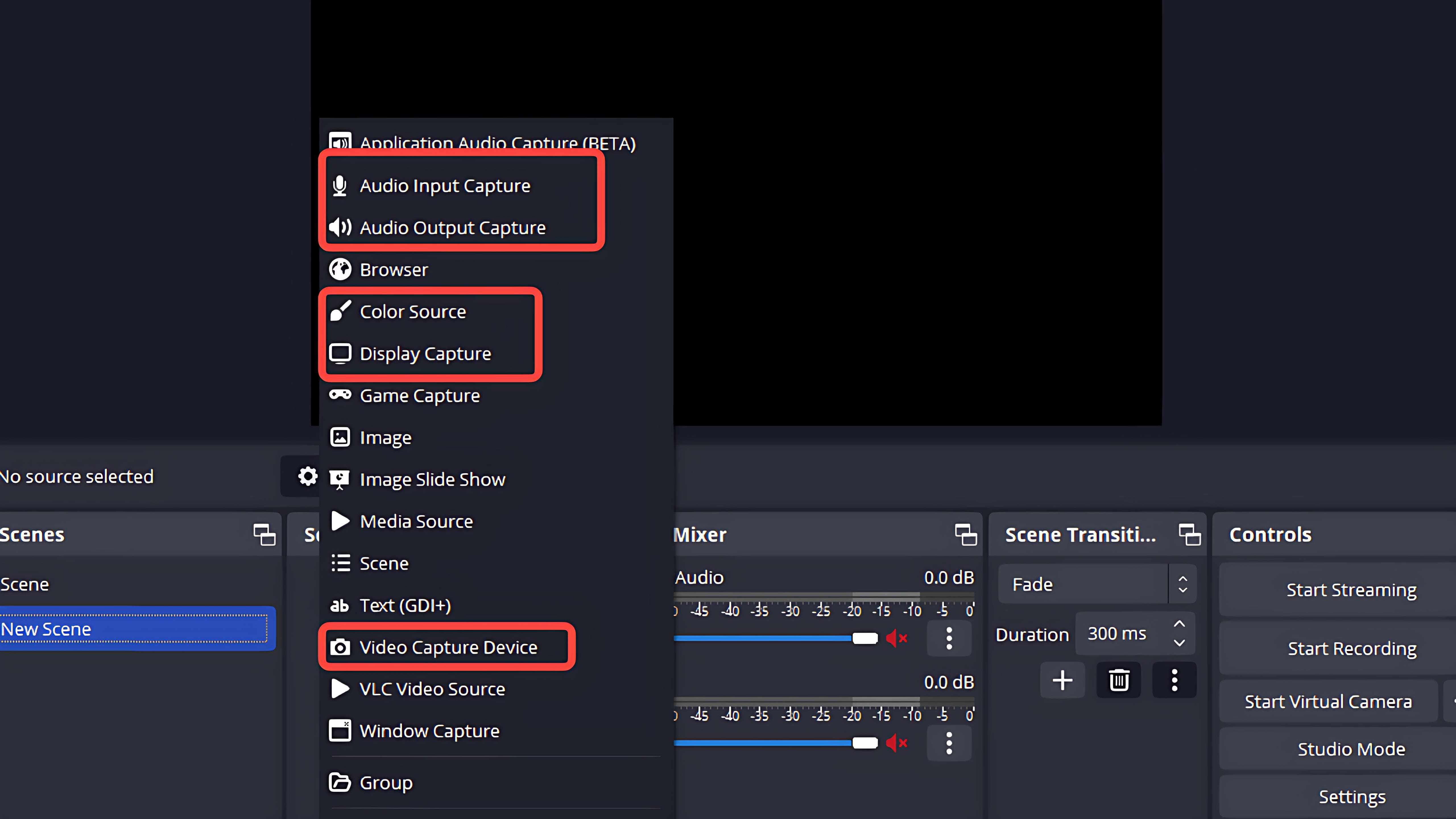
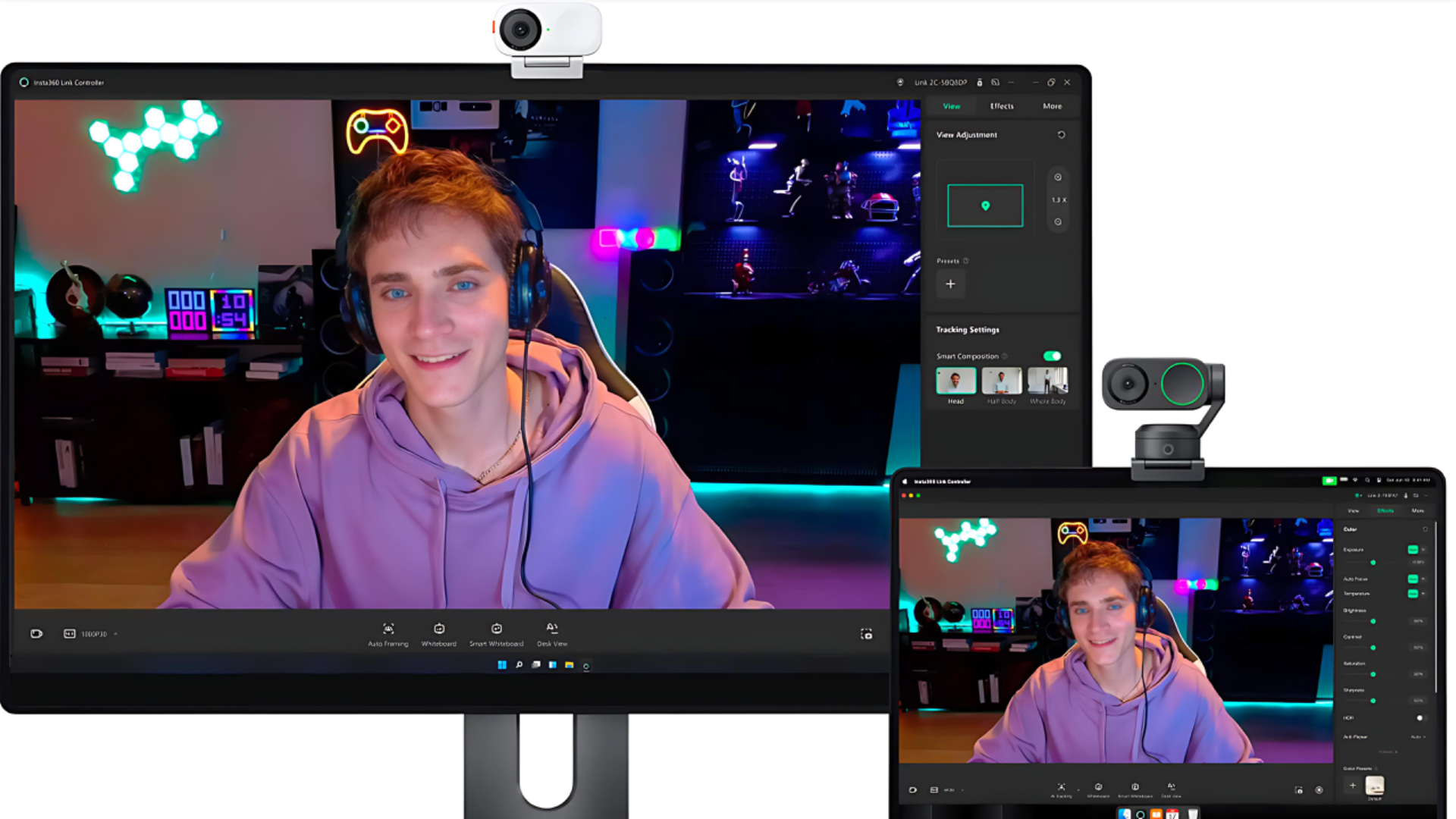
If you’re using Insta360 Link 2 or Insta360 Link 2C, plug it in and select it under Video Capture Devices. OBS instantly recognizes both cams with zero hassle. Want that clean 4K facecam look in your stream? This is how you get it.
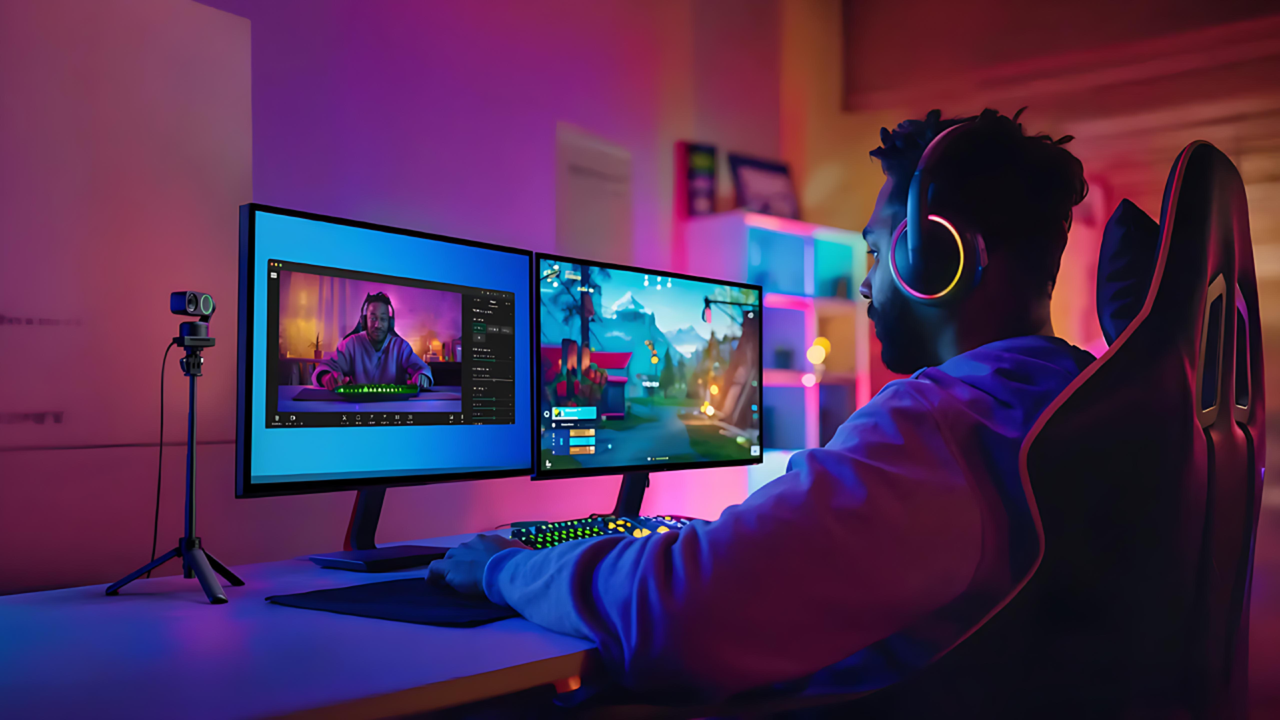
You can also reposition and resize your webcam overlay anywhere on the screen, like in the bottom corner or right up top if you're recording reaction-style gameplay content.
Step 4: Dial In Your Audio Settings
Audio is where a lot of beginner creators mess up. In OBS, the Audio Mixer lets you control everything:
- Add your microphone (for example, a USB mic or built-in mic from Link 2)
- Make sure desktop/game audio is being picked up
- Balance the volume between your mic and game sound
Want pro-level sound? Use the built-in filters to reduce noise, add gain, and clean up background hum. Insta360 Link 2’s AI noise-canceling mic already helps a ton, but filters will make your voice even clearer.
Step 5: Choose Recording Settings
Click Settings > Output > Recording and select your preferred format. Most creators go with:
- Recording Format: MP4 or MKV
- Encoder: x264 (CPU-based) or NVENC (NVIDIA GPU-based)
- Bitrate: 6000–10000 Kbps for 1080p, 16000+ Kbps for 4K gameplay
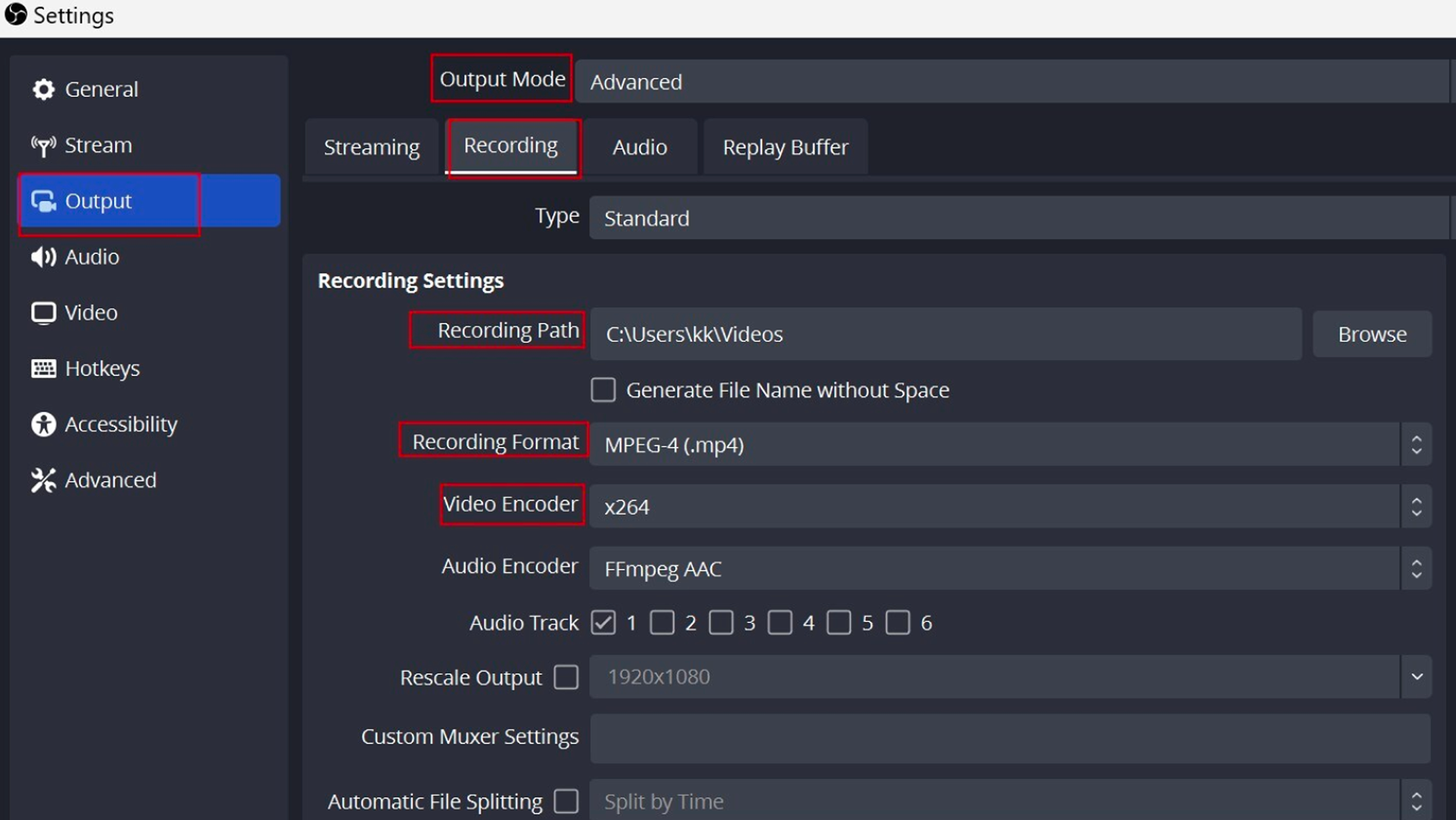
This part’s super important if you're aiming for YouTube-ready quality or want smooth-looking gameplay.
Step 6: Hit Record and Game On
Now the fun part. Once your scene and audio are good to go, just smash the “Start Recording” button. OBS will record your game, facecam, and audio all at once. You can stop the recording whenever you're done, and your clip will be saved right to your designated folder.
And that’s it—you’ve just learned how to record games on PC like a total boss. Want to livestream instead? Just toggle over to “Start Streaming” and connect your Twitch or YouTube account. OBS has built-in integrations for all the major platforms.
Want your content to look even better? Keep reading.
If you’re serious about content creation, knowing the best way to record gameplay on PC makes a big difference. Paired with a high-quality 4K webcam like Insta360 Link 2, you’ll be able to record crisp, studio-level video and audio—without needing an entire production crew.
Next up: let’s make your footage look even smoother with some smart performance tweaks. Keep scrolling for pro tips on optimizing your settings.
Tips to Optimize Your Settings for Smooth Gameplay
No one wants to watch choppy gameplay or hear distorted audio. If you want pro-level content, nailing your OBS settings is essential. Here’s how to record gameplay on PC the right way:
- Resolution: Set your Base (Canvas) Resolution to your monitor’s native resolution (usually 1920x1080) and Output Resolution to the same for best results.
- FPS Settings: 60fps is the gold standard for gaming. Use 30fps only if your PC can’t handle it.
- Bitrate: For 1080p60 recording, go for 6000–9000 Kbps. If you're recording in 4K, bump it up to 16000+ Kbps.
- Encoder: Use NVENC (for NVIDIA GPUs) or AMD’s encoder for better performance without CPU strain.
- Recording Format: MP4 is the most popular, but FLV is safer for avoiding file corruption in crashes.
- Webcam Position: Place your facecam feed in a corner of the screen, not blocking UI elements or minimaps. Use Insta360’s webcam software to tweak image settings like saturation, brightness, and background blur.
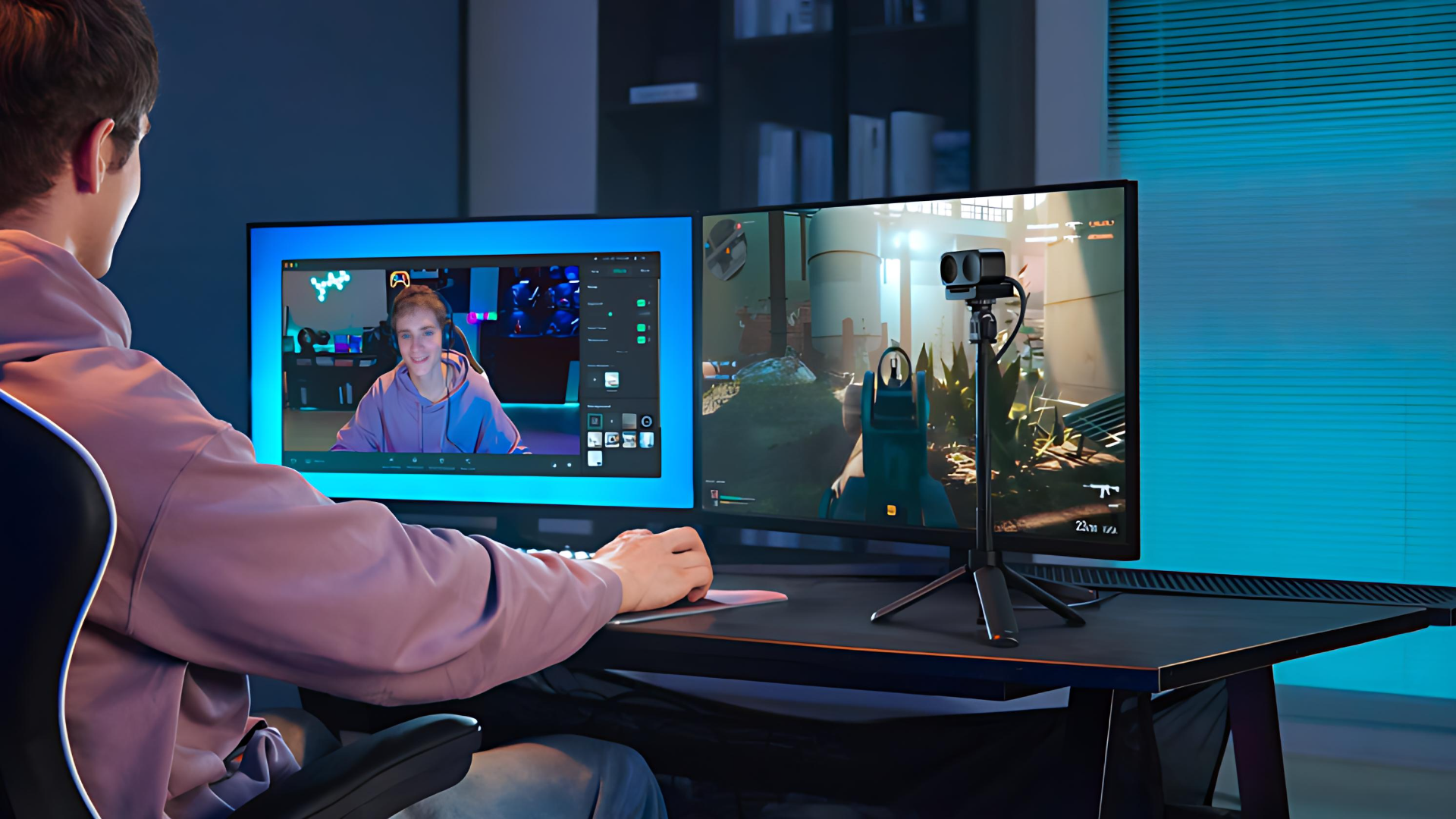
Streaming to Twitch or YouTube? Make sure your upload speed is solid—at least 6 Mbps for 1080p60. And if you’re streaming to Kick or TikTok, double-check the platform’s resolution and bitrate guidelines.
Why Insta360?
Now that you know how to record gameplay on PC like a pro, let’s recap. Whether you're flexing your sniper skills in CoD, doing chill Minecraft builds, or running a speedrun on Twitch, you need gear that won't let you down.
Insta360 Link 2 is hands-down one of the best tools out there for serious content creators—4K quality, pro-grade tracking, and studio-level audio. Meanwhile, Insta360 Link 2C is perfect for gamers just dipping their toes into streaming or creating content. Both are easy to use, plug-and-play, and built for the grind.
Want to level up your setup today? Check out both Insta360 Link 2 and Insta360 Link 2C in the official Insta360 store. Whether you're learning how to record games on PC or building out your full creator rig, these streaming cameras deliver.
Keen to keep up to date on Insta360 stories? Keep an eye on our blog and sign up for our mailing list. Got a story to share? Email yours to communitystories@insta360.com and win up to US$50.




%20(1).svg)


%20(1).svg)

.svg)