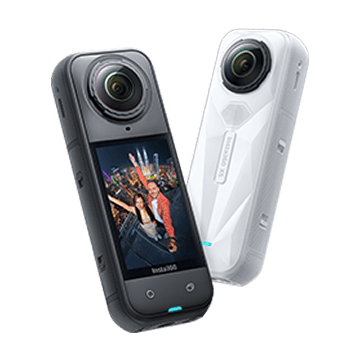
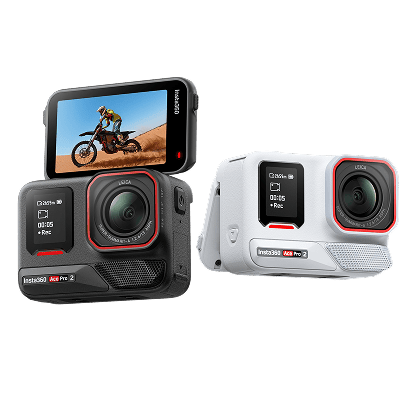
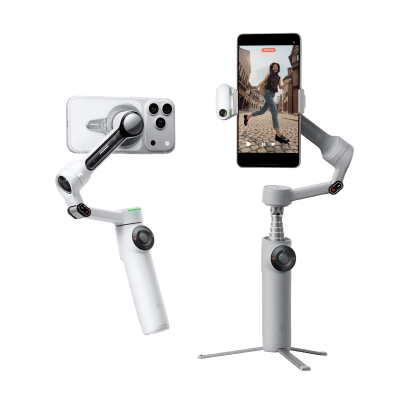

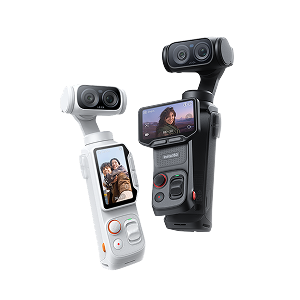
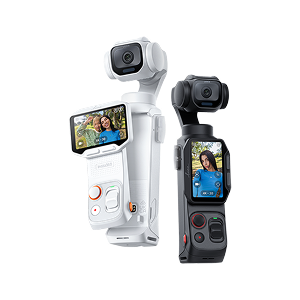

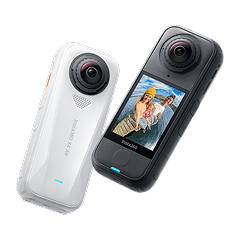
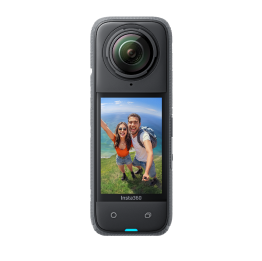
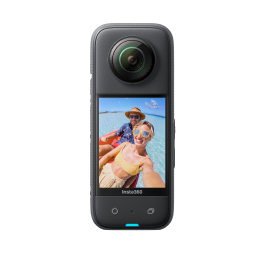
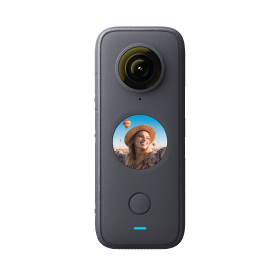
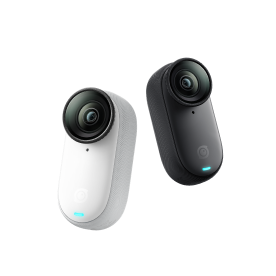
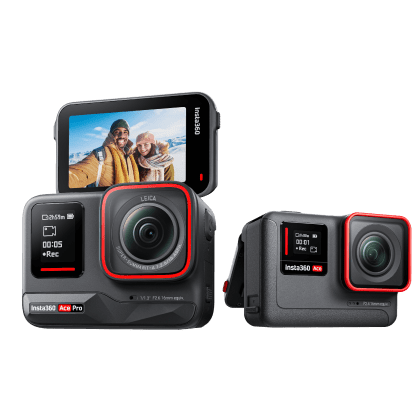








After subscribing to Insta360+ for the first time, follow these steps to pair your camera and add Wi-Fi for Auto Sync.
Pairing Your Camera and Adding Wi-Fi
(1) Turn on your phone's Bluetooth and Wi-Fi, and power on your camera.
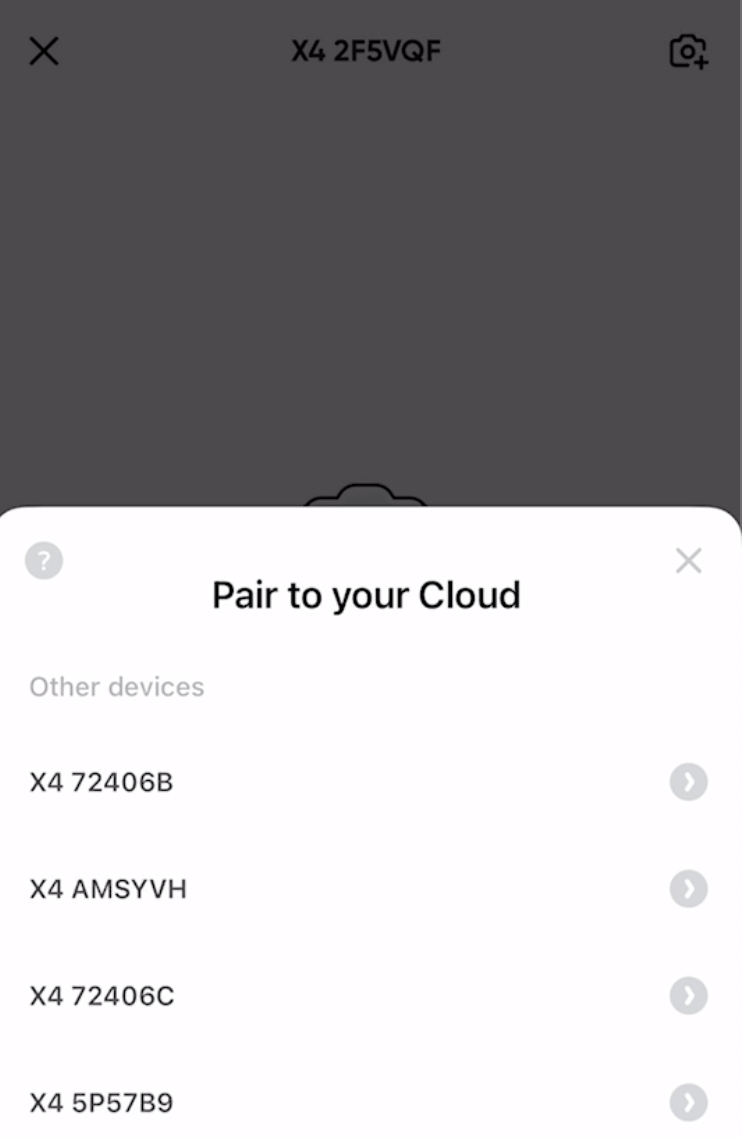
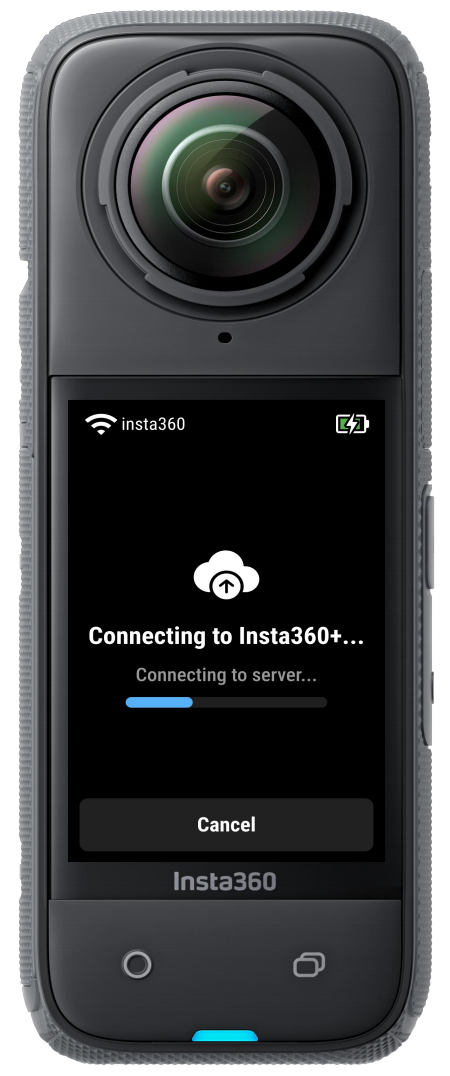
(2) After completing the subscription, the app will then prompt you to pair your camera. Follow the instructions and tap "Pair now."
• Alternatively, you can go to the app's settings page, enter "Cloud Camera Management," and pair your camera from there.
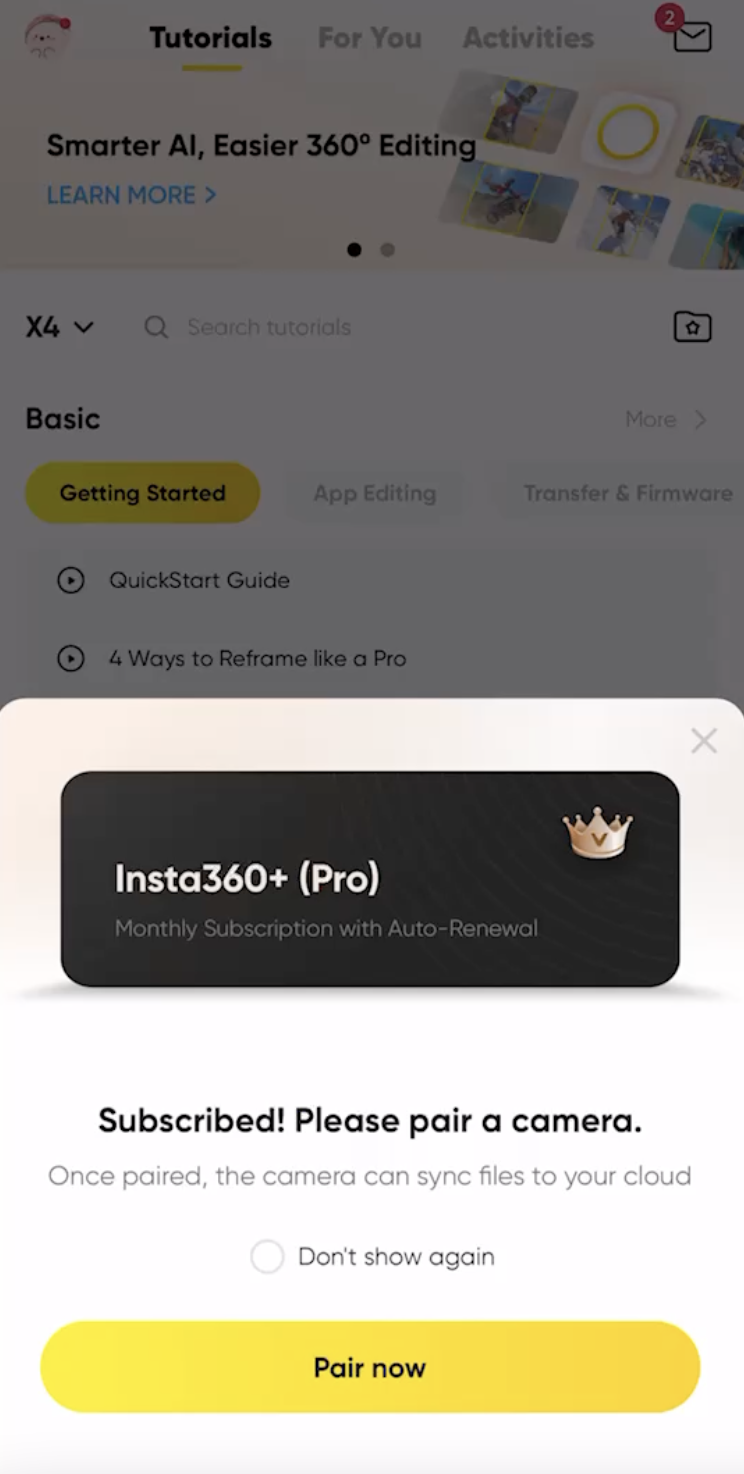
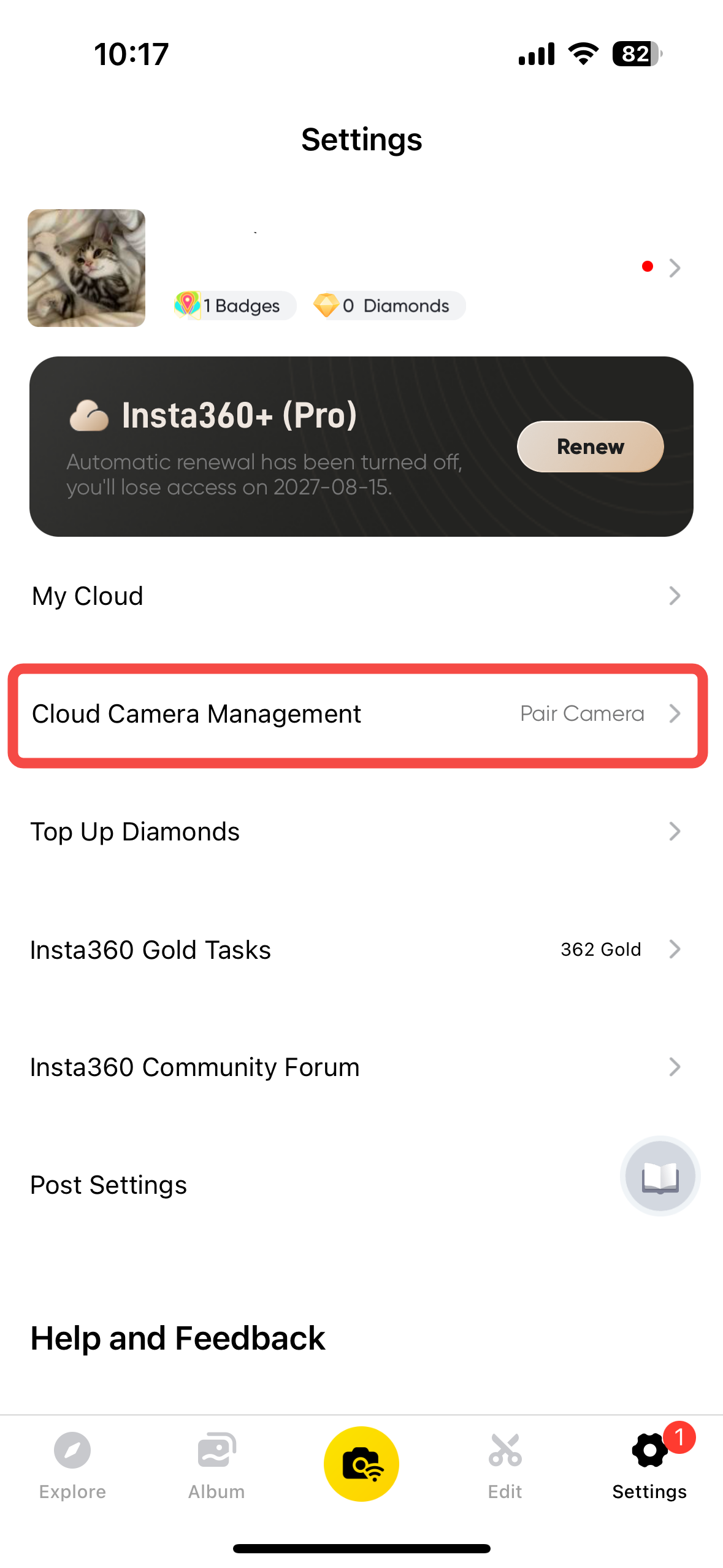
(3) According to the camera serial number, select the camera to be bound, then connect. Do not leave or exit the app during the connection process. Where can I find the camera serial number?
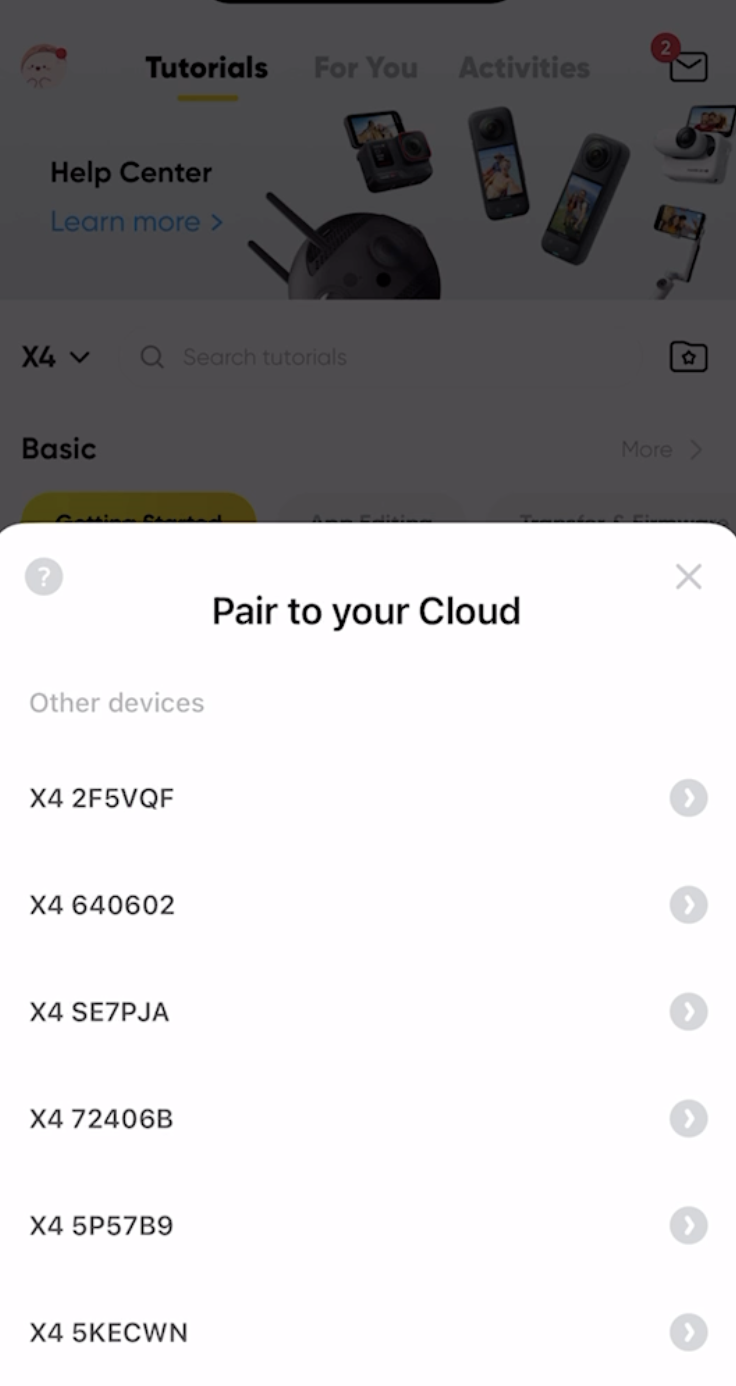
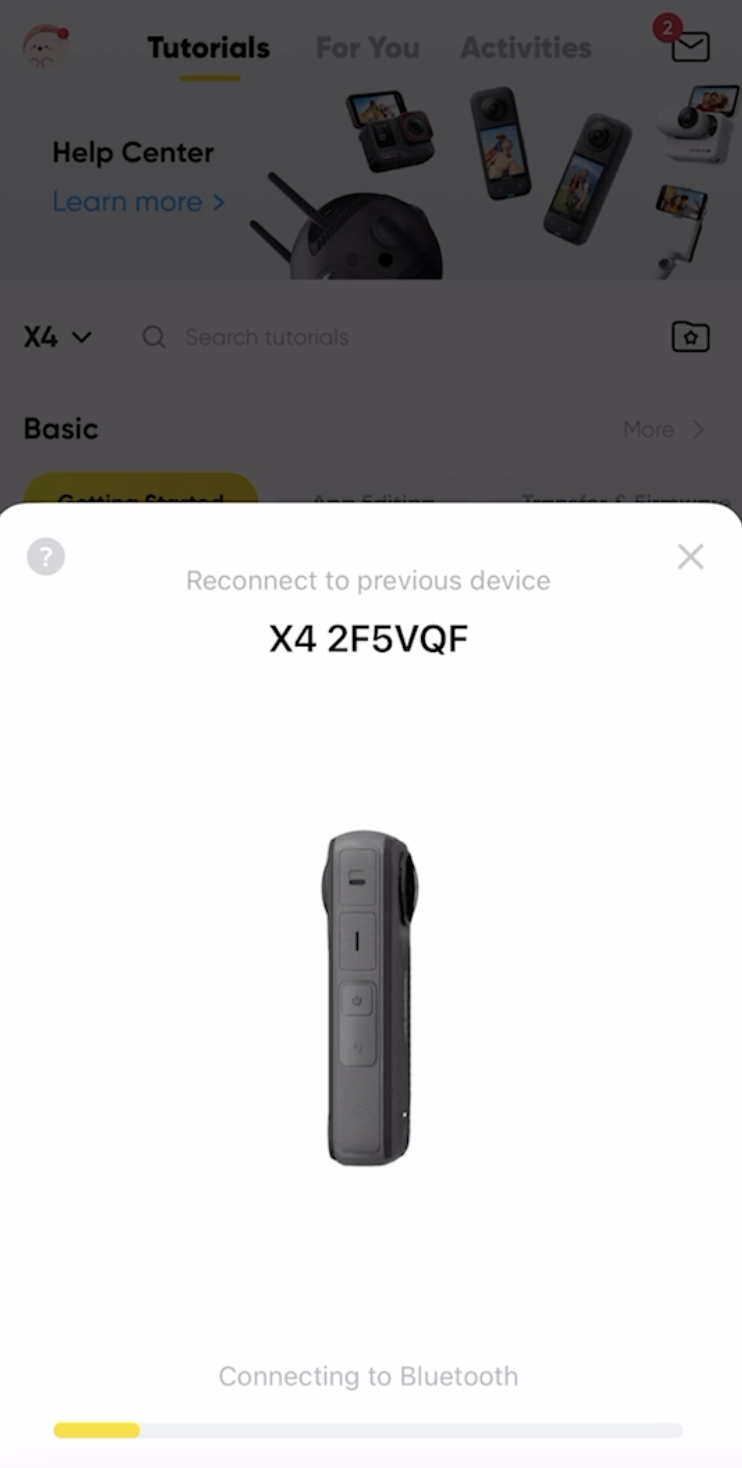
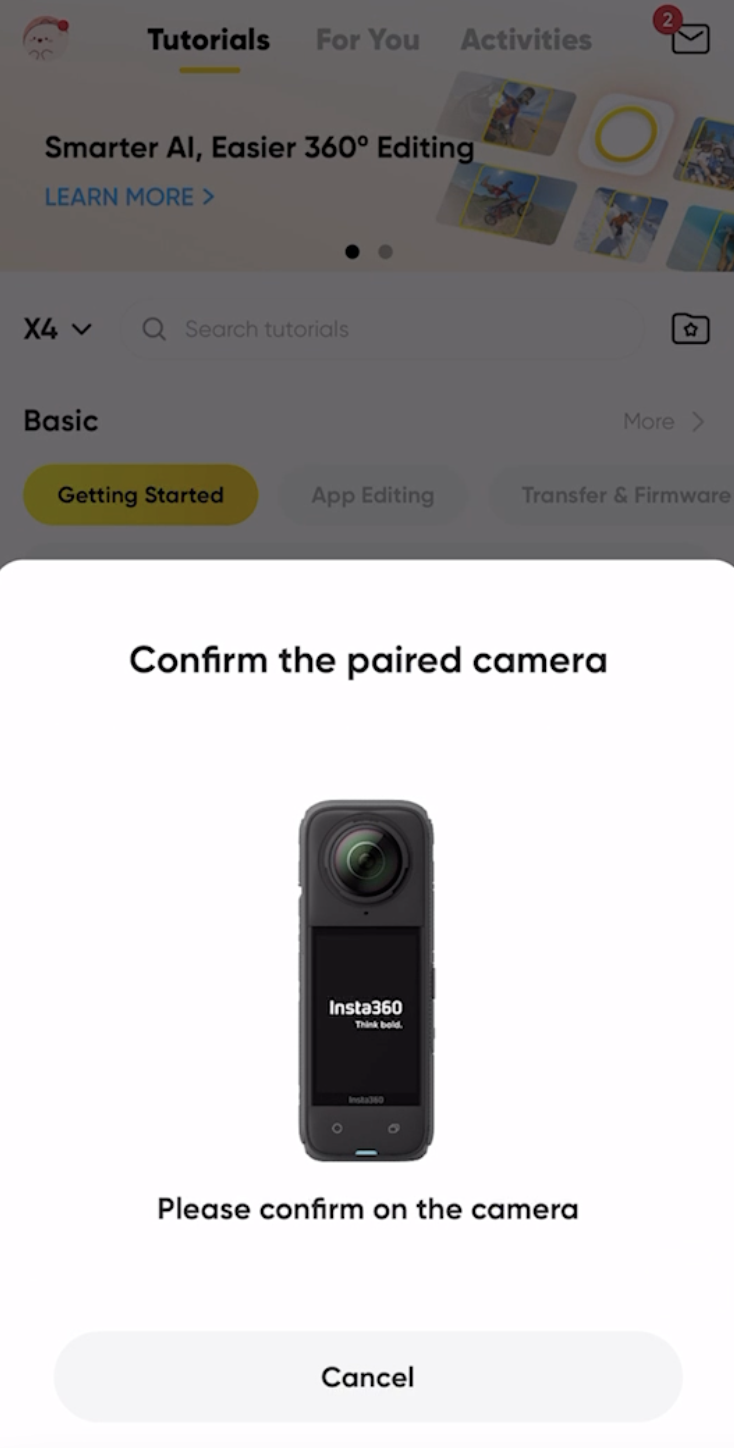
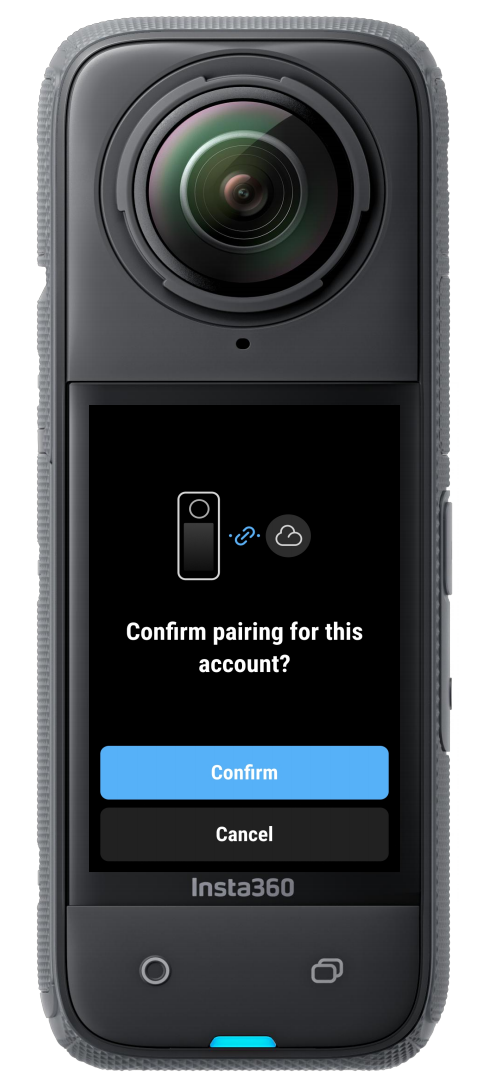
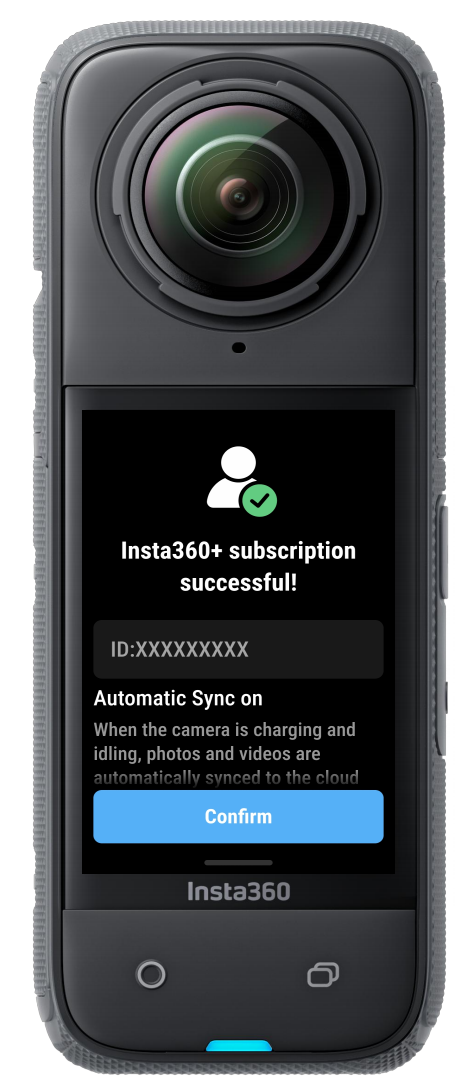
(4) Once connection is complete, tap "Confirm" on the camera screen to finish pairing your account.** During the pairing process, stay within the app and keep the camera powered on. You'll know pairing was successful when the camera screen displays a "Subscription successful" message.
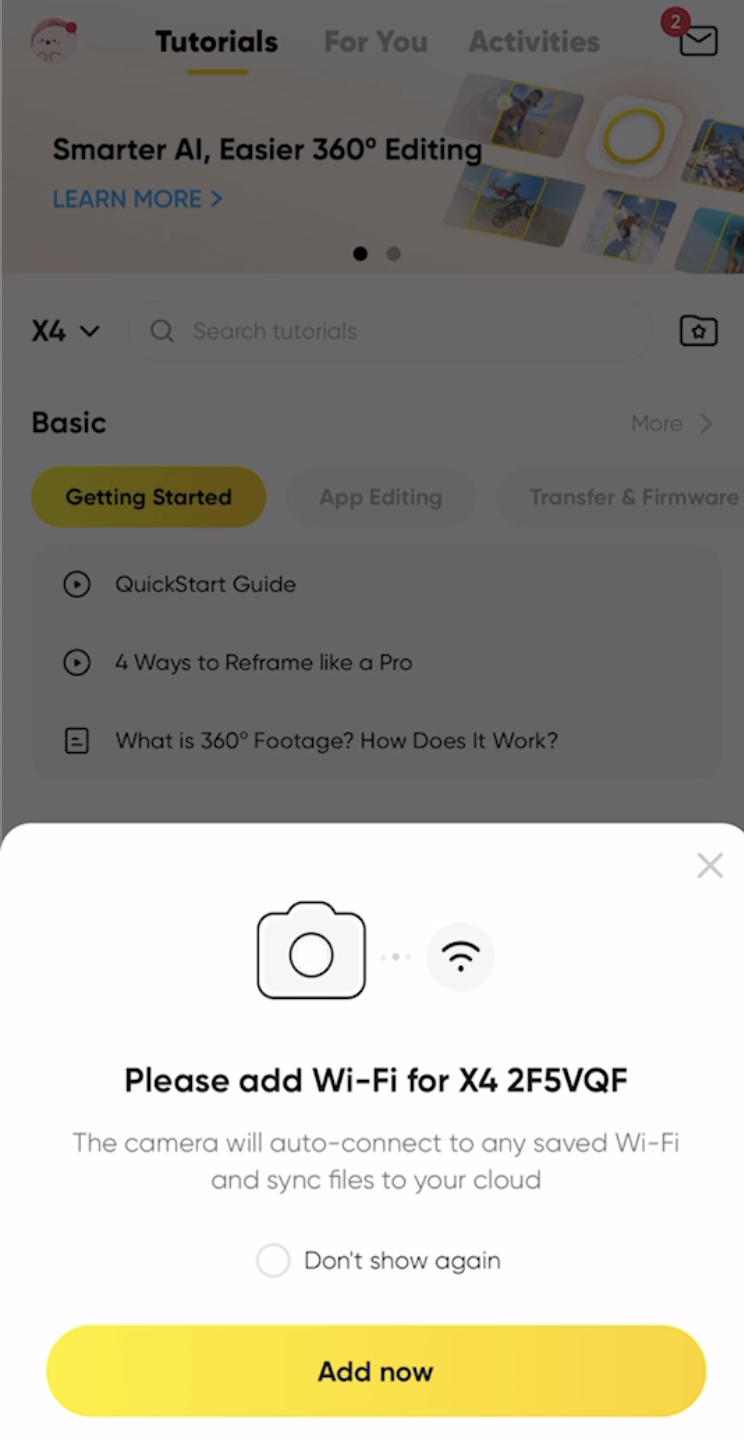
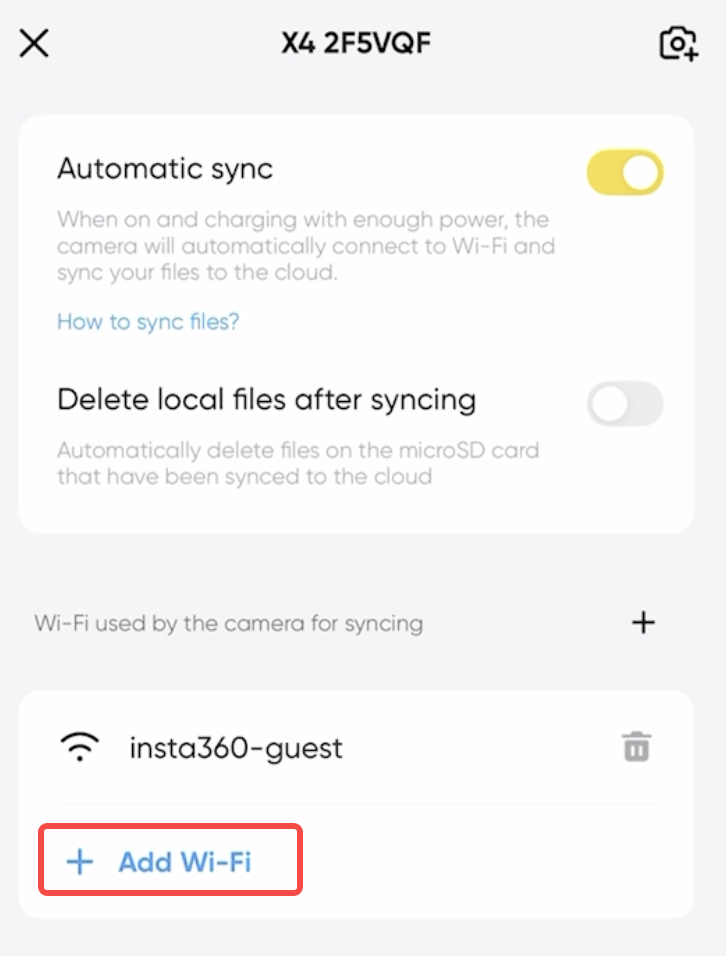
(5) Once the camera is successfully paired, you’ll need to add Wi-Fi to the camera. Tap “Add now” and select your Wi-Fi. After verification, the camera will automatically sync files whenever it’s connected to this Wi-Fi and is charging (Auto Sync is enabled by default).
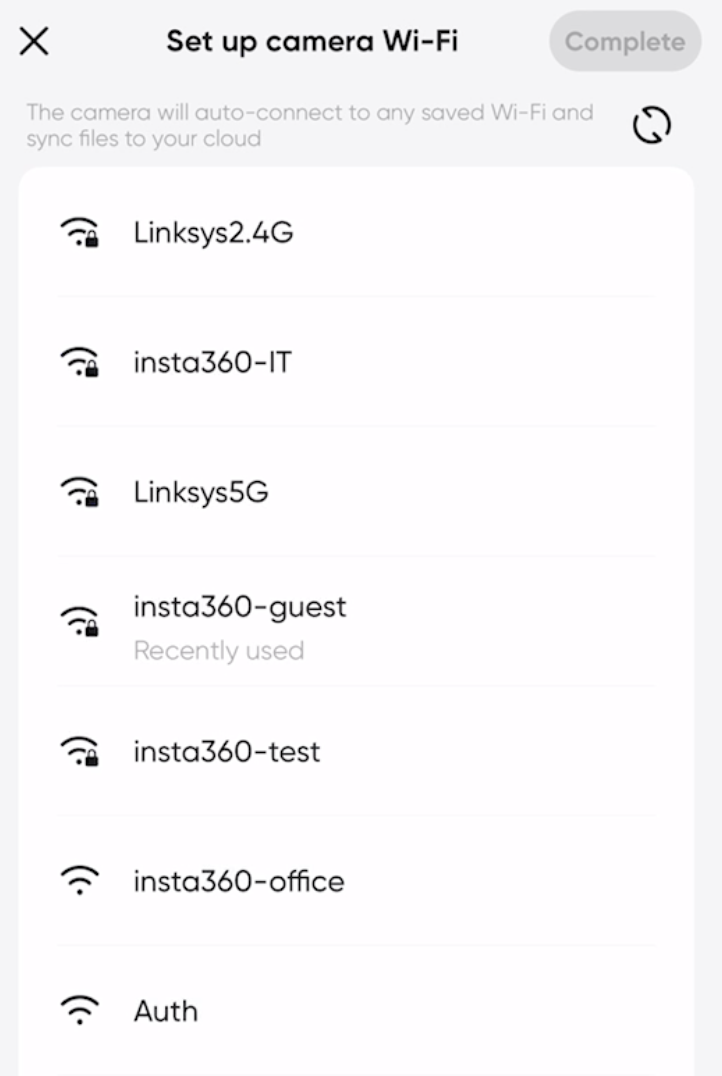
Your Insta360+ account supports pairing multiple cameras and Wi-Fi connections:
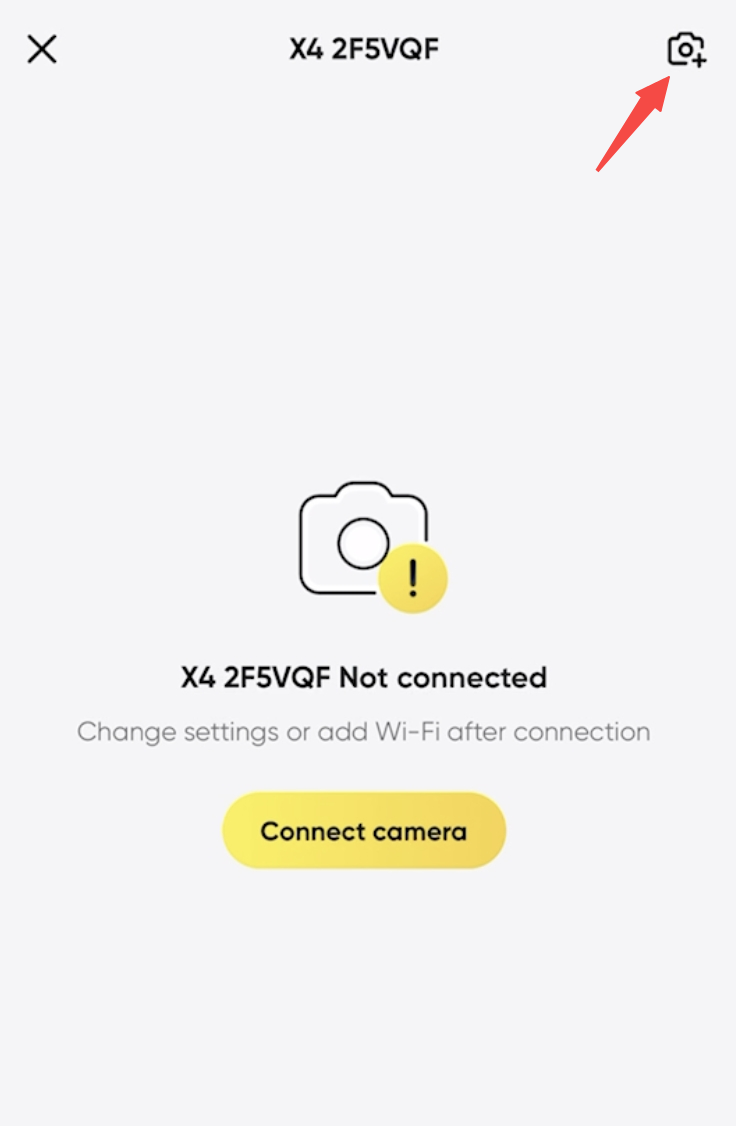
• Adding Additional Cameras: Go to the "Cloud Camera Management" page, tap the icon in the top right corner, and select the camera you want to pair with.
Note: One account can pair multiple cameras, but each camera can only be paired to one account at a time. If you need to switch the paired account for a camera, you must first unpair it from the current account.
• Adding Additional Wi-Fi: After connecting your camera, go to the "Cloud Camera Management" page, tap "Add Wi-Fi" at the bottom, and select the new Wi-Fi you'd like to set up.
If pairing fails, please check the following:
• Ensure both the firmware and Insta360 app are updated to the latest version.
• Confirm that the camera is not paired with another account. If it is, unpair the current account before pairing a new one.
• Check that the Wi-Fi connection is stable and that the correct password has been entered.
• If you're using public Wi-Fi that requires phone number binding or other verification, the connection might fail. In this case, try switching to a different Wi-Fi and try again.
Syncing
When the camera is ready to sync with the cloud, you can either manually or automatically back up files from the camera to the cloud, freeing up the camera's storage space.
Sync Conditions:
(1) The camera is paired to an Insta360+ account and has added Wi-Fi.
(2) The configured Wi-Fi is working correctly.
(3) The camera is within the range of the configured Wi-Fi and connected.
(4) The camera is connected to a power source, and the battery is charged to the required amount.
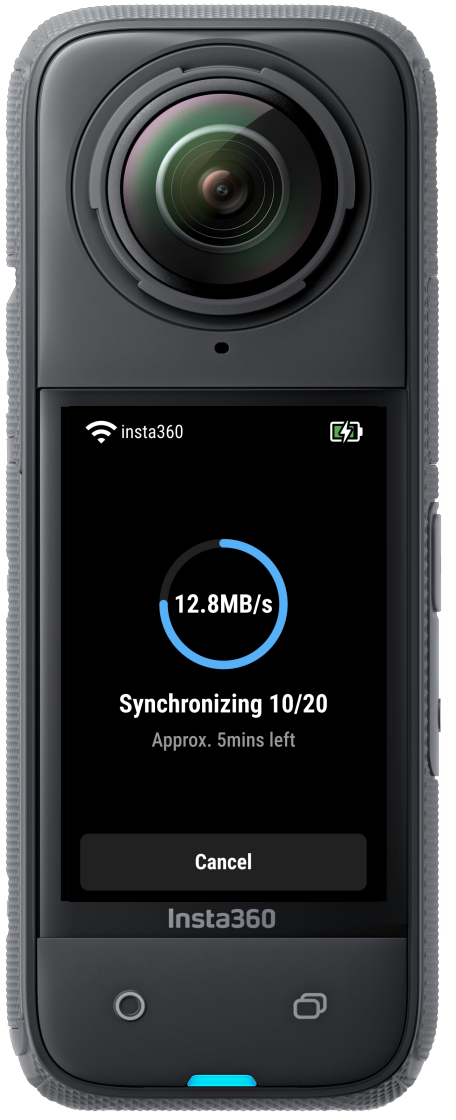
You can then tap "Sync now" to manually back up your files. If Auto Sync (enabled by default) is selected, the files will automatically sync to the cloud when the camera has enough charge and is idling.
Note: During the camera's file backup process, you must remain on the backup page. If you need to use the camera for shooting, you must stop the backup first. The use of the Insta360 app is not affected during file backup.
● Automatic Sync
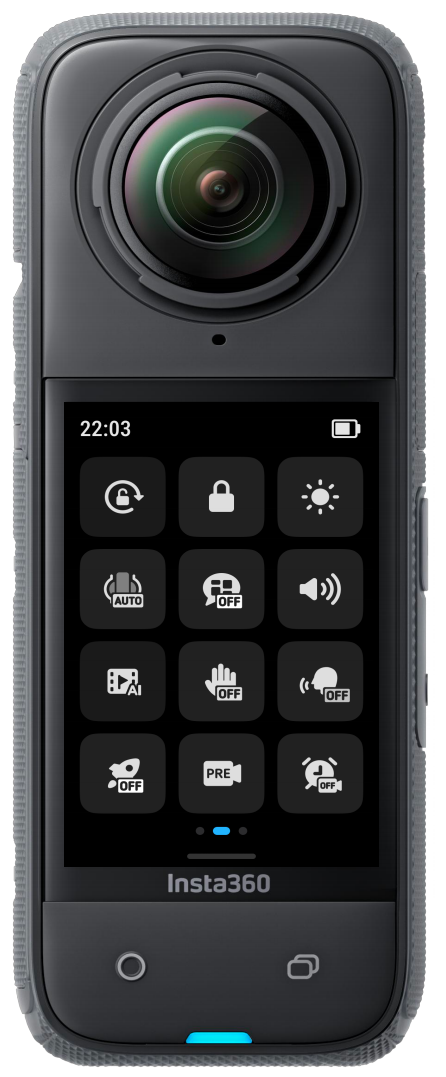
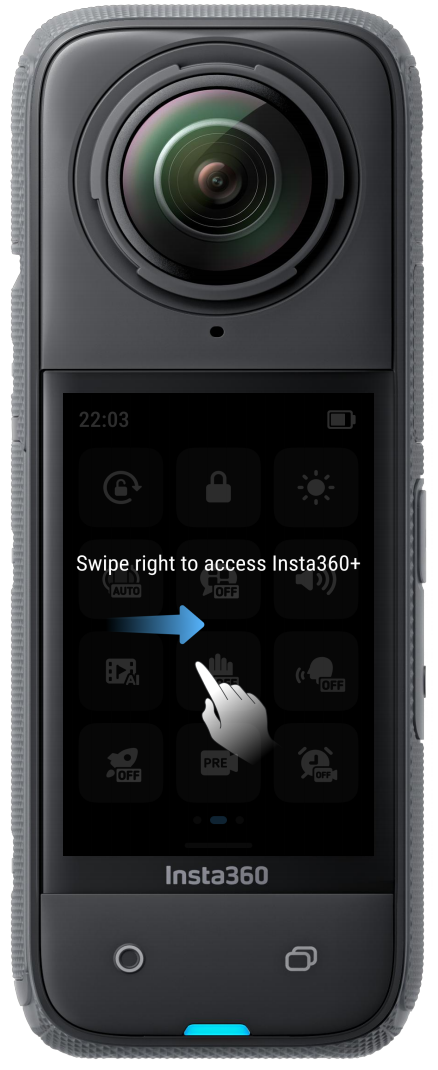
(1) Turn on your camera, swipe down to access the menu, then swipe right to enter the Insta360+ page. Tap "Sync Settings" to ensure that "Automatic Sync" is enabled
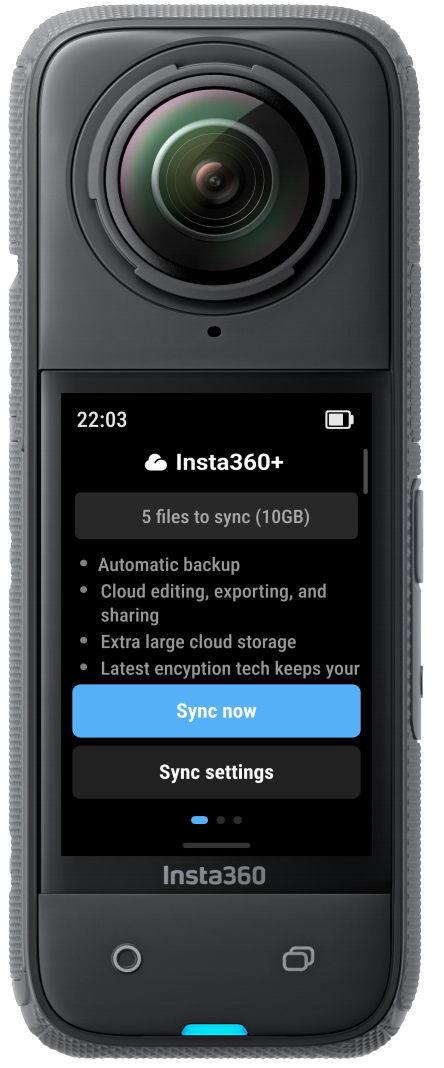
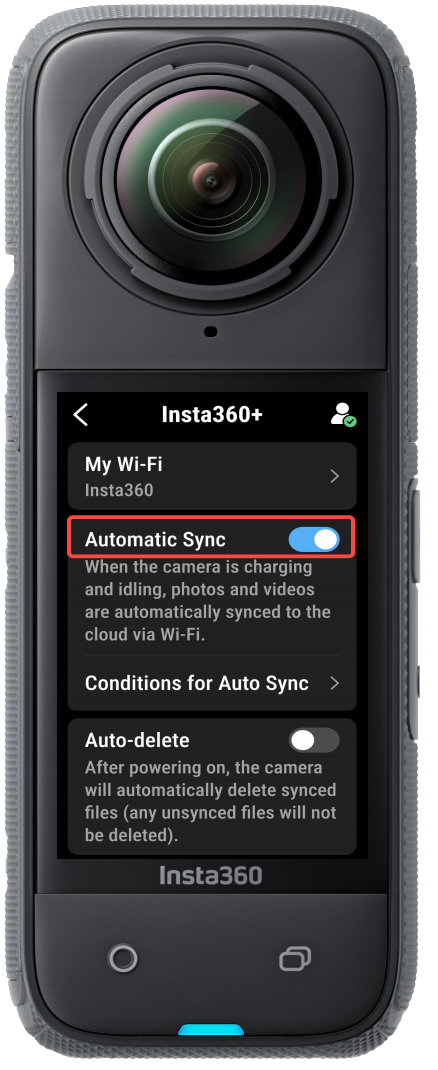
(2) Tap "Conditions for Auto Sync" to choose the standby duration or battery conditions under which Auto Sync will be triggered.
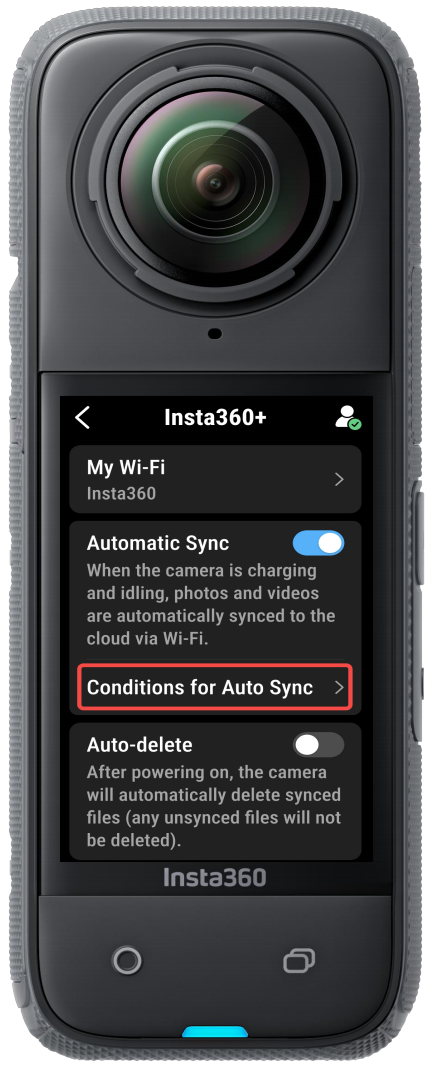
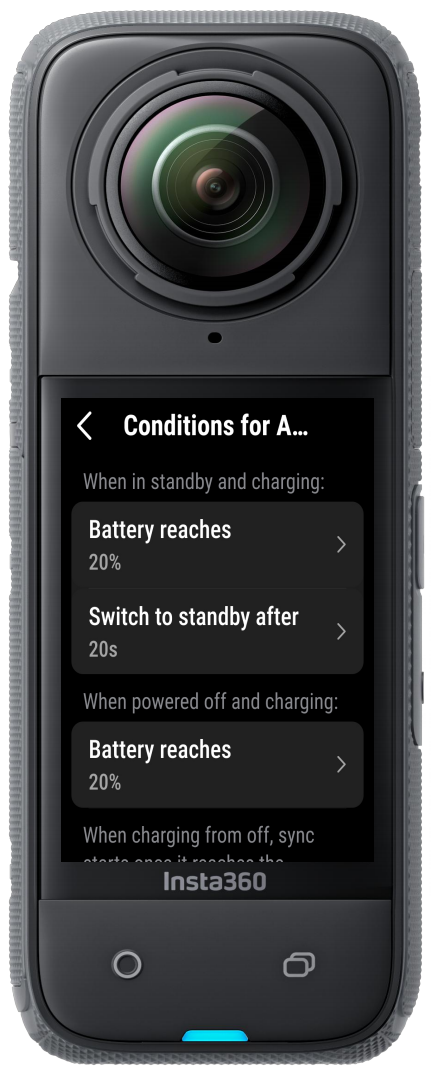
(3) Once the camera meets sync conditions, it will automatically sync files to the cloud.
(4) If you want to ensure your camera always has storage available, you can turn on “Delete the original file after uploading” in sync settings, and the camera will delete files once synced.
Note: Auto Sync is enabled by default. To disable it, navigate to the Insta360+ page of your camera.
● Manual Sync
(1) Turn on your camera, swipe down to access the menu, then swipe right to enter the Insta360+ page.
(2) Once the camera meets sync conditions, tap "Sync now" to manually sync files while the camera is powered on or in standby status.
a. If "Auto Sync" is enabled, the sync will automatically start when the camera is powered off and the conditions for auto sync are met.
b. If "Auto Sync" is not enabled, the sync will be interrupted when the camera is powered off. The interrupted sync will resume from where it left off during the next sync, without the need to start over.
.svg)


第一时间获得 影石Insta360 最新动态

活动、教程、服务,尽在此处


.svg)