Drift Shot Tutorial
-
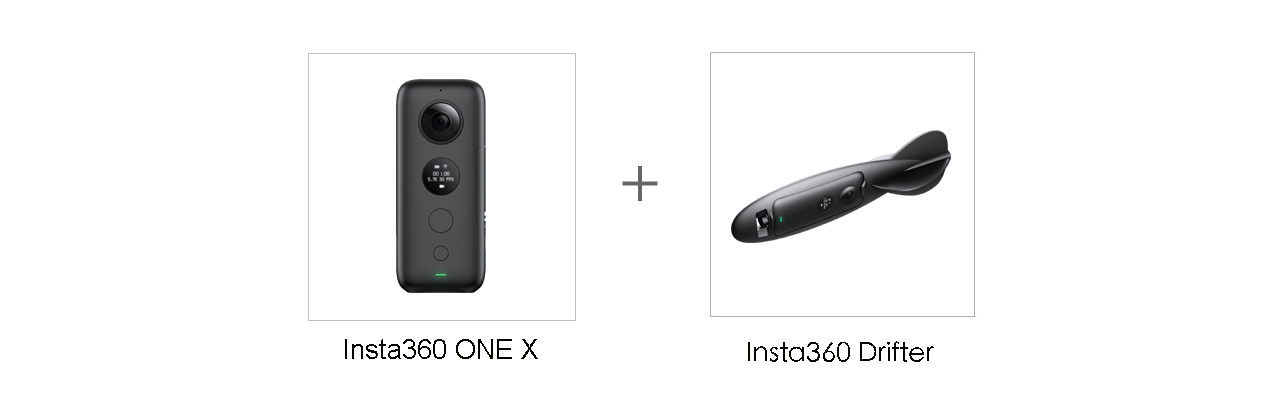
- Shooting Equipment: Insta360 ONE X, Insta360 Drifter
-
- Suitable For: 2 people or above
- Shooting Scene: Outdoor places with spacious room
-
- Tutorial:
- 1.Safety first!
- Ensure you are throwing the camera according to our safety guidelines shown in your manual. Make sure you’re throwing over even ground without any debris, and you don’t throw the drifter with too much force.
- 2.Setup for video recording
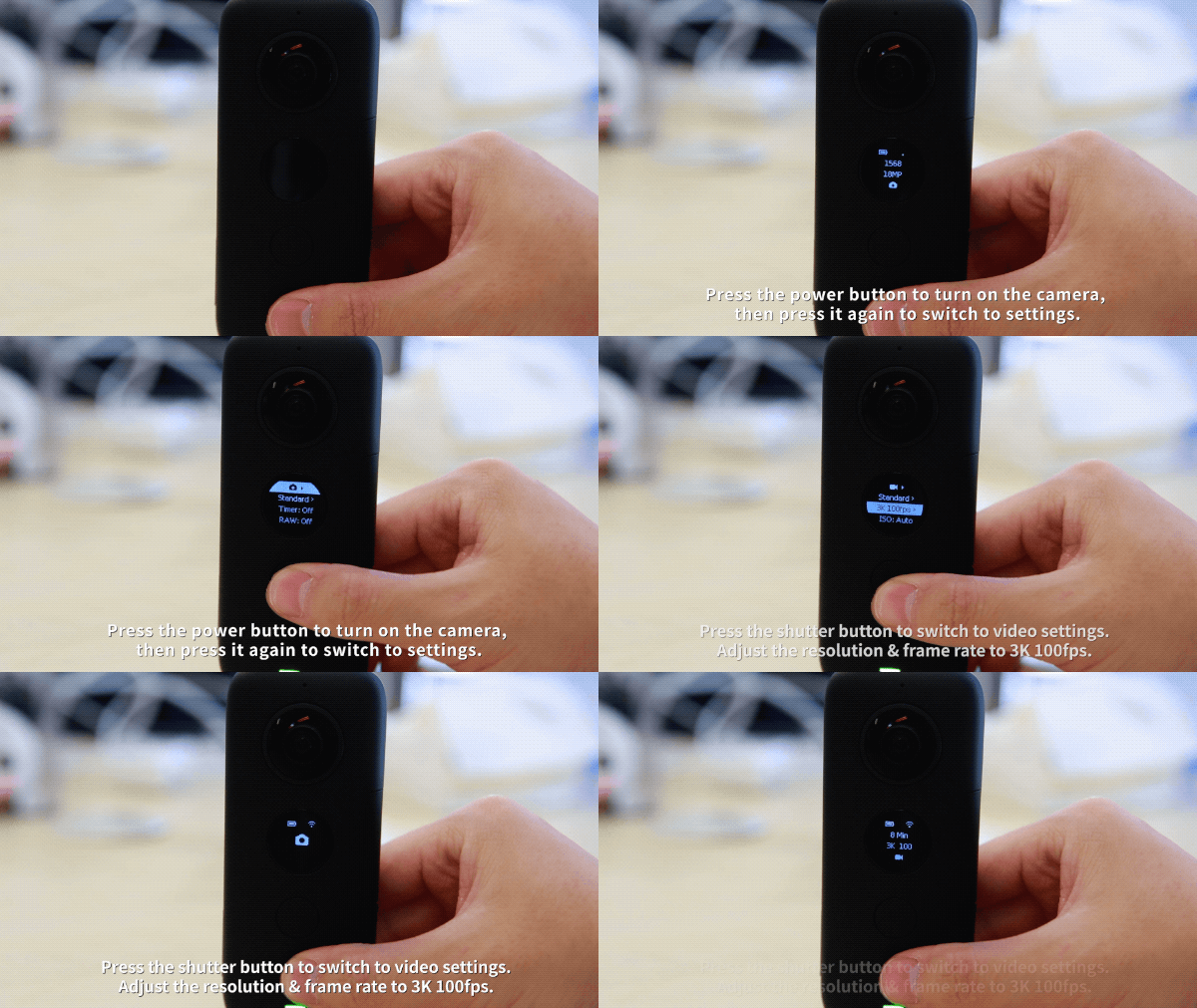
- Press the power button (the small one) to turn on the camera, then press the power button again to switch to settings. Press the shutter button (the large one) to switch to video settings. Adjust the resolution & frame rate to 3K 100fps.
-
- 3.Snap ONE X into the Drifter accessory and let it take flight
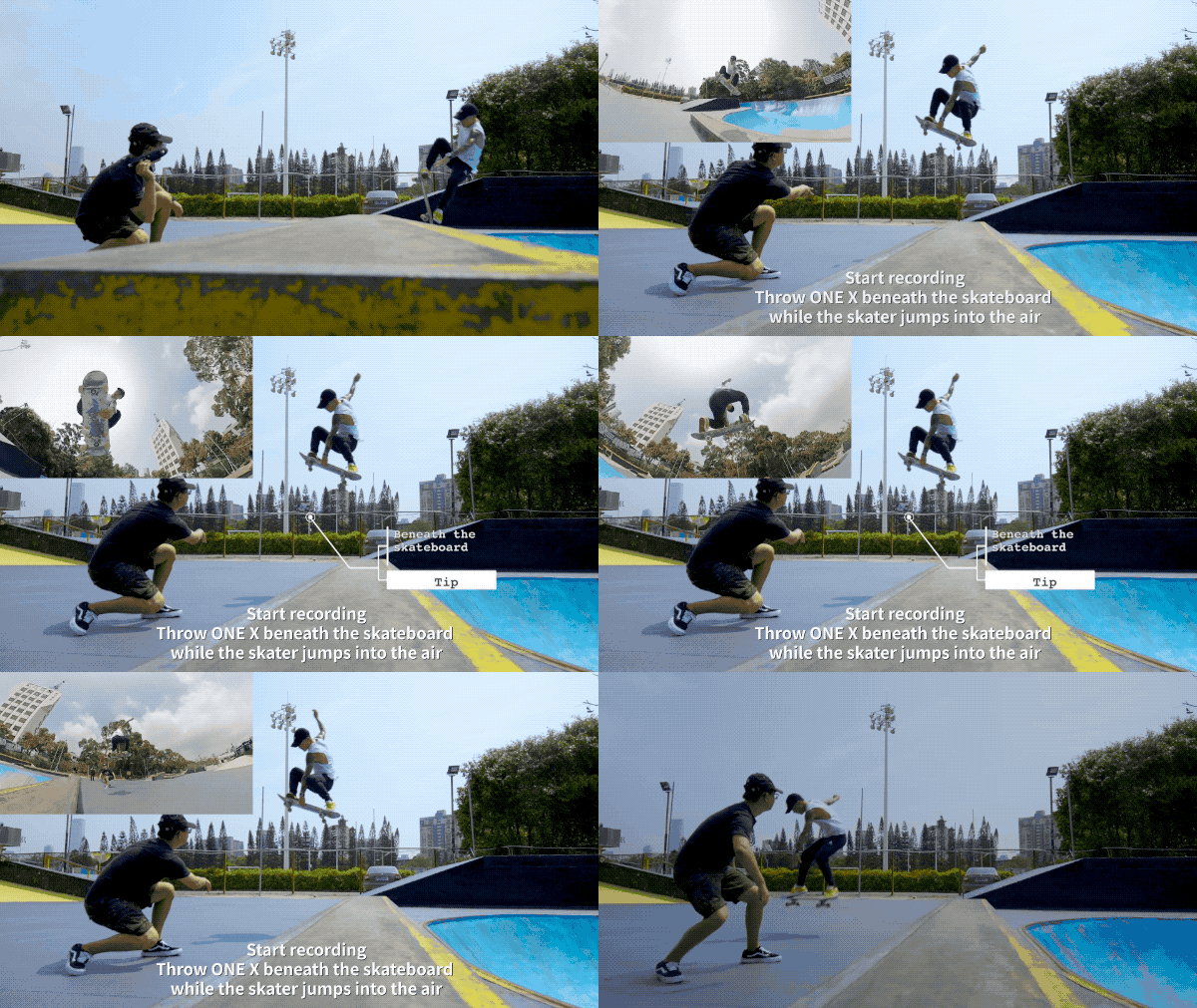
- Put the ONE X into Insta360 Drifter accessory. In 3K@100fps recording mode, press the shutter button to start recording. As one person jumps, the other one throws the camera to capture the shot.
- 4.Use the FreeCapture function to edit
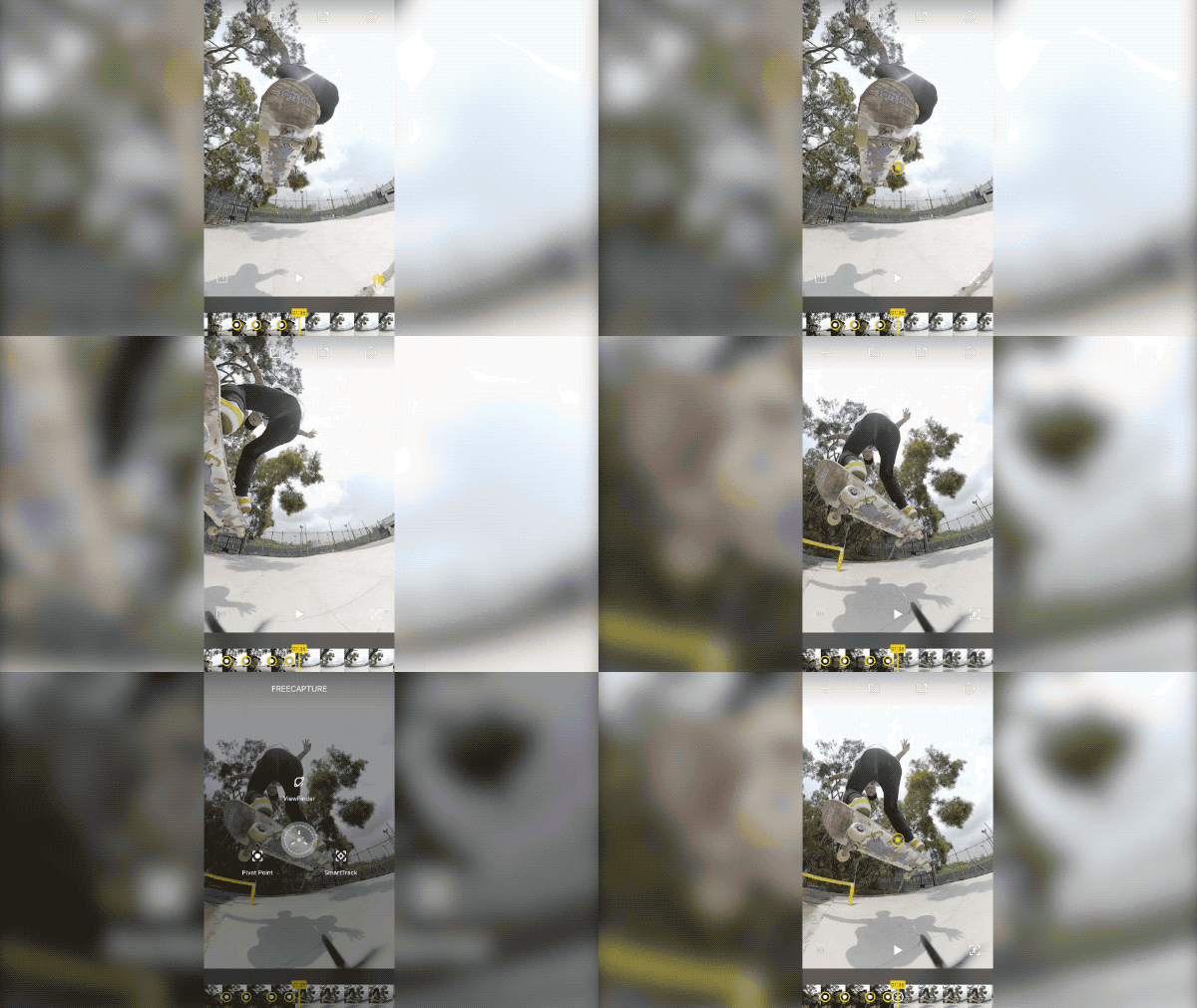
- Connect the ONE X to your phone, open the ONE X App, then download the video from the camera to your App Album. Go to the video edit page, press the button in the lower right corner or long-press on the screen to use the FreeCapture function. Choose a Pivot Point to adjust perspectives and reframe the best parts of your shot.
-
-
- 5.Adjust the speed and export the video
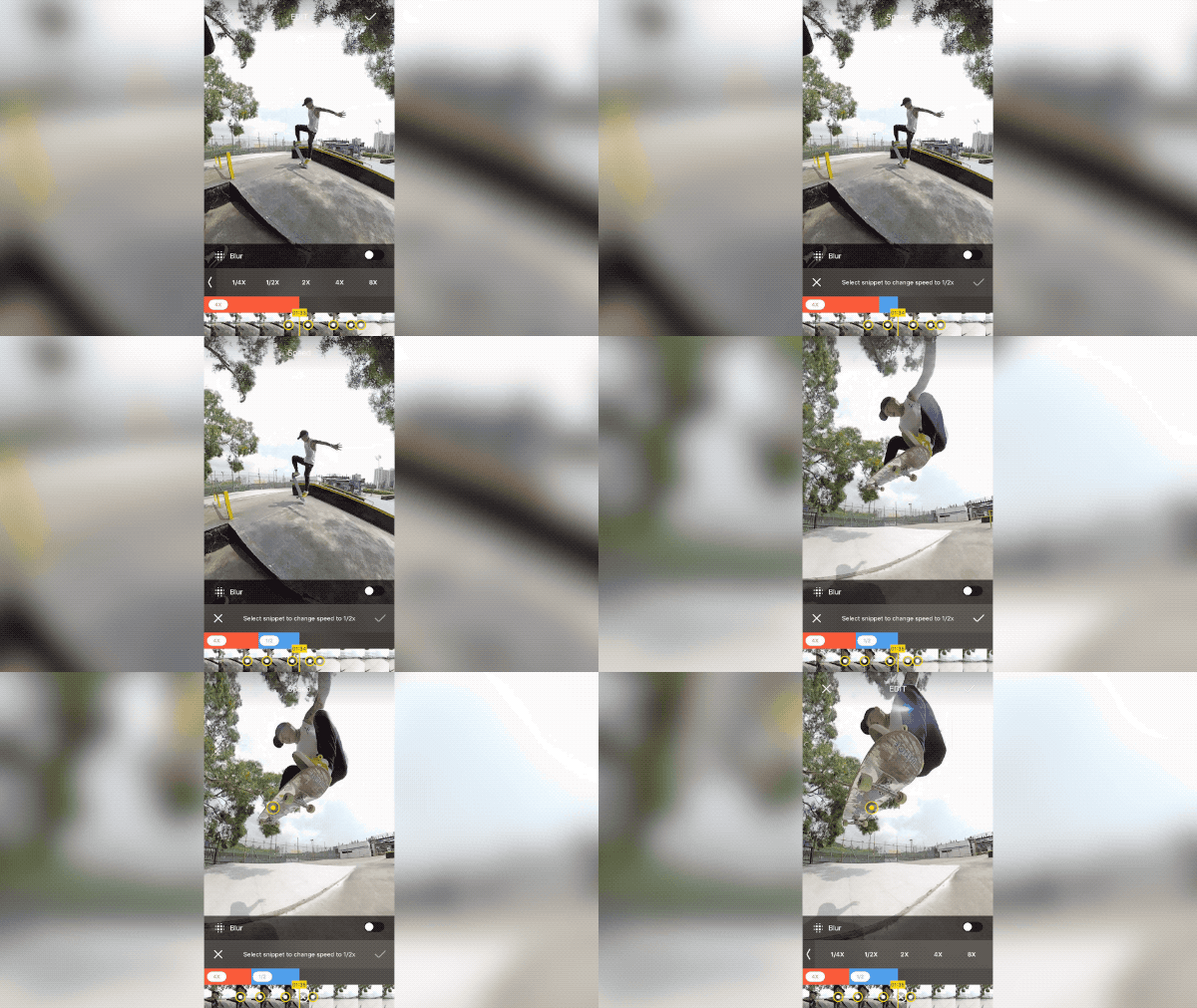
- We recommend selecting a speed of ½ action shot and speed of 4X for the rest. Share your video to Insta360 Community or your local album. Please note that the adjusted speed only takes effect after exporting.
-
- Note - For 3K 100fps video, 4X is ordinary playback speed.
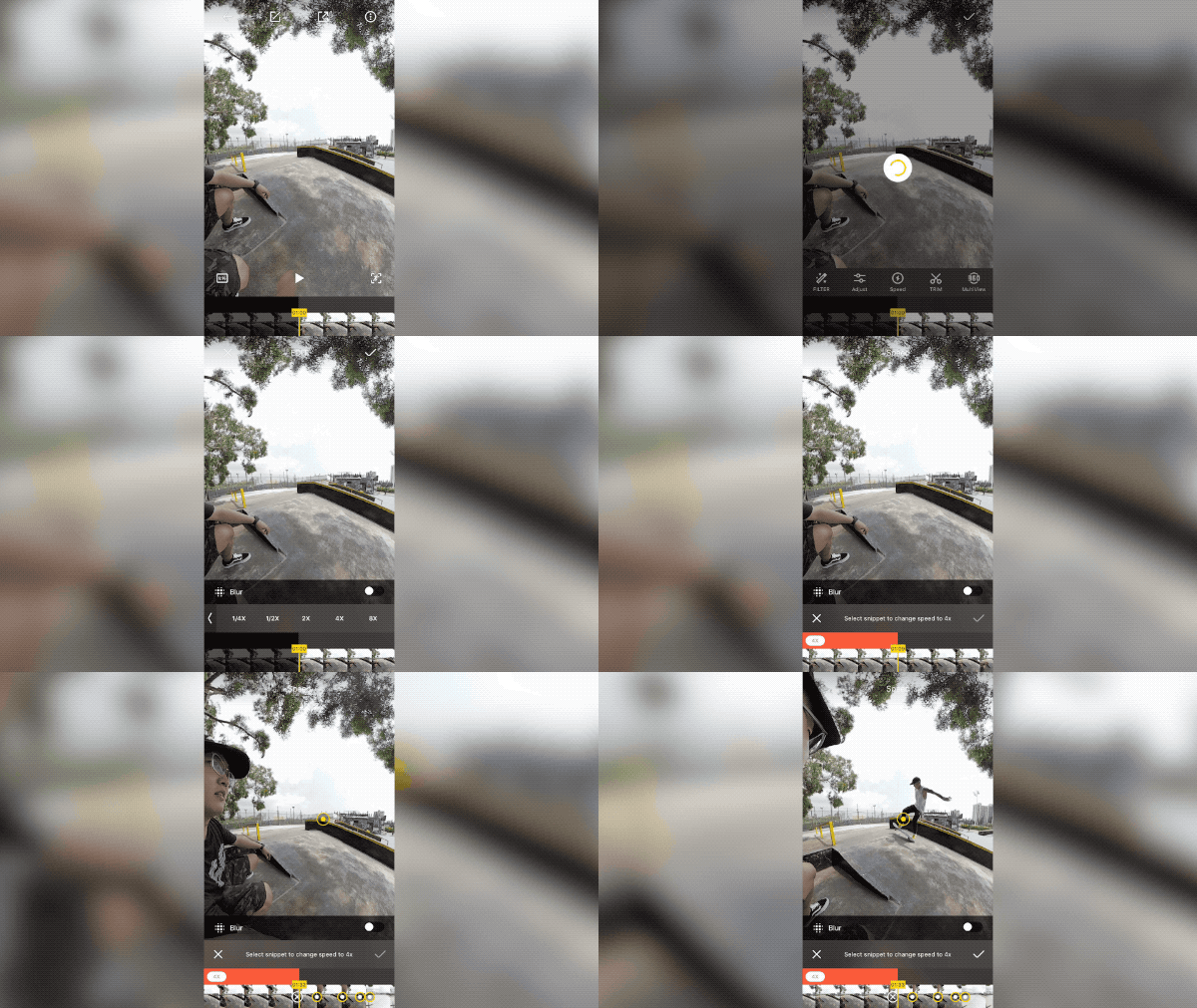
- Adjust the speed to ½X for the jumping part.
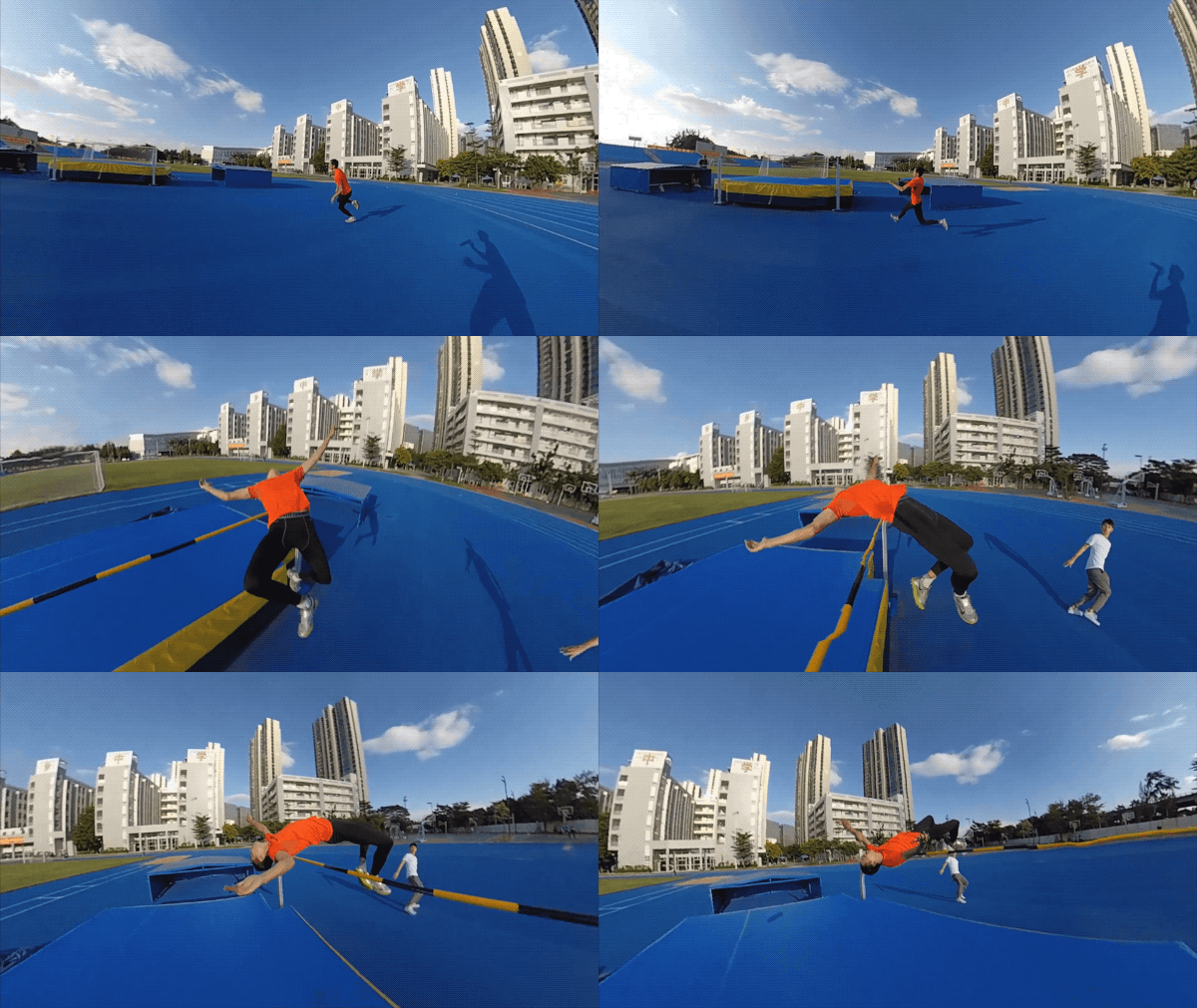
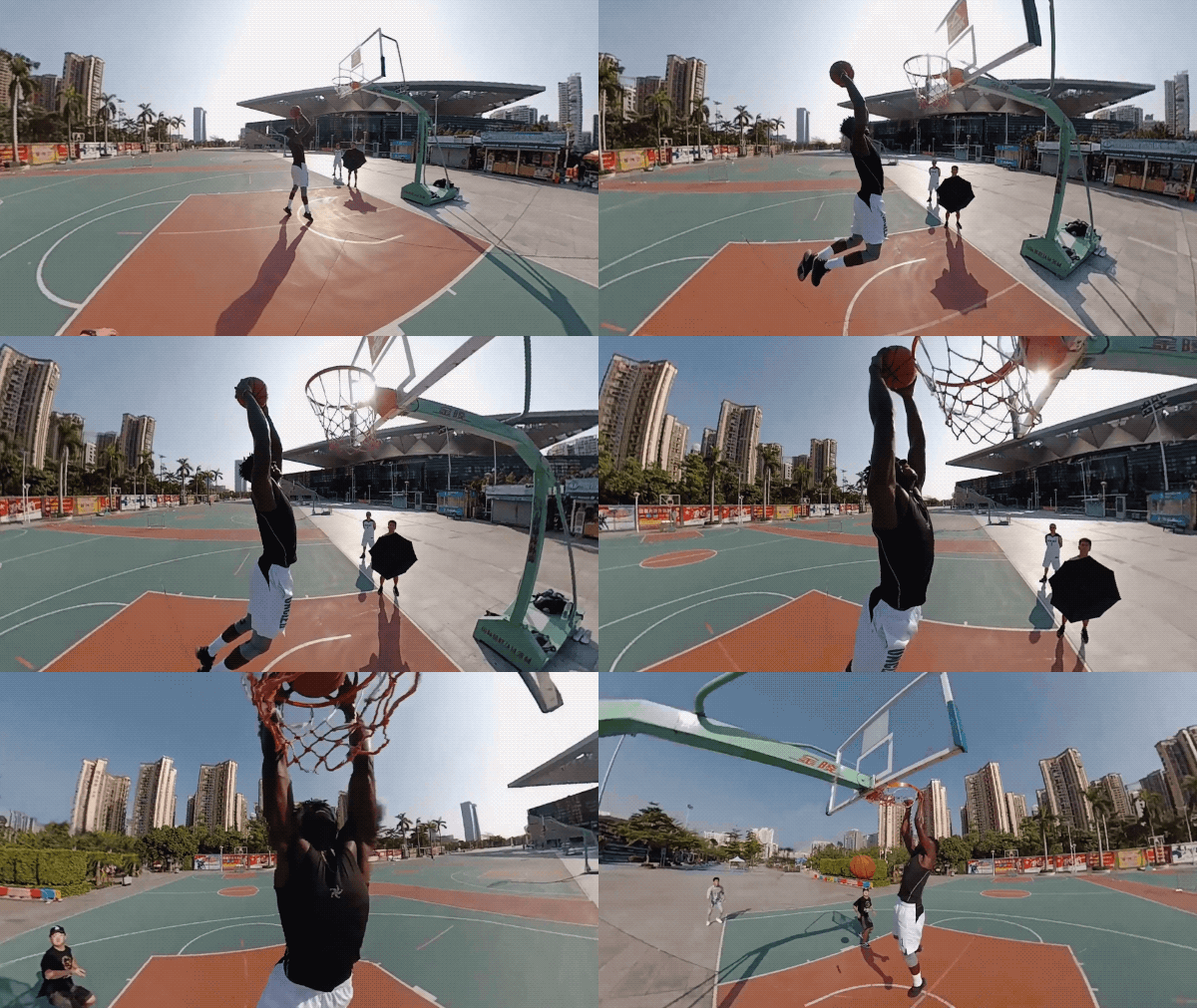
- Here are a few examples to get you inspired:
-
-
-
- Tips:
- 1.To get better effect, it’s recommended to have gyro calibration and stitching calibration before shooting.
- 2.Add background music in your video to spice it up and make your work more outstanding!
-
-
 How to join the challenge:
-
-
- 1. Log into Insta360 Community via the Insta360 ONE X app.
- 2. Tap "Explore" — "Post" — Select a video —Tag #DriftShot — Tap "Share"!
- 3. The best entries will be featured on the Insta360 Community home page for Insta360 users around the world. Get creating!
-
Was this information helpful?
.svg)


Assistance à l'achat
Questions avant-vente
Commandes & Paiement
Retours & Remboursements
 Heures de bureau: 9:00-18:00 (UTC+1)
Assistance produit
Dépannage & Aide
Réparations & Garantie
Heures de bureau: 9:00-18:00 (UTC+1)